









Streamlining Salesforce Export Files with Titan’s SFDC File Exporter

How to Export Data from Salesforce?
Whether you are backing up data, doing analysis, reporting, or data integration, complying with retention policies, or collaborating with colleagues, there are several ways to export data from Salesforce.
The simplest way to export a copy of all your Salesforce files and attachments from salesforce.com is to navigate to Setup. Search for and select Data Export, and on the newly opened window, click the Export Now or Schedule Export button. Complete the relevant information.
You can also export Salesforce reports to Excel from the Reports tab. Open the report that you want to export and click the drop-down arrow (top right corner). Click the Export option and select the export view option that you need. This way, you can export the Salesforce report to Excel and take advantage of Excel’s benefits. This option allows you to export object data with fields as a list.
Effortless Salesforce Export Flows with Titan
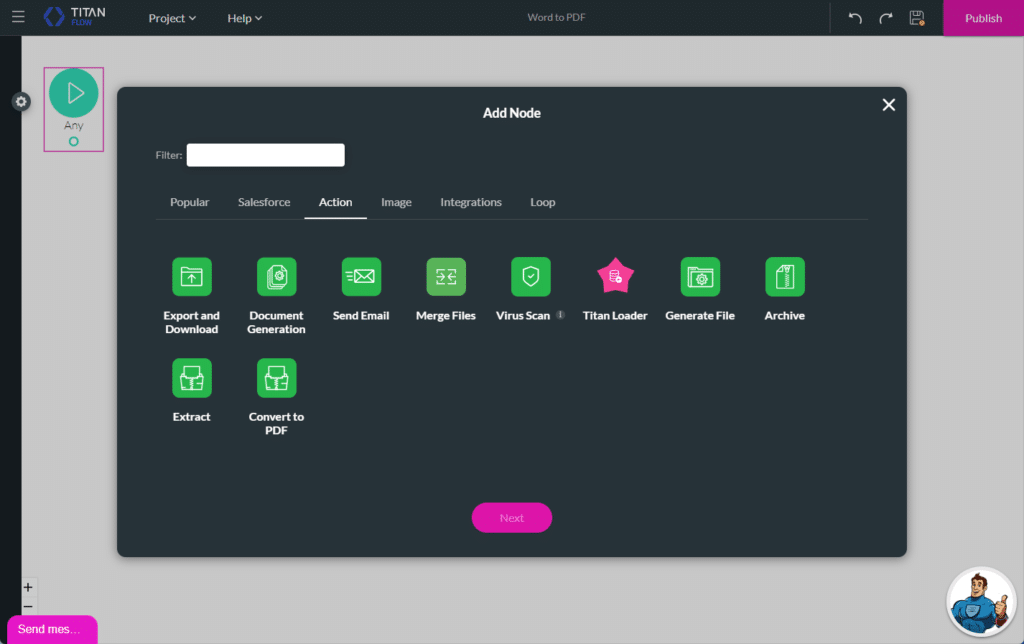
Why not try Titan Flow to export files from Salesforce using flows? It lets you scan files for viruses, merge files, convert them to PDF, and read and write files from Salesforce objects using the flow builder.
Security Measures in Titan’s Salesforce Export Data Process
Make sure that your export data SFDC process is protected. Titan utilizes strong passwords, two-factor authentication (2FA), and Single Sign-On (SSO) integrations to control access to Salesforce data.
Frequently Asked Questions
How can I export XML files in Salesforce?
The Data Export Service tool allows you to export various data types in XML format, including files and attachments.
- Go to Setup > Data Export > Schedule an Export.
- Choose “ContentDocument and Files” under “Select Object(s).”
- You can filter the files by specific criteria like date range or related records.
- Select “XML” as the export format.
Once the export is scheduled, you’ll receive an email notification with a download link when it’s complete.
How can I export files from Salesforce?
- Data Export Service Salesforce, a built-in tool, allows you to schedule exports of different data, including files and attachments and is excellent for regular exports of a large number of files.
- You can export Salesforce Files stored in the “Content” object in Salesforce using tools like Data Loader or through the Salesforce Connect API.
- You can use third-party integration platforms, such as Titan (available on the Salesforce AppExchange), specializing in Salesforce file management and exporting.
- Apex code gives you complete control and custom format but requires developer expertise.
How do I export multiple attachments in Salesforce?
Use the Data Export Service: Go to Setup > Data Export > Schedule an Export. Select “ContentDocument and Files” and filter the options based on your needs. Include related records if necessary. Choose “ZIP” as the format to receive all attachments together.
Alternatively, use the Data Loader: It offers more flexibility but requires some technical knowledge. Use it for specific criteria not available in Data Export. Set up the Data Loader to extract ContentDocument records with associated files.
How do I extract all files from Salesforce?
You have different options, such as Salesforce’s Data Export Service and third-party tools and apps, or you can write your own code to download files or attachments from Salesforce.
Titan Files: A No-Code Salesforce File Exporter
With Titan Files, you can enjoy advanced file management to automate Salesforce data export tasks. Titan Files for Salesforce Flows is our dedicated file automation tool that enables seamless file management.
Using this product, you can perform several powerful actions, such as scanning files for viruses, uploading files to cloud-based storage, or converting a Word document into PDF. Titan Files lets you export files from Salesforce and do advanced file management tasks using zero code. Learn more about Salesforce File Operations with Titan Files.
We hope to see you soon!
Disclaimer: The comparisons listed in this article are based on information provided by the companies online and online reviews from users. If you found a mistake, please contact us.
You might be interested in
Writing Your First Notarized Letter Like a Pro

How to Remove Track Changes in Word

Signee Vs. Signer Vs. Signatory: What are They?

All-in-One Web Studio for Salesforce