









Export Salesforce Report to Excel Overview

Did you know that Microsoft Excel is the most popular spreadsheet software in the world? On average, it’s estimated that 750 million users take advantage of Microsoft Excel’s capabilities. We are not surprised by this staggering amount, as Microsoft Excel offers powerful data manipulation, analysis, and visualization tools.
Is your business one of those that use Microsoft Excel and Salesforce for document generation? Combining these two powerful applications allows you to transfer Salesforce data to Excel and build charts, graphs, pivot tables, and more with Microsoft’s data reporting and analysis tools.
That is just one of the benefits of connecting Salesforce and Excel. Join us in the article below to explore a few more benefits of exporting Salesforce reports to Excel.
Salesforce Lightning’s Export Report to Excel Benefits
There are many benefits that your business can receive from exporting a Salesforce report to Microsoft Excel, especially if you have customer relationship management (CRM) and sales teams in your organization.
Here are a few reasons why teams would want to export a Salesforce report to Microsoft Excel:
1. Custom Data Formatting Options
Number one on our list of benefits is that you can format data how you want with Microsoft Excel. The custom formatting tools lets marketing teams create polished portfolios and presentations that can be shared with colleagues and presented to major stakeholders. Some formatting options available for Salesforce data in Microsoft Excel include highlights for data and color coding of cells to make reports easy to read.
2. Access your Data 24/7
Another advantage of exporting a Salesforce report to Excel is that you can work with your data without an internet connection. This is a powerful feature for sales representatives who are often not in the office and are out in the field engaging with customers. Even though they are not connected to the internet, access to Salesforce data allows sales teams to still view and analyze the data they need to close deals.
This feature can also extend to business analysts or data researchers in an office. When they export data to Microsoft Excel, they can manipulate and analyze it without editing it in Salesforce. This benefit empowers staff to research without fear of corrupting data.
3. Advanced Data Manipulation Options
We touched on custom data formatting options provided by Microsoft Excel in point number one, but the platform also has features for manipulating Salesforce data.
For example, export your Salesforce report to Microsoft Excel and let marketing and sales teams sort, filter, and group customer data to understand target audiences better. The calculations available in Microsoft Excel are more advanced than Salesforce’s reporting tools and can help to create personalized campaigns.
How to Export Salesforce Report to Excel
The above benefits explain why we should integrate Microsoft Excel and Salesforce. Let’s now take a look at how to export a Salesforce report to Excel.
Requirements
Before you start, ensure you have Salesforce Classic or Lightning Experience to perform the below steps. You will also need an Essentials, Group, Professional, Enterprise, Performance, Unlimited, or Developer edition with user permission to export a report.
Step-by-Step Guide for Salesforce Lightning Experience
This is how to export a report from Salesforce Lightning to Excel:
1. Go to the Reports tab, select the drop-down arrow, and choose Export.
2. You can choose between two Export Views: Formatted Report or Details Only. Choose the Formatted Report option if you want the exported report to appear as it does in Salesforce, which includes groupings, headers, and other filter details. The Formatted Report export only supports .xlsx. Choose the Details Only option if you want your exported report to have no formatting. This option is helpful if you want to perform further spreadsheet calculations.
3. For this demonstration, choose to export your report as Details Only and select Excel format (.xlsx), Excel Format (.xls), or Comma Delimited (.csv). If you choose .xls or .csv file types, remember to select an encoding option for your locale and language.
4. Click Export and save the exported file in a location of your choice.
Export Salesforce Report to Excel Automatically
There is no denying that automation is better than manual work, so is there an auto export Salesforce report to Excel option? Yes, there is! Either use a host of Salesforce’s features or try trusted third-party tools to get the job done.
Essentially, this is how it works if you want to automatically export reports to Microsoft Excel using solely Salesforce tools:
1. First, you need to create the Salesforce report you want to export.
2. Next up is scheduling the report. To do this, click on Subscribe or Schedule Future Runs in the Salesforce report. Configure your schedule. For example, it could be daily, weekly, or monthly.
3. Please select the format that you would like your report to export in, which for our demonstration will be Excel format (.xlsx), and provide your recipient’s email address.
4. And it’s that simple: Salesforce will automatically generate your Microsoft Excel report on the schedule you configured and promptly email it to your saved recipients.
If you are looking for third-party integration tools on the Salesforce AppExchange, we could recommend Apex Data Loader, Zapier, Integromat, or Tray.io.
How to Export Salesforce Opportunities to Excel
And what about exporting Salesforce Opportunities to Microsoft Excel? This is also possible and easy to achieve in Salesforce. Follow our simple guide below:
1. Login to Salesforce and click on Reports.
2. Click on the New Report button.
3. Click on Opportunities in the side menu and then Continue.

4. You can add or delete your columns with the options in the left-hand menu.
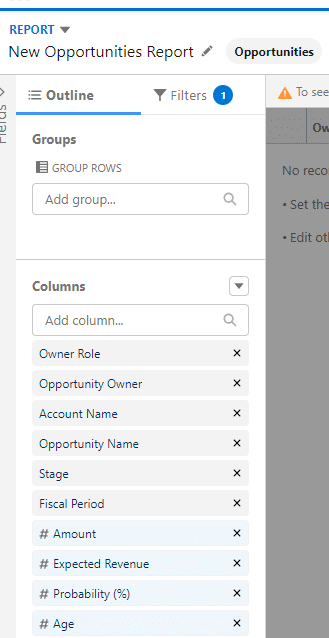
5. This next step is optional, but you can click on the Filters field to add any filters.
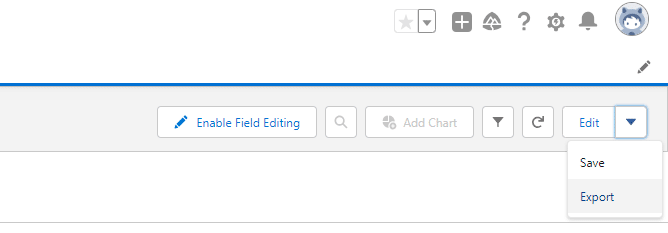
6. Click the Run button and choose the drop-down arrow next to the Edit button.
7. Select Export from the drop-down menu.
How to Export a Contact List From Salesforce to Excel
That’s not all. You can also export your contact list from Salesforce to Excel. Follow these steps to see how easy it is to achieve.
1. In Salesforce, click on the Reports tab and then the New Report button.
2. Choose the folder where you saved your report and select it.
3. Then click on Create.
4. Choose All Contacts from the Show field and remove the dates in the From and To fields.
5. Go ahead and drag any fields you want to include from the fields section, such as First Name, Last Name, and Email.
6. Click Run Report and then Export Details.
7. Choose your export format for Microsoft Excel and then click Export.
How to Export a Salesforce Report to Google Sheets
We discussed Microsoft Excel options extensively, but Salesforce reports can also be exported to Google Sheets. Some benefits you can receive from this data export are increased collaboration for colleagues and automated work processes to reduce manual tasks.
For example, with Google Sheets, multiple people can work on a single spreadsheet simultaneously. It’s the perfect opportunity to to let multiple key stakeholders edit, analyze, and review data in real-time for faster deliverables.
Additionally, Google Sheets can provide custom scripts from their Apps Script, which you can use to manipulate Salesforce data or automate work tasks.
If you would like to know more about a Salesforce and Google Sheets integration, let us know through one of our social media channels below.
FAQ
Before you run off to automate work processes and export Salesforce data into Microsoft Excel, look at some of the popular questions we receive at our Titan headquarters:
Why can’t I export a Salesforce report?
You need permission to export a report from Salesforce. Check that you have the necessary permissions in Salesforce to export a report to Excel, especially when you cannot see a button to export a Salesforce report.
How to export data from Salesforce into Excel?
Log in to your Salesforce account, navigate to the specific data you want to export. Then, locate the export option, which is found in the toolbar or under a dropdown menu. Select the export format as Excel (.xls or .xlsx) and choose any additional options or filters you require. After confirming your selections, initiate the export process.
How can I download a Salesforce report to Excel?
To download a Salesforce report to Excel, open the report you want to export in Salesforce, click on the “Export” button located at the top right corner of the report view. From the dropdown menu, select “Excel” as the desired export format. Once you confirm your selection, Salesforce will generate the Excel file containing the data from your report.
How do I export a report from a Salesforce format?
Two format options are available if you want to export a Salesforce report to Excel: Formatted Report or Details Only.
Can you automatically export a report from Salesforce?
Yes. You can automatically export Salesforce data in weekly or monthly intervals.
Custom Salesforce Solutions for your Business
Thanks for reading our article on exporting Salesforce reports for Microsoft Excel. We hope you found the information enlightening. If you would like to know more about a specific topic or are interested in extending your digital experiences in Salesforce, feel free to contact us.
Titan is a powerful no-code platform that integrates seamlessly with Salesforce data. We can help transform your business with document generation and valid XLSX files from Salesforce. And that’s not all. We have Salesforce solutions for any use case!
Disclaimer: The comparisons listed in this article are based on information provided by the companies online and online reviews from users. If you found a mistake, please contact us.
You might be interested in
Writing Your First Notarized Letter Like a Pro

How to Remove Track Changes in Word

Signee Vs. Signer Vs. Signatory: What are They?

All-in-One Web Studio for Salesforce