








Simplify File Sharing: Convert HEIC to PDF Format with Ease

HEIC (High-Efficiency Image Container) files created mostly by Apple software and tools are not compatible with all devices. This is due to the fact that the HEIC image format is quite new.
Therefore, learning how to quickly convert HEIC to PDF can make your life easier, and business processes run smoother, especially if you want to use and share them on different devices.
Join us in our article as we explore how to convert HEIC to PDF for more universally acceptable files that can be used across your entire organization and shared with customers.
What is an HEIC file?
Let’s start at the beginning. An HEIC file is a high-efficiency image container file that stores pictures. HEIC images were created by MPED (Moving Picture Experts Group) and follows the standards listed in HEIF (High Efficiency Image File Format).
HEIC file types are the way of the future as they use advanced algorithms to compress images. This means that pictures can be shared and stored in smaller file sizes.
HEIC files also have the power to retain high image quality while compressing pictures. For these reasons, they are now a logical image file format choice for managing images on hardware that has low storage space.
How to convert HEIC to PDF?
Sharing HEIC files is much easier if you can bundle them into one document. There are many solutions to help you perform this task. Take a look at our tips below to find out more about how to convert an HEIC file to PDF.
Upload Your HEIC File
You can try converting your HEIC file format to PDF with a converter tool found online. Many websites offer free HEIC conversion tools to convert HEIC to PDF. All you have to do is upload your HEIC files to the website, and the free HEIC to PDF converter tool will automatically change your image into a PDF.
Here are some websites to help you turn HEIC files into PDF formats:
- Zamzar
- CloudConvert
- Convertio
Add More Images
If you find you need to constantly convert many HEIC images into PDF formats, you might want to install a software app that can streamline your workflow.
Trustworthy apps that can support your file conversion include Adobe Acrobat and Microsoft Word. If you use a Mac, the Preview app is a good option for HEIC conversion.
For any of these programs, all you need to do is open your HEIC files in your app of choice, and then save/export them out as PDFs.
Convert HEIC File to PDF
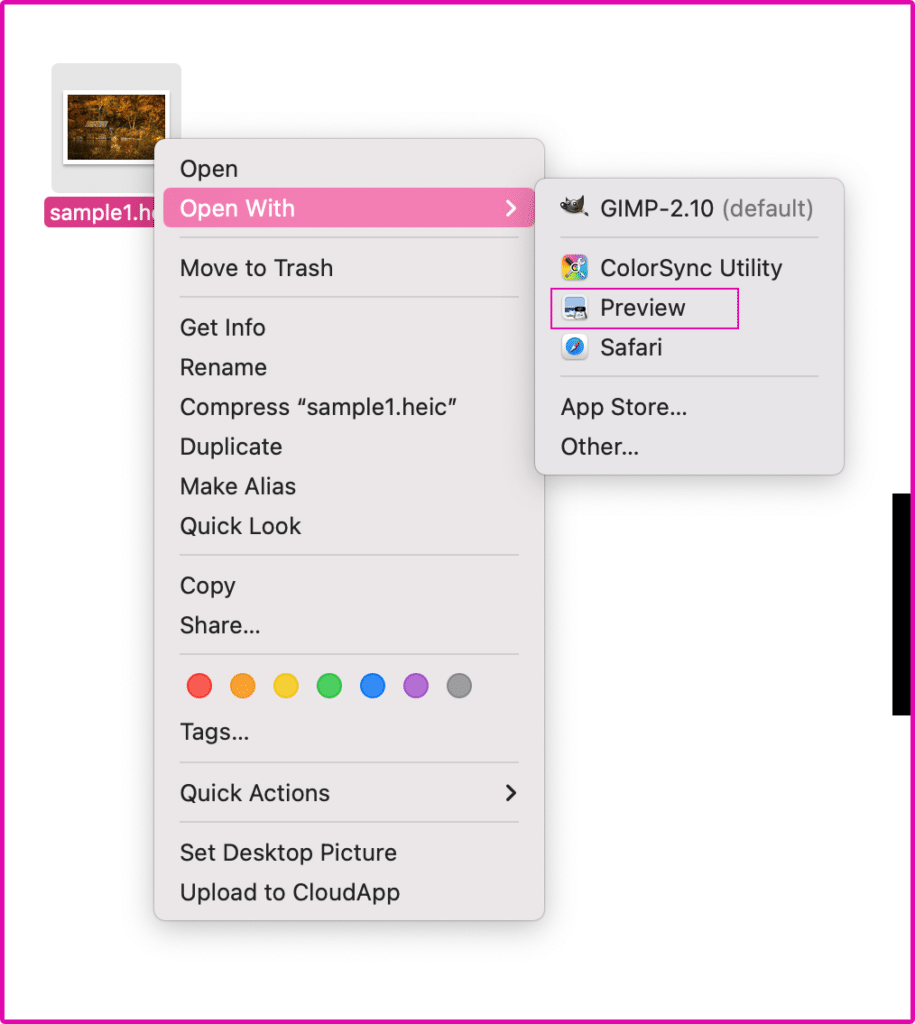
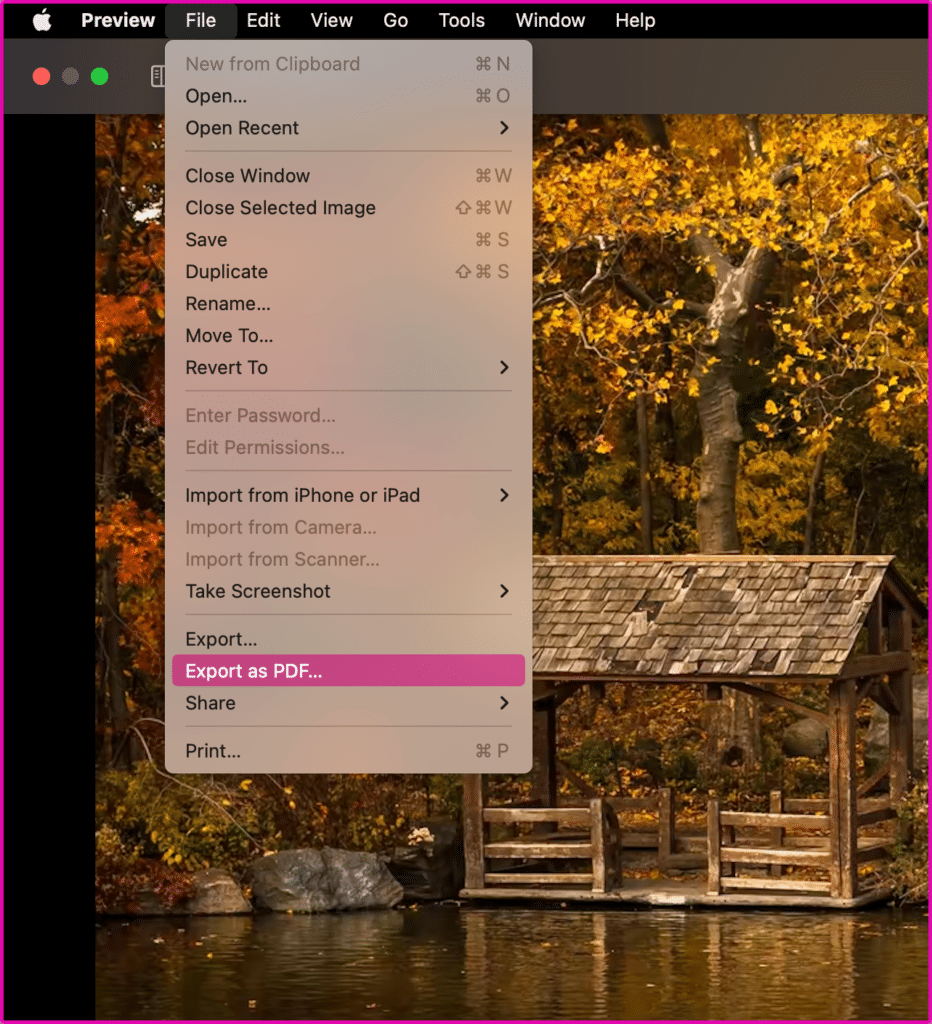
Mac computers give you the option to convert from HEIC to PDF instantly. Simply use the computer’s Preview app and follow this easy step-by-step guide.
1. Right-click on your HEIC file and select Open With > Preview.
2. Select File from the menu and then the Export as PDF… option.
3. Finally, select where you would like to save your file like Documents, and click Save.

Save your Document
Now, you are back to working with PDFs. You can store these versatile documents on your local computer or on a mobile device.
We suggest creating a folder to save your PDFs so that you have an easy method to find and share them in the future.
You can also upload your PDFs to cloud storage apps. Some reliable options for storing and sharing files are Google Drive, Salesforce, and Dropbox.
The best part about using a cloud storage app is that colleagues and clients can access your shared files from anywhere in the world by using a mobile device and the internet.
Frequently Asked Questions
Will there be quality loss when I convert an HEIC to PDF?
Yes, and the quality loss will depend on which process you have chosen to change HEIC files.
If you want zero image quality loss, choose a file conversion method that protects the original quality.
You can ensure you have minimal quality loss by selecting no compression or resizing options for images when converting them to PDF.
How do I combine HEIC photos into one PDF?
There are many methods to add HEIC photos into a single PDF document. However, not all PDF tools support HEIC file types. So, in this instance, you will first need to convert HEIC files into JPEG or another compatible image type.
You can use a file converter found online, and many of them offer the service for free. Convertio is a simple online tool you can use to upload many HEIC photos and convert them into a PDF.
How do I convert multiple HEIC to PDF on Mac?
Convert your HEIC files directly to PDF with the Preview app available on Mac. Experience how simple the file conversion is by following these easy steps:
Give the PDF a name and save it in a desired folder on your Mac.
Select all the files you want to convert to PDF and right-click on them.
Choose the Open With option from the contextual menu and then select Preview.
Your files will open in different tabs in the Preview app.
Now, arrange your HEIC files the way you need for your PDF using the drag-and-drop tools found in Preview.
When you are happy with the layout, click on File in the menu and choose Export as PDF.
HEIC to PDF Converter Article from Titan Files
Thanks for reading our article on converting HEIC files to PDF. This method is super important in the file management space. It allows teams to quickly share documents, like Salesforce files that are compatible with various mobile devices or file programs, with colleagues and clients.
If you have been inspired to automate file management tasks, we suggest you check out Titan Files. Our file management software app works with Salesforce Flows to streamline business processes and enhance work experiences for your teams.
Contact us today to find out how you can create, modify, and organize files from within Salesforce or transfer content to an external file storage app without writing a single line of code!
We hope to see you soon!
Disclaimer: The comparisons listed in this article are based on information provided by the companies online and online reviews from users. If you found a mistake, please contact us.
You might be interested in
Writing Your First Notarized Letter Like a Pro

How to Remove Track Changes in Word

Signee Vs. Signer Vs. Signatory: What are They?

All-in-One Web Studio for Salesforce