How can we help you?
Make your forms even more versatile with a few clicks and no code.
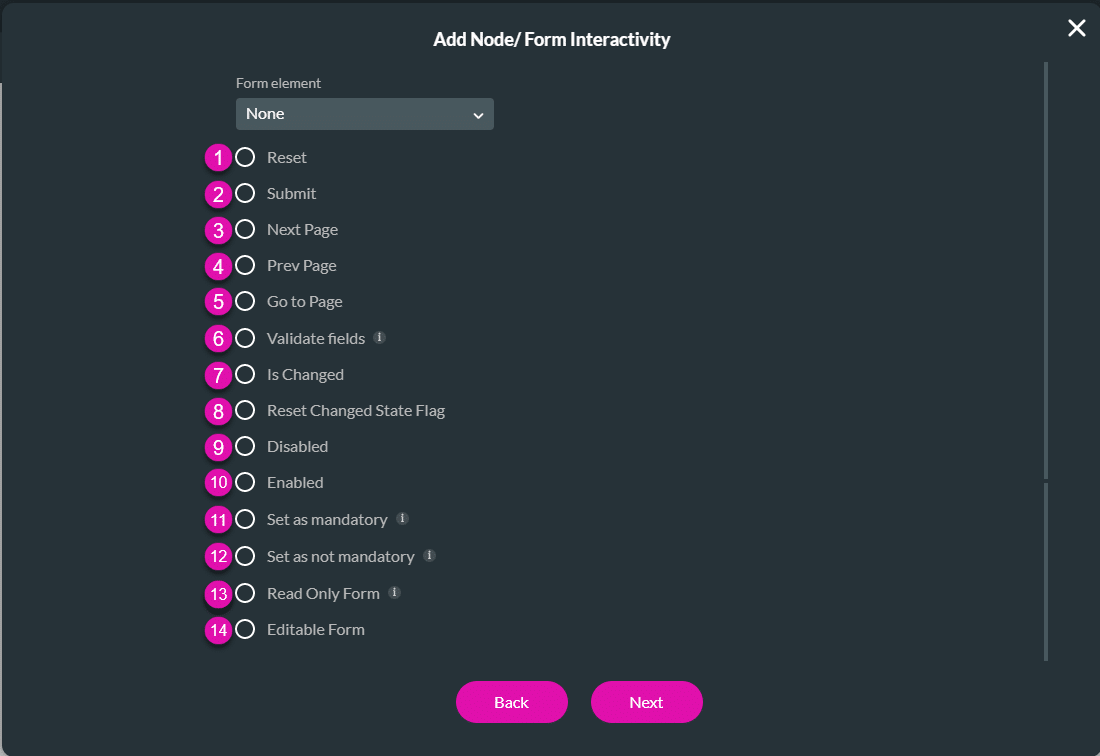
You can configure actions on a form, such as resetting or submitting the form or making it read-only.
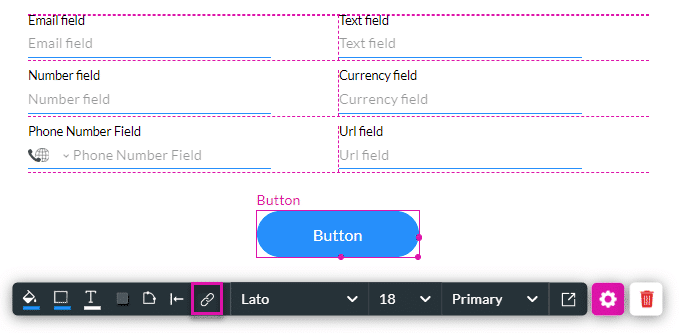
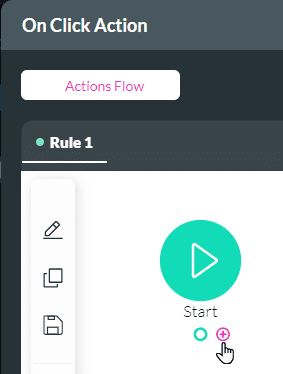
In this example, we add form interactivity to a button.

| Number | Option | Description/Link |
|---|---|---|
| 1 | Reset | Use the Reset option to reset the form. |
| 2 | Submit | Use the Submit option to submit the form. |
| 3 | Next page | Use the Next page option to go to the next page. |
| 4 | Prev Page | Use the Prev Page option to go to the previous page. |
| 5 | Go to Page | Use the Go to Page option to go to a selected page. A Static or Field option is added to configure the page. |
| 6 | Validate fields | Use the Validate fields option to validate fields. A Map results drop-down is added to configure the validation. |
| 7 | Is Changed | Use the Is Changed option to set what happens if the user changes any field in the form. |
| 8 | Reset Changed State Flag | Use the Reset Changed State Flag option to reset the flag when any change was made. |
| 9 | Disabled | Use the Disabled option to disable the form. |
| 10 | Enable | Use the Enabled option to enable the form. |
| 11 | Set as mandatory | Use the Set as mandatory option to set all the fields in the form as mandatory. |
| 12 | Set as not mandatory | Use the Set as not mandatory option to set all the fields in the form as not mandatory. |
| 13 | Read Only Form | Use the Read Only Form option to make the form read-only. |
| 14 | Editable Form | Use the Editable option to make the form editable. |









