How can we help you?
You can style the SmartV Log In screen to complement your brand and business needs.
Visit the SmartV Login page for more information on configuring the SmartV Login screen.
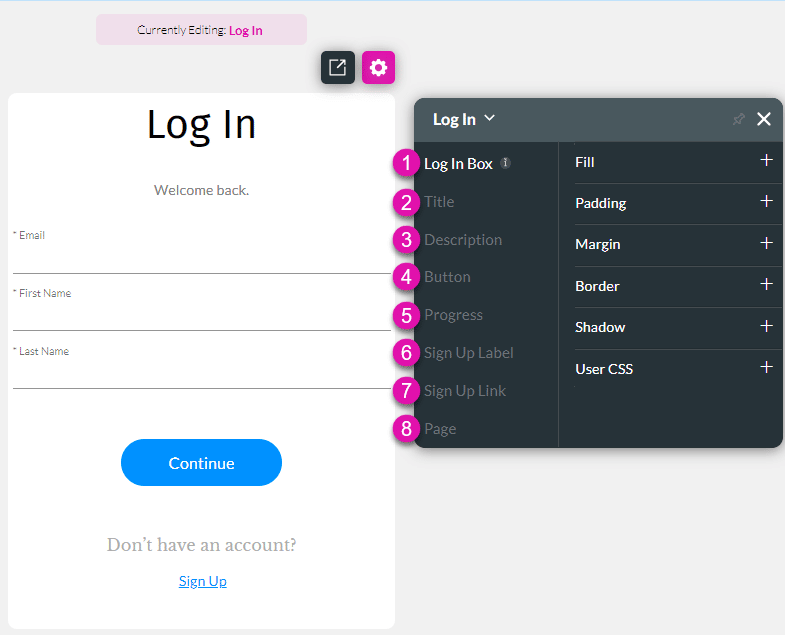
The SmartV Log In screen has several different aspects that you can style in numerous ways, for instance, changing the font (family, color, or size), adding borders, or changing colors and margins.
Below is an example of a Log In screen, which has been styled using the above options.
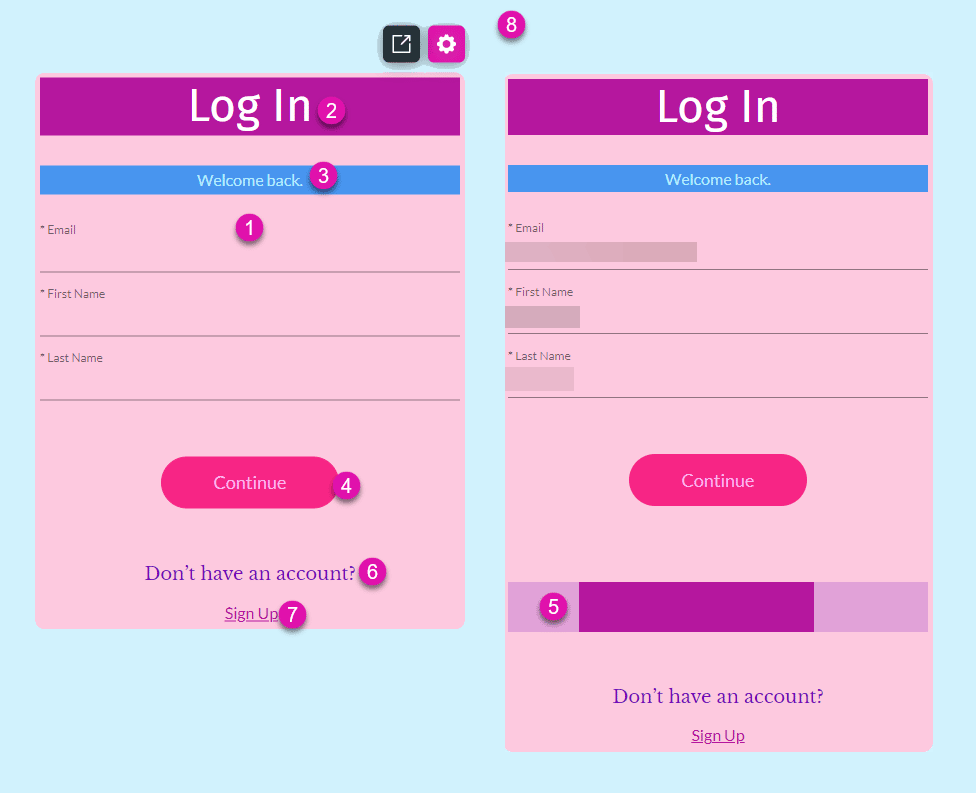
Change the styling of the Log In Box. This is the entire log in screen excluding the Page setting (number 8 on the images).
Change the styling of the Title, for instance, “Log In.”
Change the styling of the Description, for instance, “Welcome back.”
Change the styling of the Buttons (Default, Hover, and Clicked), for instance, “Continue.” You can set different styling to default, hover, and clicked buttons. The options are the same under Default, Hover, and Clicked.
Change the styling of the Progress bar. The progress bar is shown when the user has entered an identifying parameter and clicked on the button.
Change the styling of the Sign Up Label. This is the text that prompts the user to sign up, for instance, “Don’t have an account?”
Change the styling of the Sign Up Link. This is the link that the user must click to open the Registration screen, for instance, “Sign Up.”
Change the styling of the Page. This is the page background behind the Log In Box.
Style the fields on the Log In screen as follows:

Note:
Use the Captions option to change the wording of the following:
On this page









