How can we help you?
Titan Sign provides account- and project-level settings to control the appearance, content, recipients, reply addresses, and timing of signing emails.
Use these settings to:
| Setting | Level | What It Controls |
|---|---|---|
| Email header and footer | Account | Branding displayed across emails for all Titan Sign projects |
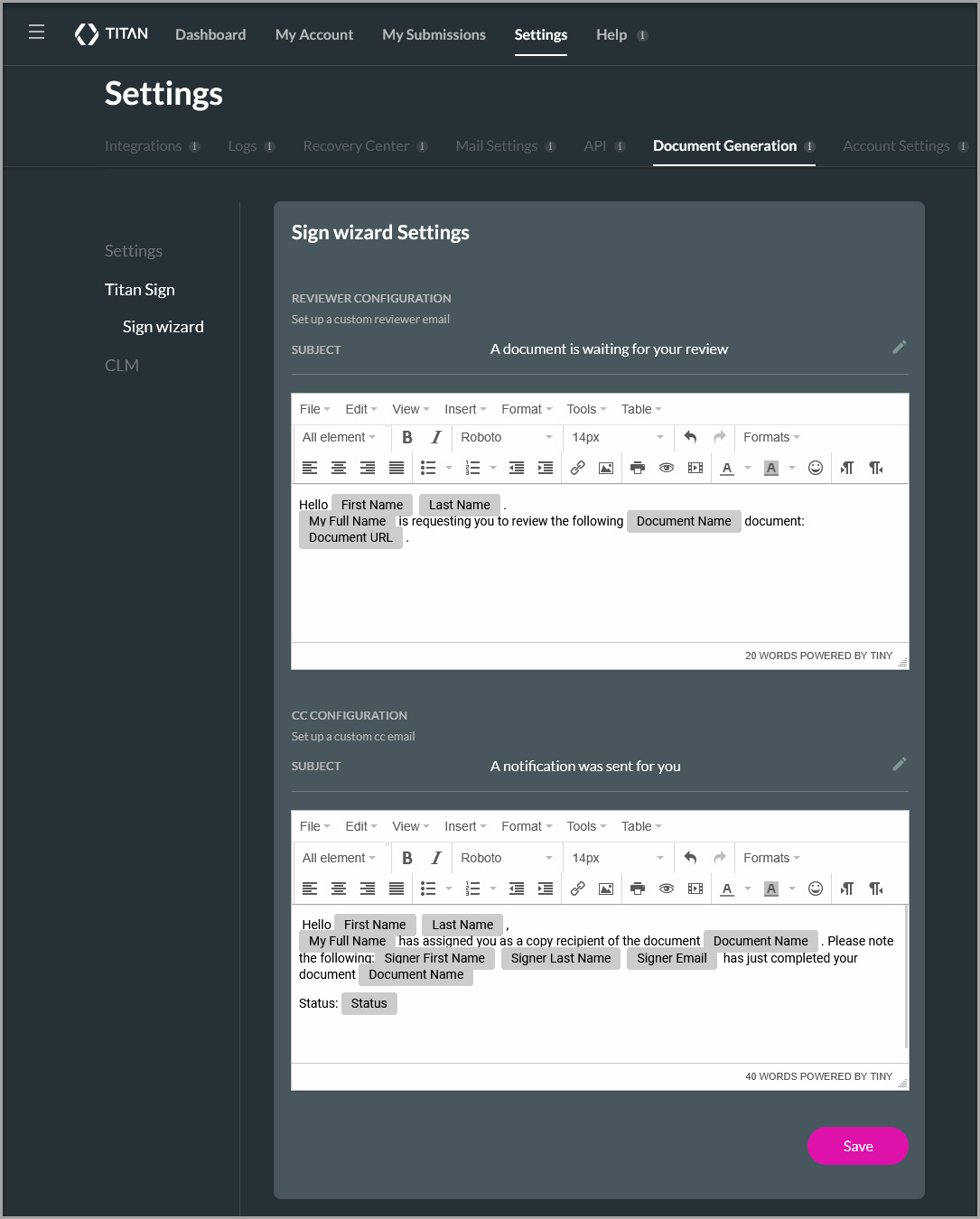
| Titan Wizard email settings | Account | Standard reviewer and CC email content used by the Titan Sign Wizard |
| Signer Reminder | Project | The subject and message sent as a signing reminder |
| Signer Auto Reminder | Project | When reminders are sent and whether they repeat |
| Signing rejected | Project | The message sent when a signer or collaborator rejects a document |
| Reject Email Recipient | Project | Who receives the rejection notification |
| Custom Reply To | Project | Where replies to Sign emails are directed |
| Send via Salesforce | Project | The Salesforce email address and logging options used to send emails |
To configure account-level email settings, you must have access to the Titan Dashboard settings.
To configure project-level email settings, create a Titan Sign project using a Word template or open an existing project.
Configure a standard header and footer when all Titan Sign projects should use the same logo, company information, or legal text.
Unless you replace them, Titan uses its default header and footer images.
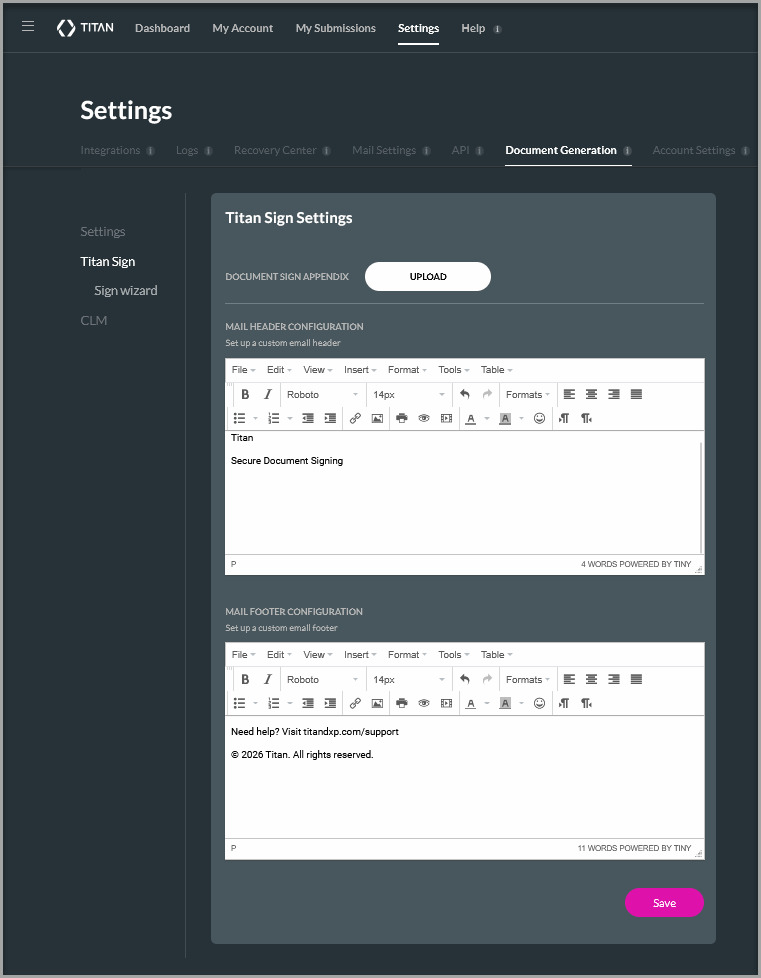
Note: Titan uses its default header and footer when you do not configure custom content. To display no header or footer content, enter a single blank space in each editor and save the settings.
Configure the Titan Sign Wizard settings so that projects created through the wizard start with the approved reviewer and CC email content.
These settings provide reusable defaults. You can still update the email content in an individual Sign project when different wording is required.
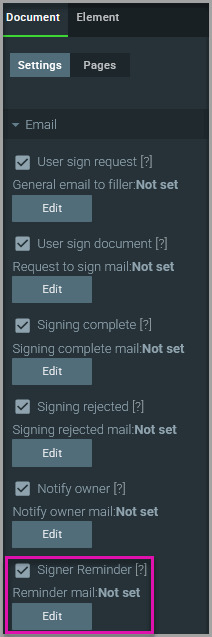
The remaining configurations apply to an individual Titan Sign project.
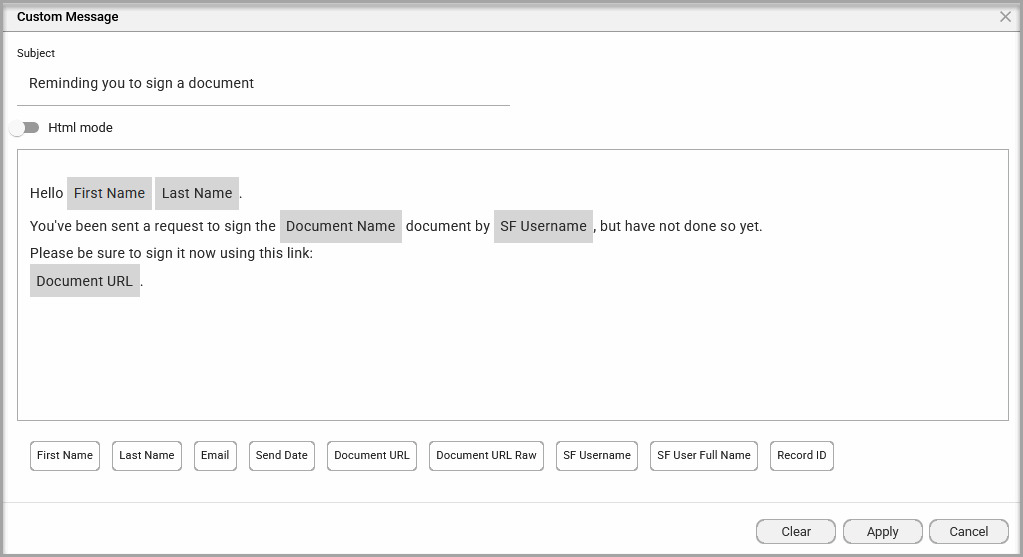
The Signer Reminder setting controls the message that signers receive when Titan reminds them to complete the document. Configure the message before scheduling automatic reminders so that each reminder contains the correct wording and dynamic information.
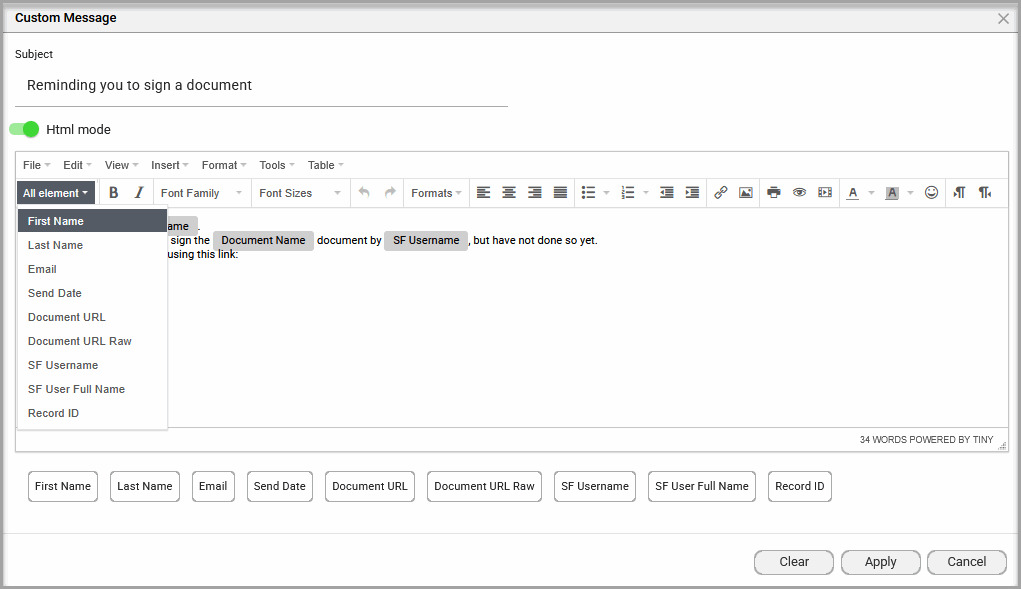
The Custom Message screen opens with a standard message that you can update.
Use Signer Auto Reminder to send up to two reminders when a signer has not completed the document. Titan stops sending reminders once the signer signs the document.
Before setting the schedule, configure the message under Signer Reminder to control the subject and content used for these emails.
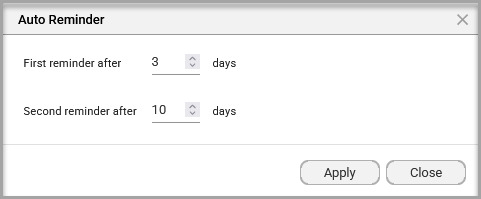
In this example, Titan sends the first reminder three days after the original signing request and the second reminder ten days after the request, provided the signer has not completed the document.
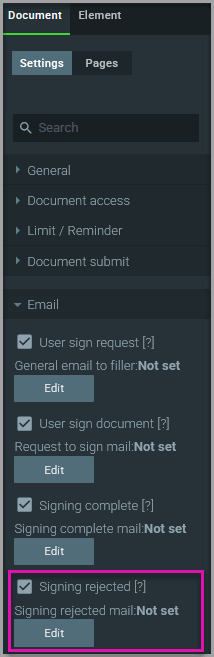
The Signing rejected setting controls the message sent when a signer or collaborator rejects the document.
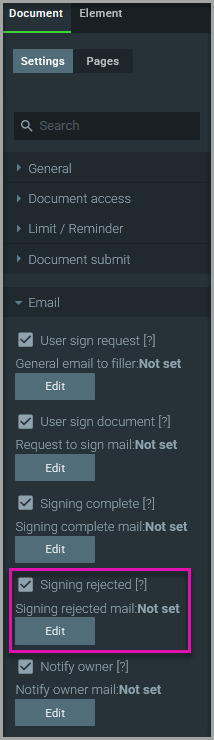
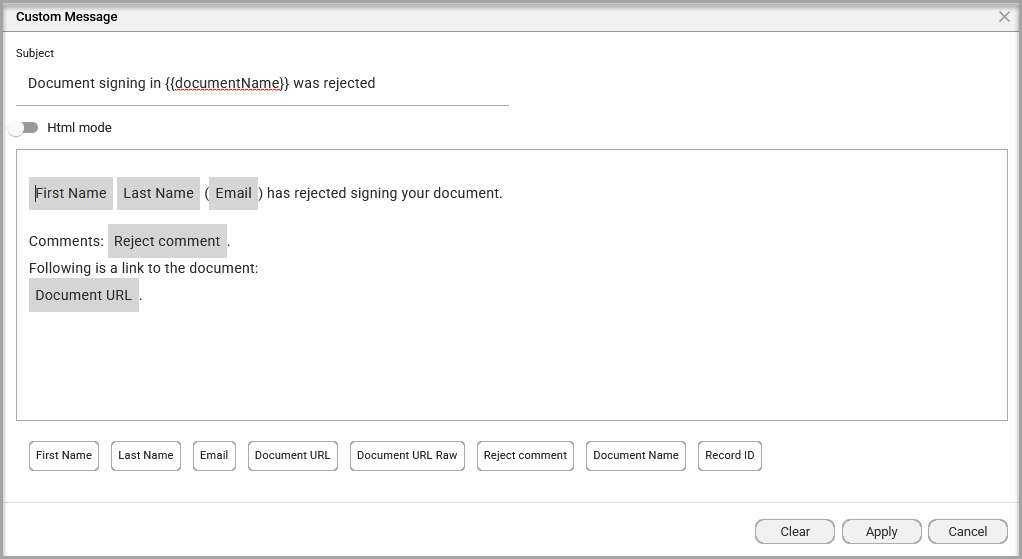
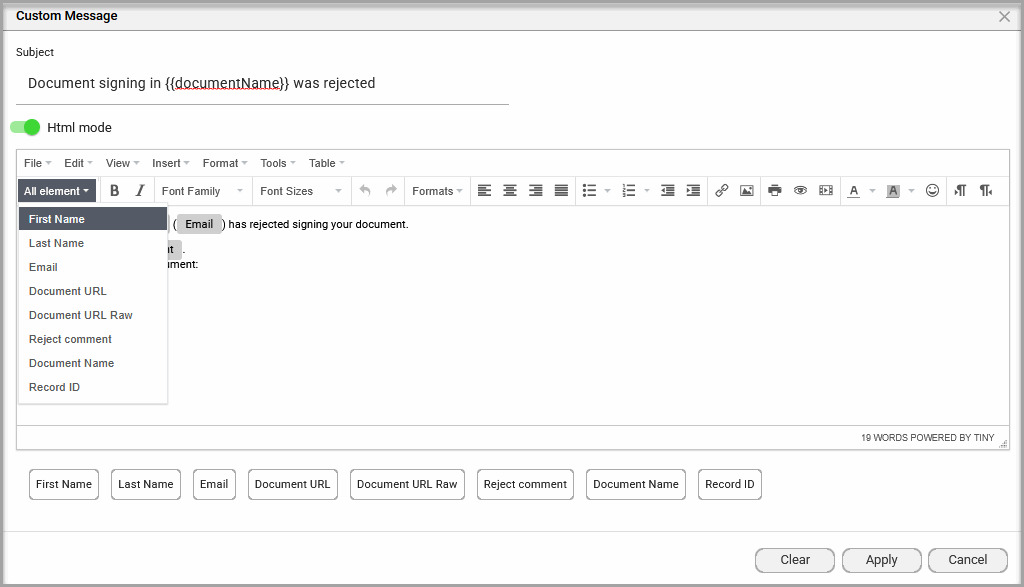
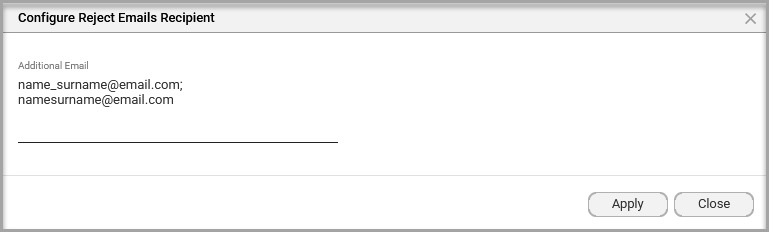
The project owner receives a rejection email by default. Use Reject Email Recipient to notify additional signers, collaborators, or external recipients.
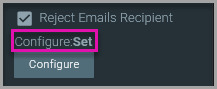
The Configure button appears with a status of Not set.
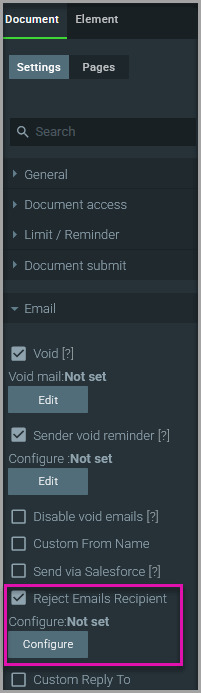
The configuration status changes to Set.
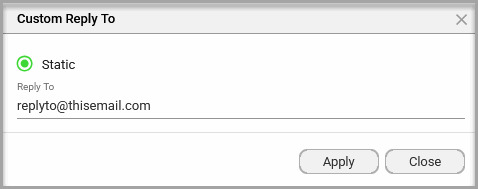
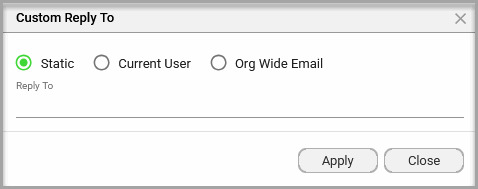
The Custom Reply To setting controls where a recipient’s response is sent when they reply to a Titan Sign email.
The available reply-to options depend on whether the project sends email through Titan or Salesforce.
Use a static address when all replies should go to one shared or monitored inbox.
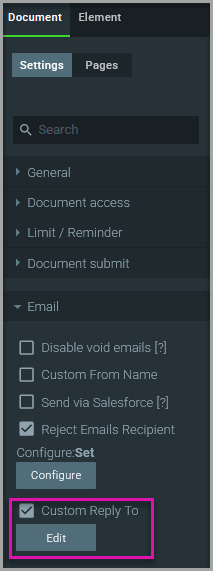
Enable Send via Salesforce when Sign emails should use an approved Salesforce email address or create email communication records in Salesforce.
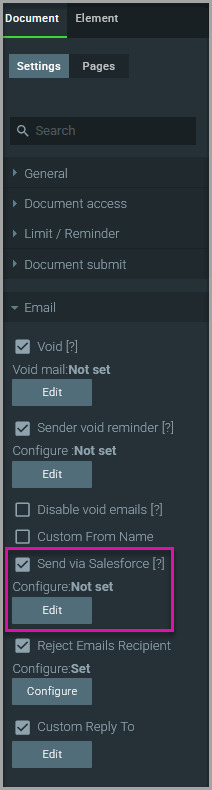
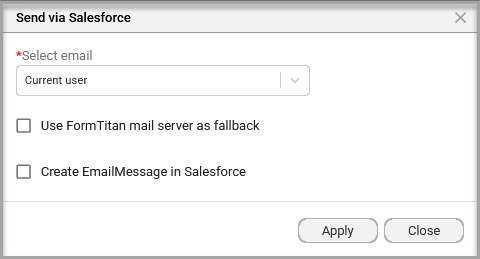
When Send via Salesforce is enabled, you can base the reply-to address on the person starting the process or an organization-wide Salesforce address.
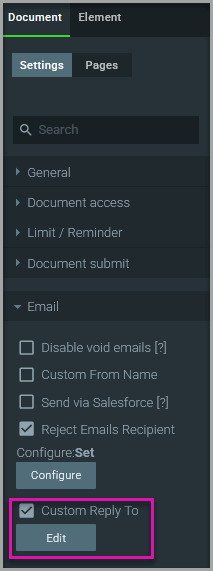
Titan Sign sends branded emails using the configured project messages and delivery settings. Signers receive reminders according to the schedule, selected recipients are notified if a document is rejected, and replies are directed to the configured address.
Signer Reminder controls the subject and content of the reminder email. Signer Auto Reminder controls when the email is sent and whether it repeats. Configure both settings when reminders must be sent automatically.
No. Titan stops sending automatic reminders after the signer completes the document.
The project owner receives a rejection email by default. You can use Reject Email Recipient to notify additional signers, collaborators, or email addresses.
Yes. Select multiple configured recipients or enter multiple email addresses separated by commas or semicolons.
Yes. Use Custom Reply To to direct replies to a static address, the current Salesforce user, or an organization-wide Salesforce address.
Titan’s default email header and footer are used.
Yes. Account-level settings provide reusable defaults, while the settings inside a Sign project let you customize its email messages.
This option creates an EmailMessage record in Salesforce for the sent communication, allowing the email to be stored and tracked in Salesforce.
On this page