How can we help you?
Customize your SmartV screens to help users log in, verify their identity, register, and manage their profile. Set session durations, edit instructions and labels, adjust layouts, and apply consistent branding across all screens.
Set up user authentication behavior, session limits, and security rules before adjusting the visuals.
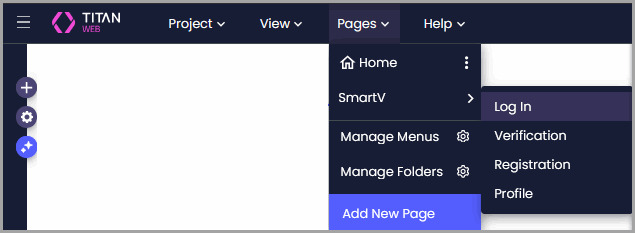
Note: Some of the options in settings (such as Accessibility and Value Rules) are available across other elements and pages. Be sure to select the relevant screen first before opening settings to configure rules or labels for that specific page.

Select Overview to manage login behavior and focus:
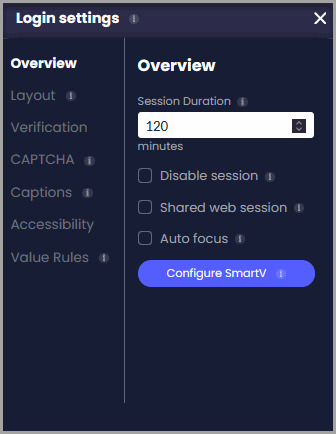
Access these options directly in the Login settings sidebar:
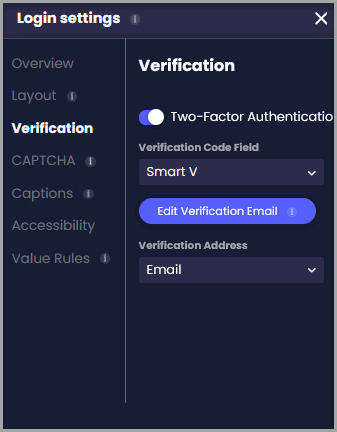
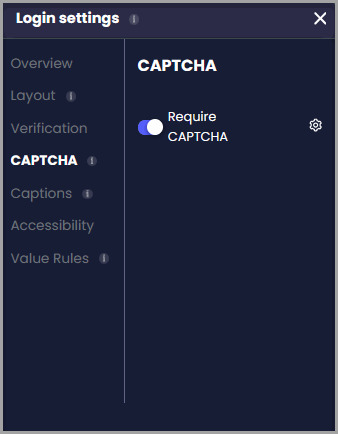
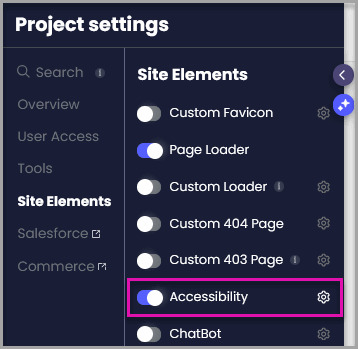
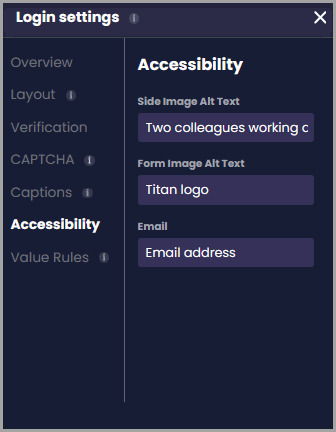
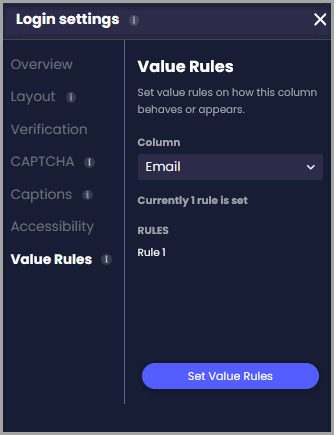
Set all user-facing wording and messages across screens before styling their appearance.
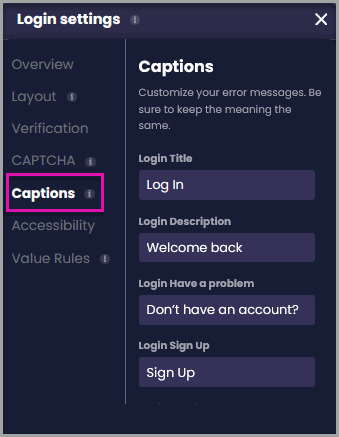
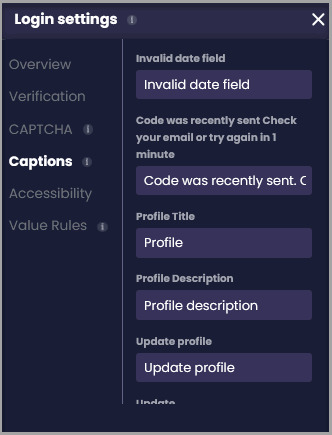
Note: Captions control what text appears; the Styling Panel controls how it looks.
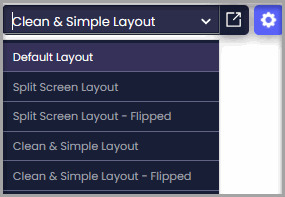
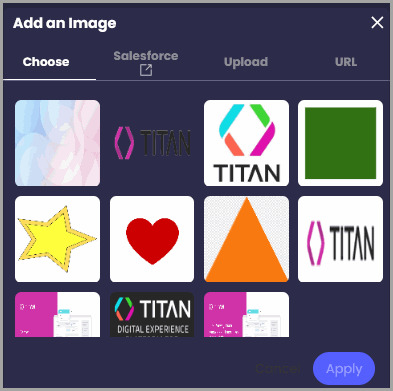
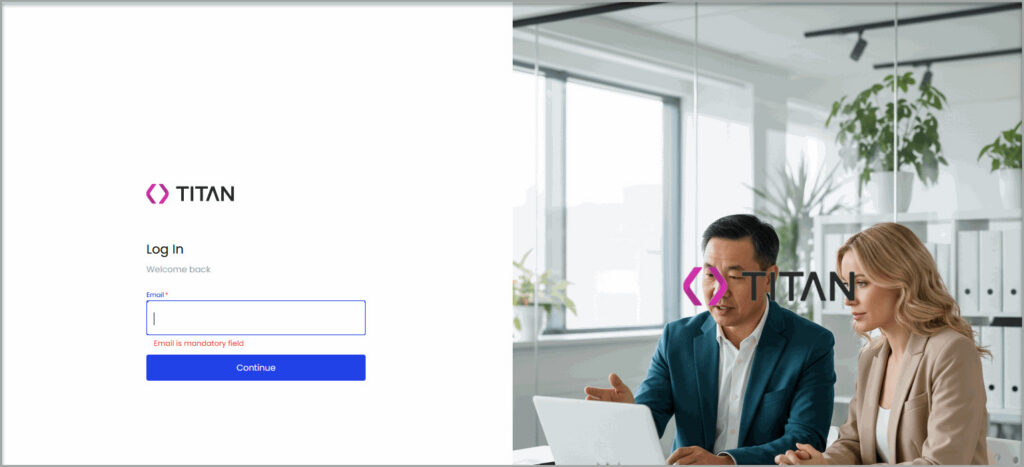
Select standard page structures and upload branded imagery for each screen.
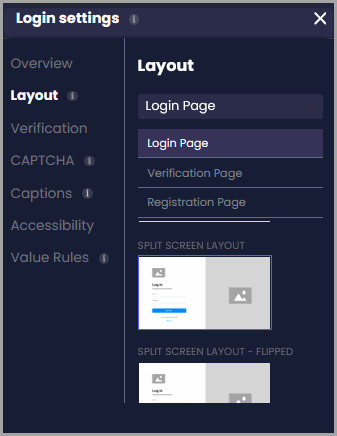
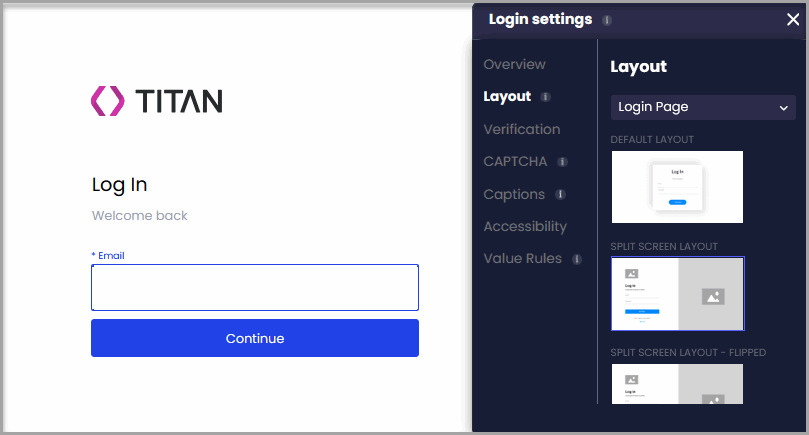
(You can also toggle layouts directly on the builder canvas using the layout dropdown menu above the selected screen.)
Apply custom typography, colors, padding, and borders across all SmartV screens using the canvas styling panel.
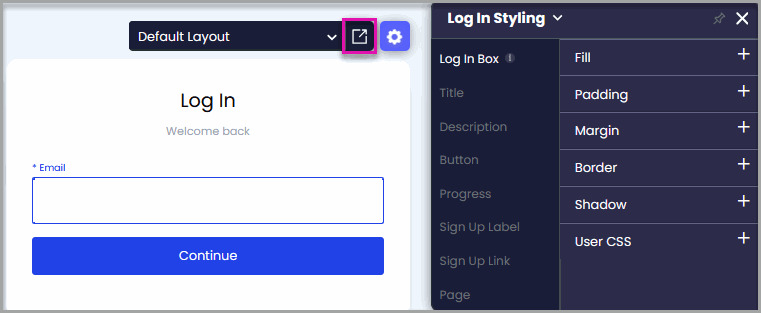
All SmartV screens share the following core elements in their styling panel:
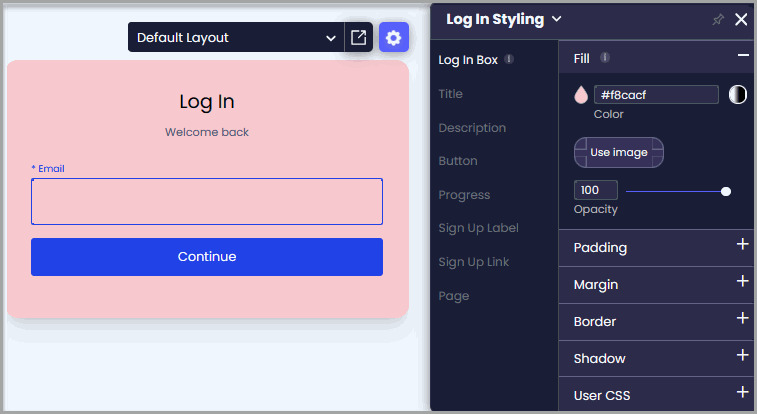
Prerequisite: Two-Factor Authentication (2FA) must be enabled in SmartV settings to access and style this screen.
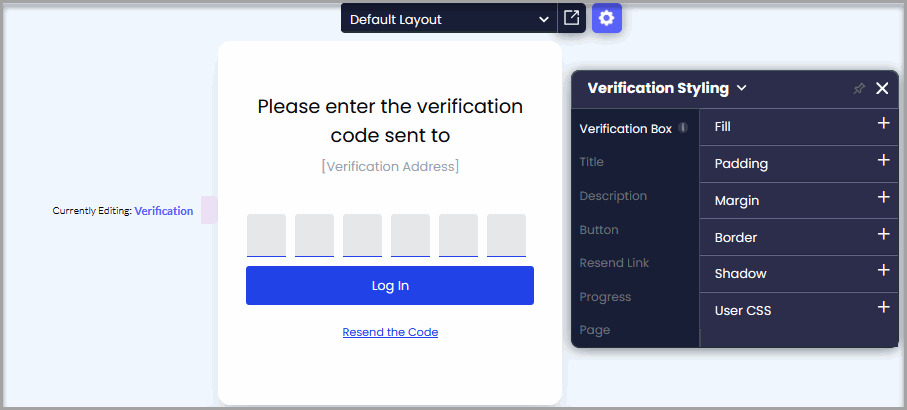
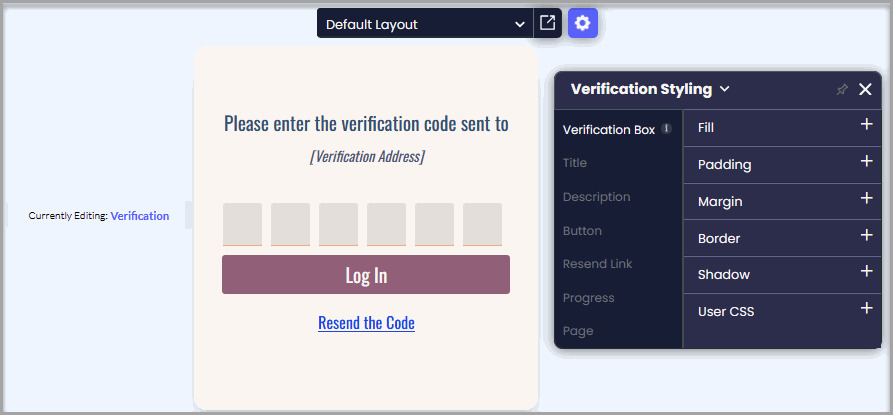
Prerequisite: Self-Registration must be enabled in SmartV settings to access and style this screen.
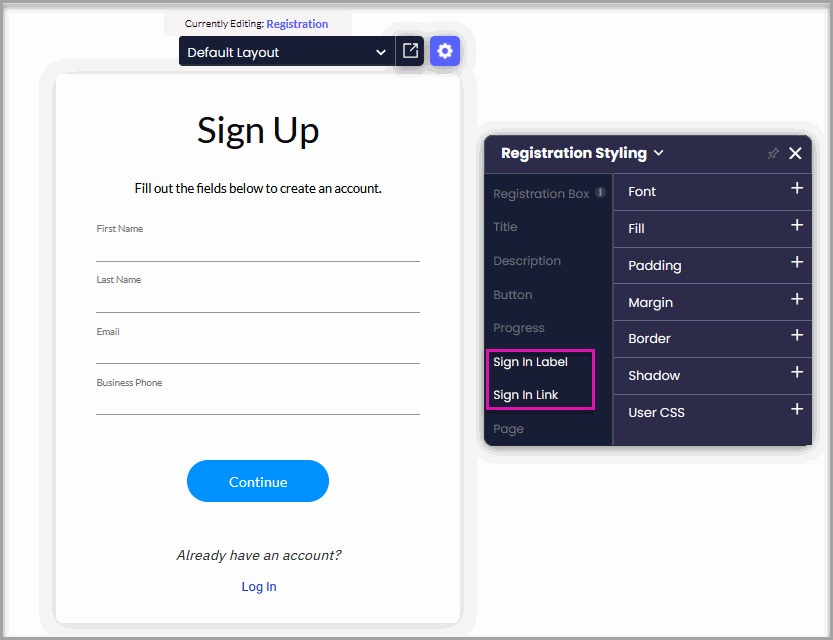
Prerequisite: The Profile feature must be enabled in SmartV settings to access and style this screen.
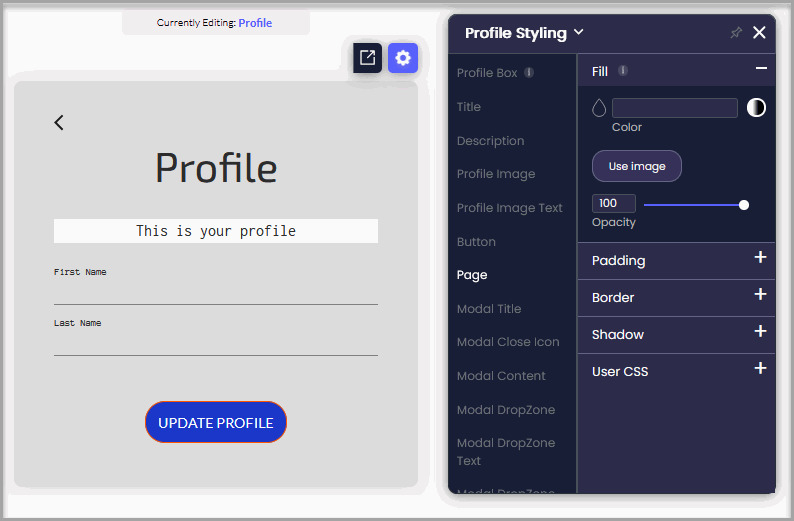
Note: The options shown in the styling panel above represent only a selection of the available controls. Additional categories and properties become accessible depending on the specific element or modal area selected on the page.
Yes. Each screen (Login, Verification, Registration) can use a distinct layout template under Login settings > Layout.
These screens appear only when their corresponding features are enabled in main SmartV settings (e.g., 2FA, Self-Registration, Profile).
Use Captions in Login settings to edit text wording. Use the Styling Panel (square icon) to edit colors, fonts, borders, and spacing.
Users are logged out and must reauthenticate. Disable the session setting if you do not want time limits.
On this page