How can we help you?
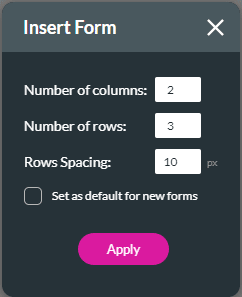
When you need users to submit information through a project, you can create a form to capture details in a structured layout. Forms help you collect information such as contact details, requests, applications, feedback, or any data needed for your business process.
You can configure the form layout, add fields, include text, apply conditional logic, and adjust rows or cells to match the way users should complete it.
Add a Form element to your project and configure it according to your process. You can add input fields, text, conditional logic, and layout adjustments to capture the information you need and support your Salesforce-connected workflow.
You can also do the following:

Note:
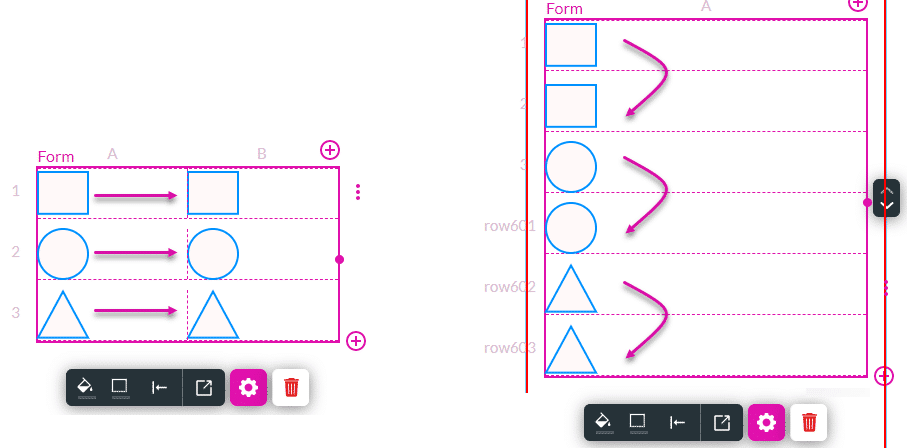
You will see the warning message: “Device Notification: View a web project on mobile by setting the device manually or clicking auto-layout”.

Learn more about device layouts.
Note:
This message is shown if the form has two or more columns. On a mobile device (where the width of the device is smaller), the contents of each cell in the second column (per row) is moved under the contents of the cell in the first column and only one column is shown.
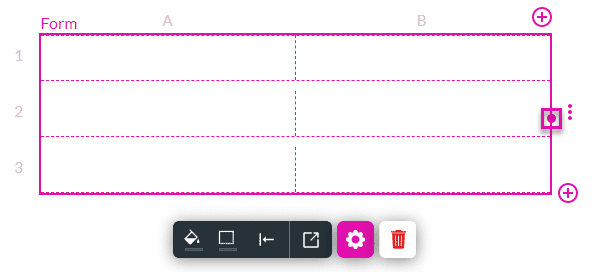
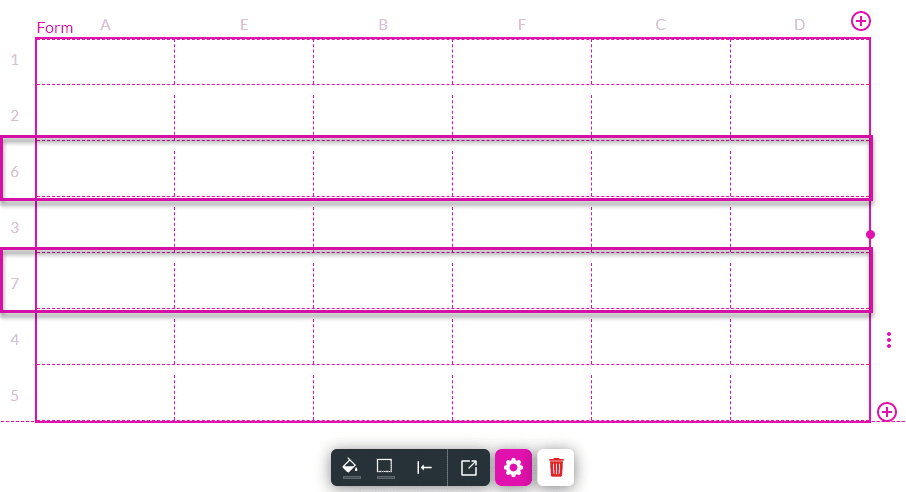
Rows are numbered from 1 onwards, and columns are labeled from A onwards.
You can drag the table bigger if necessary by using the table handle on the right.
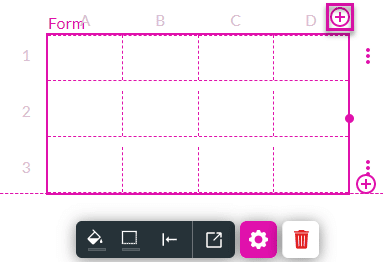
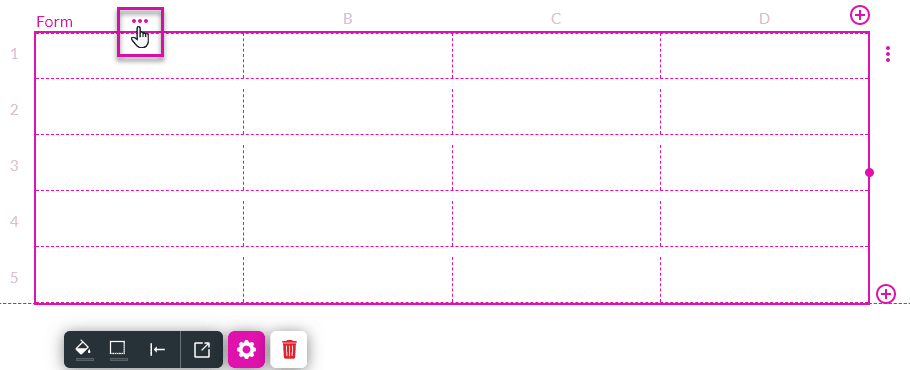

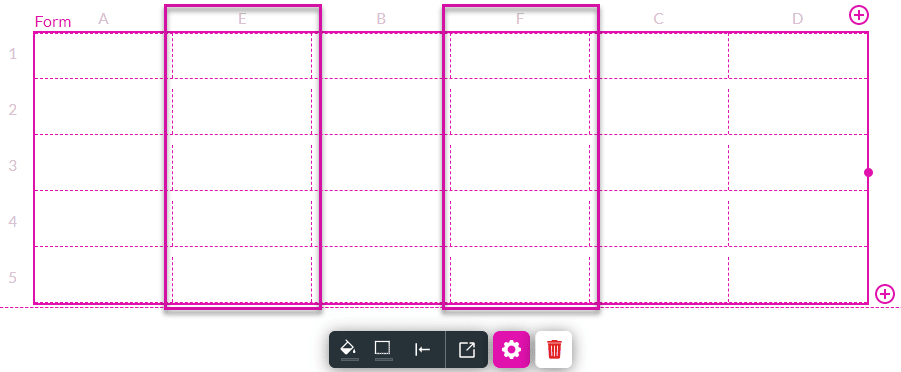
In this example, a column was added to the left of column B (called column E) and to the right of column B (called column F).
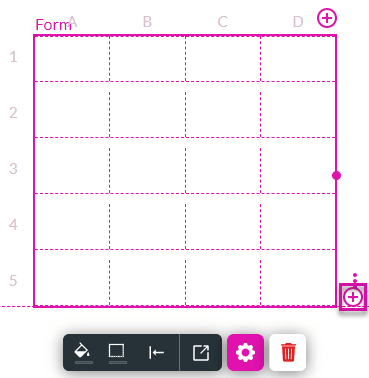
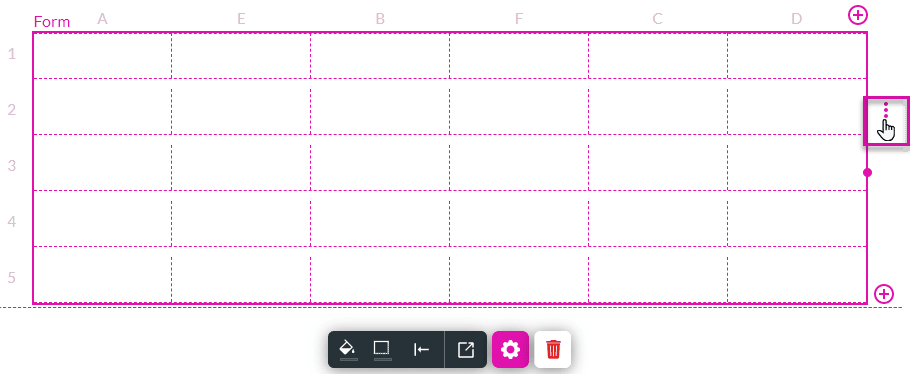
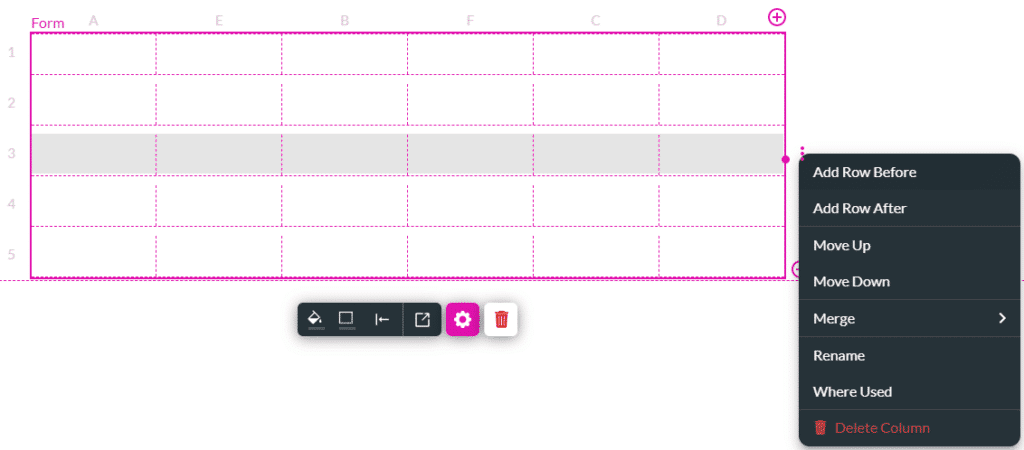
In this example, a row was added above row 3 (called row 6) and below row 3 (called row 7).
On this page









