How can we help you?
Configure an email for your flow project in a few clicks with no code.
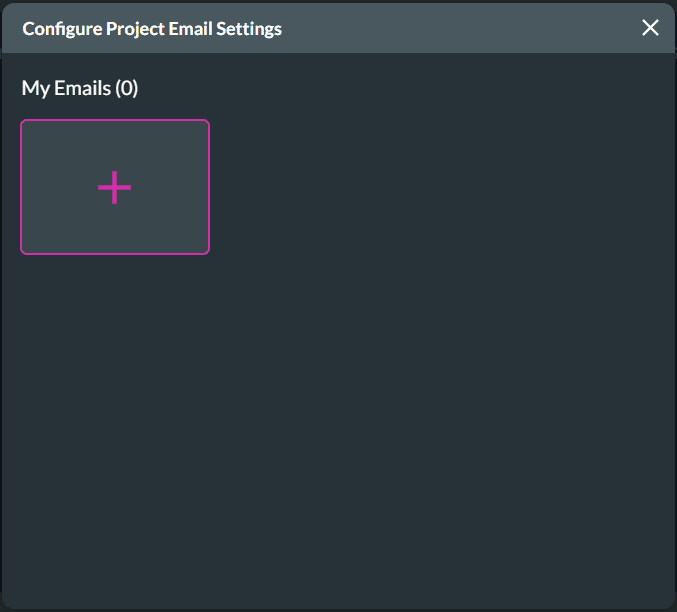
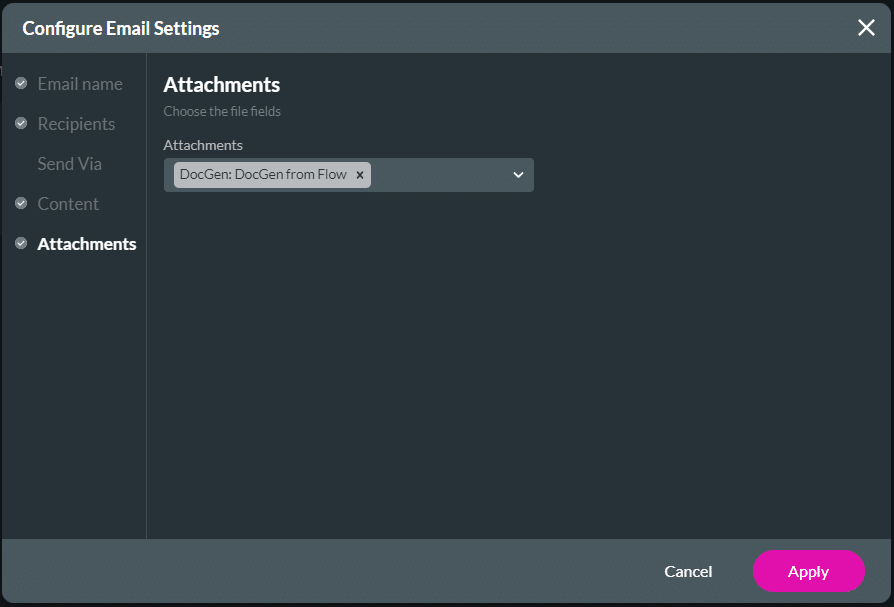
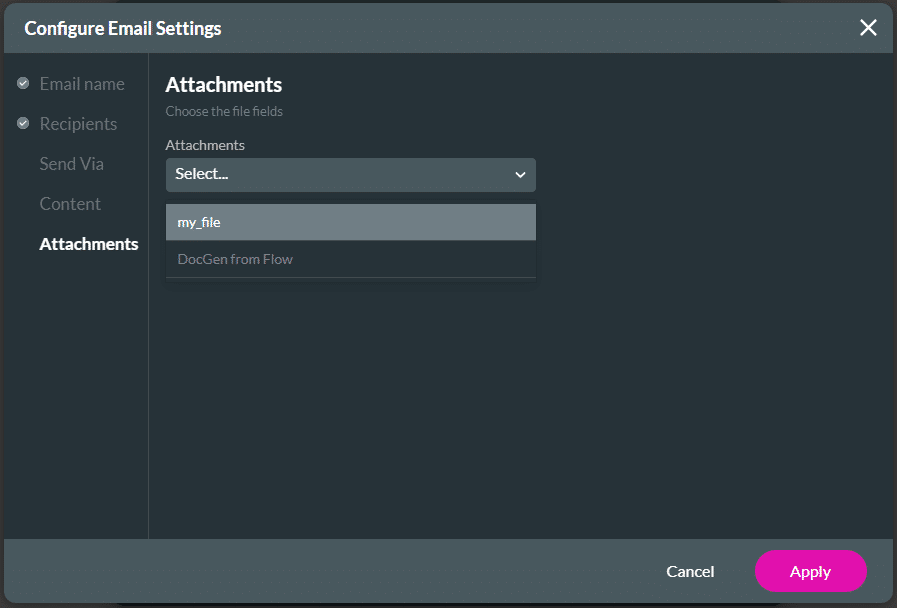
Titan Flow lets you configure email settings in your project. You can trigger the sending of an email throughout your project whenever necessary.
Path:
Project Settings > Tools > Emails > Gear icon

Note:
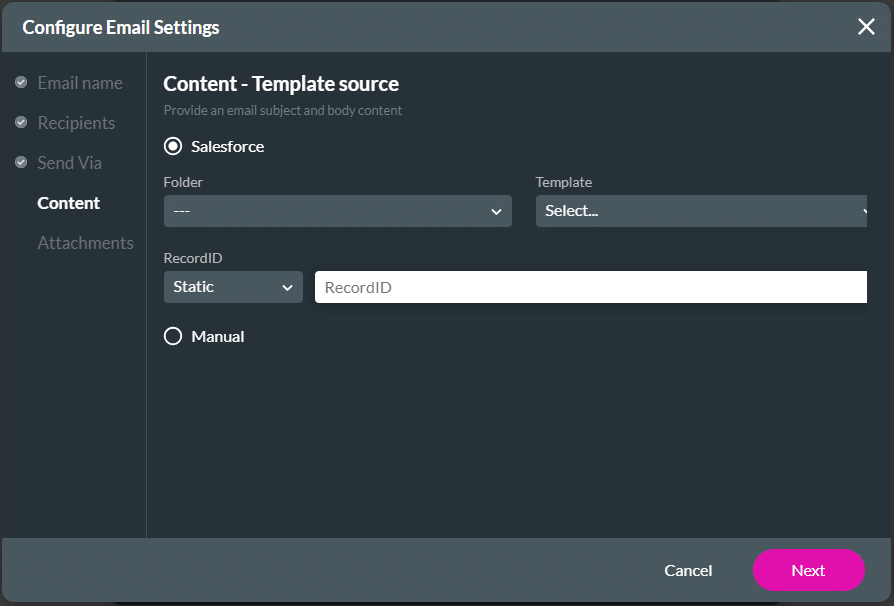
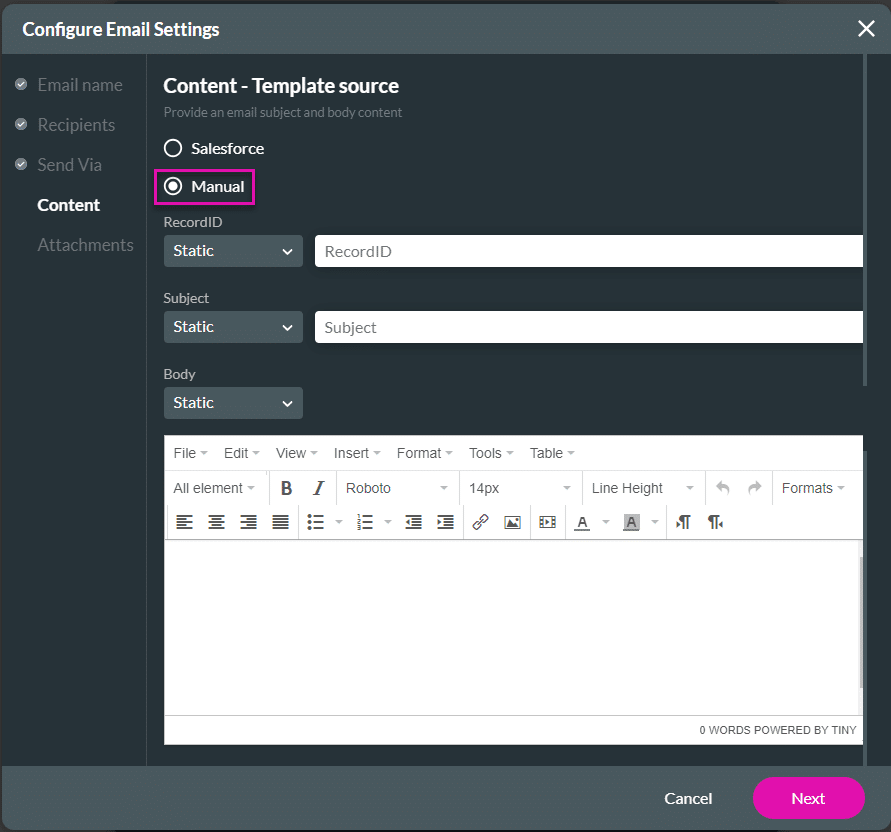
There are five steps to complete.
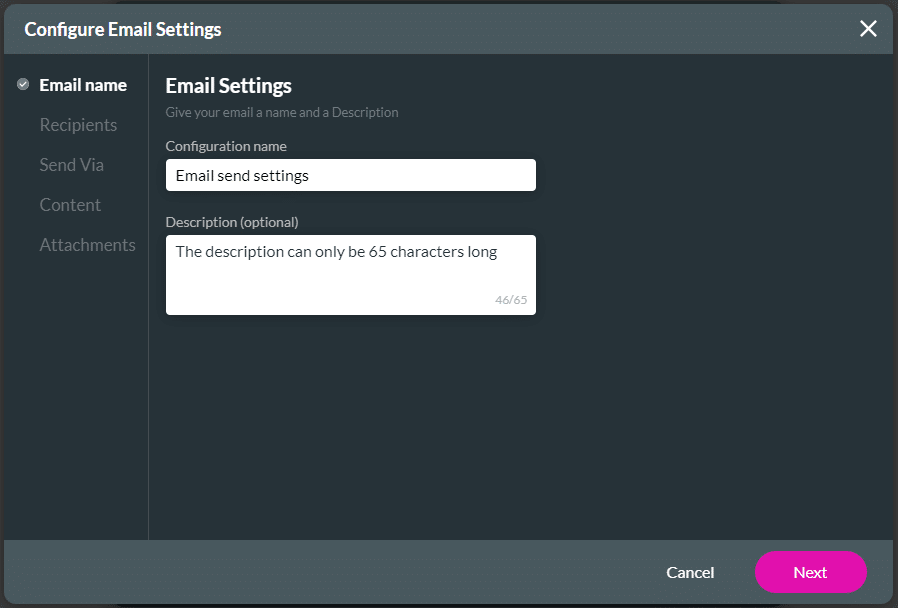
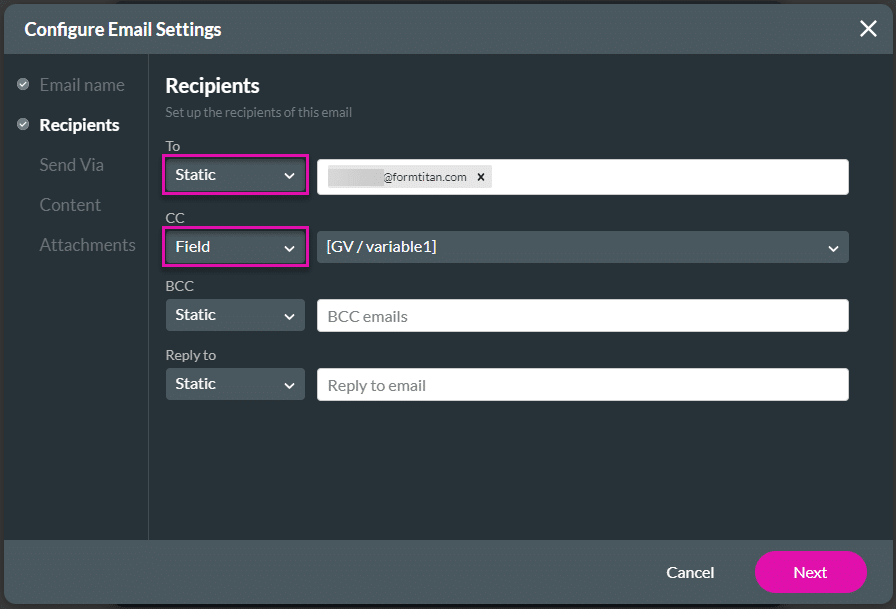
Note:
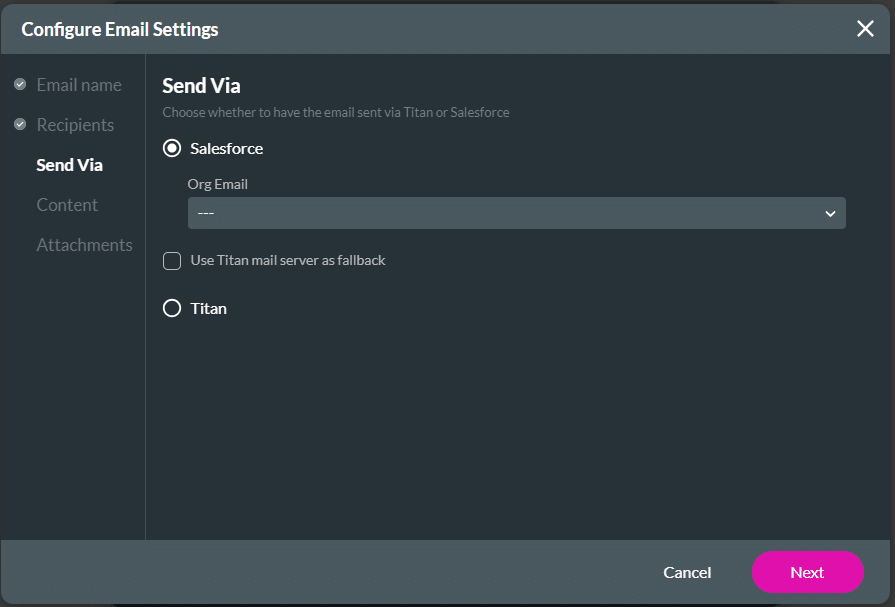
We recommend you send emails via Salesforce or your own SMTP server.
Warning:
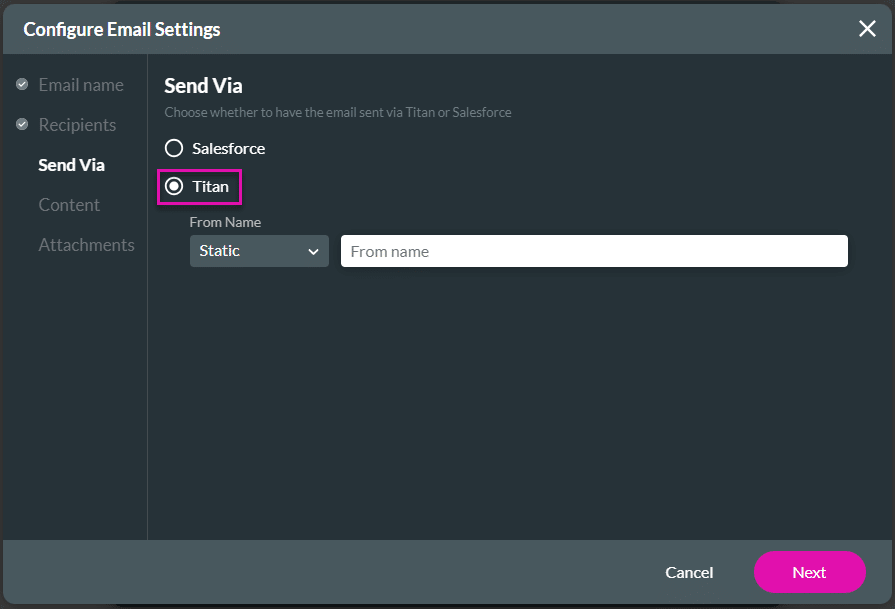
When using the Titan mail server and three emails bounce (for instance, when the receiving email server is temporarily unavailable, was overloaded, or couldn’t be found), the system will block all emails from that account for three days. The emails will be released after this period unless three more emails bounce.
Note:
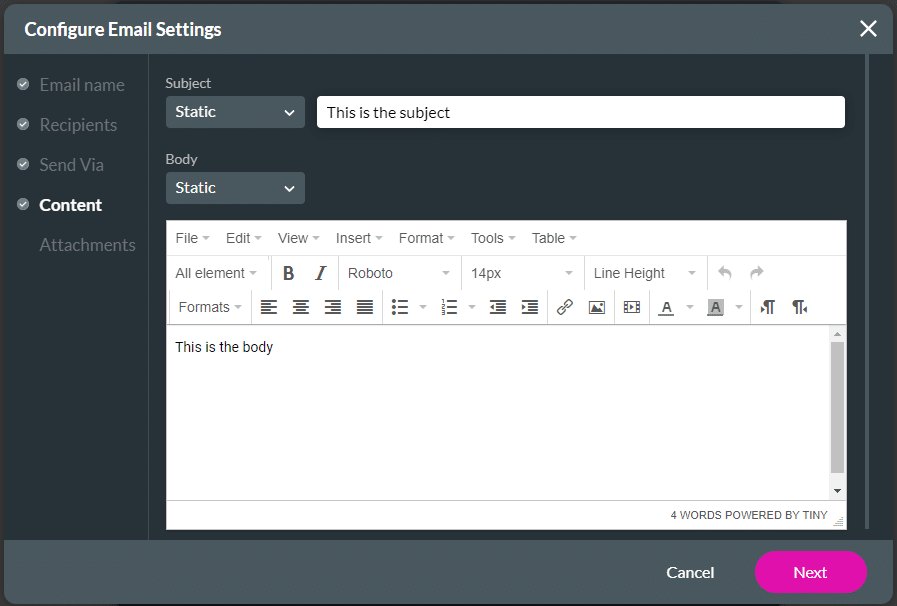
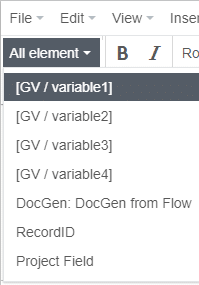
If necessary, use the All elements drop-down list to add variables to the email body.
Path:
Titan Web > Project Settings > Tools > Document Generation > Gear icon

Note:
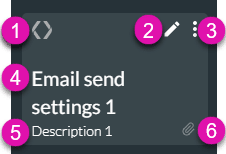
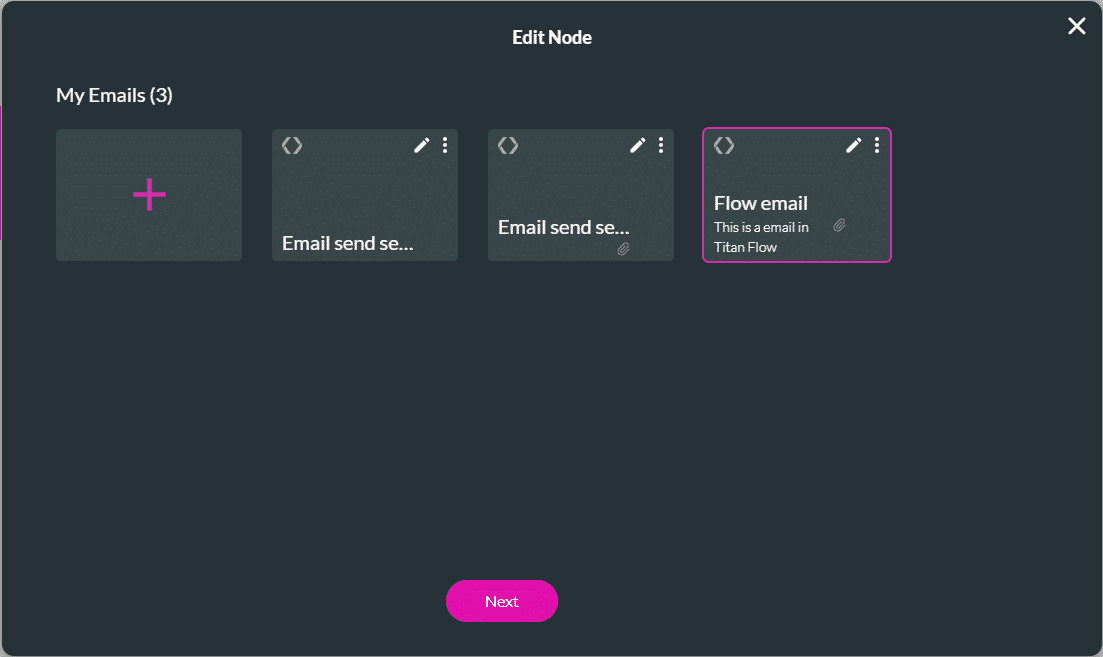
When you have configured multiple emails, click an option to select it. The pink frame shows which option was selected. The Configure Project Emails Settings screen closes automatically when you have selected an option.
On this page









