How can we help you?
Document access controls who can open and sign your document, how signers are identified, and how the signing process begins.
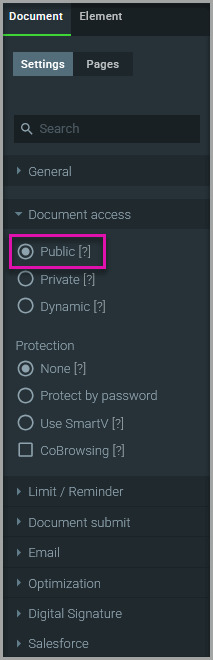
Titan Sign supports three access types:
| Access Type | Best For | How It Works | Key Benefit |
|---|---|---|---|
| Public | Petitions, consent forms, waivers, and other documents are open to a broad audience | Anyone with the published URL can access and sign the document | You can collect signatures without adding each signer manually |
| Private | Agreements, approvals, and documents intended for known recipients | Titan emails the document to the signers you add to the project | You control who receives the document and which fields each person completes |
| Dynamic | Contracts and record-based processes connected to Salesforce | Salesforce data and automation determine how each signing process starts | You can reuse one Sign project across multiple Salesforce records |
Choosing the right access type helps you reduce manual setup, control document distribution, and connect completed documents to Salesforce.
Note: Word templates always use dynamic access because their fields and sections are populated with data when the document is triggered. Use a PDF document for public or private access.
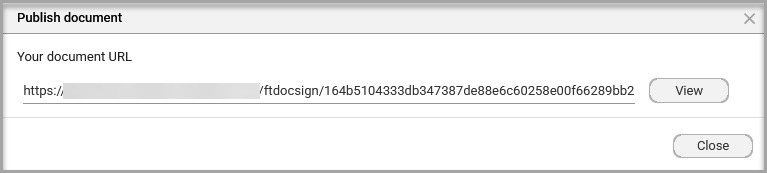
Use public access when you do not know each signer in advance or when a large group of people must sign the same document.
For example, you can publish a petition and share a URL through your website, email campaign, or social channels. Each person can open and sign the document without you having to create a separate signing request.
Public access helps you:
Anyone with the URL can access the document. Titan does not use Salesforce logic to identify the person opening the link.
Use private access when you know who must sign the document and have each signer’s name and email address.
For example, you can send an agreement to a customer and an internal approver, then assign different signature fields to each person.
Private access helps you:
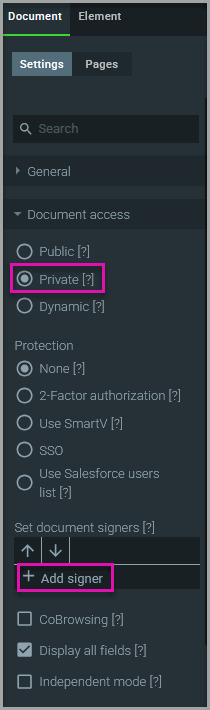
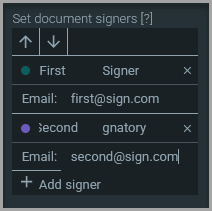
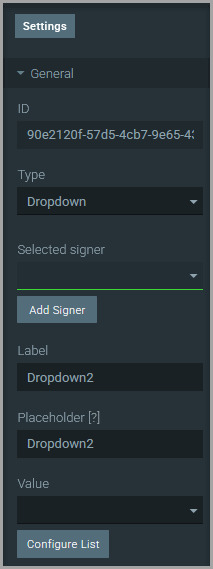
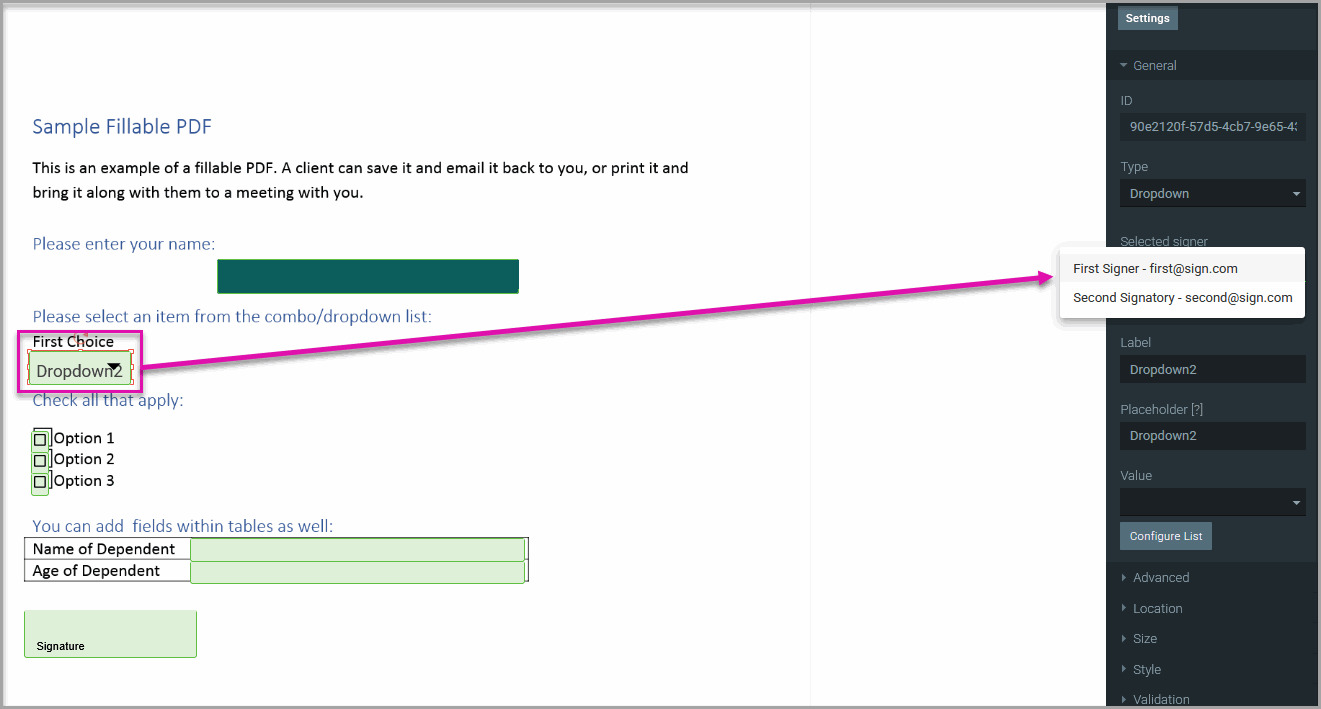
Assigning elements tells Titan which signer must complete each field. This is especially useful when a document has multiple signers with different responsibilities.
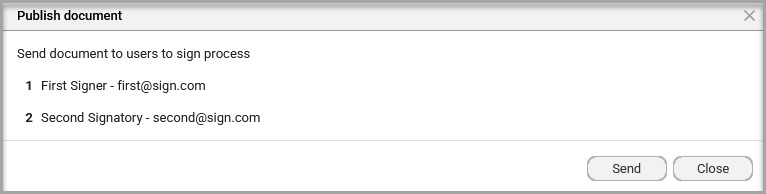
Use dynamic access when the signing process must use information from Salesforce.
For example, your team can start a contract from a Salesforce record, use the record’s data in the document, and send it to the relevant signers. The same Titan Sign project can support multiple transactions without requiring you to enter the information manually each time.
Dynamic access helps you:
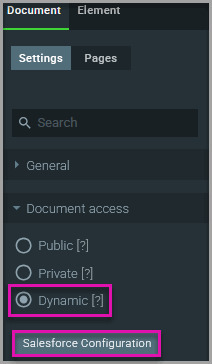
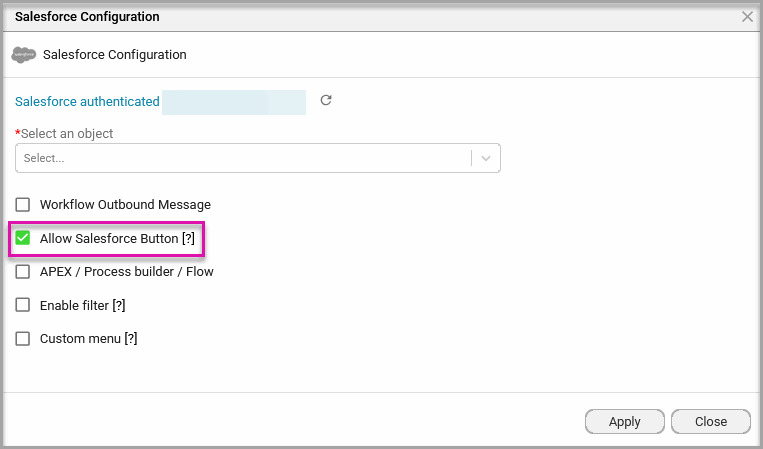
Configure one or more of the following options based on how users or Salesforce automation will start the signing process:
These settings let you decide where the project appears, who can use it, and which records qualify for signing.
Enable a custom menu so that Salesforce users have access to only selected document actions.
You can make the following actions available:
Limiting the menu to relevant actions can simplify the process for Salesforce users and reduce incorrect selections.
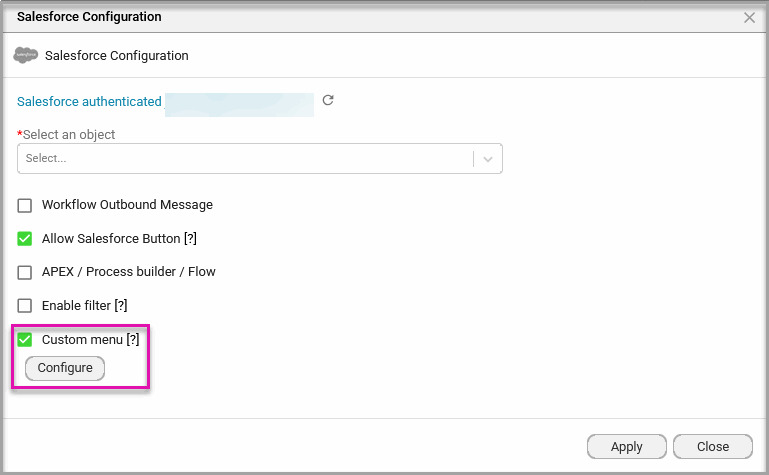
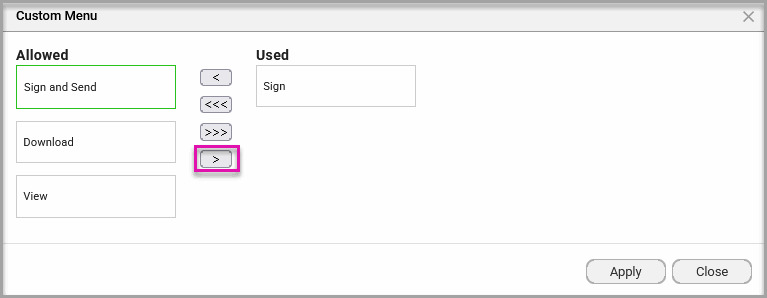
Note: The custom menu is added only to the FT Document Generation button.
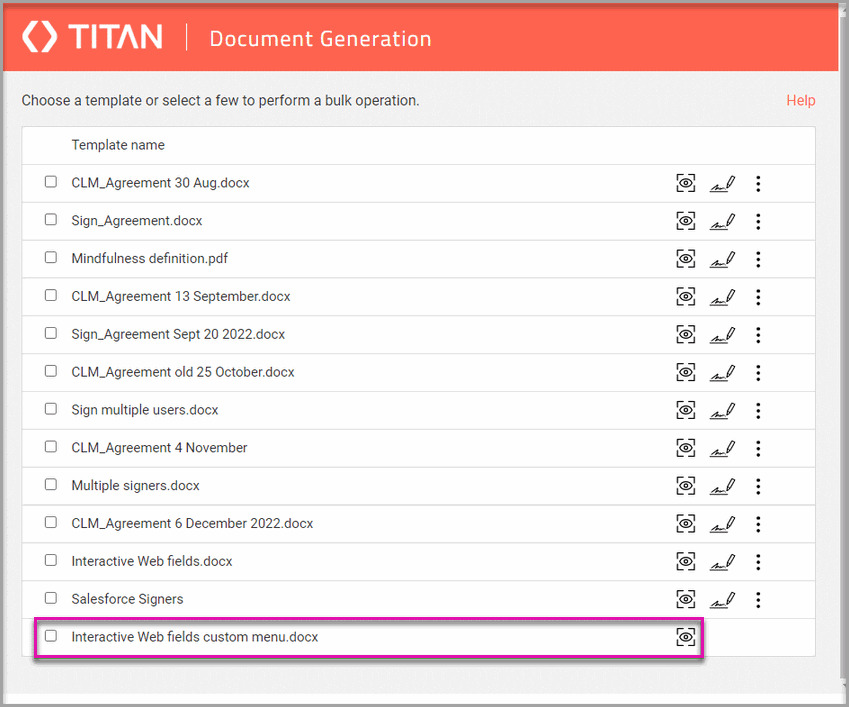
Your Titan Sign project uses the selected access type:
When Salesforce integration is configured, Titan can sync signing data and completed documents with Salesforce. This gives your team access to the signed records without relying on a separate manual filing process.
Choose Public when anyone with the link may sign, Private when you know the signers in advance, or Dynamic when the signing process must use Salesforce records or automation.
Word templates contain fields and sections that retrieve information from a connected data source. When the document is generated, Titan populates these elements with data from the record or process that triggered it. For this reason, Word templates always use dynamic document access.
No. Public documents do not use predetermined signers. Anyone with the published URL can access and sign the document.
Yes. Salesforce logic is not used to identify someone opening a public document, but the completed document can still be pushed to Salesforce when the project is configured accordingly.
Private access uses signer information entered directly in the Titan Sign project. Dynamic access connects the project to Salesforce so record data or automation can be used for each signing transaction.
Yes. Add each signer to the project, then assign the relevant document elements to the person responsible for completing them.
Confirm that you selected the correct Salesforce object and enabled Allow Salesforce button. Check whether a filter excludes the current record and verify that the user has the required permissions.
Yes. Enable Custom menu, then move the required actions to the Used column. The custom menu applies to the FT Document Generation button.
On this page