How can we help you?

The Image Annotator element allows users to capture, upload, and submit visual information directly inside a form or workflow.
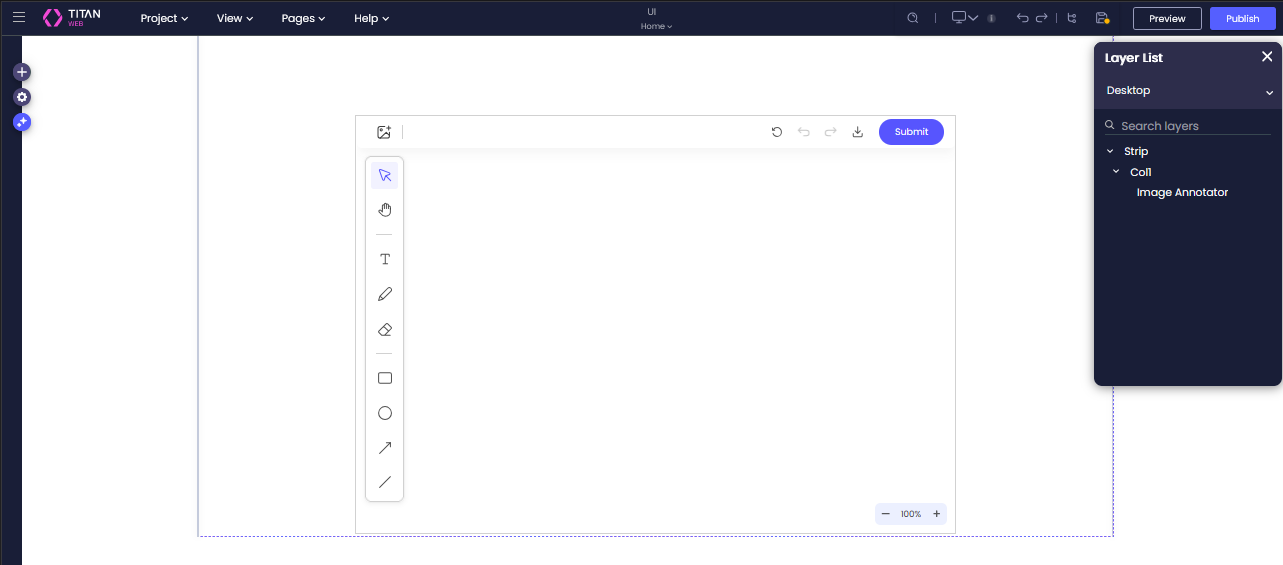
Users can mark up images with drawing tools, shapes, arrows, and text before submitting the final annotated image. If no image is added, the annotator opens with a blank canvas by default, allowing users to sketch, add notes, or create a simple visual reference from scratch.
This is useful when you need to add context to visual details, highlight specific areas, or provide extra information that a standard image upload would not capture. The final image or sketch can then be saved, downloaded, or pushed to Salesforce, depending on your project configuration.
The Image Annotator keeps the image capture, markup, sketching, and submission inside the same web experience. Users can work with images or a blank canvas directly in the flow, without switching between the project, external editing tools, and Salesforce.
Users can start by:
After an image is added, users can mark it up using annotation tools such as free draw, circles, rectangles, arrows, and text. They can also adjust annotations after placing them, including changing colors, stroke widths, positions, and rotations.
When working from a blank canvas, users can use the same tools to sketch ideas, add visual notes, or create a quick drawing as part of the workflow.
The completed image or sketch can be submitted, downloaded, or saved based on the configured workflow.
Use the Image Annotator when your workflow depends on visual documentation, image review, or quick sketching.
Common use cases include:
The Image Annotator helps teams provide clearer image-based information.
Instead of relying on long written explanations, you can point directly to the relevant part of the image and add supporting notes or markings. This reduces confusion and makes it easier for teams to review, approve, or act on the submitted information.
This helps teams:
The Image Annotator can be configured to get images from Salesforce and push annotations back to Salesforce Files.
When an annotated image is pushed to Salesforce, the annotations are included in the pushed file. This means your team has access to the final, marked-up image associated with the relevant Salesforce record or workflow.
Use Salesforce integrations when you want to:
The Image Annotator supports the following capabilities:
| Category | Supported Options |
|---|---|
| Image source | Upload from device, capture using device camera, insert from Salesforce, blank canvas |
| Annotation tools | Free draw, lines, circles, rectangles, arrows, text |
| Styling controls | Color selection, custom colors, stroke and line weight adjustment |
| Editing controls | Undo, redo, reset, delete, partial erase, rotate, move, and reposition annotations |
| Submission options | Download annotated images or save them based on the configured workflow |
| Display modes | Editable mode and read-only mode |
| Placement | Forms, containers, strips, modals, and responsive modals |
The Image Annotator is supported on desktop, tablet, and mobile devices. The interface adapts to the user’s device, allowing them to upload, capture, annotate, and submit images from the environment they are working in.
The interface adapts automatically to the user’s device to maintain usability and performance.
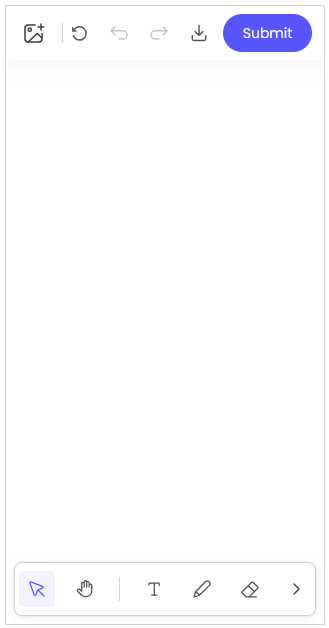
Before configuring the Image Annotator, make sure you know:
The sections below outline how to set up and use the Image Annotator.
The element will appear as a placeholder in the Builder.
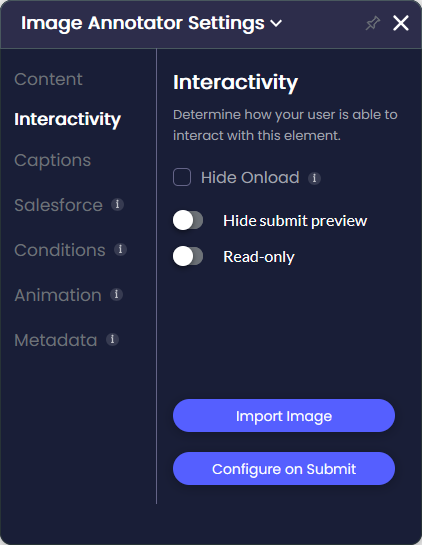
Use Salesforce integration when the image needs to be retrieved from Salesforce or saved back to Salesforce after annotation.
This setup ensures the annotated image is stored and available for later use.
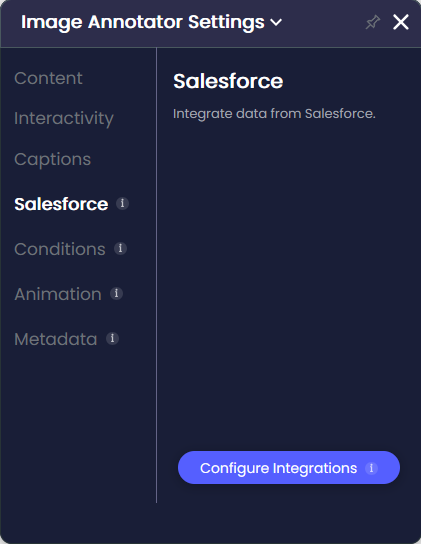
Use the image menu to choose how the image should be added.
Users can:
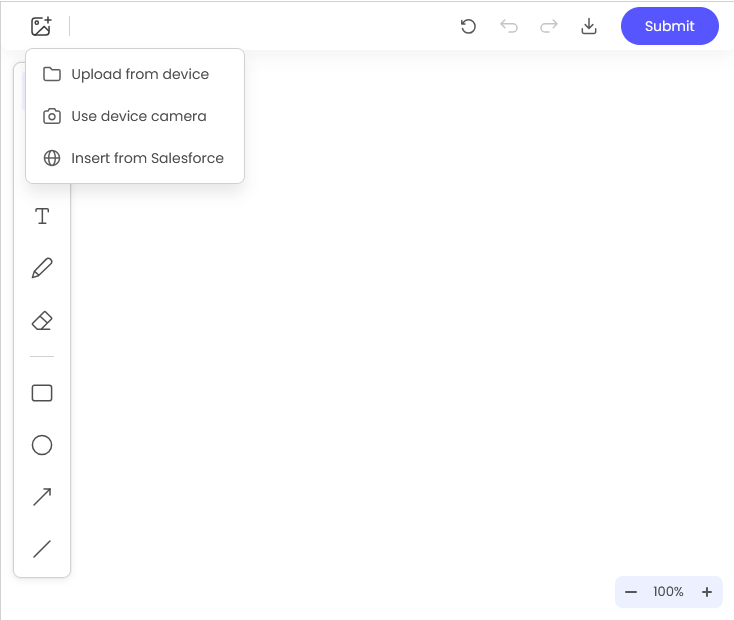
In Preview mode, you can:
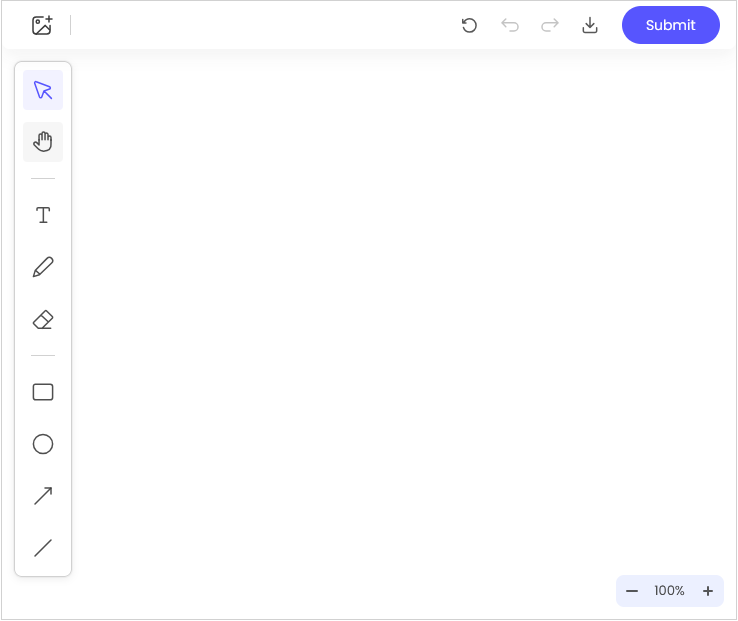
Use the Image Annotator to markup and upload an image, a captured image, or a blank canvas. Users start in cursor mode by default and can switch to annotation tools as needed.
Users can:
When no image is added, users can work directly on the blank canvas. This is useful when they need to sketch, draw, or add visual notes without starting from an existing image.
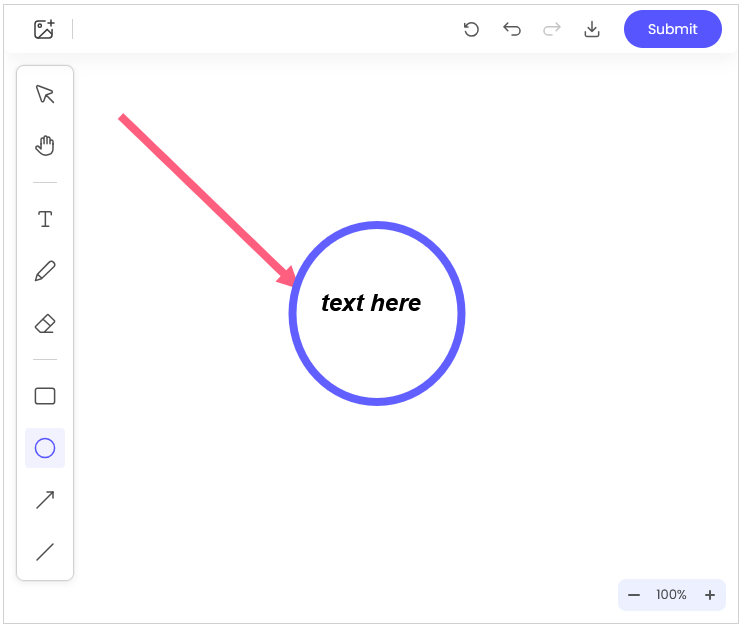
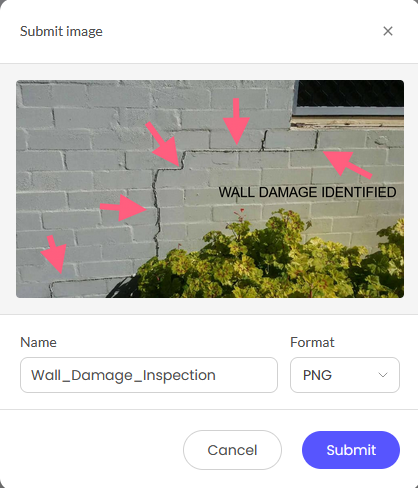
When an image is added, users can annotate directly on the image to highlight specific visual details.
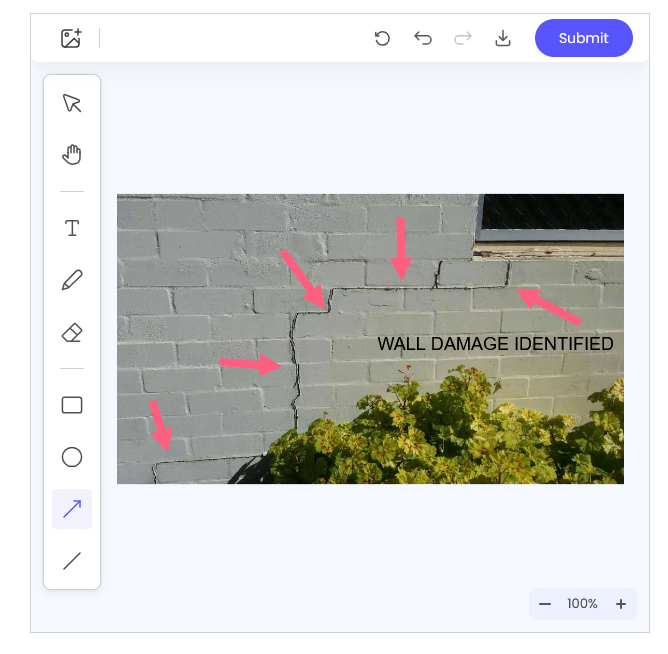
The annotated image or canvas is saved based on the project configuration.
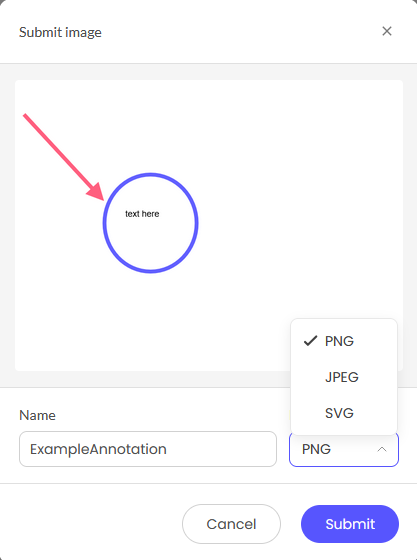
Before submitting the annotated image or canvas, users can enter a filename that follows their preferred naming conventions.
The Image Annotator follows the standard project styling rules.
Depending on the configuration, you can adjust supporting styles such as button styling, colors, sizing, and general project behavior.
Labels, tooltips, and controls can be translated according to the project’s localization settings.
The following limitations apply:
On this page