How can we help you?
Use the Titan Word add-in to insert repeated data from a Titan Web project or Titan Submissions into a Word template.
You can display the data as:
Each section or table repeats according to the number of entries collected through the selected repeat strip.
Use a repeating section or table when your document needs to include multiple entries, such as:
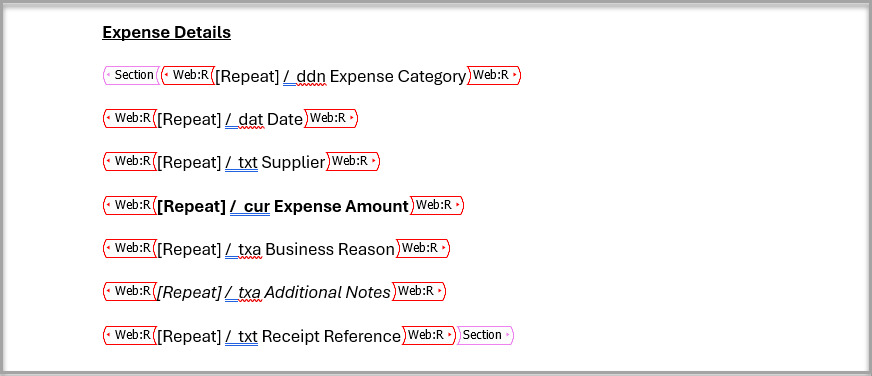
Use a section when each entry needs its own content block or contains longer information that may not fit neatly into a table. You can arrange the fields on separate lines and apply different formatting to each field.
Use a table when each entry should follow the same row-and-column structure. Tables work well for lists containing consistent information, such as product names, quantities, prices, and totals.
Make sure that:
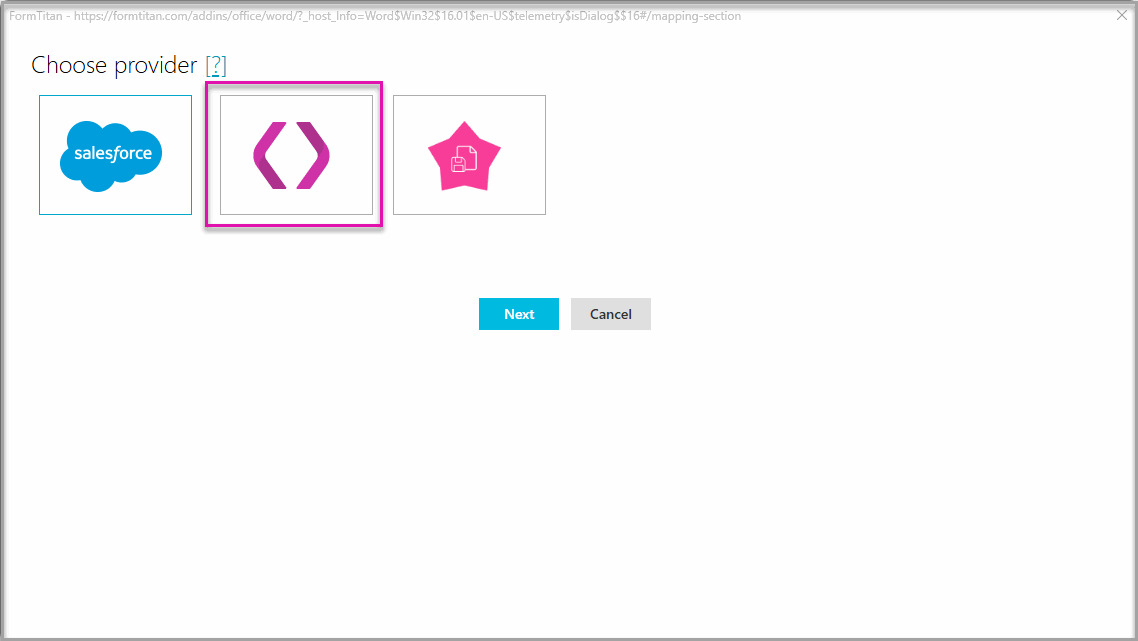
The provider determines where Titan retrieves the repeated data.
| Provider | When to Use It |
|---|---|
| Titan Web Project | Select this provider when the document is generated directly from the Web project. Titan retrieves the current data from the selected page and the repeat strip. |
| Titan Submissions | Select this provider when the Web project data has been saved to Titan Submissions, and the document will be generated later. You must configure a filter so that Titan retrieves the correct submission. |
A section creates a repeating content area in the Word template. After inserting the section, you can add and arrange the fields that must appear for each repeat-strip entry.
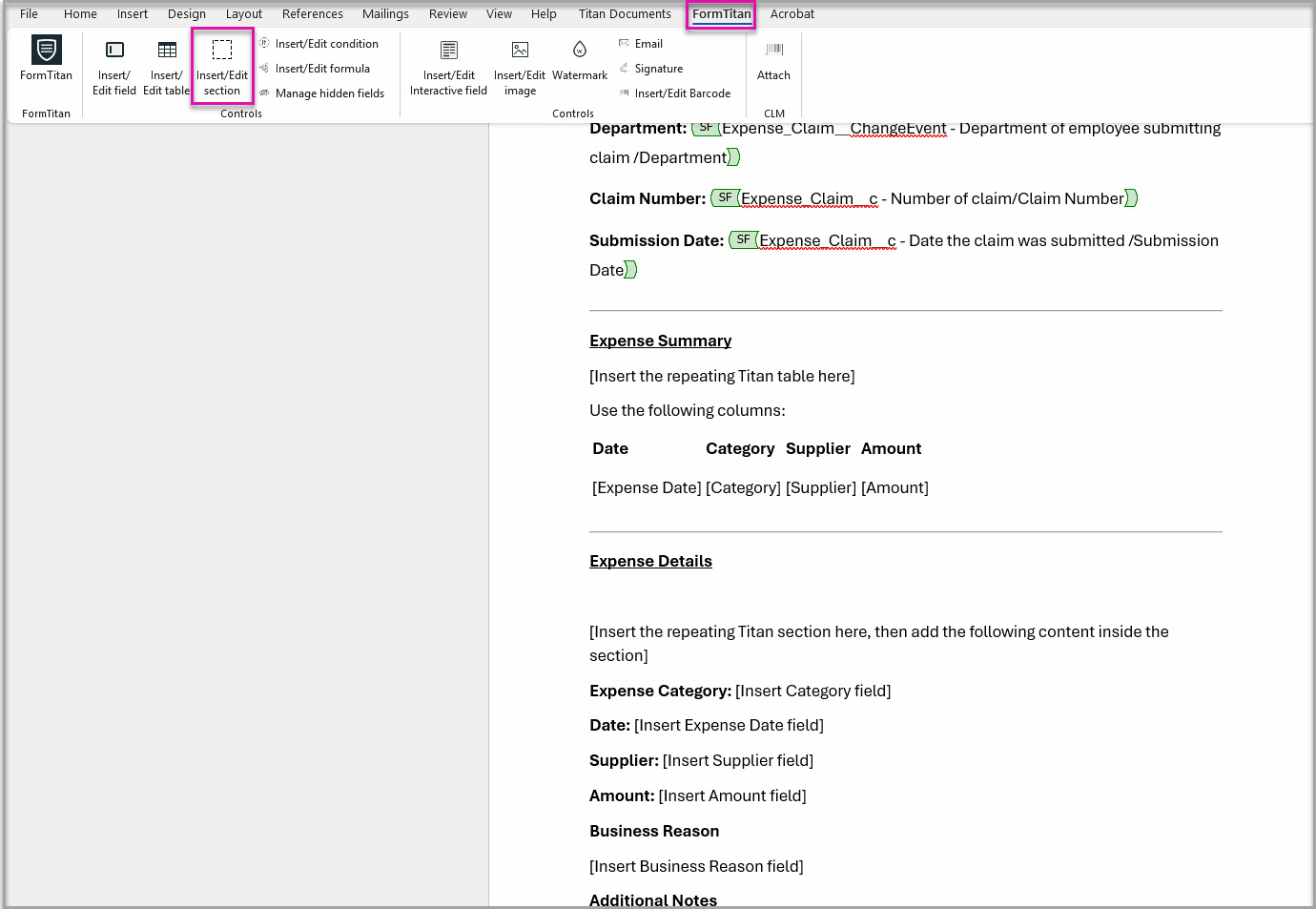
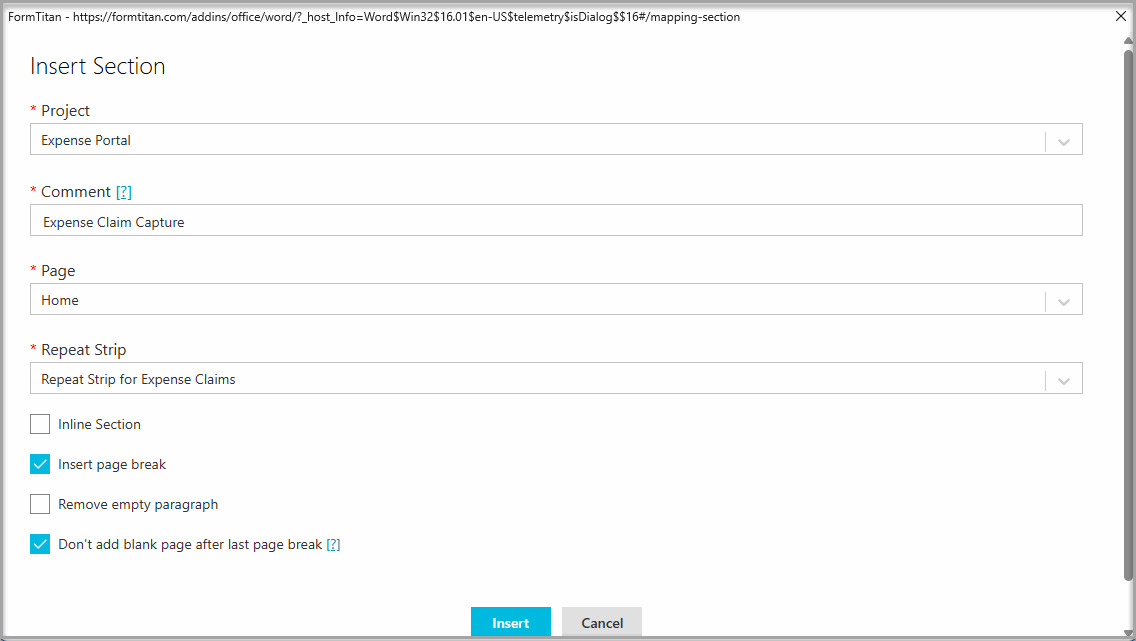
Titan adds a section container to the Word template.
Inserting the section creates the repeating container. You must then add the fields that Titan will populate inside it.
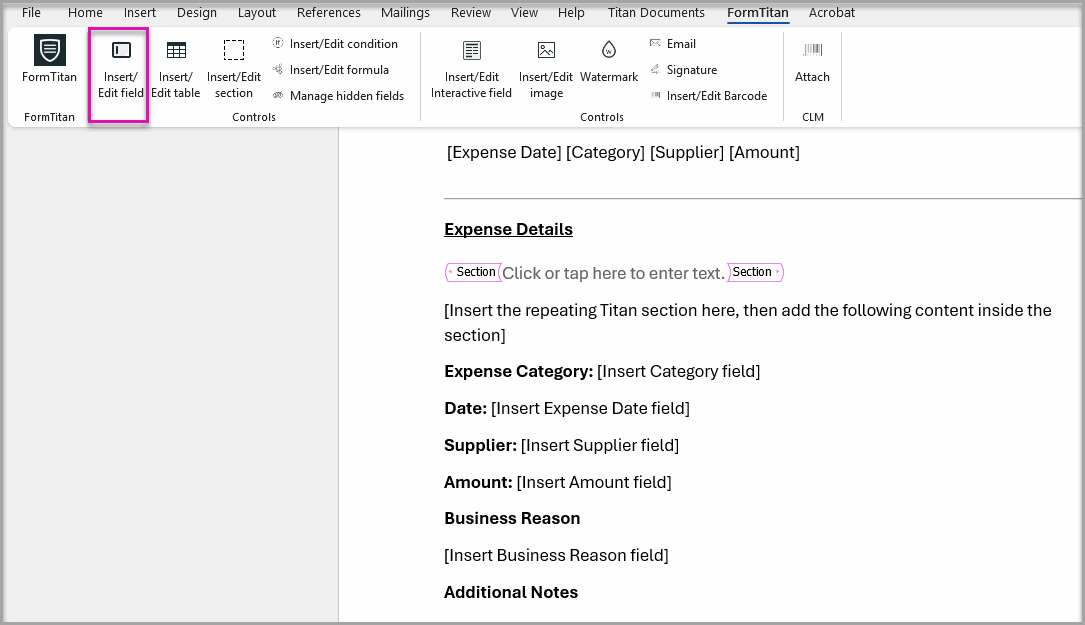
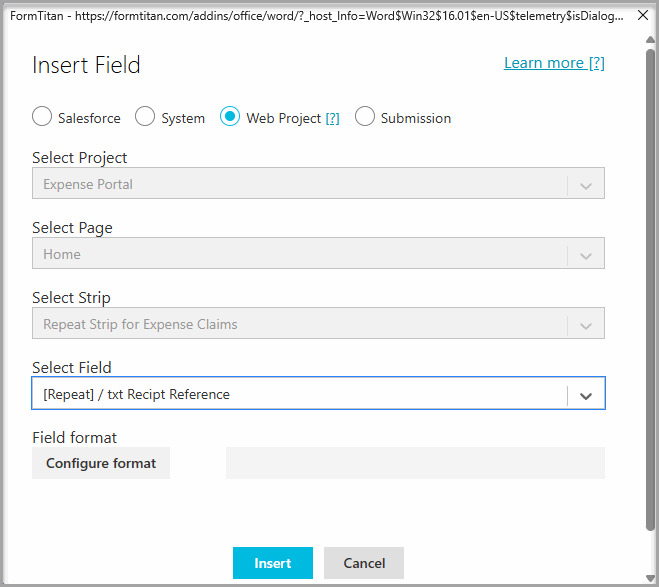
The full section repeats once for every entry found in the selected repeat strip.
A table displays each repeat-strip entry as a separate row. Use it when every entry contains the same types of information.

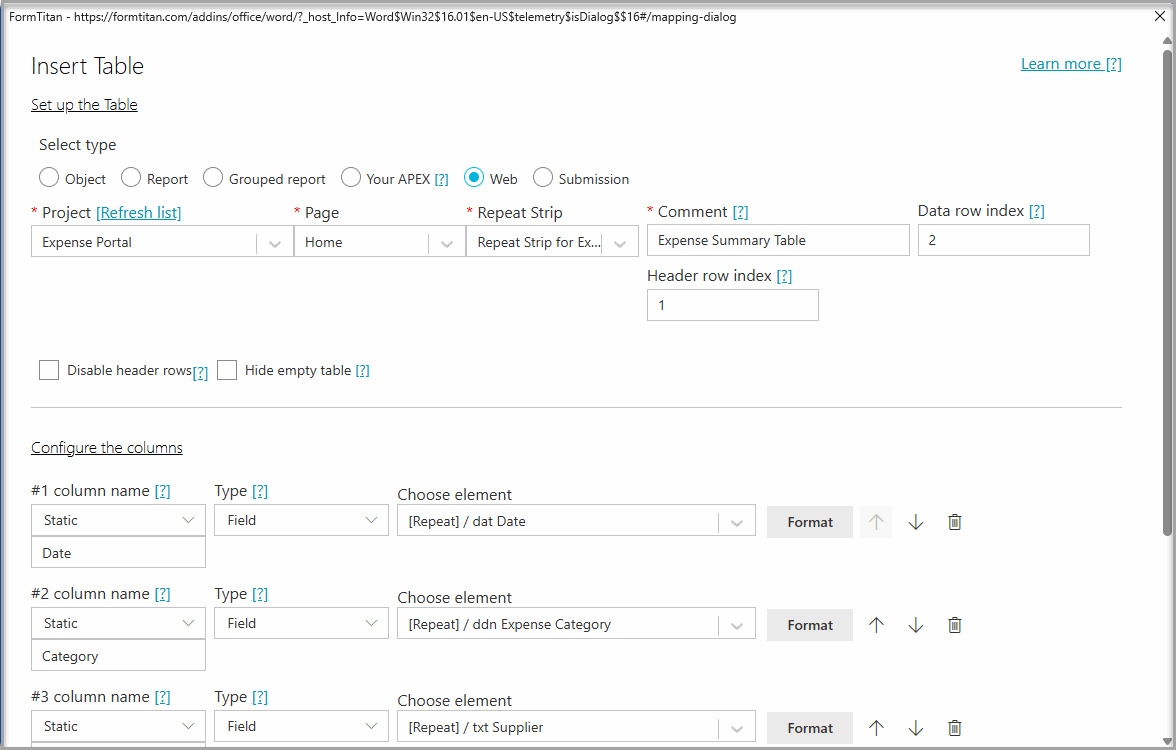
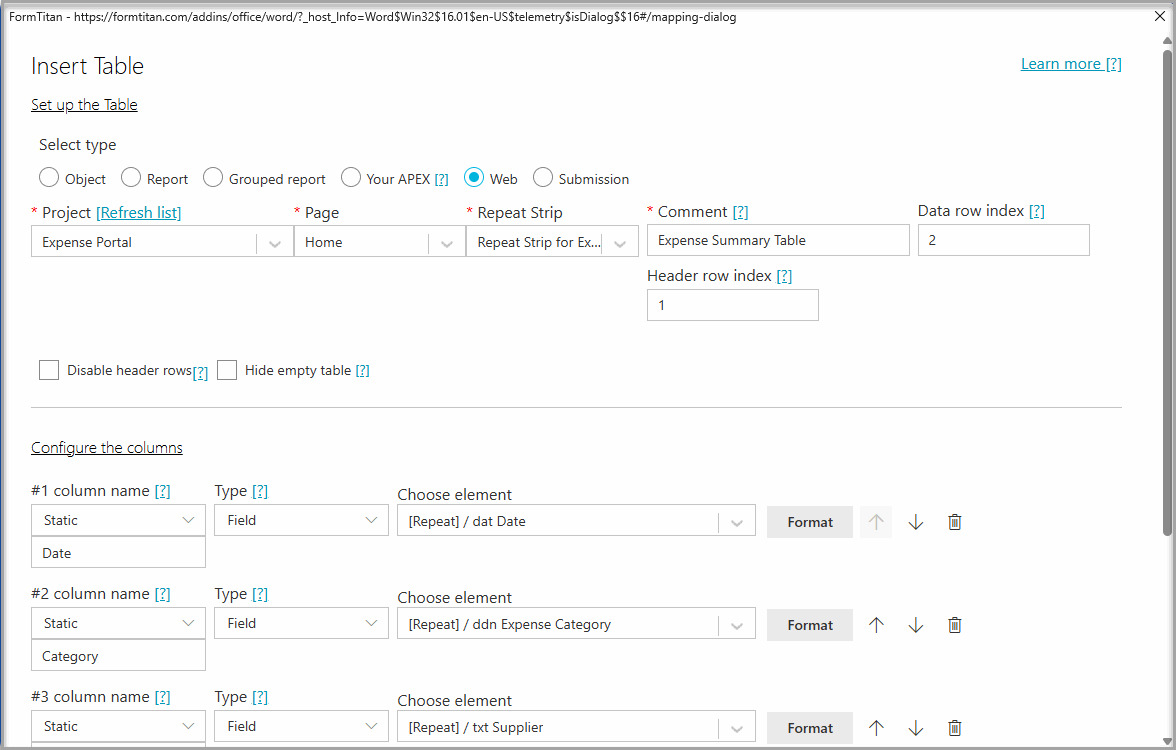
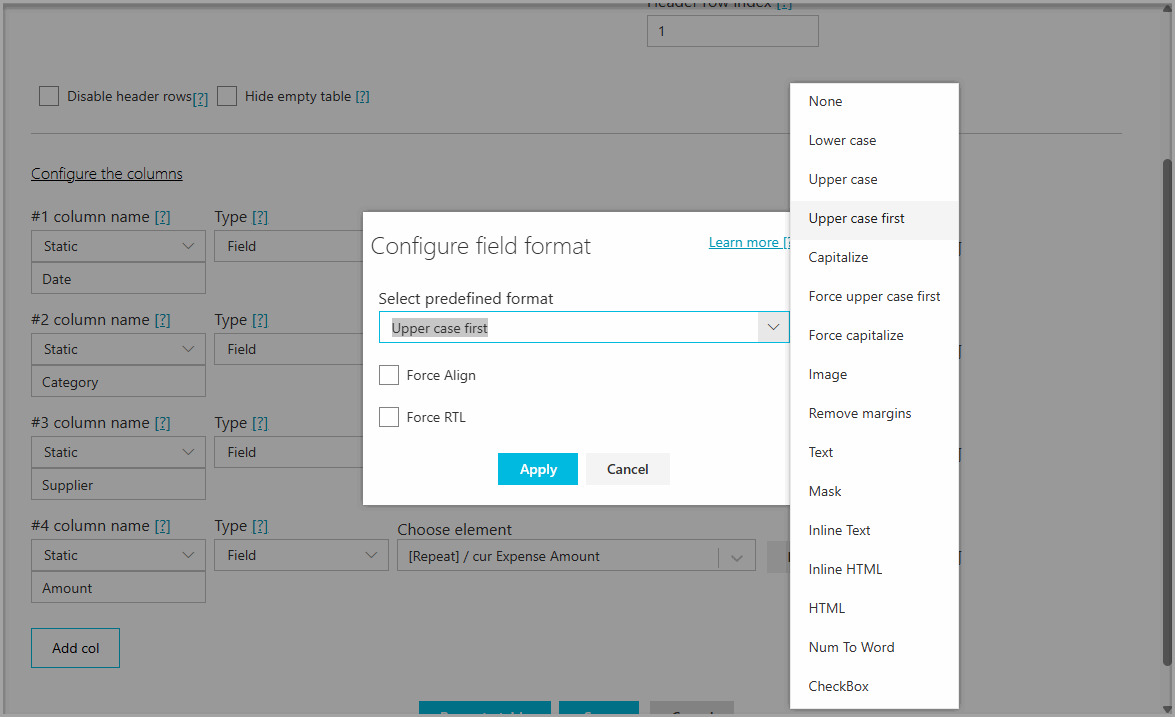
Titan adds three columns by default. You can configure, add, or remove columns based on the information you want to display.
Titan inserts the result as a Word table. Each repeat-strip entry populates a separate table row.
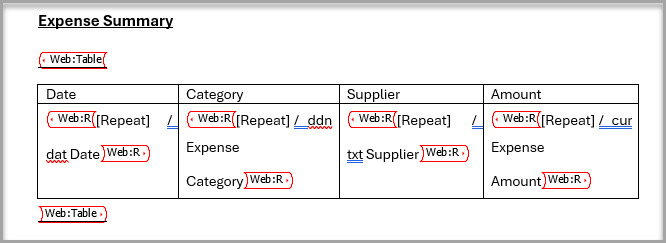
Because Titan inserts a native Word table, you can use Word’s table tools to change its:
To change the Titan data configuration:

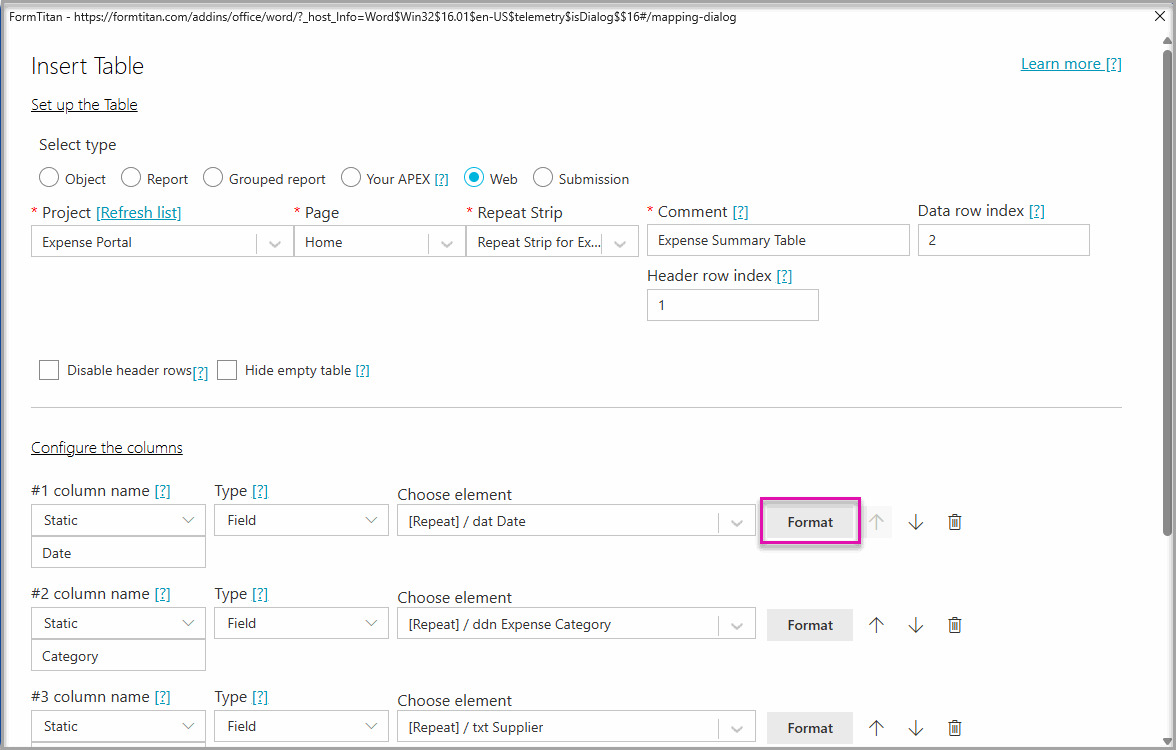
Use Titan Submissions when the repeat-strip data has been saved and the document needs to be generated after the Web project is complete.

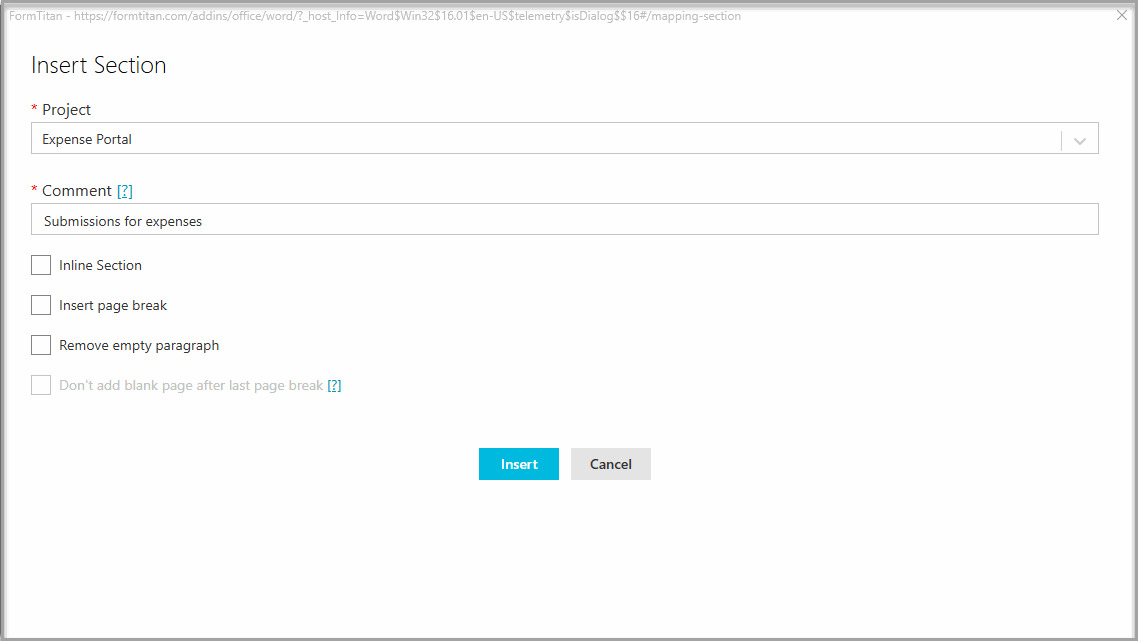

The complete section repeats for each entry retrieved from the selected submission.
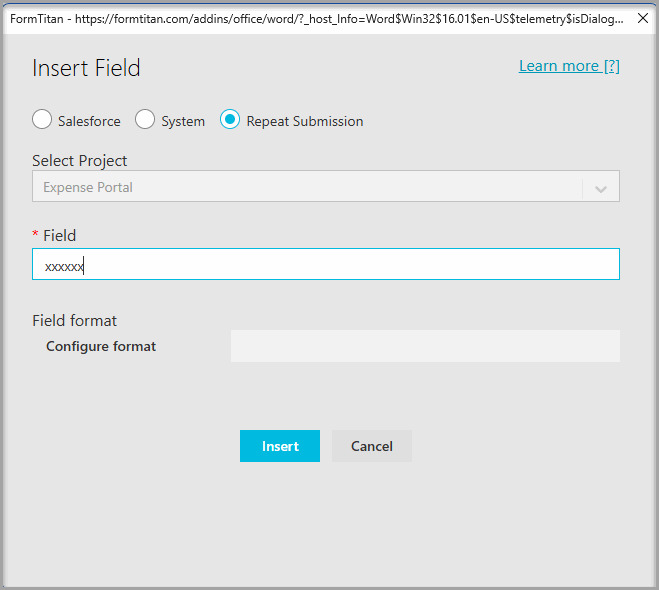
Before configuring the table, note the exact field names used in the submission configuration. You must enter these names exactly, including capitalization.
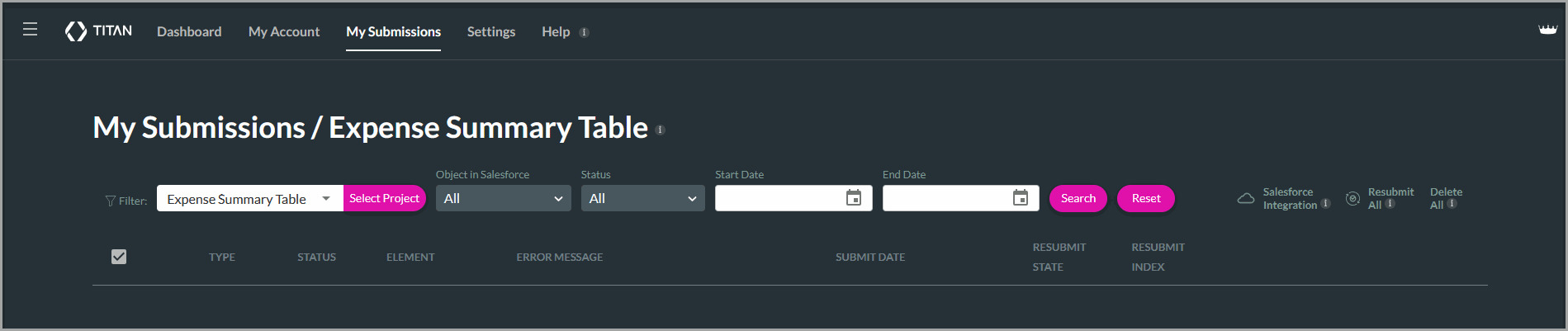

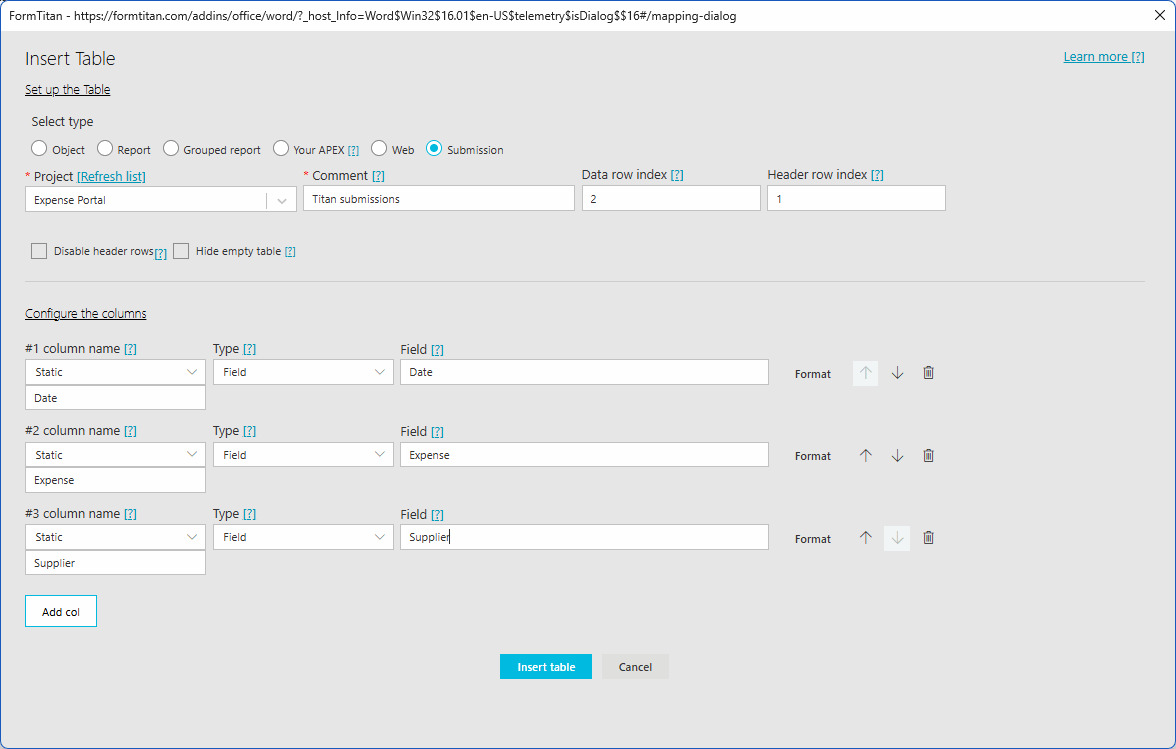
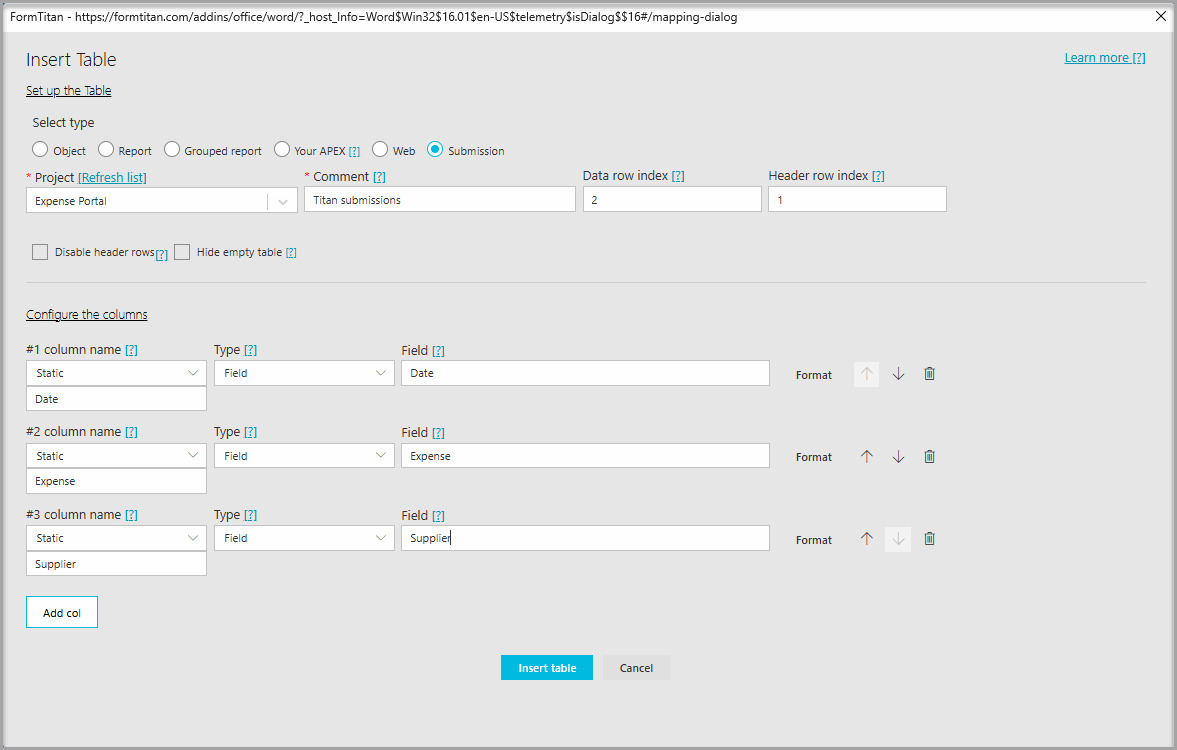
Titan retrieves the repeated data from the selected submission and adds each entry as a table row.
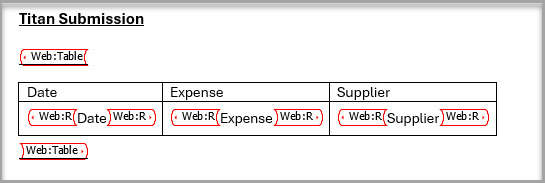
A submission filter is mandatory when using Titan Submissions. It tells Titan which saved submission it must retrieve.
The submission ID can come from:
If you use a previous Get, it must appear above the section or table Get that uses its value. Titan processes the Gets in order, so the submission ID must be retrieved before Titan can use it in the filter.
To configure the filter:
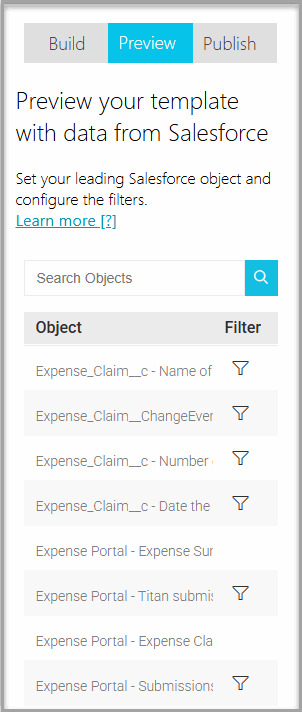
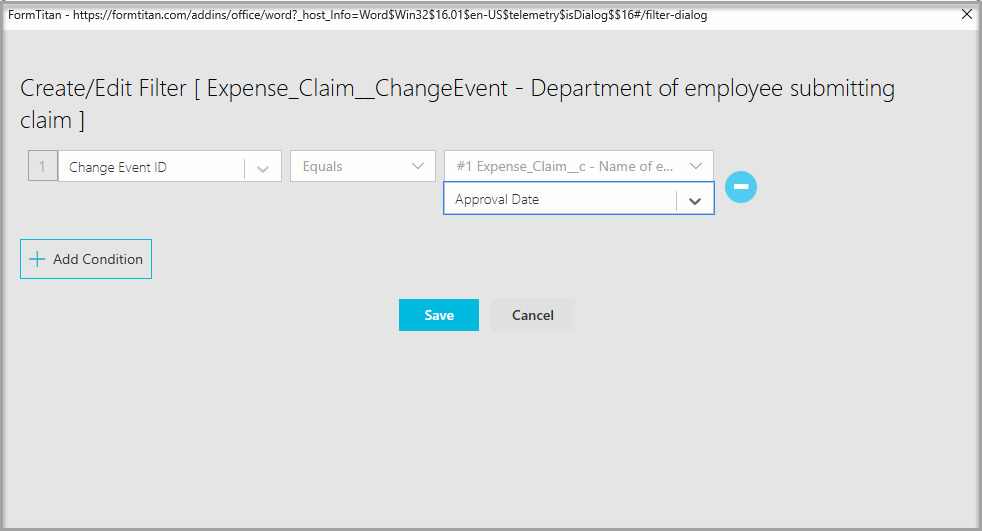
Titan uses this ID to retrieve the correct saved submission when generating the document.
A section repeats an entire content block for each record. A table places each record in a row under consistent column headings. Use a section for flexible layouts and a table for structured lists.
Use Titan Web Project when the document is generated directly from the active Web project. Use Titan Submissions when the data has been saved and the document will be generated after the form has been completed.
Titan may contain multiple submissions for the same project. The filter supplies the submission ID needed to retrieve the correct record.
Check that:
Yes. Data collected in a Titan repeat strip can be added directly to the document from the Web project or retrieved from Titan Submissions without first creating separate Salesforce records.
On this page