How can we help you?
Learn how to add an FT Doc Gen button to Salesforce so users can generate Titan documents directly from the record or list view they are working on.
When you generate documents from Salesforce, users need a quick way to start the process from the record or list they already use.
For example, a sales representative may need to generate a quote from a Contact record. Without a document generation button, the user may need to leave Salesforce, find the correct template, and manually identify the Salesforce record. That adds extra steps and increases the chance of using the wrong data.
An FT Doc Gen button keeps document generation connected to the Salesforce record or object the user is viewing. The user can open a record or select records from a list view, then click the button to generate the correct document from the available templates.
For most standard Salesforce objects, Titan automatically creates the FT buttons. If you want to use Titan document generation on a custom object, you must create the relevant button and add it to the Salesforce page layout.
Titan lets you connect a Salesforce button to your document generation project. When a user clicks the button, Titan identifies the Salesforce record or object the user is working with and opens the document templates that the connected user is allowed to generate for that record.
This keeps the document generation process connected to the correct Salesforce data. Users can generate documents from the right place without manually searching for records or leaving the Salesforce page they are using.
You can configure one of the following FT Doc Gen button types, depending on how users need to generate documents in Salesforce:
Complete the following setup in your Titan Forms project before creating the Salesforce button.
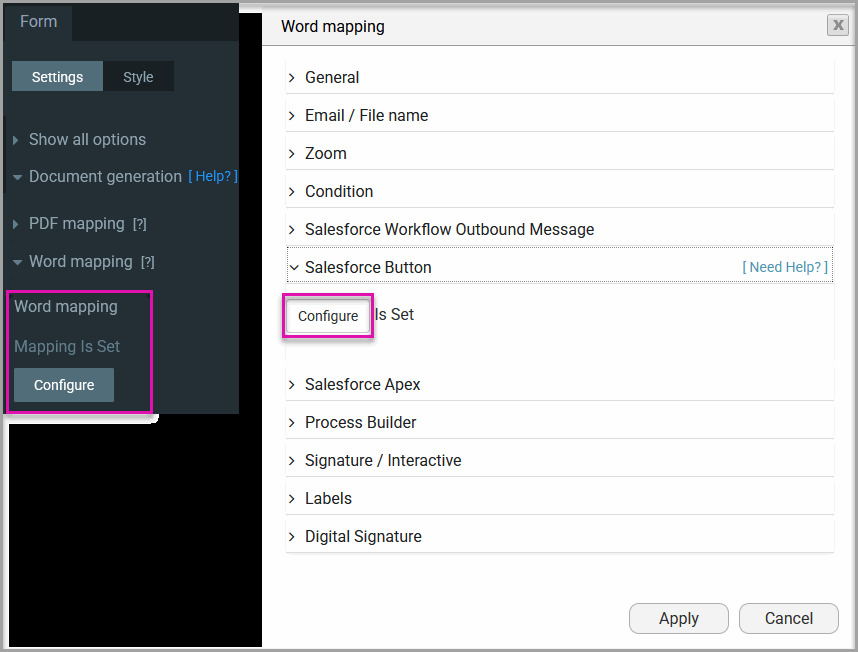
Use a Detail Page Button when a user needs to generate a document from a single Salesforce record.
The following example adds the button to the Contact object. You can follow the same process for another supported object.

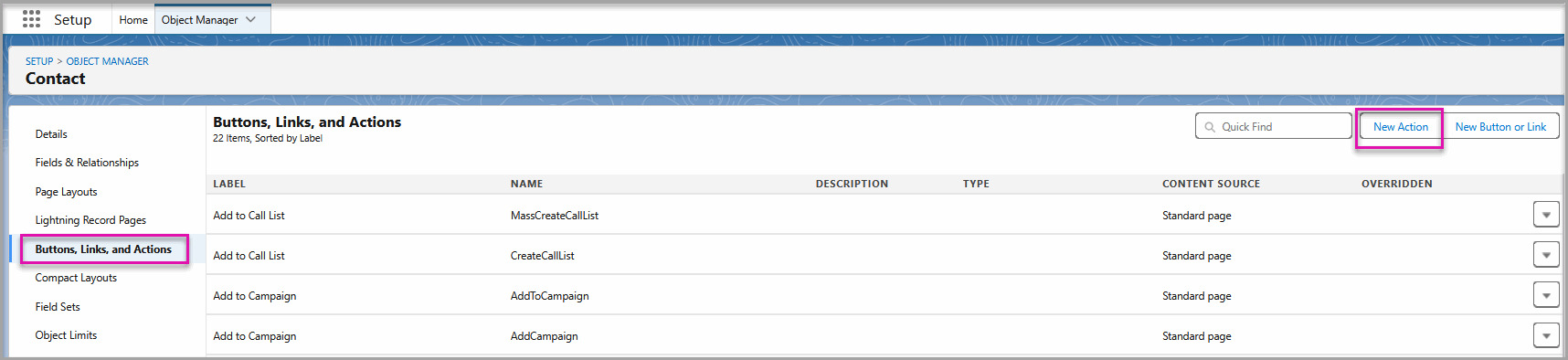
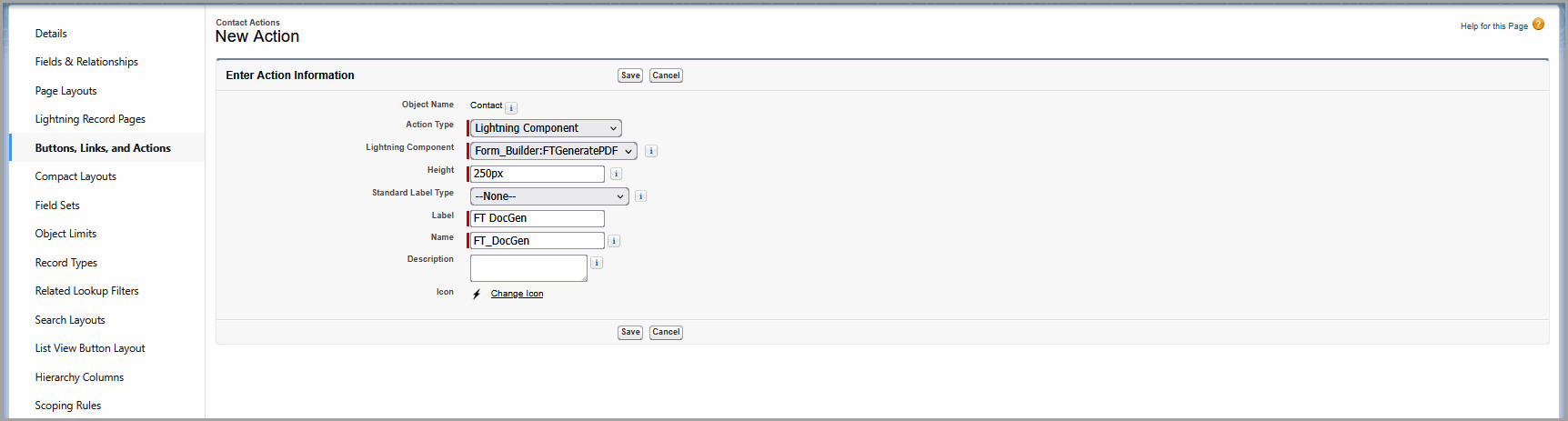

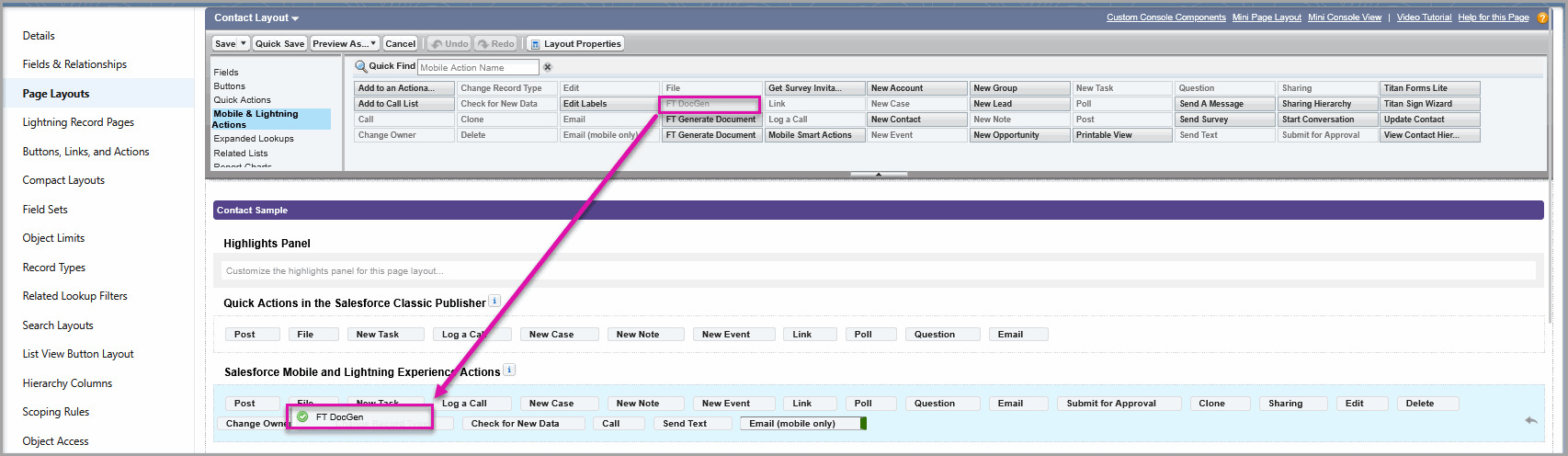
An object can have more than one page layout. Make sure you edit the layout assigned to the relevant Salesforce profiles or record types.
Your new action appears in the list of available Salesforce actions.

Adding the action to this section makes the button available on the Salesforce record page. The button will not appear to users if you create the action but do not add it to the page layout.
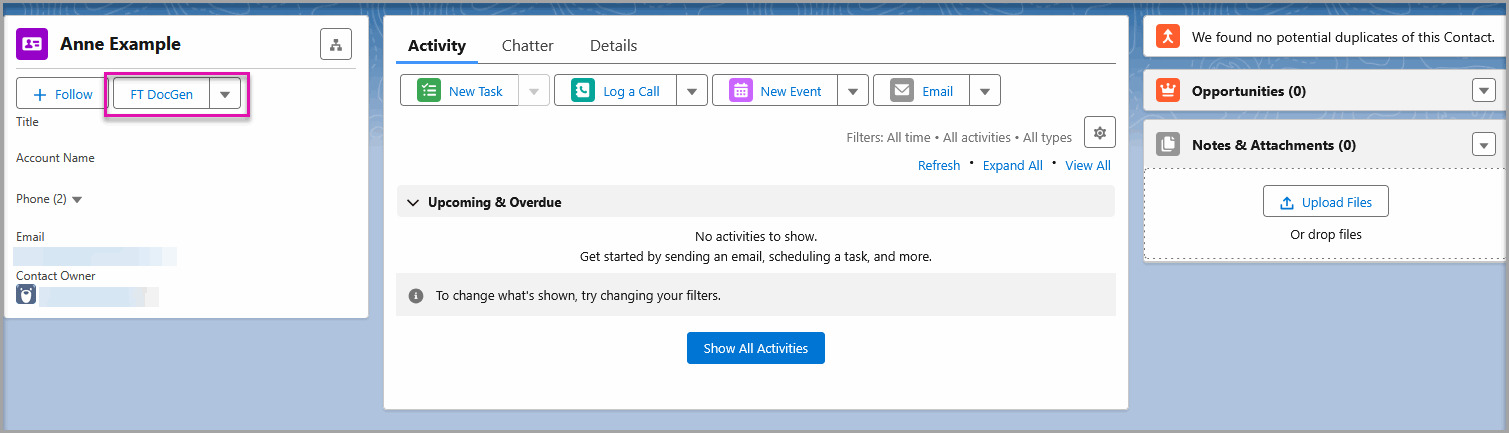
The Document Generation window opens and displays the templates that the current Salesforce user can access.
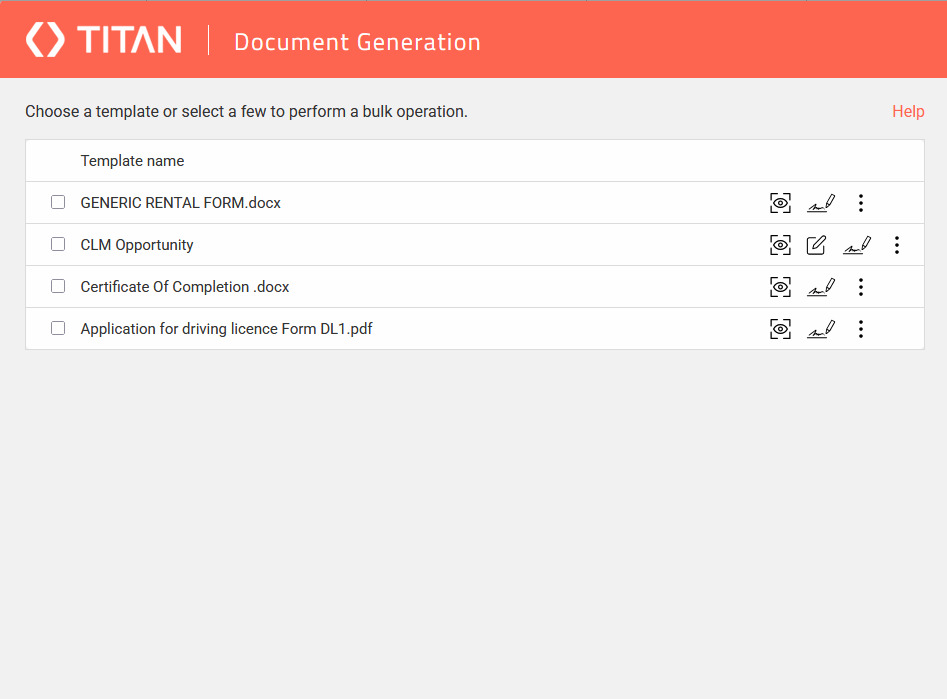
Note: The modal shown in this example uses a height of 780 px. You can adjust the height if your templates or Salesforce page configuration require more or less space.
Use a List View Button when users need to select multiple Salesforce records and generate documents for them in a single process.
Creating a List View Button involves three parts:
The Visualforce page acts as a bridge between the Salesforce list view and the Titan Document Generation component. It collects the selected record IDs and sends the IDs to Titan.
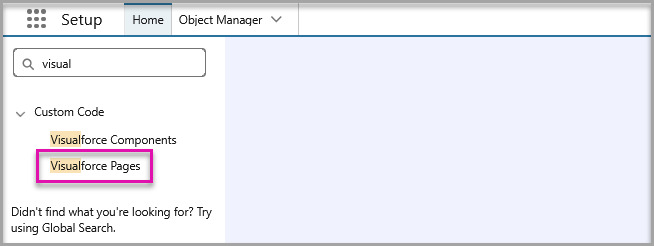

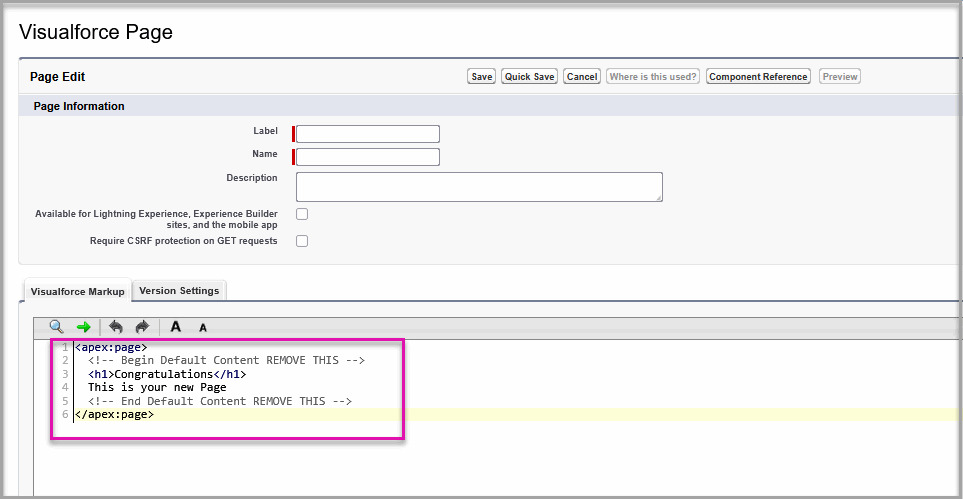
<apex:page

    standardController="API_name"

    recordSetVar="recVar"

    sidebar="true"

    lightningStylesheets="true">

    <apex:includeLightning />

    <apex:form>

        <apex:pageBlock title="Generate Multiple PDF">

            <apex:pageBlockButtons location="top">

                <apex:commandButton value="Back" action="{!cancel}" />

            </apex:pageBlockButtons>

            <apex:outputText rendered="{!IF(selected = '', true, false)}">

                <apex:pageMessage

                    severity="error"

                    strength="1"

                    summary="{!$Label.form_builder__Please_choose_at_least_1_record}" />

            </apex:outputText>

        </apex:pageBlock>

        <div id="lightning"></div>

        <script>

            var recids = '{!selected}';

            recids = recids.replace(']', '');

            recids = recids.replace('[', '');

            recids = recids.replace(/\s/g, '');

            if (recids.length > 0) {

                $Lightning.use("Form_Builder:FTPDF", function () {

                    $Lightning.createComponent(

                        "Form_Builder:FTGeneratePDF",

                        { recids: recids },

                        "lightning",

                        function (cmp) {}

                    );

                });

            }

        </script>

    </apex:form>

</apex:page>
This code performs two important functions:
If the user has not selected any records, the page displays a message asking the user to select at least one record.
standardController=”Birthdays__c”
Use the object’s API name rather than its label. A custom object API name usually ends with __c.
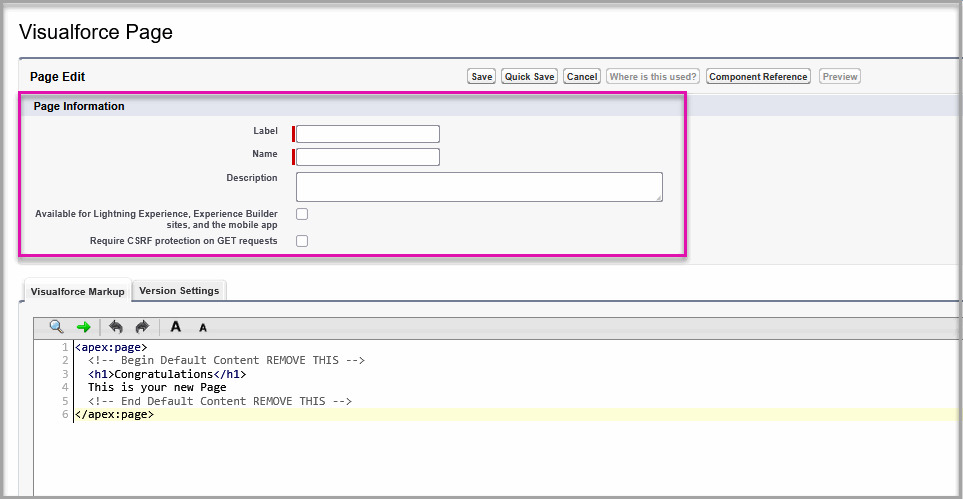
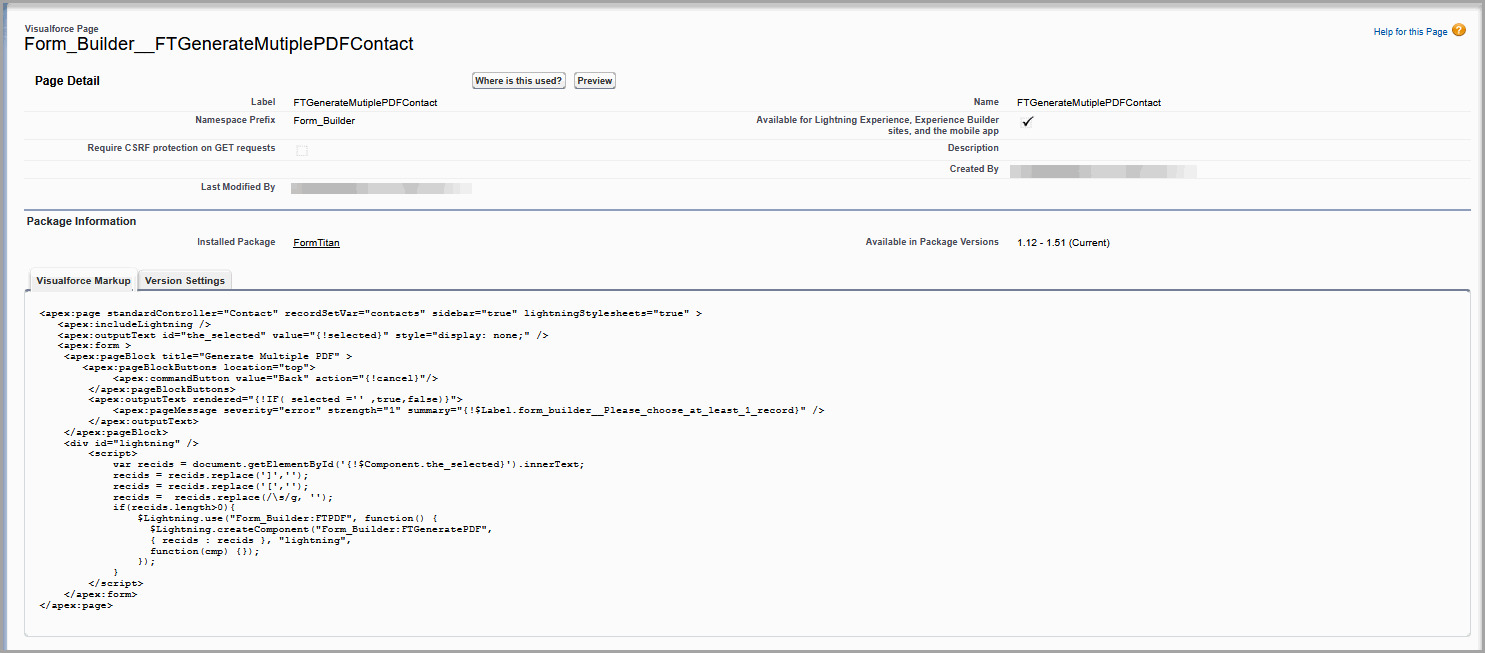
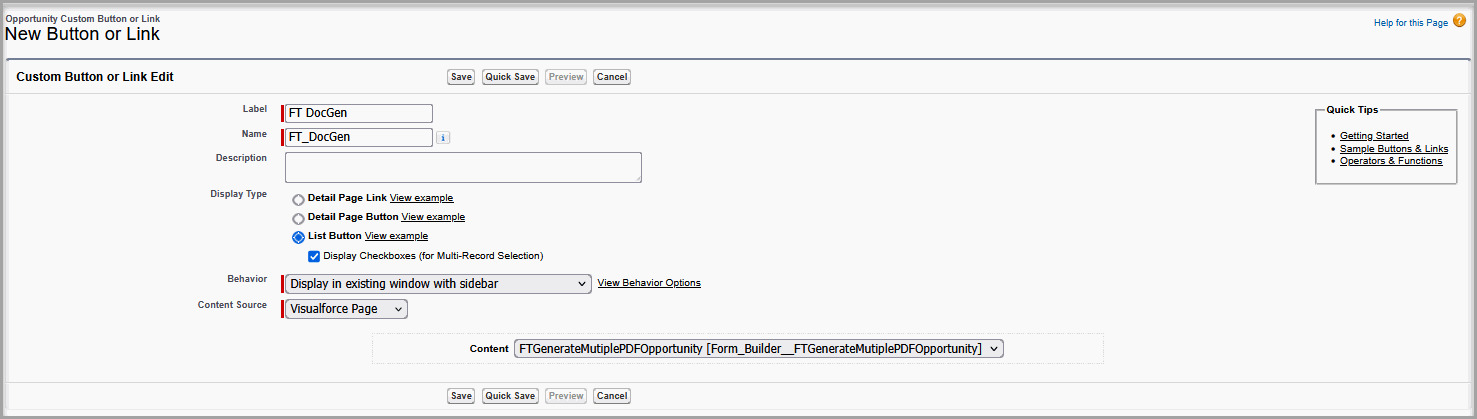
After creating the Visualforce page, create a button that opens the page from the object’s list view.

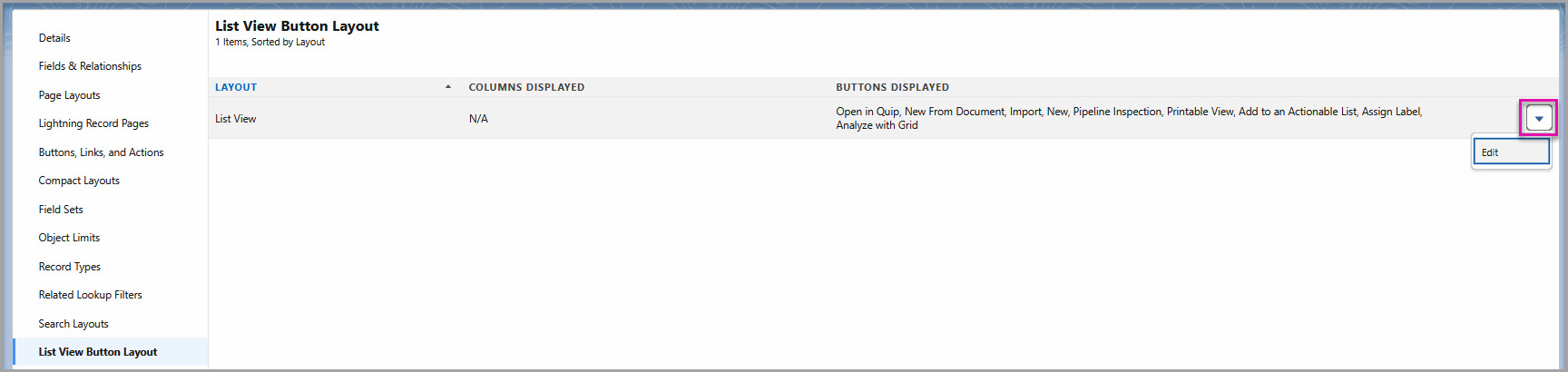
Creating the button does not automatically make it visible. You must add the button to the object’s List View Button Layout.
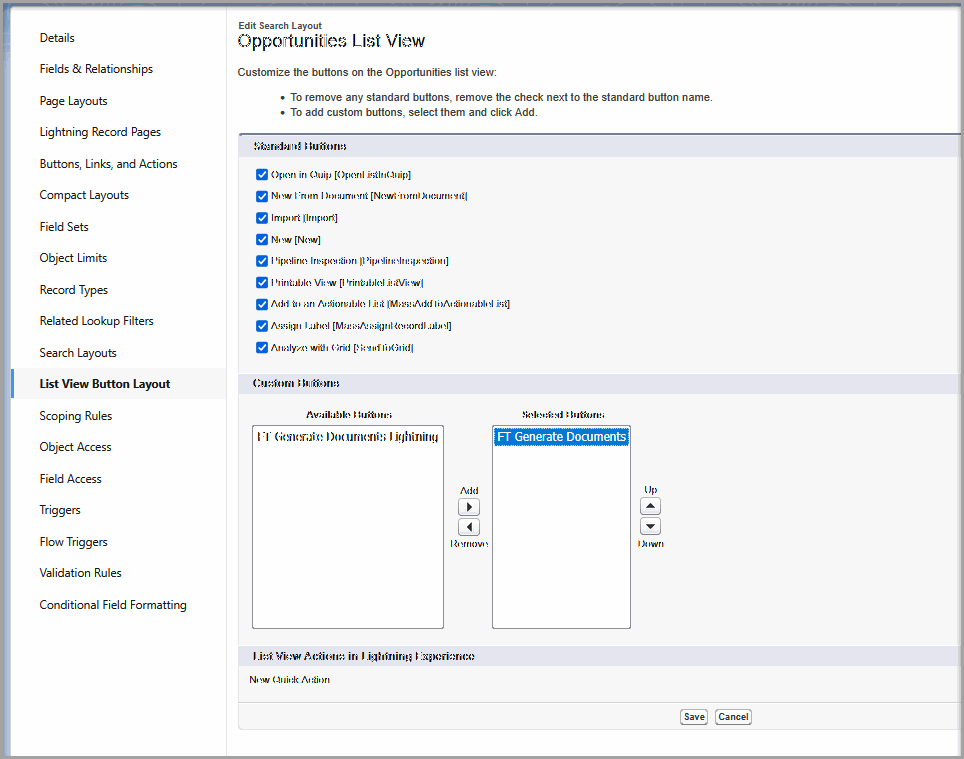
The FT Doc Gen button is now available from the object’s list view.
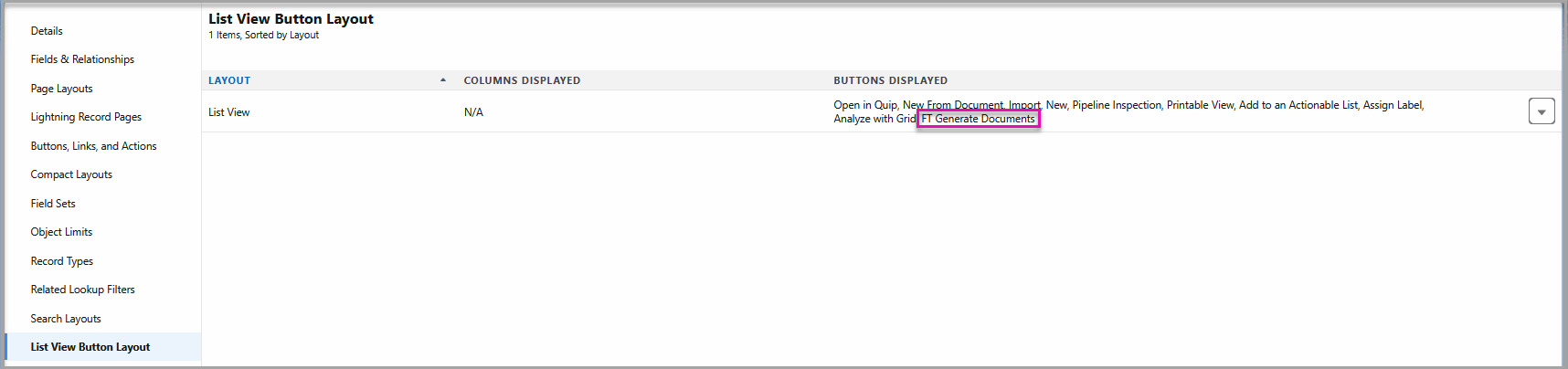
If the button does not appear directly in the list view action bar, open the additional actions drop-down menu and select FT Doc Gen.
The button’s location can vary based on available space, Salesforce page configuration, and the number of actions added to the list view.

Confirm that you added the action to the page layout assigned to the user’s profile and record type. You should also confirm that the action appears in the Salesforce Mobile and Lightning Experience Actions section.
Confirm that you moved the button from Available Buttons to Selected Buttons under List View Button Layout.
For some custom objects, Salesforce only displays the List View Button Layout option when search is enabled for the object.
Confirm that:
Check that the standardController value matches the exact API name of the Salesforce object. For a custom object, include the __c suffix.
Also, confirm that the Visualforce page is available in Lightning Experience and that the user has permission to access it.
After adding the button, test the process with a record that contains complete Salesforce data. Generate a document and confirm that the correct record values populate the mapped Word template.
Testing the full process helps you catch mapping, access, and layout issues before the button is made available to a wider group of users.
You can also read our comparison of the ten best Salesforce document generation tools to see how different document generation options handle templates, automation, Salesforce data, and batch generation.
An FT Doc Gen button is a Salesforce button that opens Titan document generation from a Salesforce record page or list view. It lets users generate documents from Salesforce records they are already working with.
You need to add the button when users must generate Titan documents directly from Salesforce. The button saves users from leaving Salesforce, manually searching for a record, or starting document generation from the wrong place.
Titan automatically creates FT buttons for most standard Salesforce objects. If you want to use document generation on a custom object, you must create the button and add it to the relevant Salesforce page layout or list view layout.
A Detail Page Button is used when a user generates a document from one Salesforce record, such as a Contact or Account.
A List View Button is used when a user selects multiple records from a Salesforce list view and generates documents for those records.
The Salesforce record ID identifies which record initiated the document generation process. Titan uses this ID to pull the correct Salesforce data into the document template.
Select Form_Builder. This Titan Lightning Component opens the Document Generation window and passes the current Salesforce record to Titan.
The Visualforce page collects the IDs of the records selected in the Salesforce list view and passes those IDs to Titan. This is what allows Titan to generate documents for multiple selected records.
Use the Salesforce API name of the object. For a custom object, the API name usually ends with __c, for example, Birthdays__c.
Creating the button does not automatically make it visible to users. For a record page button, add the action to the correct Salesforce page layout. For a list view button, add it to the object’s List View Button Layout.
Confirm that the Titan project is published, the Word mapping is complete, the Salesforce record ID is mapped, and the connected user has access to the relevant templates.
On this page









