How can we help you?
Use Salesforce JWT (JSON Web Token) authentication to connect Titan to Salesforce without storing a Salesforce user’s password. Salesforce verifies a signed token against the certificate uploaded to your external client app and issues an access token for an authorized user.
The commands below save the keys and certificate in the folder your terminal is currently using. Choose this folder first so you can find the files when configuring Salesforce and Titan.
Open Terminal and run the following commands.
openssl genrsa -out privatekey.pem 2048openssl rsa -in privatekey.pem -pubout -out publickey.pemopenssl req -new -x509 -key privatekey.pem -out server.cert -days 365Install Git for Windows and open Git Bash to run the OpenSSL commands.
openssl genrsa -out privatekey.pem 2048openssl rsa -in privatekey.pem -pubout -out publickey.pemopenssl req -new -x509 -key privatekey.pem -out server.crt -days 365Run the same commands as macOS. OpenSSL is preinstalled on most distributions.
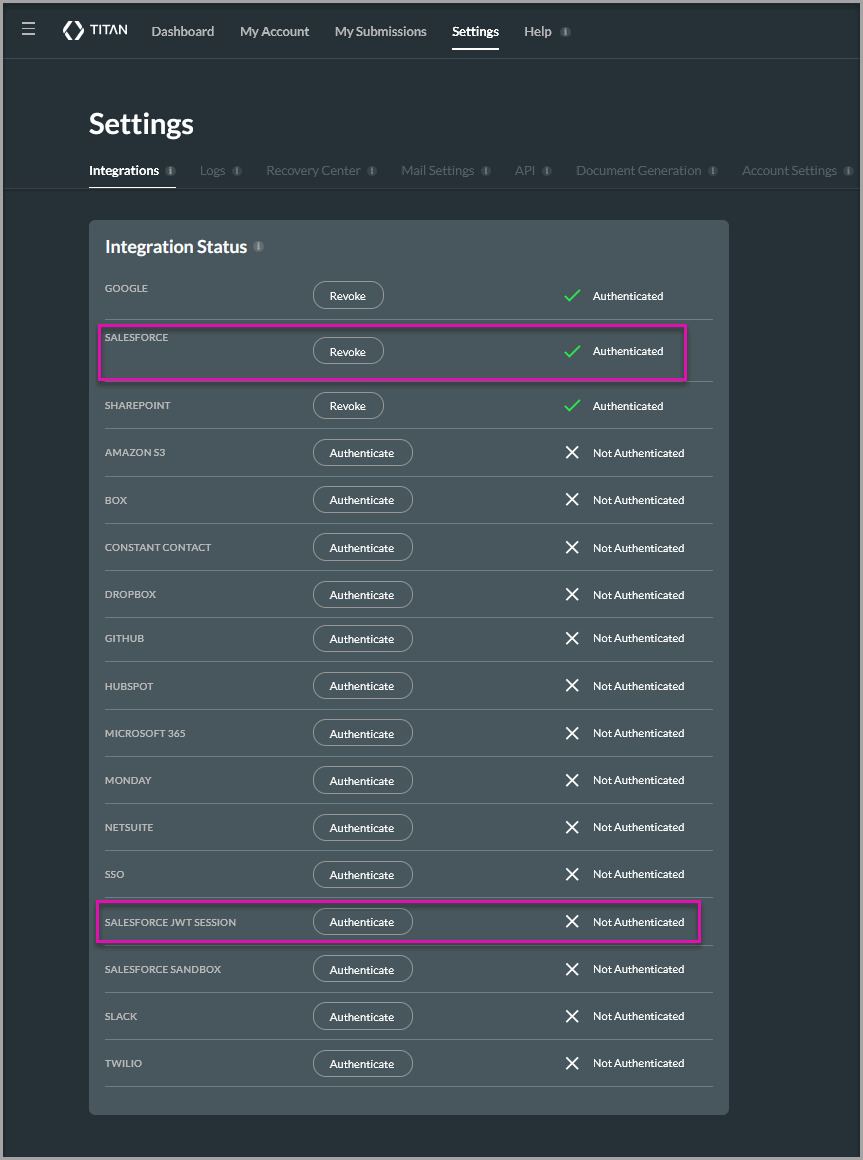
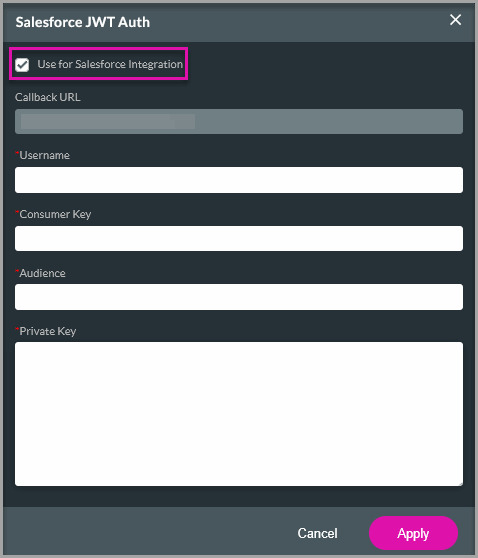
The Callback URL is generated automatically. Keep this screen open; you will copy the URL into Salesforce when configuring the external client app.
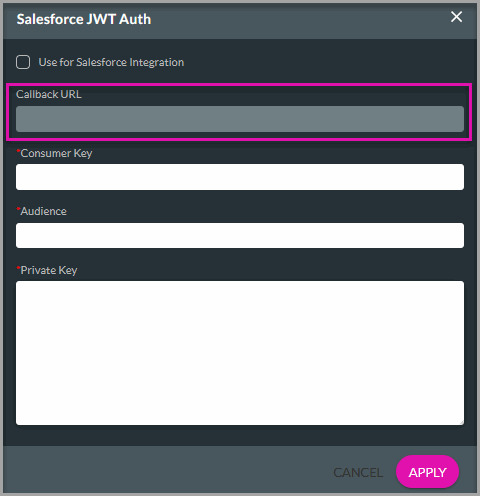
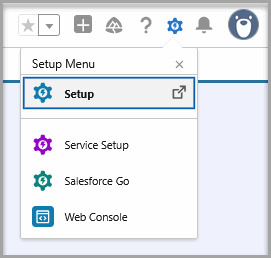

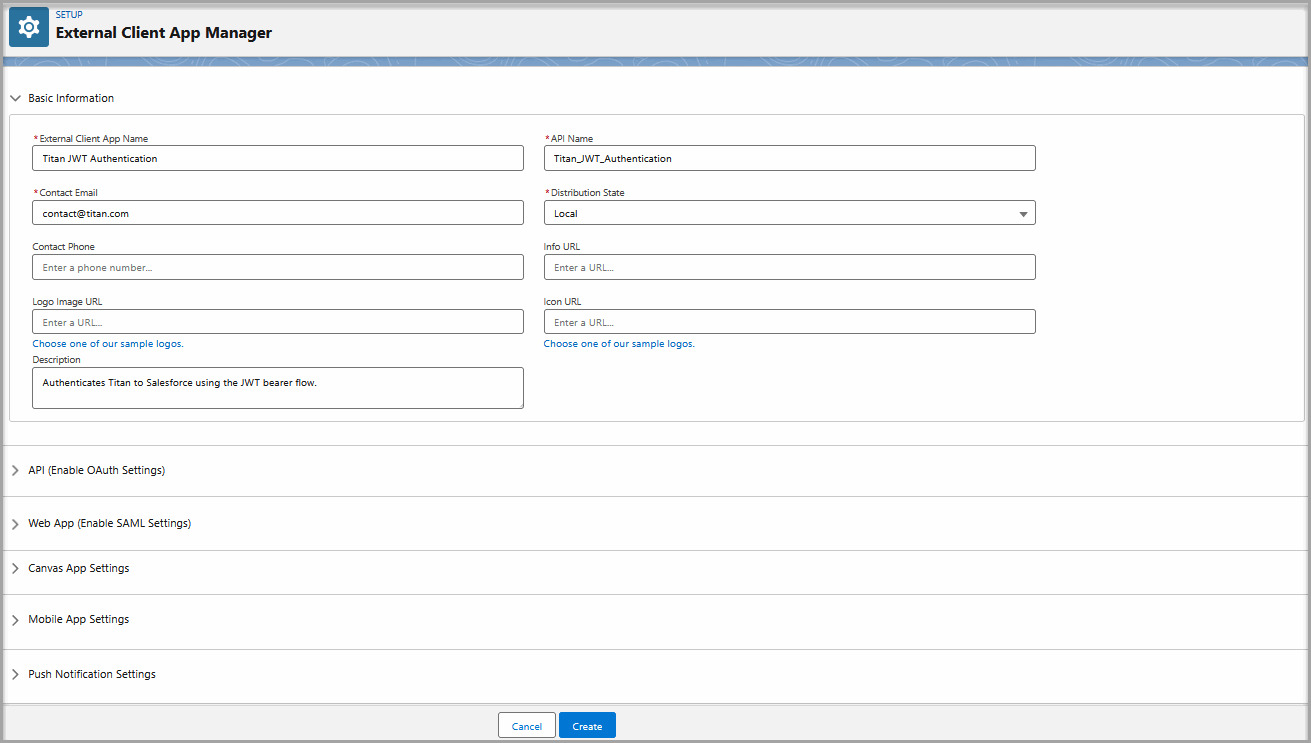
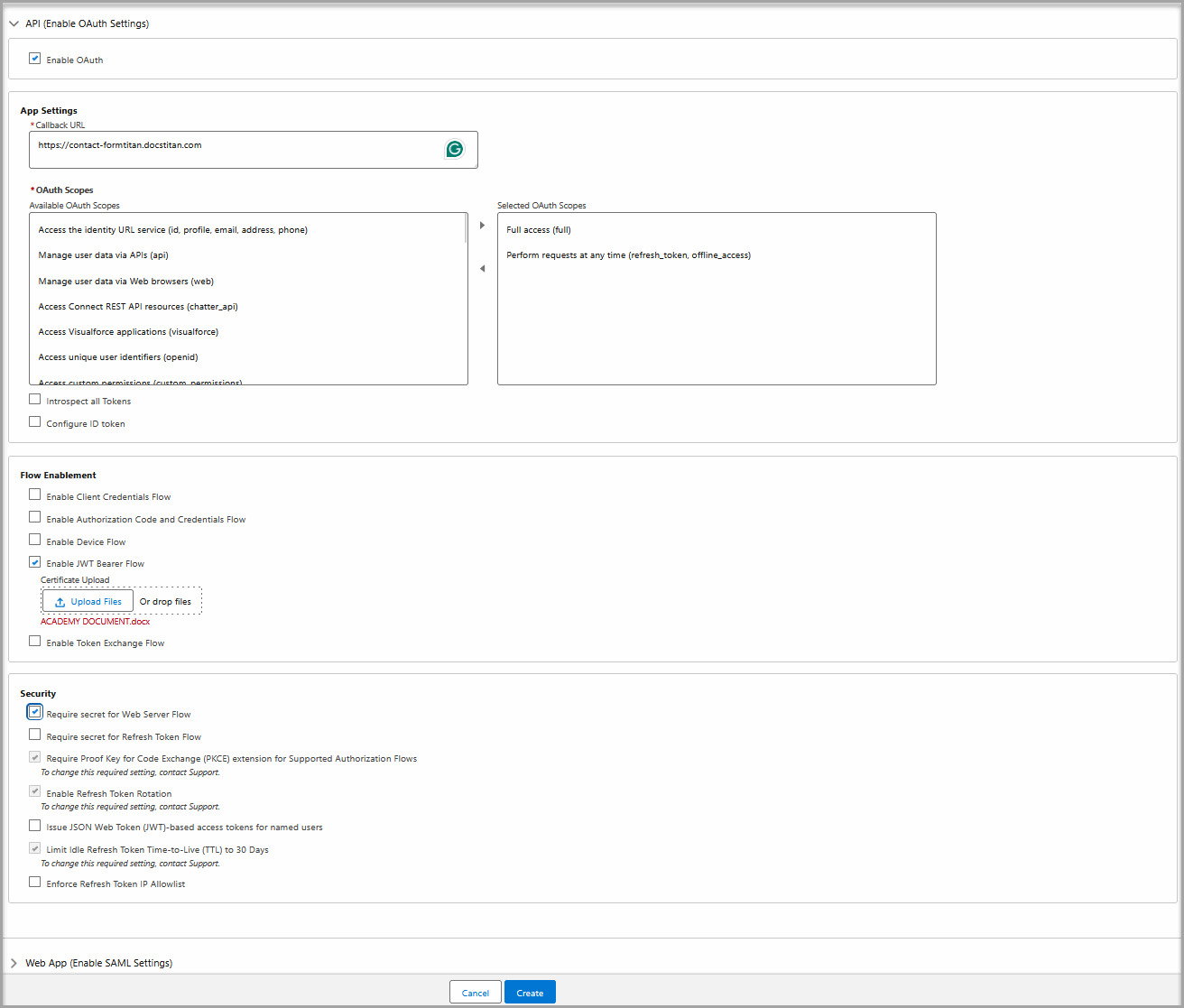
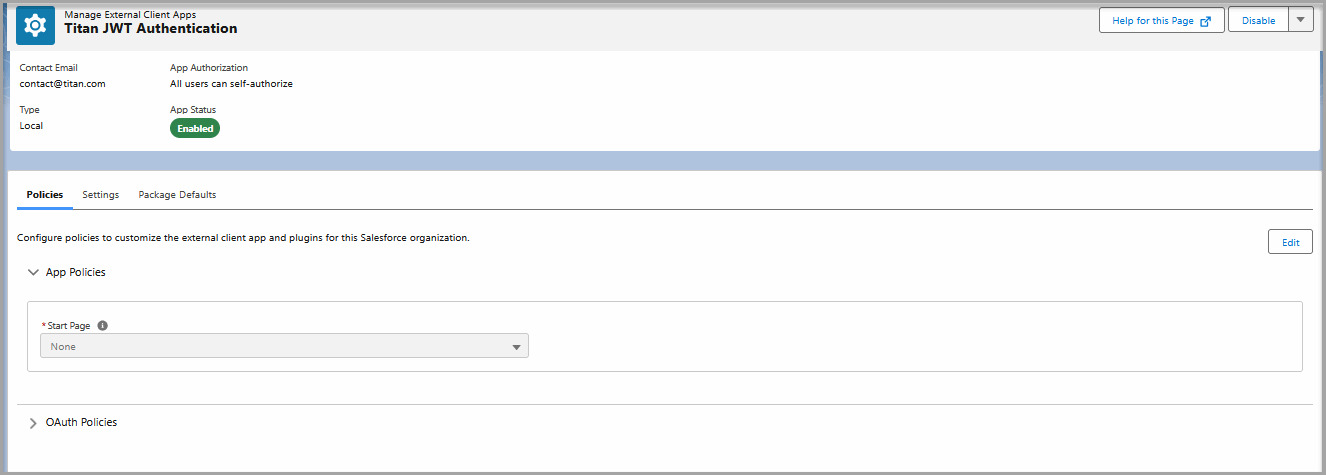
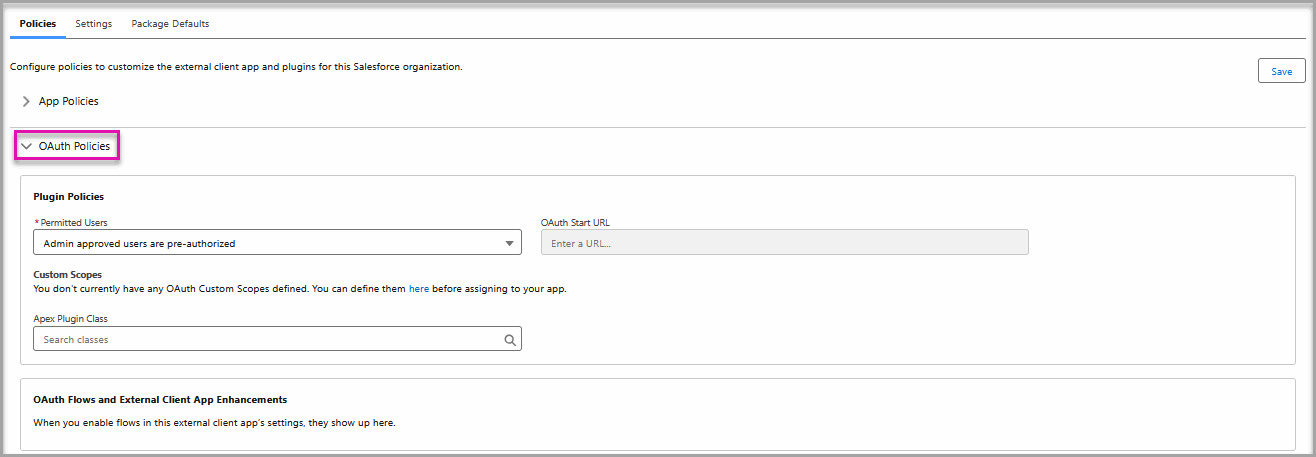
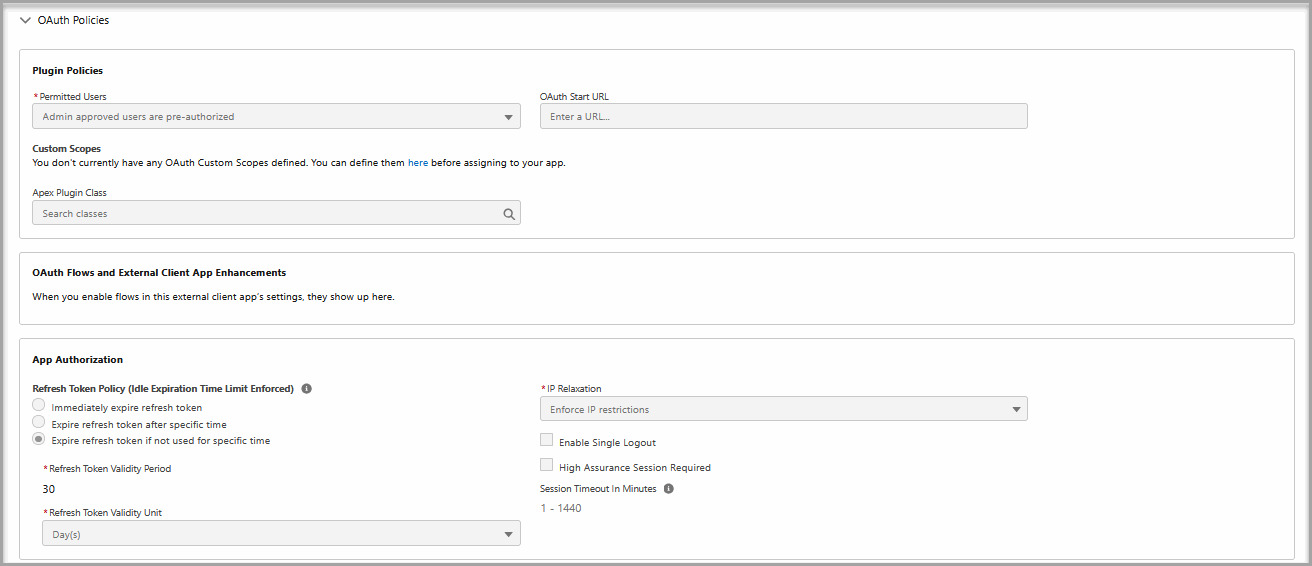
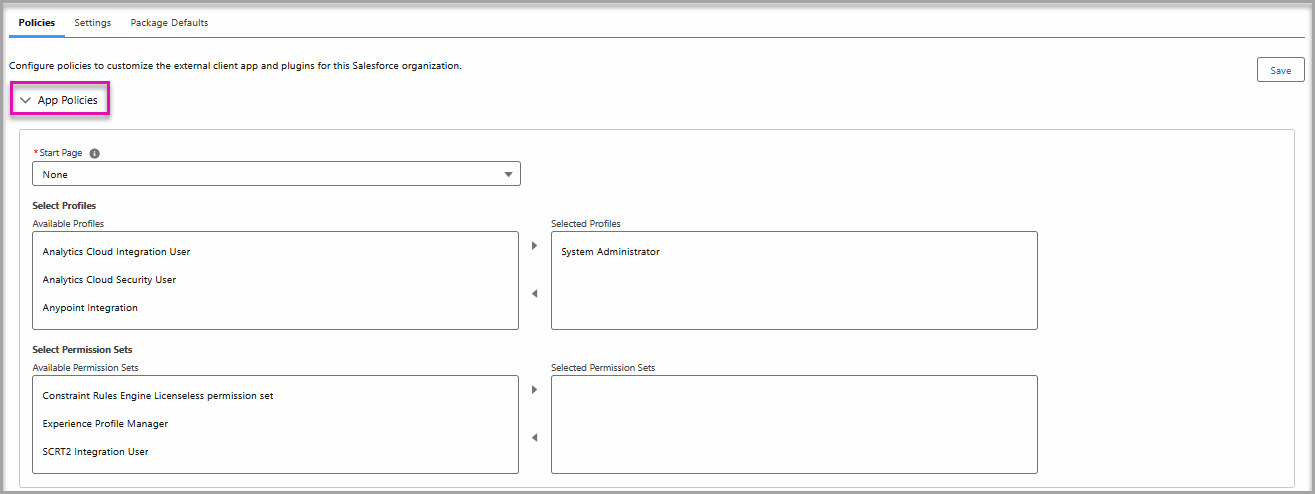
When completing the authentication in Titan, enter the Salesforce username of a user with one of the selected profiles.
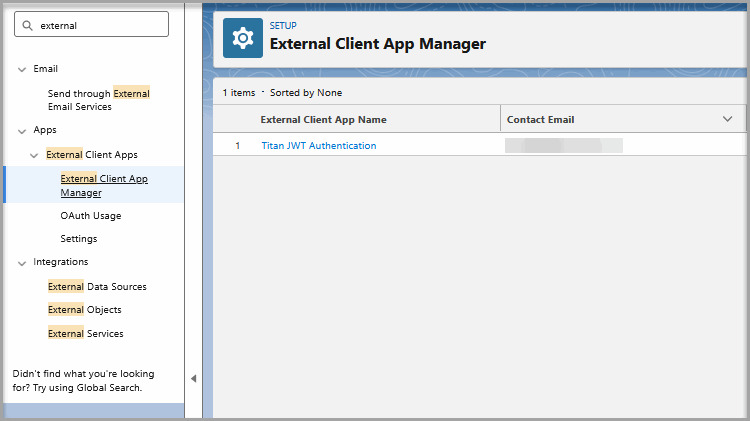
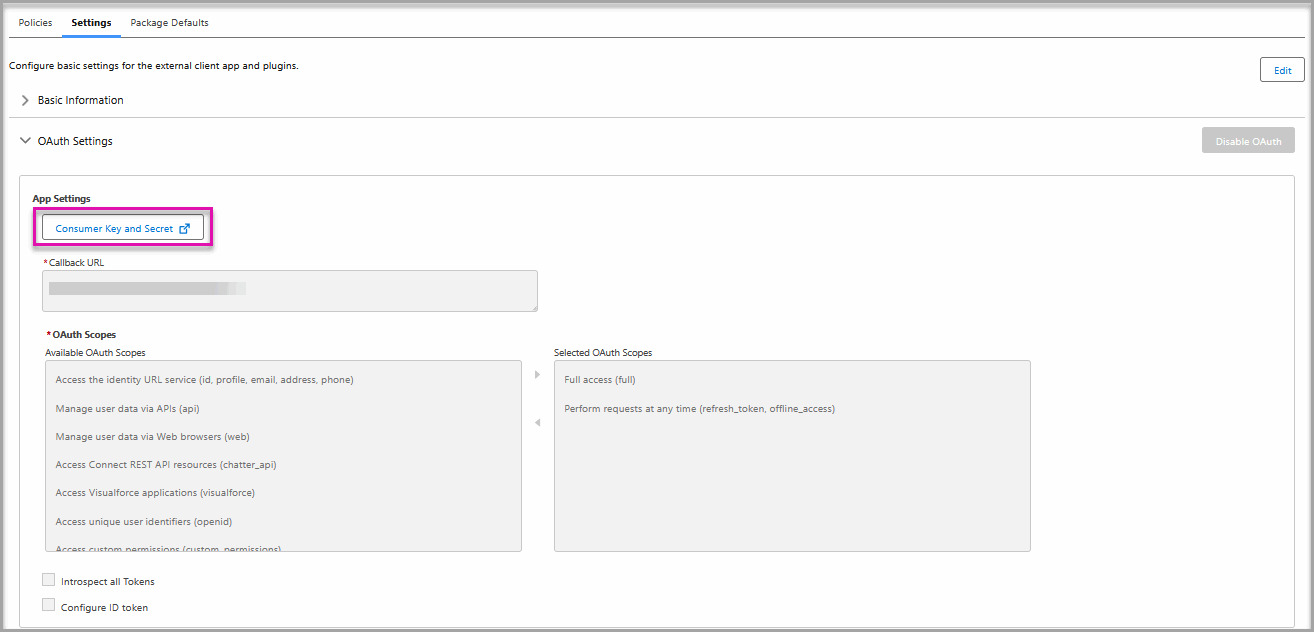
Get the Consumer Key from the external client app you created in Salesforce.
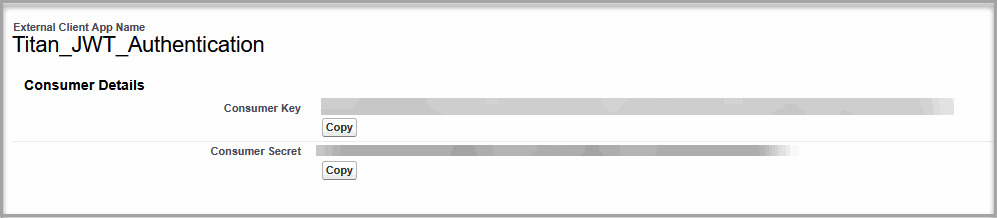
Note: This setup uses the Consumer Key. You do not need to copy the Consumer Secret.
Note: Use the Consumer Key and, if applicable, the authorized username from the same Salesforce environment. The private key must match the certificate uploaded to the external client app. Mixing details from different environments or apps will cause authentication to fail.
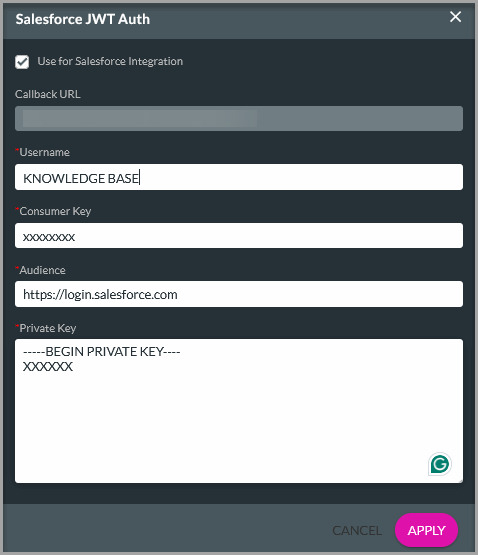
Complete these steps only if your integration must authenticate through a specific Experience Cloud site (Community). Otherwise, keep the production or sandbox URL entered above.

Find Experience Cloud sites under Digital Experiences > All Sites.
Note: If no sites are listed, use the production or sandbox URL.
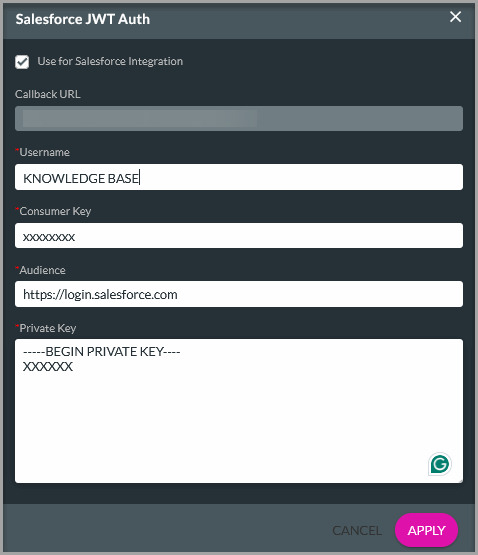
Titan can now authenticate with Salesforce using JWT and access Salesforce data according to the configured user’s permissions.
No. Salesforce JWT authentication is available to Titan customers without an Enterprise license.
The files are saved in the folder where you ran the OpenSSL commands. If you followed this guide, open your TitanJWT folder.
Check that your terminal is open in the folder containing privatekey.pem and that you entered the filename correctly. Run pwd to check your current folder and ls to list its files.
You need the Consumer Key. In Salesforce, open your external client app and go to Settings > OAuth Settings > App Settings > Consumer Key and Secret. Complete verification if prompted, then copy the Consumer Key into Titan.
Select Use for Salesforce Integration on the Salesforce JWT Auth screen. The Username field appears. Enter the Salesforce username of a user authorized to access your external client app.
Use the URL for your Salesforce environment:
Only use an Experience Cloud site URL if this integration must authenticate through that specific site.
On this page