How can we help you?
Connect Titan to Google Drive to upload files directly to your Google Drive storage as part of an automated Flow.
You can choose the destination folder, upload one or more files, and use the Google Drive file URL in later Flow actions. For example, you can save the URL to Salesforce or include it in an email.
The file is stored in Google Drive rather than Salesforce, which can help you reduce Salesforce file storage and manage documents in one central location.
Use the Google Drive integration when your Flow needs to store files outside Salesforce.
For example, you can create a Flow that:
The Google Drive integration lets you:
Note: The file URL can be saved to Salesforce, but the file itself remains stored in Google Drive.
Make sure you have:
You only need to authenticate Google once. After authentication, the connection can be used when configuring Google Drive actions in Titan Flow.
Authentication gives Titan permission to upload files to the connected Google Drive account.
Authentication gives Titan permission to connect to the selected Google Drive account and upload files through Titan Flow.
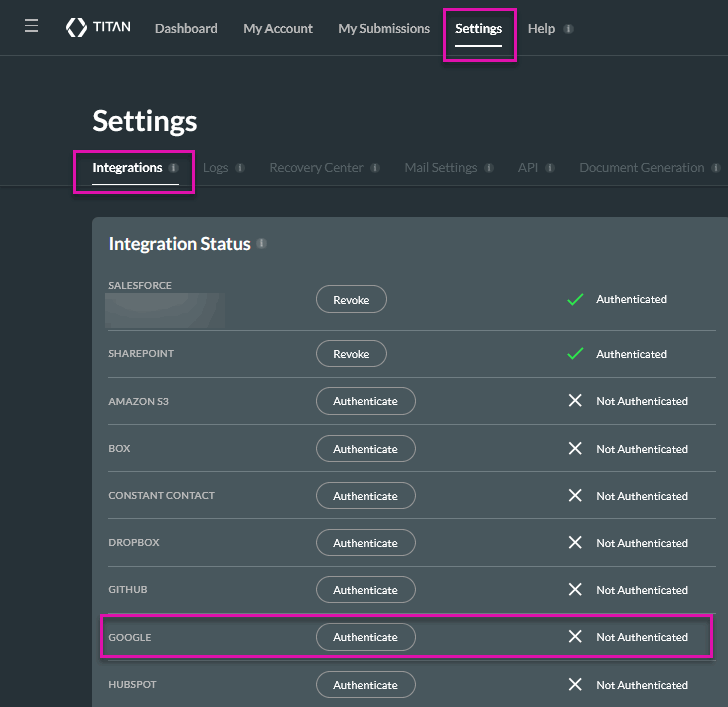
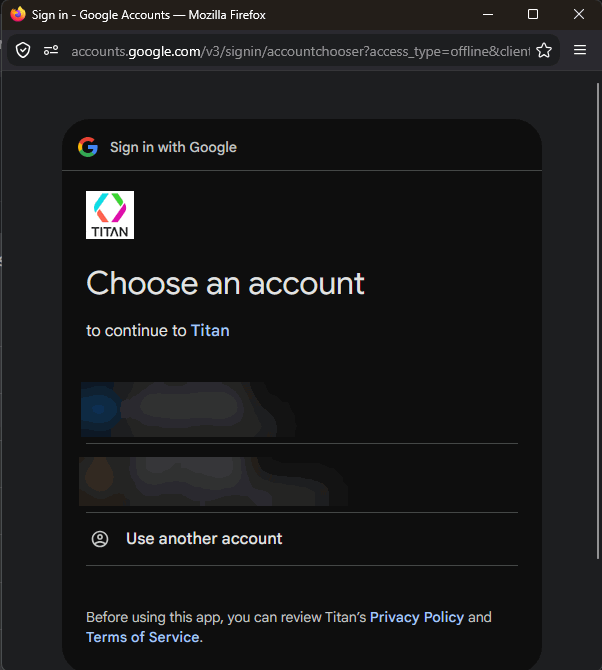
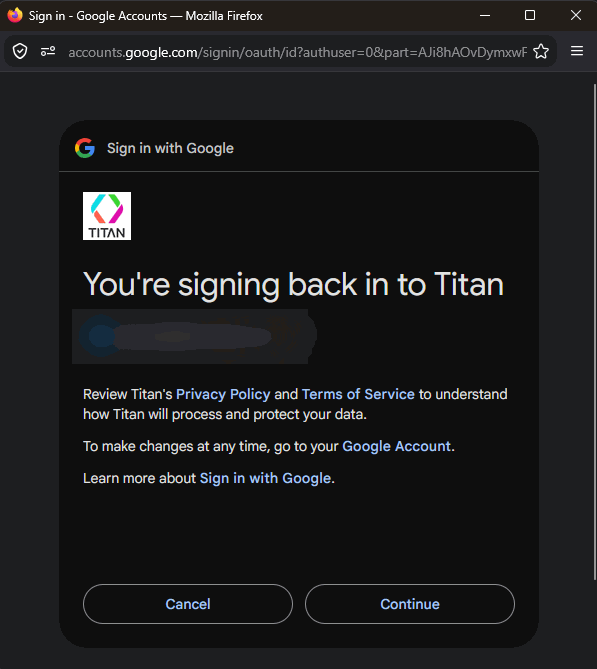
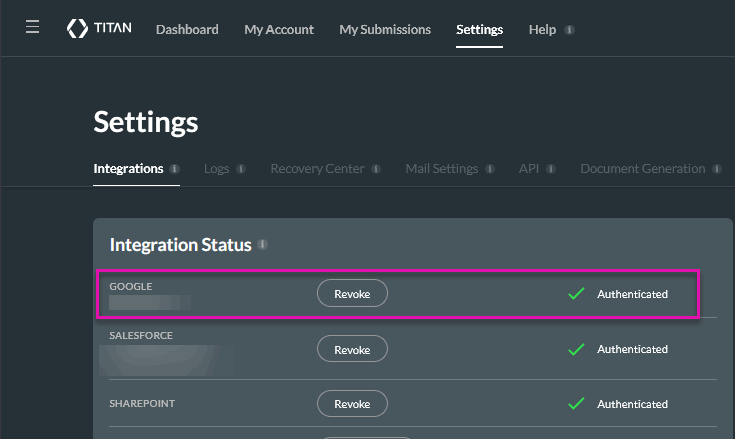
Tip: Use a shared or organization-managed Google account if several team members need continued access to the uploaded files. This helps prevent access issues if an individual user leaves the organization or changes roles.
Before configuring the upload action, decide how files should be organized in Google Drive.
You can use either of the following folder path types:
A static path sends every file to the same Google Drive folder.
For example:
Customer Agreements
Use a static path when all files belong to one shared category or location.
A dynamic path uses data from your Flow to determine where each file should be stored.
For example:
Customer Agreements/{Account Name}/{Year}
Use a dynamic path when you want Titan to organize files according to Salesforce records, customers, dates, document types, or other Flow values.
You can create a custom variable to hold the folder name or path when the value needs to change during the Flow.
After authenticating Google Drive, open your Titan Flow and add or configure the Google Drive upload action.
When configuring the action:
After a file is uploaded, Titan can return its Google Drive URL. You can map this URL to a custom variable and use it elsewhere in the Flow.
For example, you can:
Confirm that the intended recipients have permission to open the Google Drive file. A valid URL does not automatically grant access to a restricted file.
Run the Flow with test data before using it in a live process.
Check that:
Testing is especially important when you use dynamic paths or upload multiple files.
No. The file is stored in Google Drive. You can save the Google Drive file URL to Salesforce so users can access the file from the relevant record.
Yes. You can configure the integration to upload a single file or multiple files from your Titan Flow.
Yes. Use a dynamic folder path to select or create a destination based on Flow data, such as an account name, record ID, document type, or date.
Yes. Map the returned URL to a custom variable. You can then use the variable in Salesforce actions, emails, or other parts of your Flow.
Not necessarily. Access depends on the file and folder permissions in Google Drive. Make sure the intended users have permission to open the uploaded file.
The Flow may no longer be able to upload files to the selected location. Reauthenticate Google or connect an account with the required Google Drive permissions.
Check the configured folder path and any custom variables used to build it. If the path is dynamic, confirm that each variable contains the expected value when the upload action runs.
On this page