How can we help you?
Titan Document Generation for Salesforce lets you create Word, Excel, and PDF documents using Salesforce data or information captured in a Titan Web project. Instead of manually transferring data into quotes, contracts, invoices, reports, and other business documents, you can generate populated files directly from your project.
Document Generation connects your project data to a reusable document output. You can generate documents from standard Salesforce objects, including Accounts, Contacts, Opportunities, and Cases, or from custom objects built around your business processes.
Generated documents can also form part of a larger automated process. For example, your project can generate a completed document, save it to Salesforce, email it, or trigger follow-up actions.
Use Document Generation when you need to:
Titan provides two document generation options:
| Option | Use It When |
|---|---|
| Upload Template | You have a prepared Microsoft Word or Excel template containing Titan fields. |
| Auto PDF | You want to convert a page from your Web project into a fixed PDF without preparing a separate Word or Excel template. |
The Upload Template option lets you add a prepared Microsoft Word or Excel file to your project. Titan uses the fields added to the template to populate the document with data from Salesforce or the Web project.
This option gives you greater control over the document structure and formatting. It is useful for branded contracts, detailed reports, spreadsheets, and documents that must follow an existing layout.
For uploaded Word and Excel templates, you can configure the following actions:
Editing an uploaded template in Titan does not change the original Word or Excel file.
Before uploading a template:
The Auto PDF option converts a selected page from your Web project into a PDF. You do not need to prepare or upload a separate Word or Excel template.
Use Auto PDF when the Web page already contains the content and layout you want to capture. Server-controlled rendering helps produce a consistent PDF regardless of the recipient’s browser, device size, or display settings.
You can configure Auto PDF to:
You can also select the source page and apply a layout override. The override lets you generate the PDF using a specific device layout instead of the layout detected on the recipient’s device.
Limitation: When pagination is enabled, Auto PDF includes only the first step or tab for projects that use steppers, tabs, or multi-step layouts.
Path: Project Settings > Tools > Document Generation > Gear icon
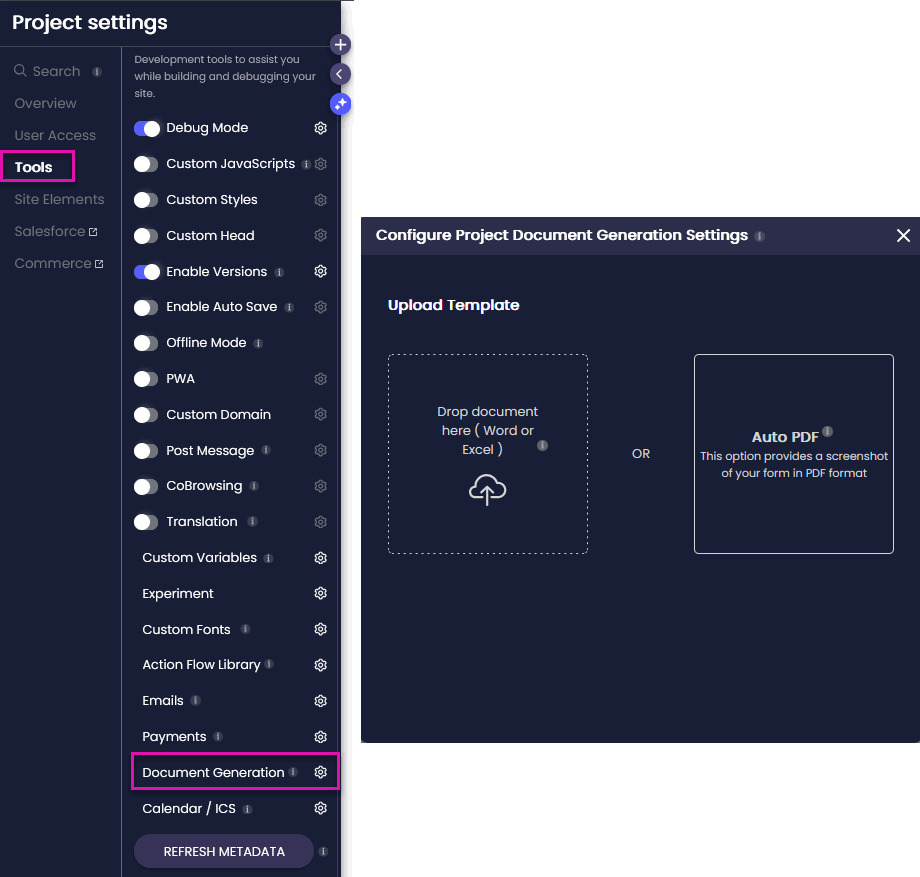
Upload Template uses a prepared Word or Excel file containing Titan fields. Auto PDF converts a selected page in your Web project directly into a PDF without requiring a separate template.
You need the Titan Word or Excel add-in to add dynamic fields to uploaded templates. Auto PDF does not require a Word or Excel add-in because it generates the PDF from a Web project page.
Yes. You can generate documents using data from standard or custom Salesforce objects, provided the required data is mapped in your project or template.
No. Editing or replacing the uploaded template in Titan does not change the original Word or Excel file stored on your device.
Yes. Both uploaded templates and Auto PDF can be configured to push generated documents to Salesforce. You must configure the required Salesforce push settings.
Not when pagination is enabled. For projects that use steppers, tabs, or multi-step layouts, Auto PDF includes only the first step or tab in the generated PDF.
On this page