How can we help you?
When users complete a form, submit a request, or move through a web process, you may need to automatically send an email. These emails can confirm a submission, notify an internal team, share next steps, or keep users updated without manual follow-up.
Automated email settings help you respond faster and keep communication connected to the actions users take in your project.
Titan Web lets you configure email settings for your Web project so emails are sent when specific actions occur. You can use emails to notify users, alert team members, confirm completed steps, or support a larger Salesforce-connected process.
Emails can be triggered at different points in the project, depending on how your workflow is set up. This helps you keep users informed while reducing manual email work for your team.
Path:
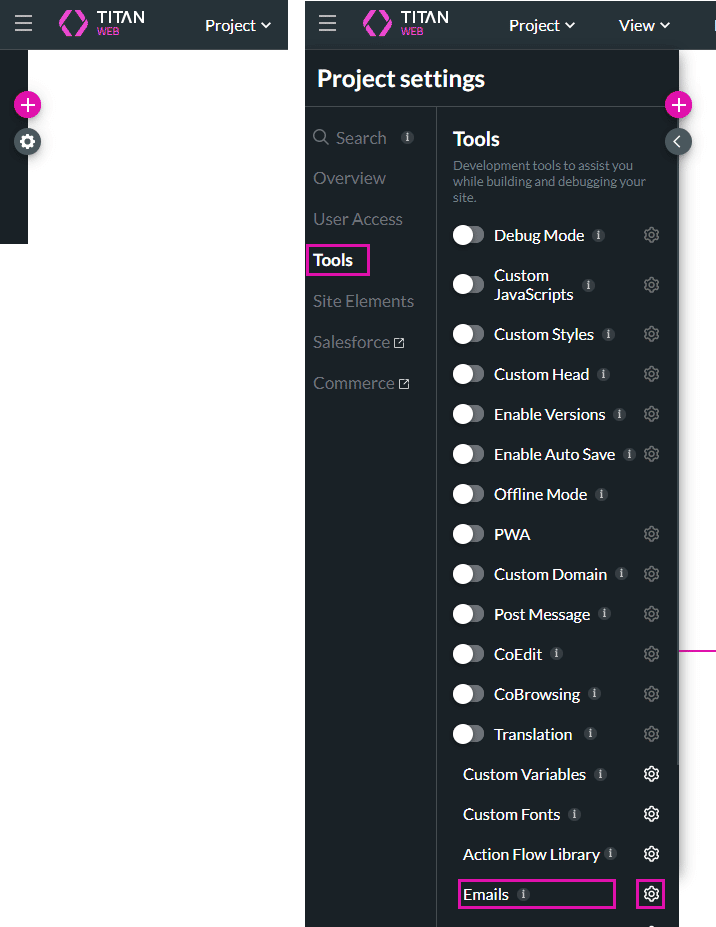
Project Settings > Tools > Emails > Gear icon
Note:
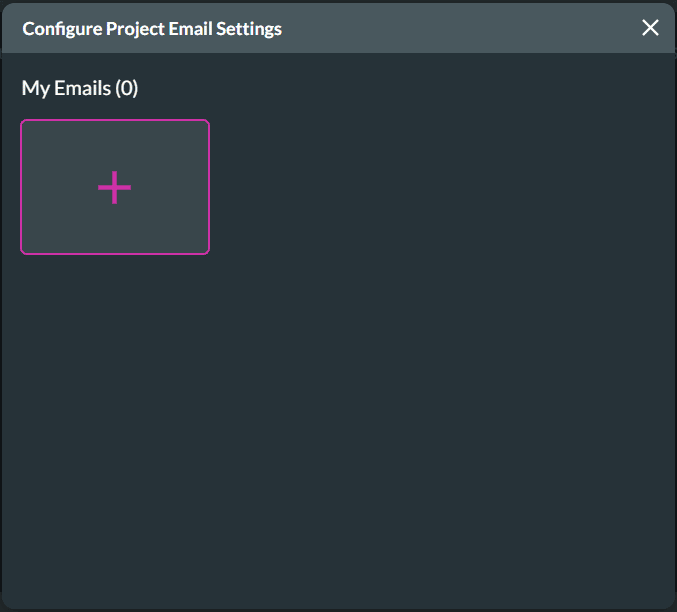
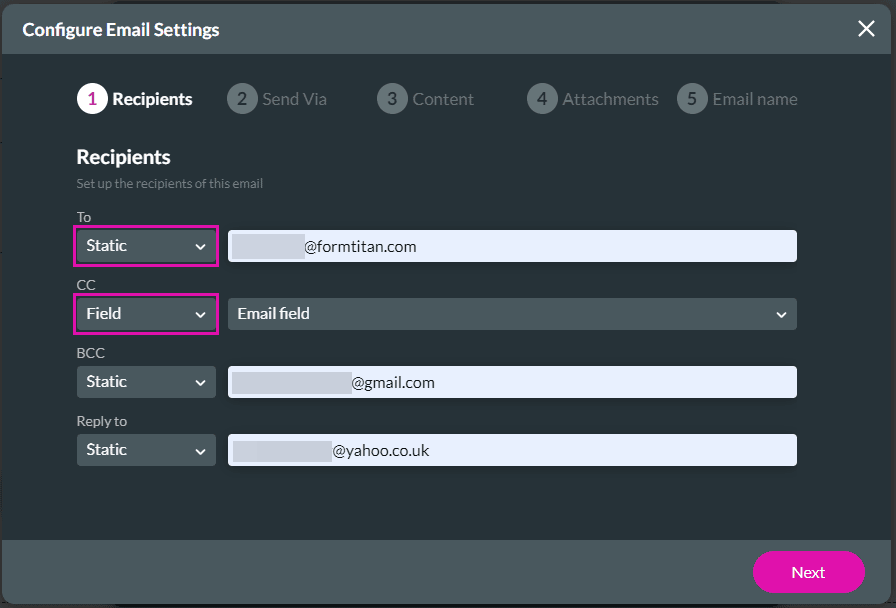
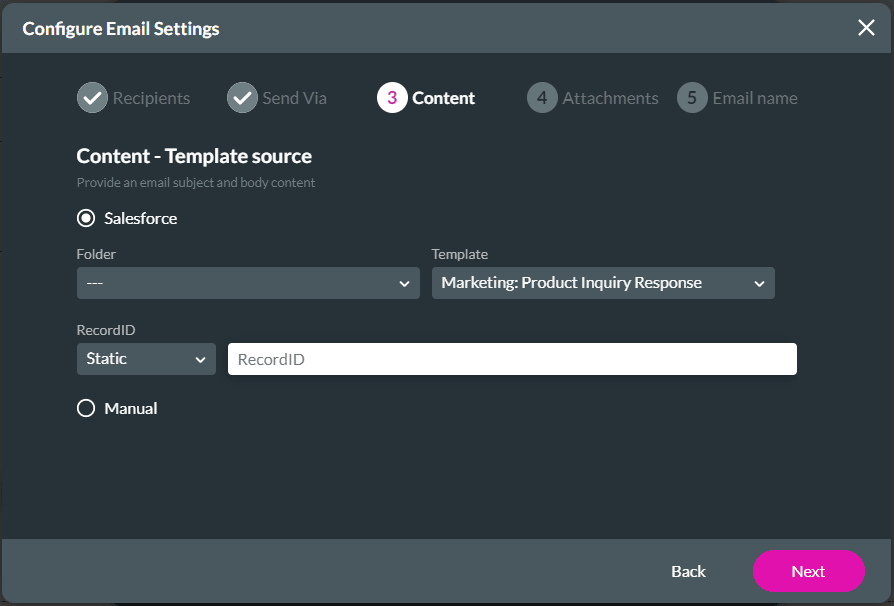
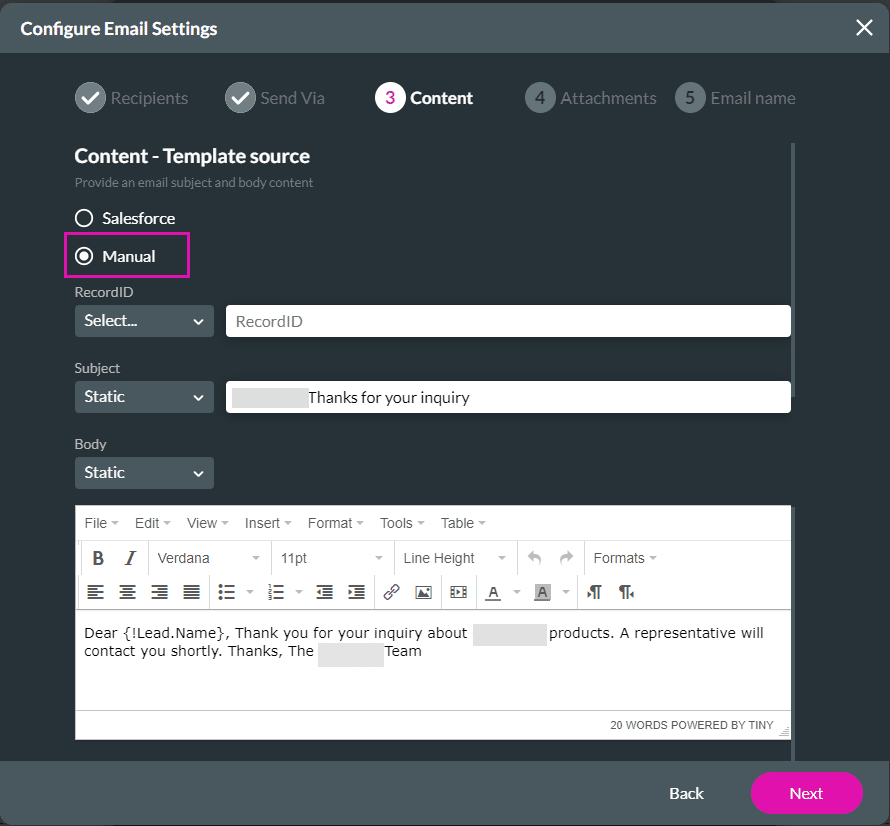
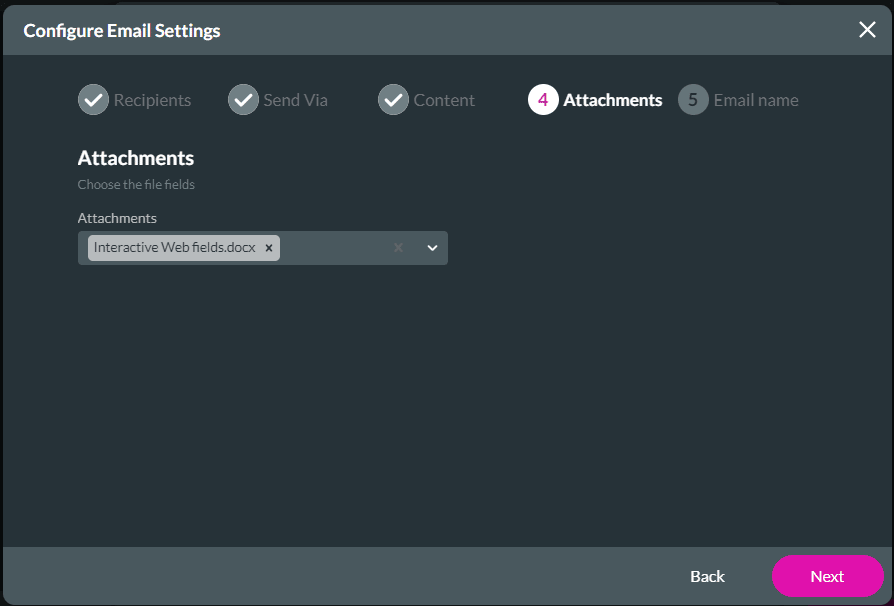
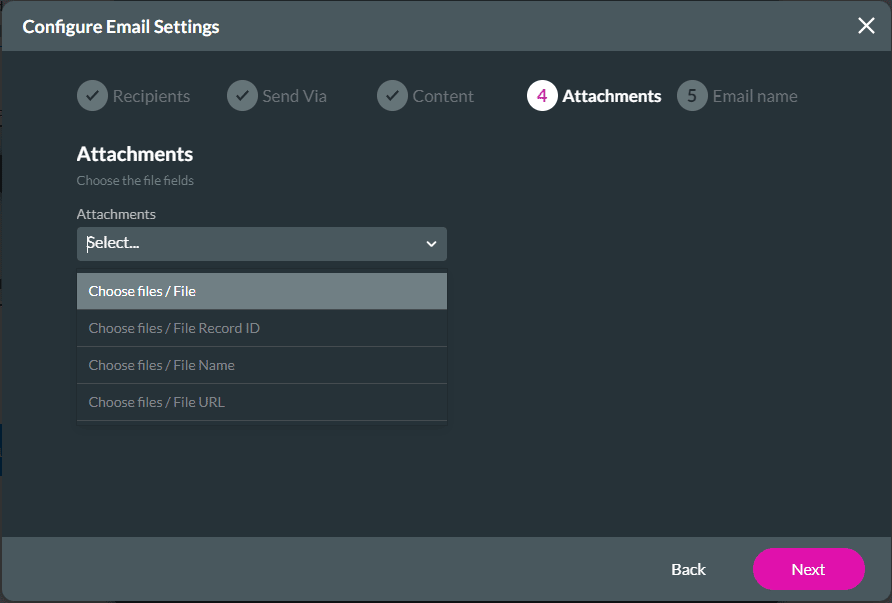
There are five steps to complete.
Note:
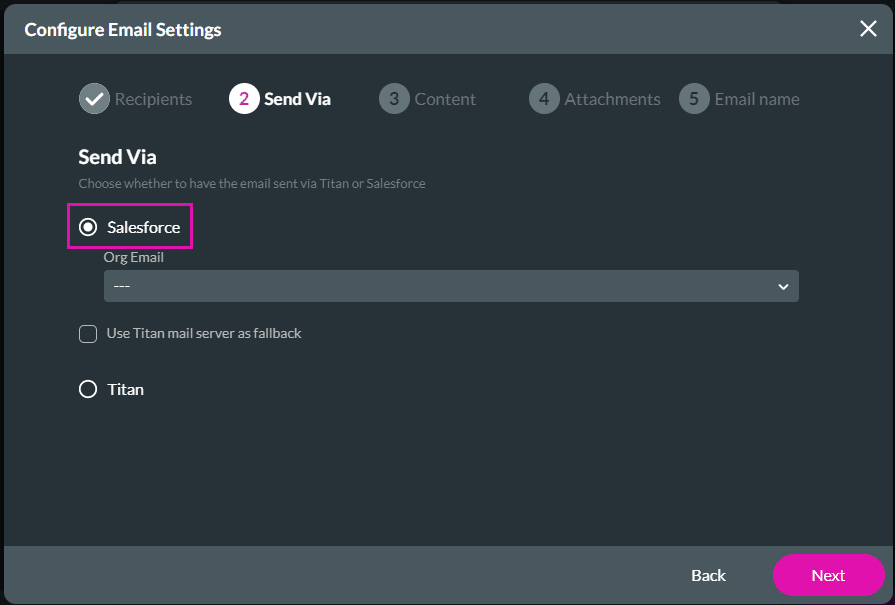
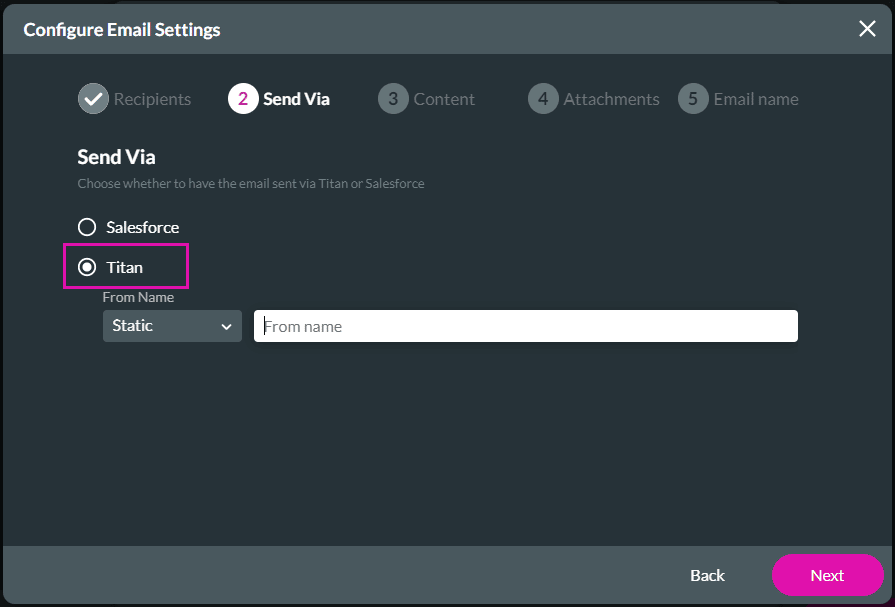
We recommend you send emails via Salesforce or your own SMTP server.
Warning:
When using the Titan mail server and three emails bounce (for instance, when the receiving email server is temporarily unavailable, was overloaded, or couldn’t be found), the system will block all emails from that account for three days. The emails will be released after this period unless three more emails bounce.
Note:
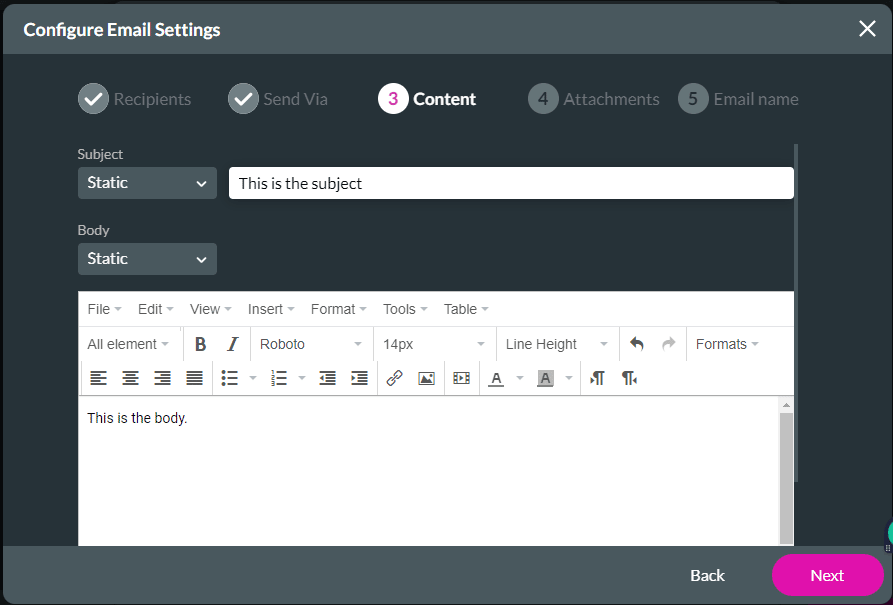
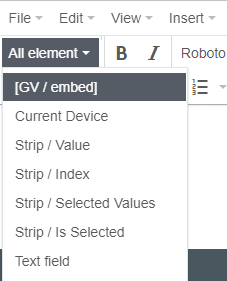
If necessary, use the All elements drop-down list to add elements to the email body.
Path:
Titan Web > Project Settings > Tools > Document Generation > Gear icon
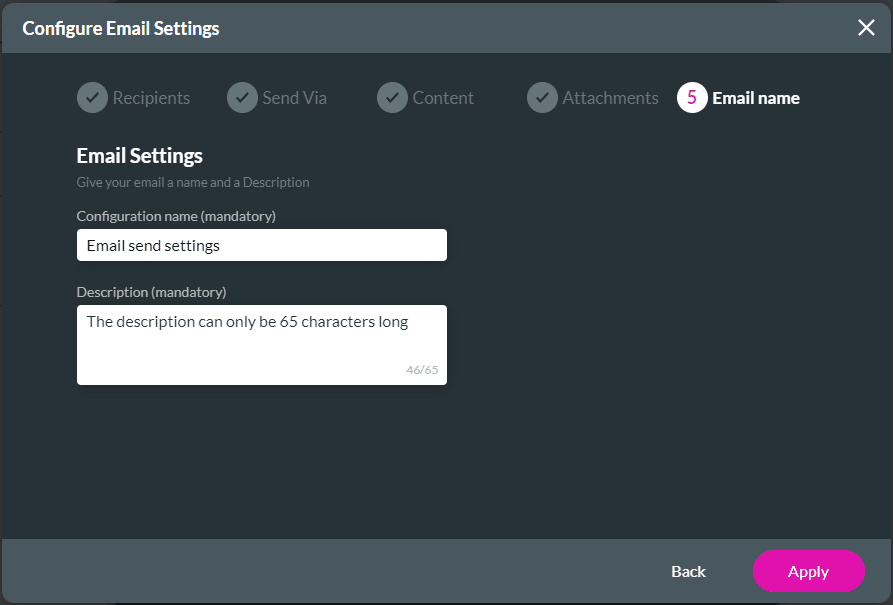
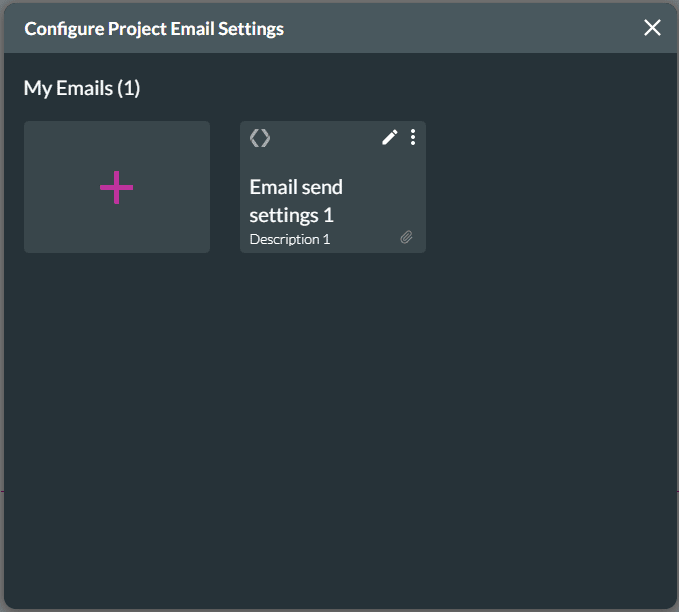
The email is added to the screen.
Note:
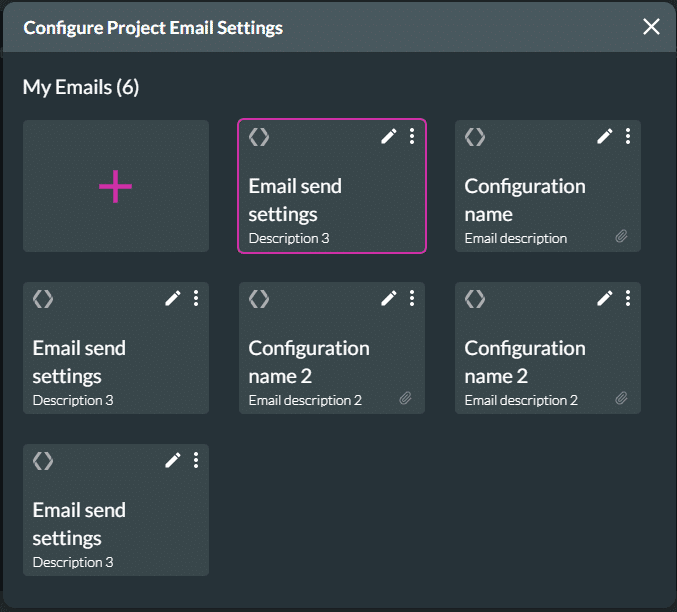
When you have configured multiple emails, click an option to select it. The pink frame shows which option was selected. The Configure Project Emails Settings screen closes automatically when you have selected an option.
On this page









