How can we help you?
Teams often need to send multiple documents for signing simultaneously, whether to a single signer or multiple signers. Managing these documents individually can slow down completion times and increase the manual setup required.
Bulk Sign addresses this need by providing teams with a faster and more consistent way to manage high-volume signing workflows directly in Titan Sign.
Bulk Sign allows users to send multiple documents in one signing session, eliminating the need to prepare and send each file separately. Each signer receives their own secure session and can complete all documents in one streamlined flow.
This feature simplifies document management, reduces time spent on repetitive tasks, and ensures every signed file remains separate for accurate record-keeping.
When configuring Bulk Sign, review the points below to ensure each template is set up correctly in the Builder. These settings determine whether the signing process runs as expected.
To trigger a Bulk Sign process from a Salesforce Flow, use the TitanSignBulkInstantURL Action. See the full guide here: Apex Class: TitanSignBulkInstantURL.
This Action generates and saves the signing URL for the first signer in a designated field on the parent record. Once generated, the first signer’s URL must be distributed through your process. Titan does not send this link, but automatically delivers all subsequent signer links.
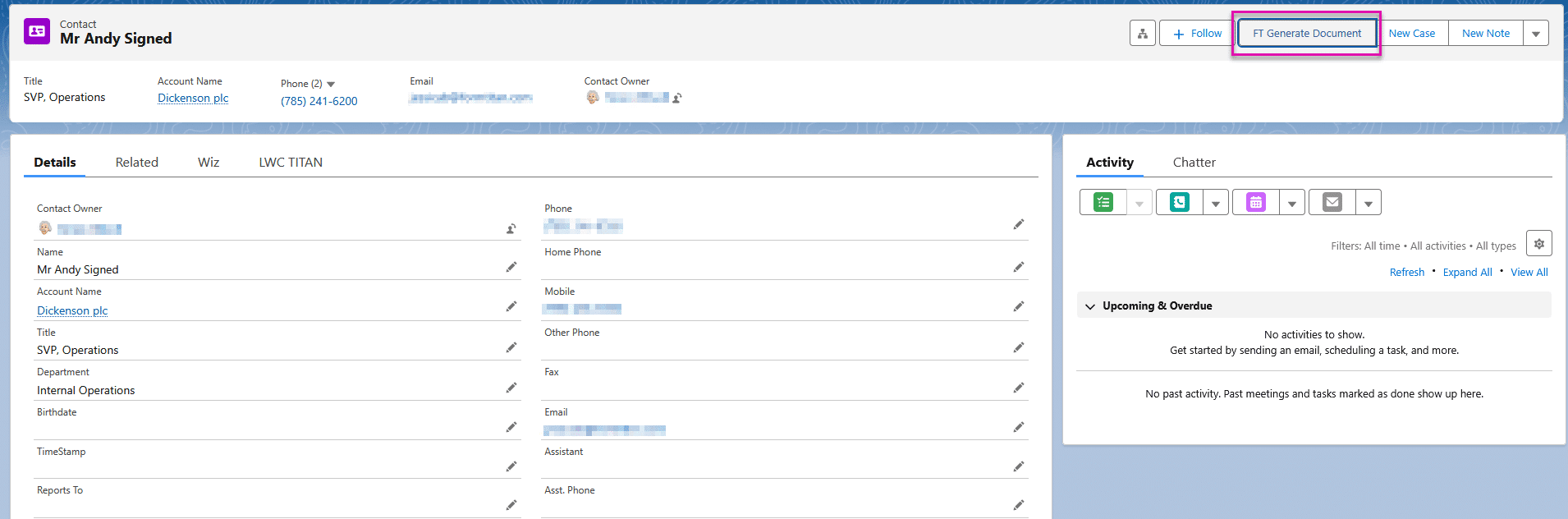
The Titan Document Generation window opens.


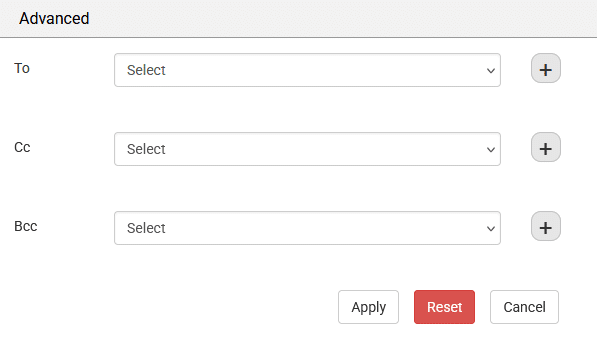
Advanced Email Settings
Use the Advanced option to add or update To, CC, and BCC email addresses before sending.
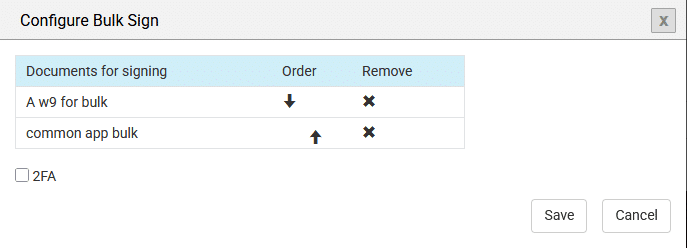
Configure Bulk Sign
Select Configure to arrange the order of your documents, remove unnecessary files, or enable 2FA for additional security.
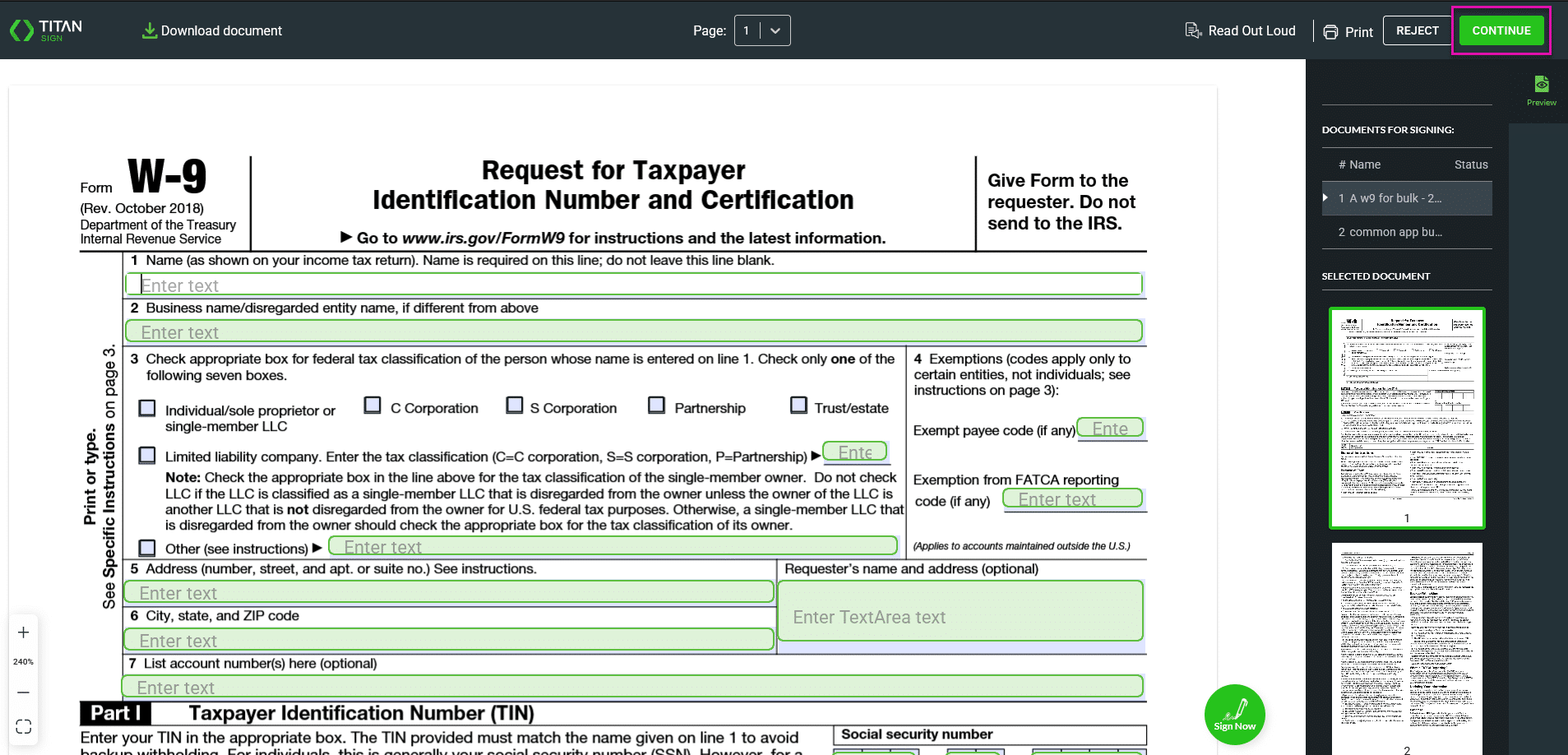
Recipients receive an email link that opens their signing session. All selected documents appear in one window for signing.
After signing each document, the signer clicks Continue to move to the next. A signed copy is automatically sent to their inbox.
During the session, the signer can track their progress in the Documents for Signing panel. This panel lists all documents in the session. As each document is completed, a check mark appears next to it, and the active document is marked with an arrow.
Once the final document is signed, the signer clicks Finish Sign to complete the process and receive all signed copies.

Note:
Part of this workflow:
On this page









