How can we help you?
SmartV Authentication controls how users verify their identity before accessing a Titan Web project.
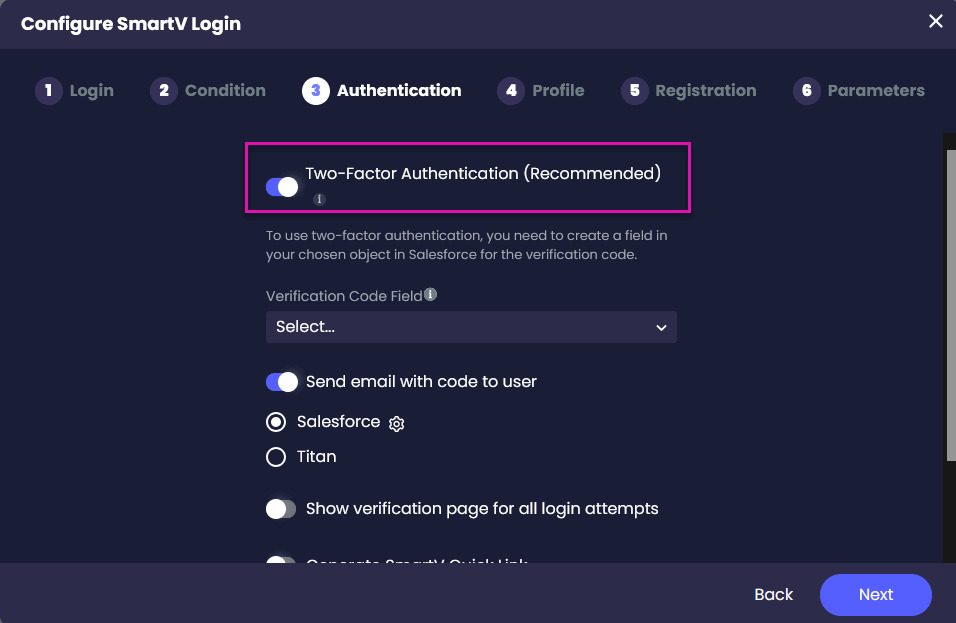
When two-factor authentication is enabled, users must complete an additional security check after meeting the SmartV login and condition requirements. They can enter a verification code on the SmartV Verification page or open a one-time quick link, depending on how you configure the project.
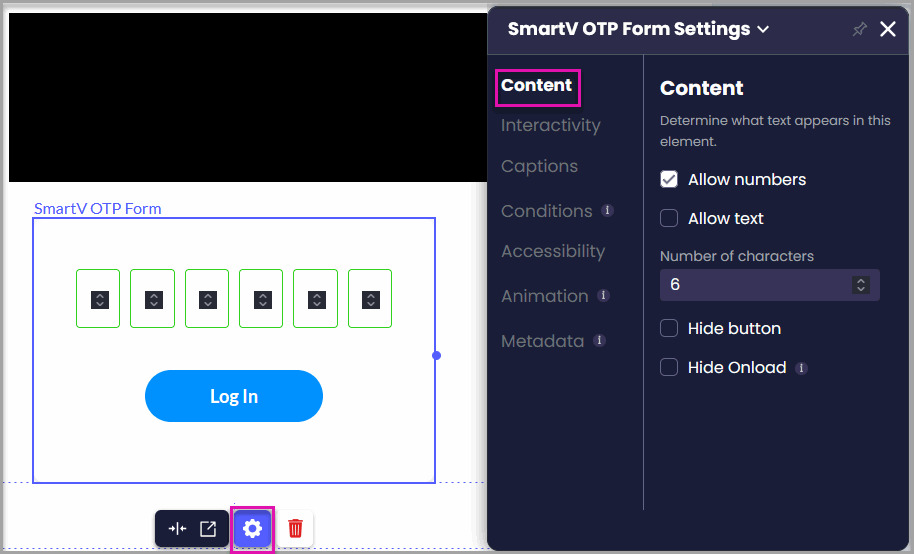
The Verification page uses the SmartV OTP Form widget to collect the user’s code. You can configure this widget to control the accepted code format and how the form behaves after an incorrect entry.
Keep two-factor authentication enabled for live projects that display protected information or let users update Salesforce data.
You can temporarily disable it while building and testing the project. This lets you test the login and condition settings without repeatedly checking your email for a new verification code.
When 2FA is disabled, any user who meets the configured login and condition criteria can access the project without completing another verification step.
When a user attempts to sign in:
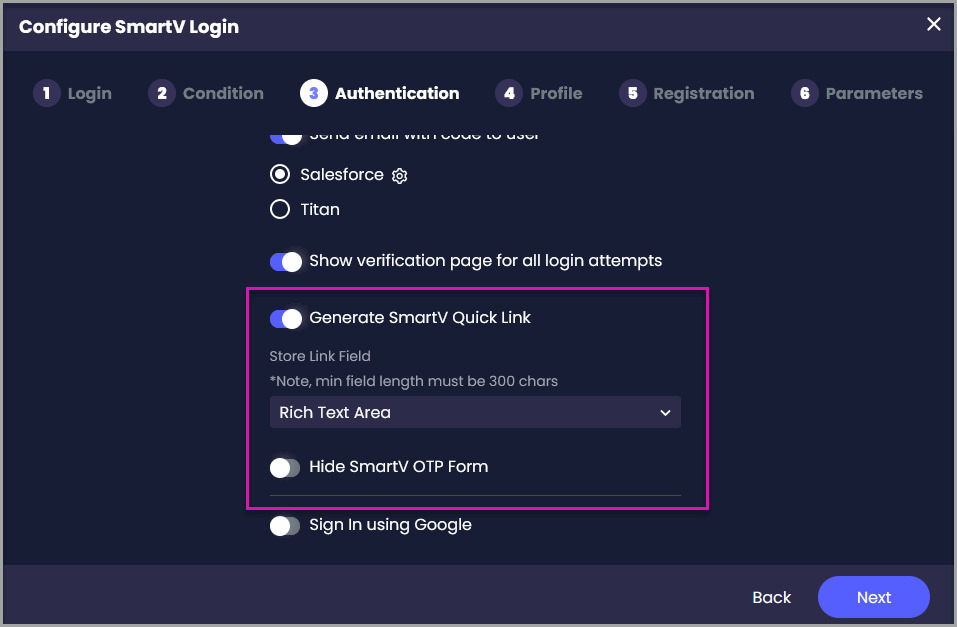
You can also generate a SmartV quick link. This allows the user to complete verification by opening a one-time URL instead of manually entering the code.
Make sure you have:
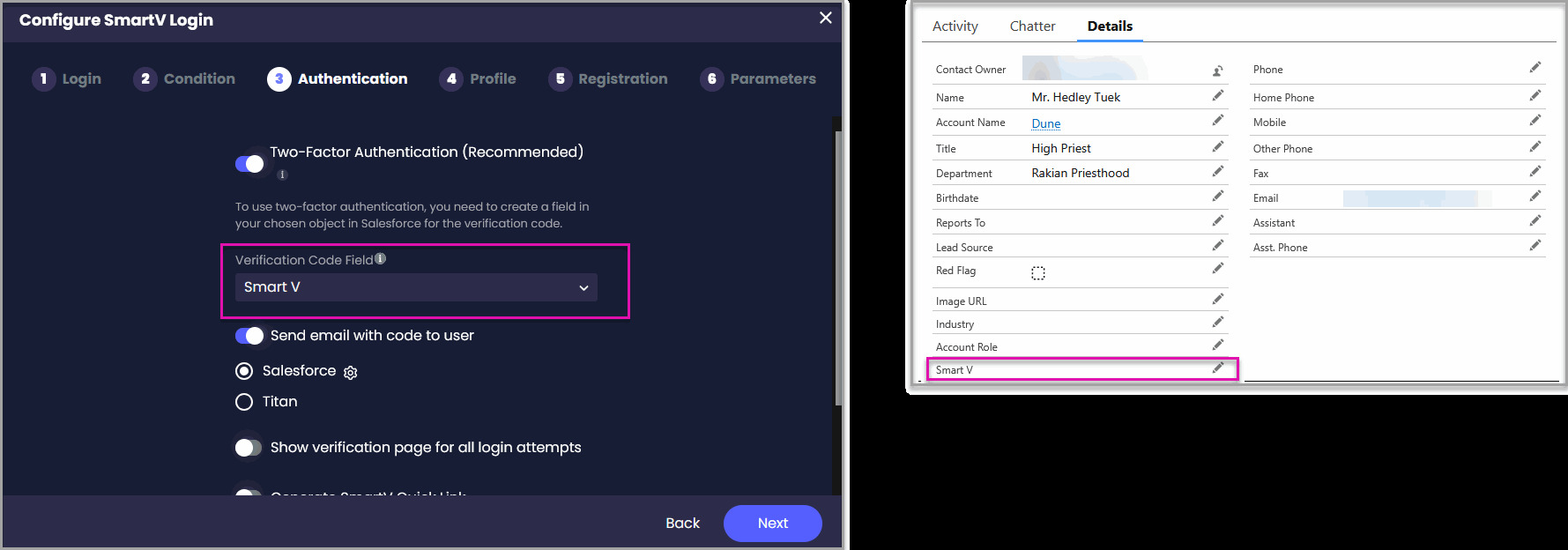
The verification code field can have any name. Using a clear name, such as SmartV Verification Code, makes its purpose easier for Salesforce administrators to identify.
A SmartV quick link lets the user verify their identity by opening a one-time URL. This removes the need to copy the verification code from an email and enter it manually.
The link is valid for one session. After it has been used, it expires and cannot be used again.
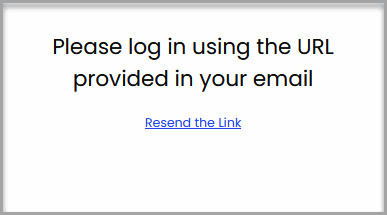
The user sees the following message when the OTP form is hidden:
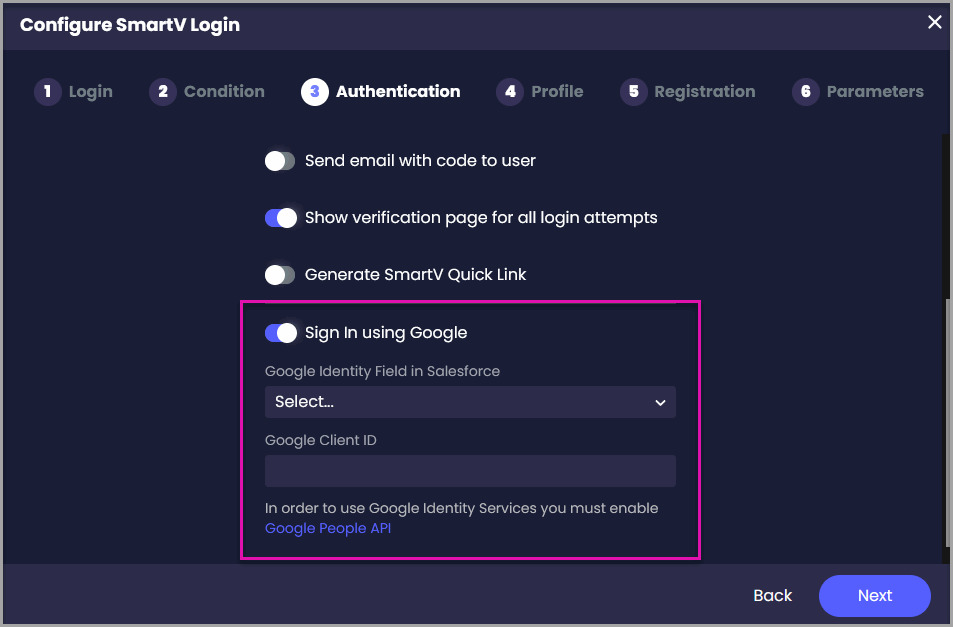
Google sign-in provides another authentication option for users with a Google account.
When 2FA is enabled, and the OTP form is displayed, users enter their verification code on the Verification page.
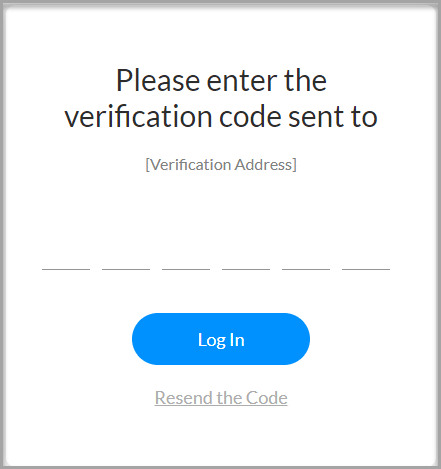
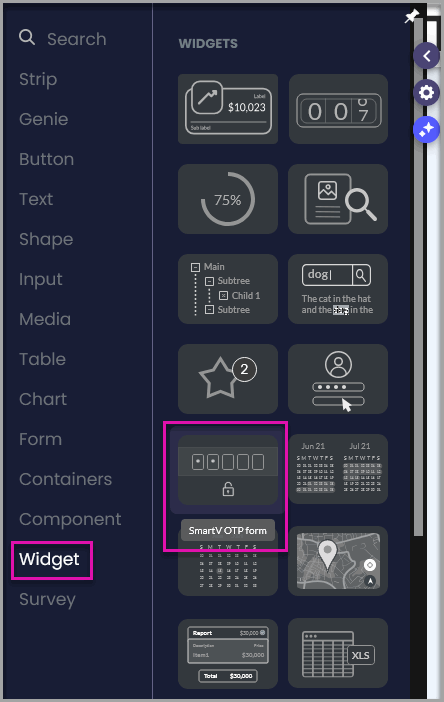
You can use the SmartV OTP Form widget to configure the Verification page or create a custom verification experience.
Note: The SmartV OTP Form requires Apex in Salesforce. Contact Titan Support for help with the required implementation.
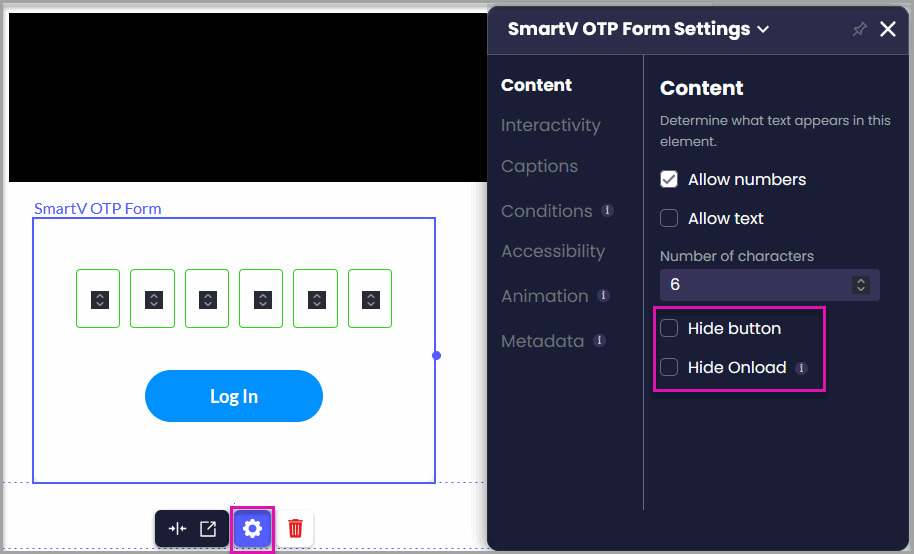
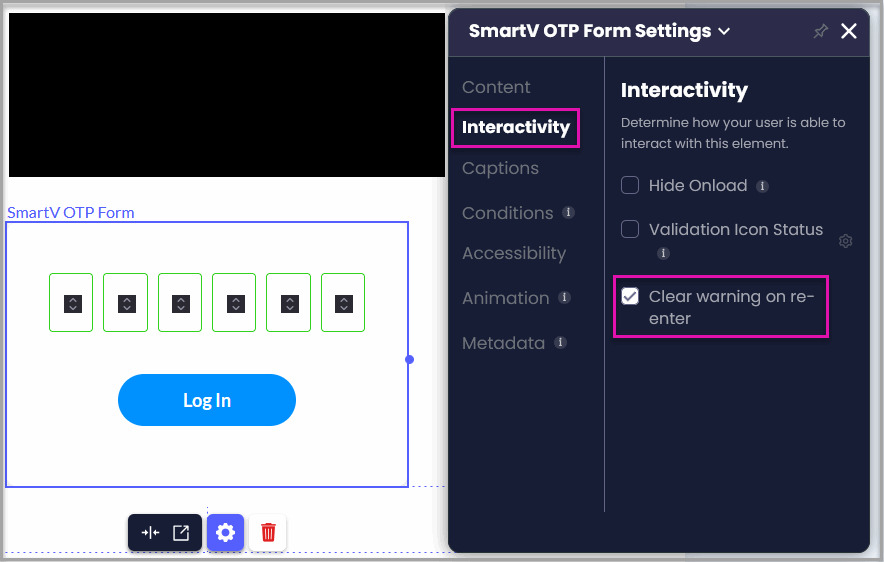
When a user enters an incorrect code, the widget displays a warning. This option clears the warning and the previous values as soon as the user starts entering a new code.
Test the complete login process before publishing the project.
Confirm that:
You can temporarily disable 2FA while checking the Login and Condition settings. Turn it back on and complete at least one full verification test before publishing the project.
No. Users can access the project without an additional security check when 2FA is disabled, provided they meet the configured Login and Condition criteria.
Keeping 2FA enabled is recommended for live projects.
Yes. Disabling 2FA can speed up testing because you do not need to retrieve and enter a new code for every login attempt.
Remember to enable it again and test the full authentication process before publishing.
Use a dedicated number field on the Salesforce object selected during the SmartV Login setup. The field can have any name, but must support at least six digits.
Titan temporarily stores the generated code in Salesforce so it can compare that value with the code entered by the user. Access is granted only when the values match.
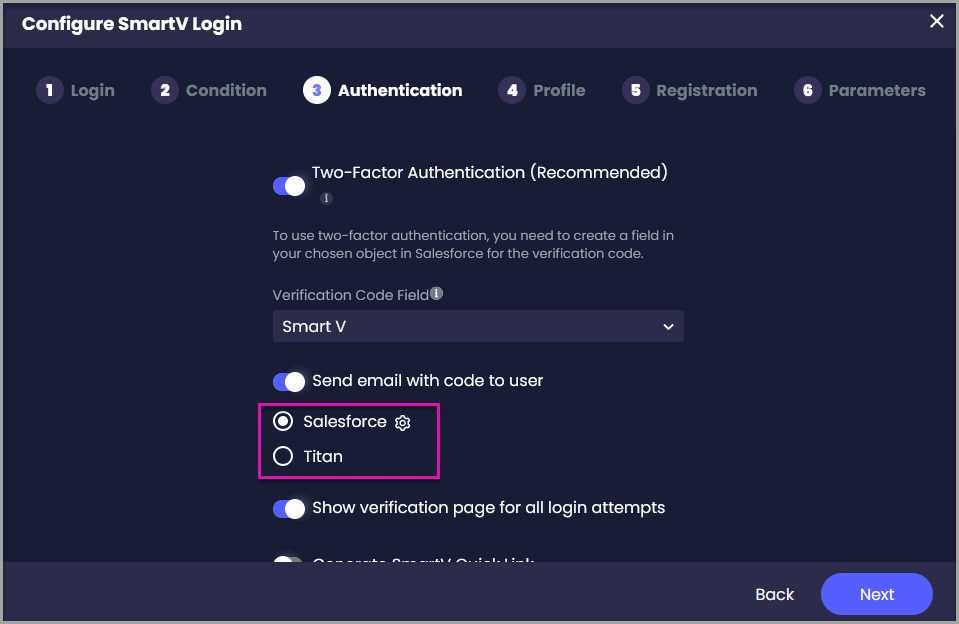
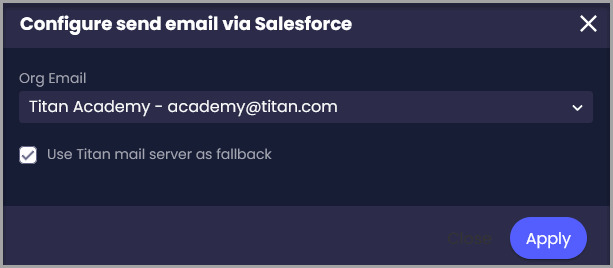
Salesforce is the recommended mail server. It lets you send the email through your Salesforce organization and use options such as an organization-wide email address.
The Titan mail server can be used as a fallback.
A verification code must be entered in the SmartV OTP Form. A quick link lets the user complete verification by opening a one-time URL.
No. The link is valid for one session and expires after use.
Enable Hide SmartV OTP Form if users should verify themselves only through the link. Leave it disabled if you still want users to enter a verification code on the page.
Yes. Enable both Allow numbers and Allow text to accept an alphanumeric code. The settings must match the code created by your Salesforce implementation.
On this page