How can we help you?
The SharePoint integration in Titan Flow lets you manage files and folders in SharePoint as part of an automated Flow. You can upload, replace, or delete files, retrieve file metadata, and get SharePoint folder information without leaving the Flow process.
For example, you can upload a signed agreement to a SharePoint library, replace an older version of the file, retrieve its details for another Flow step, or delete it when it is no longer required.
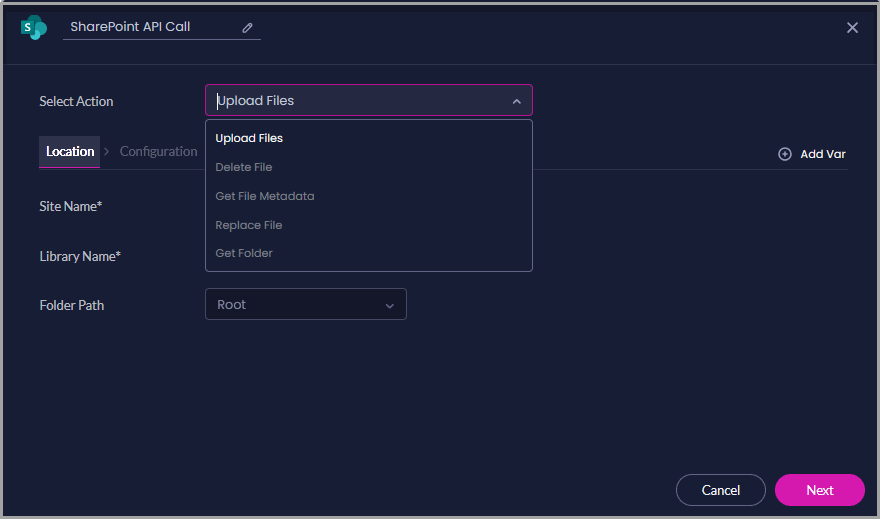
The SharePoint node currently supports the following actions:
| Action | What It Does |
|---|---|
| Upload Files | Uploads one or more files to a selected SharePoint site, library, and folder. |
| Delete File | Deletes a selected file from SharePoint. |
| Get File Metadata | Retrieves information associated with a SharePoint file. |
| Replace File | Replaces an existing SharePoint file with another file. |
| Get Folder | Retrieves information from a selected SharePoint folder. |
The settings displayed in the node change according to the selected action.
Use the SharePoint node when a Flow needs to:
A customer agreement is generated and signed as part of a Titan process.
The Flow can use SharePoint actions to:
Each action can be used independently. You do not need to add every SharePoint action to the same Flow.
Make sure you have:
You can authenticate SharePoint from the Titan Dashboard or from a SharePoint node in a Flow project.
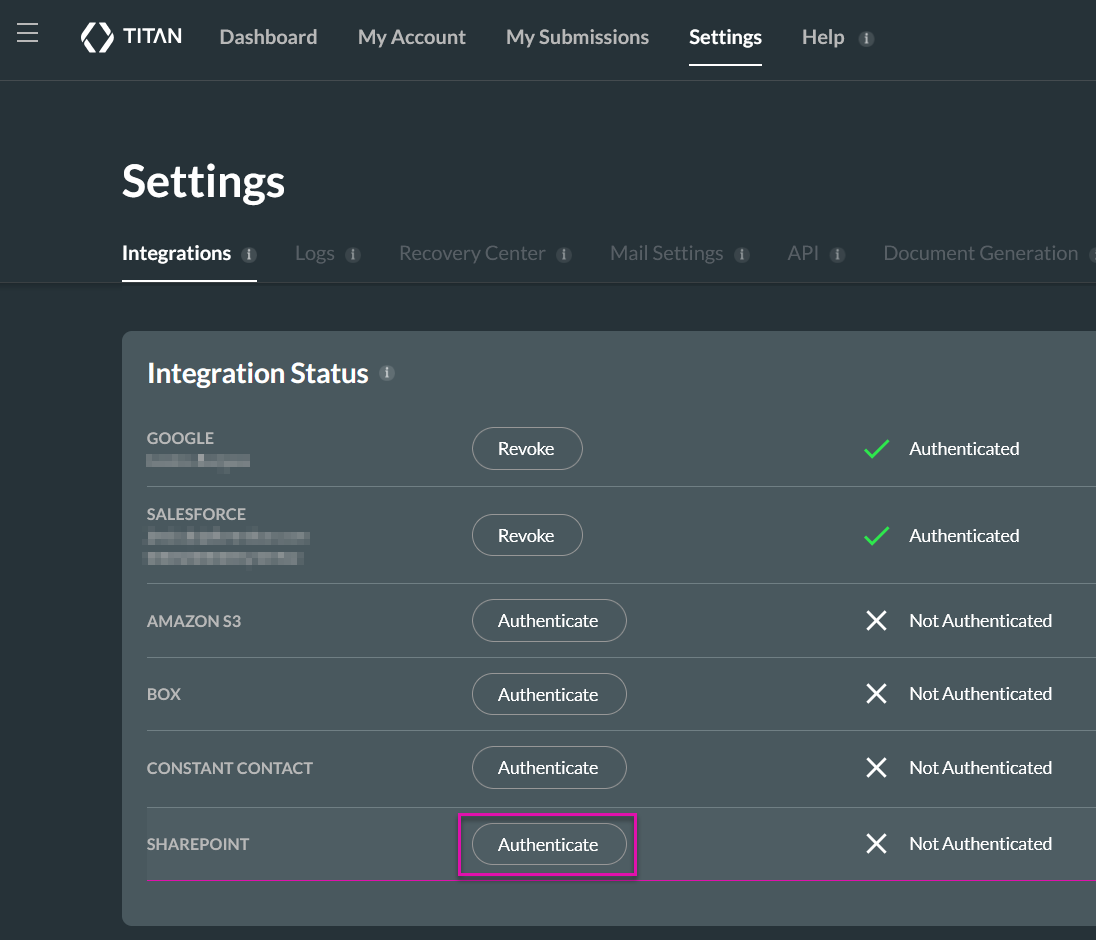
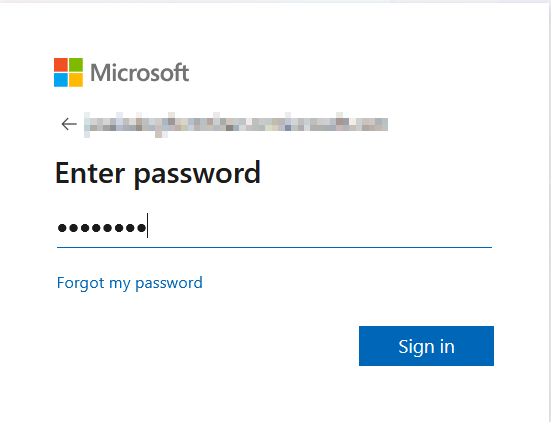
After authentication, the integration status displays as Authenticated.

You can revoke SharePoint access from the same integration settings.
Important: Revoking access may affect every Titan project that uses the SharePoint connection.

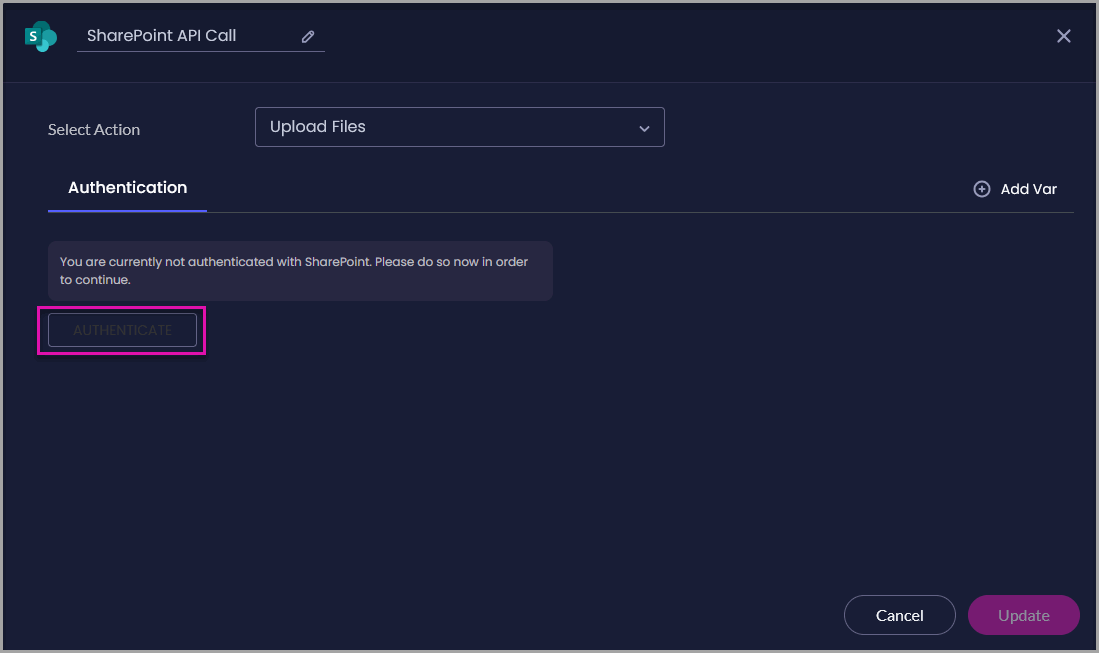
Note: You can authenticate SharePoint from either location. Access can only be revoked from Titan Dashboard > Settings > Integrations.
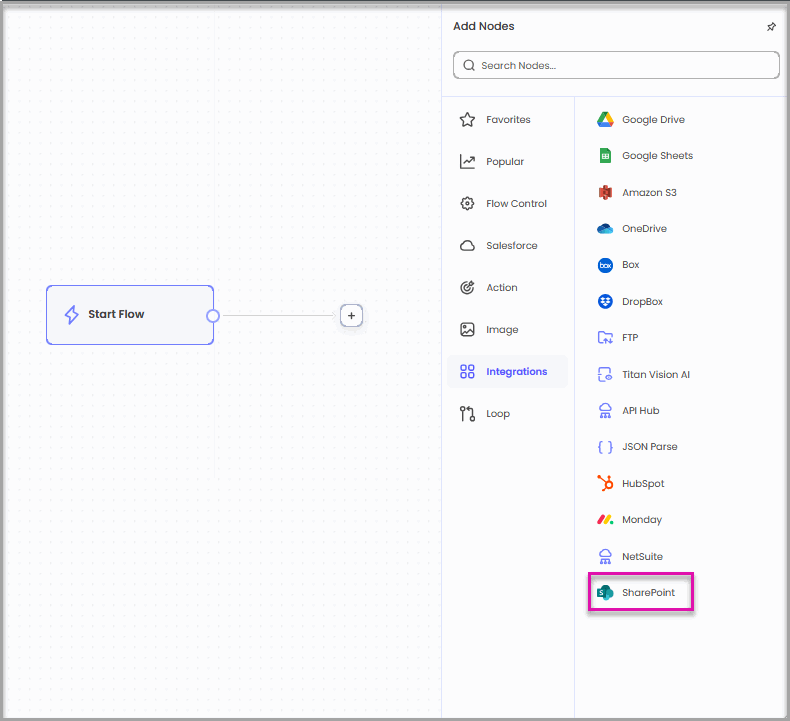
The SharePoint API Call node opens.
Some SharePoint actions require Flow variables for files, file identifiers, or information returned by SharePoint.
You do not need to use the variable names shown in this guide. Give each variable a name that clearly describes the value it will hold.
The SharePoint node mainly uses the following variable types:
| Variable Type | When to Use It |
|---|---|
| Files | Holds file data that will be uploaded to SharePoint or used to replace an existing file. |
| Static | Holds a file ID, name, link, date, count, folder value, or JSON response. A Static variable can also receive a value from Salesforce or another Flow step. |
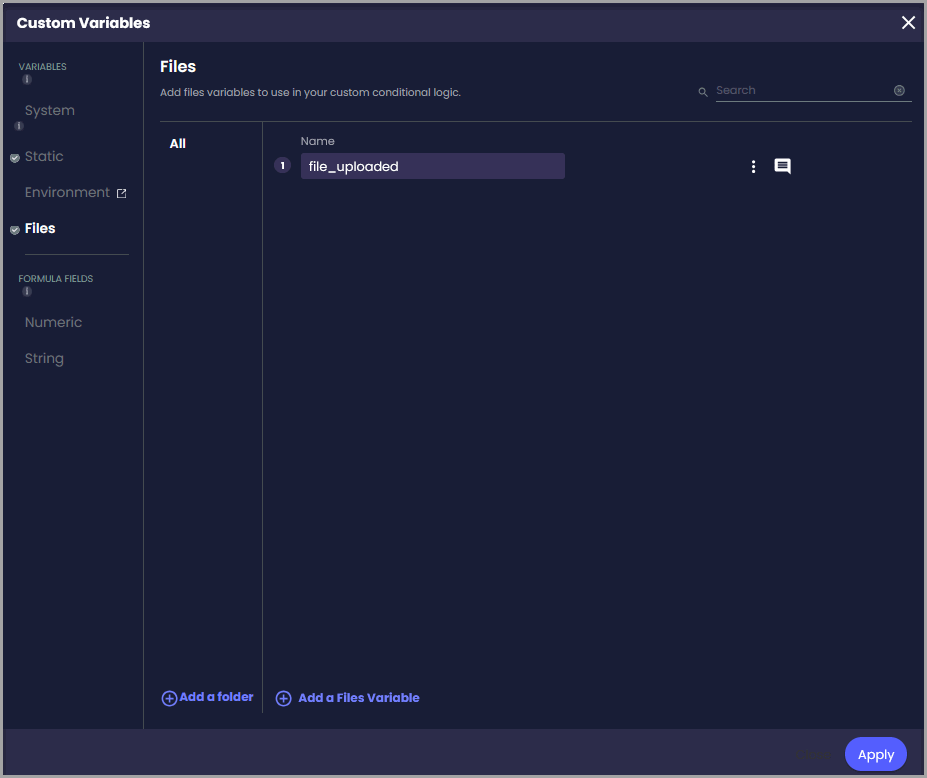
Create a Files variable when the Flow needs to pass file data to an Upload Files or Replace File action.
The variable must receive file data from an earlier Flow step before the SharePoint action runs.
For example, the file may come from:
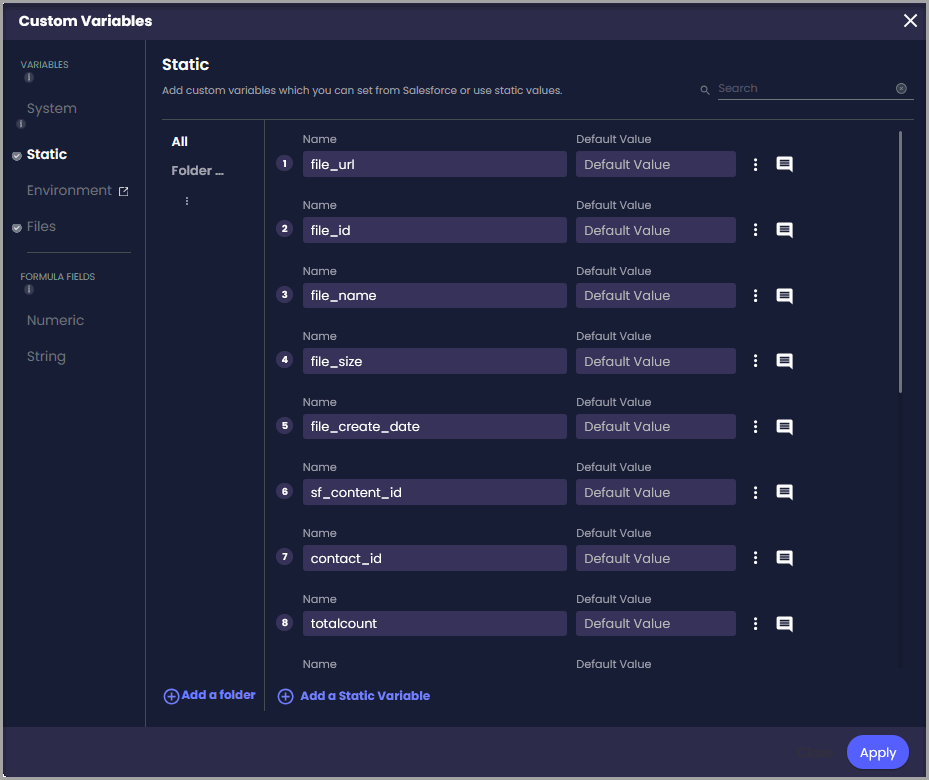
Create Static variables to identify a SharePoint file or to store information returned by an action.
You might create separate Static variables for:
You only need variables for the values your Flow requires. Leave an output set to None if it will not be used later.
Open Select Action and choose the operation the Flow must perform:
Use Upload Files to upload one or more files to a selected SharePoint location.
Titan uploads the files held in the selected Files variables to the configured SharePoint site, library, and folder.
If output variables are mapped, Titan stores the SharePoint links and IDs returned for the uploaded files. Later Flow steps can use these values to:
The source Files variables must contain file data for the action to run. If a variable is empty or the destination cannot be accessed, the action fails.
To upload files to a subfolder, supply the complete folder path.
For example:
Customer Agreements/2026
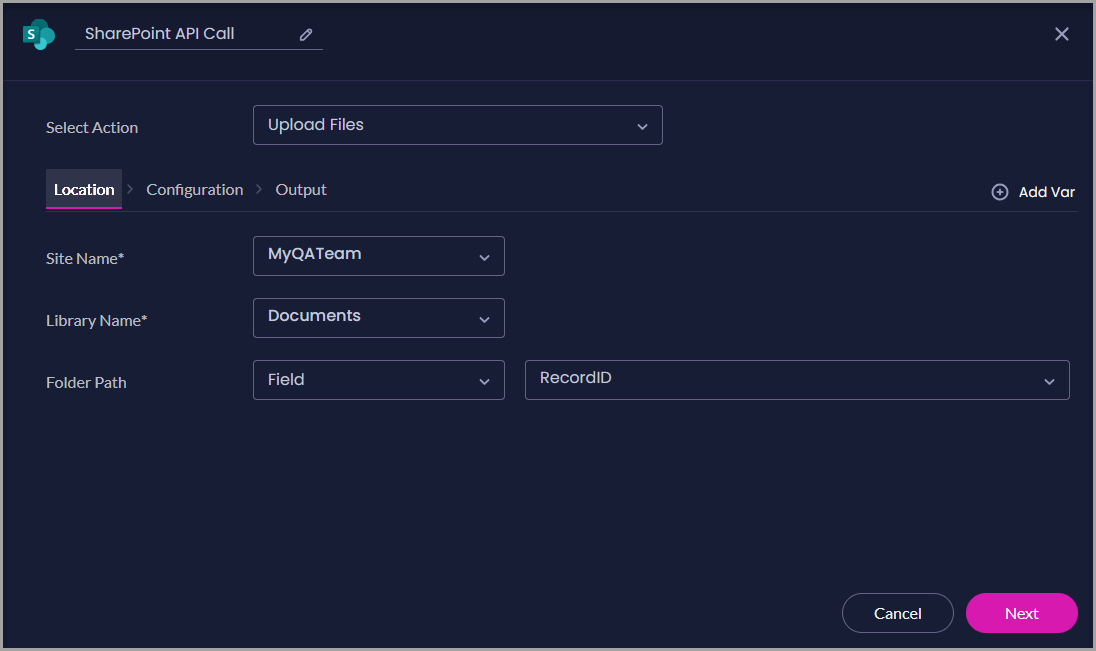
The selected variables must contain file data before the Flow reaches the SharePoint node.
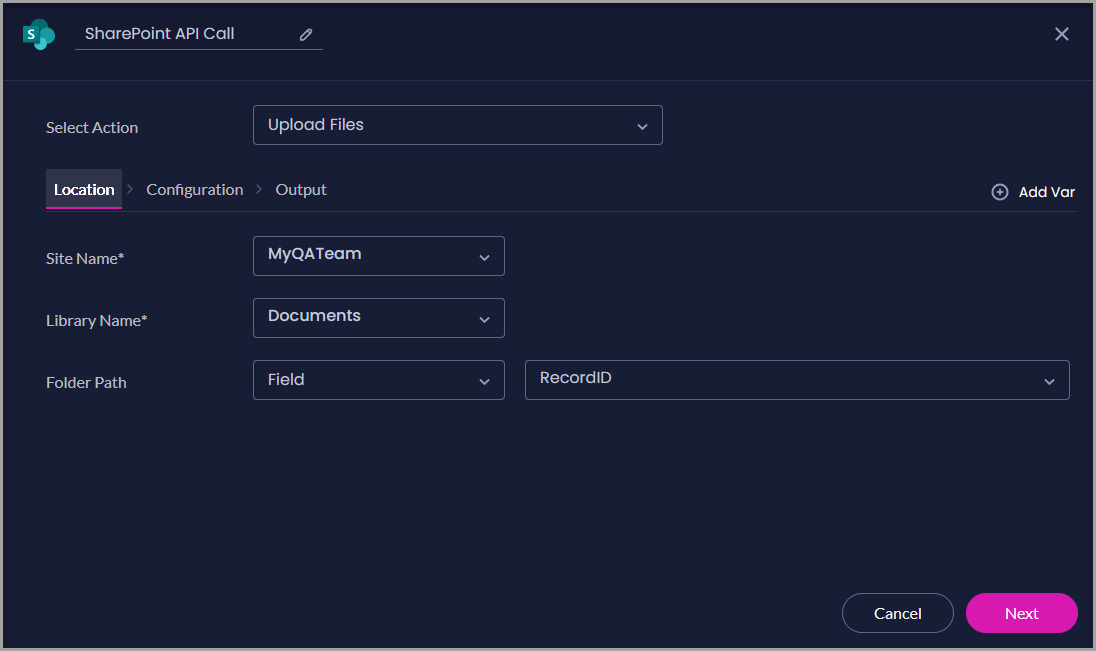
On the Output tab, select Static variables for the values you want to store:
Leave an output set to None if the Flow does not need that value.
Click Update to save the action.
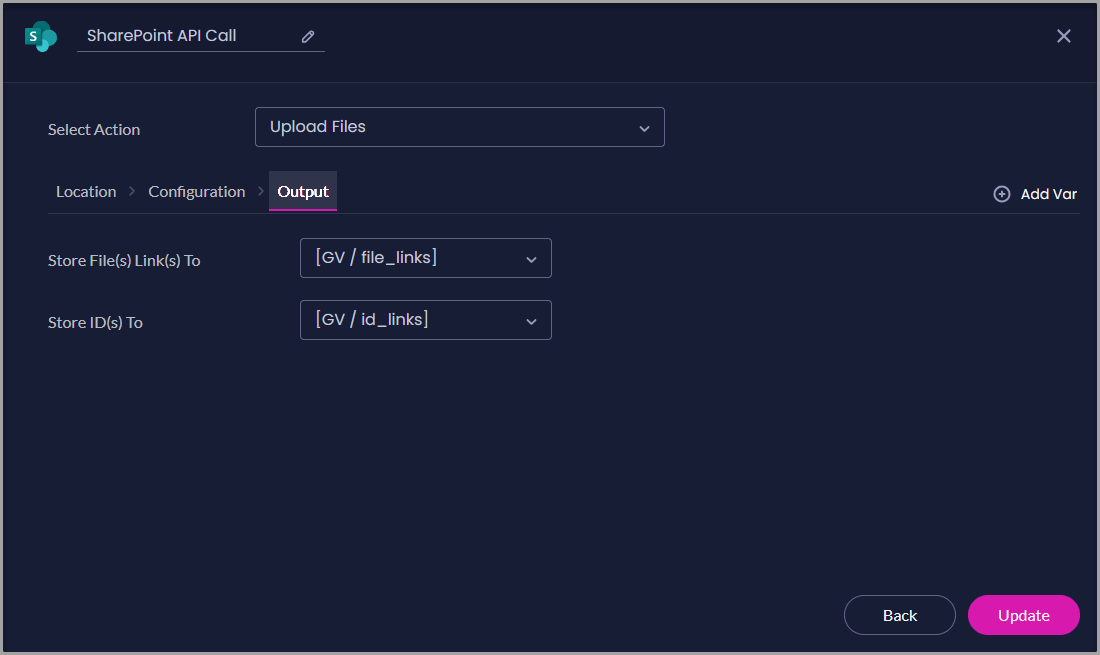
Use Delete File to remove an existing file from a selected SharePoint library.
Titan identifies the configured SharePoint file and sends a request to remove it.
The Delete File action does not provide output mapping. When the action succeeds, the Flow continues through its normal completion path. If the file cannot be found, the authenticated account lacks permission, or the supplied file value is invalid, the action fails.
Important: When the file is identified using a Flow variable or parameter, Titan deletes the file that the value resolves to at runtime. Make sure earlier Flow steps supply the correct file value and test the mapping before using the Flow in a live process.
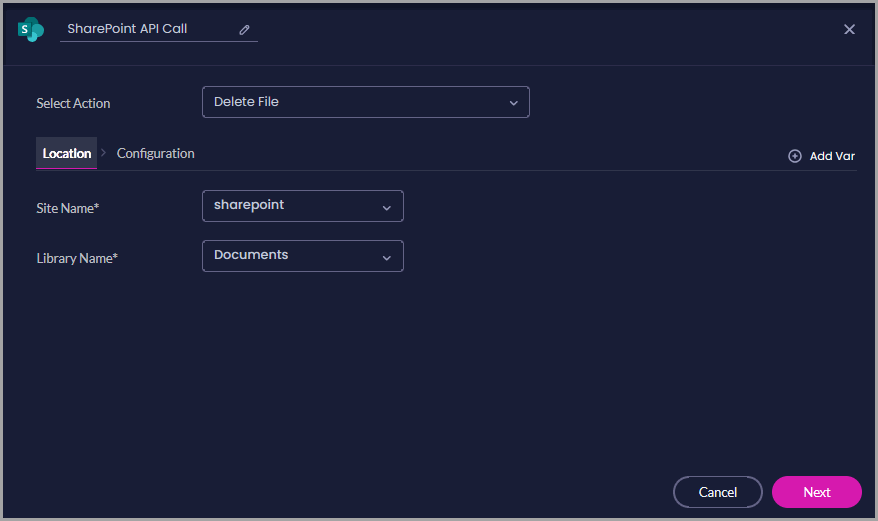
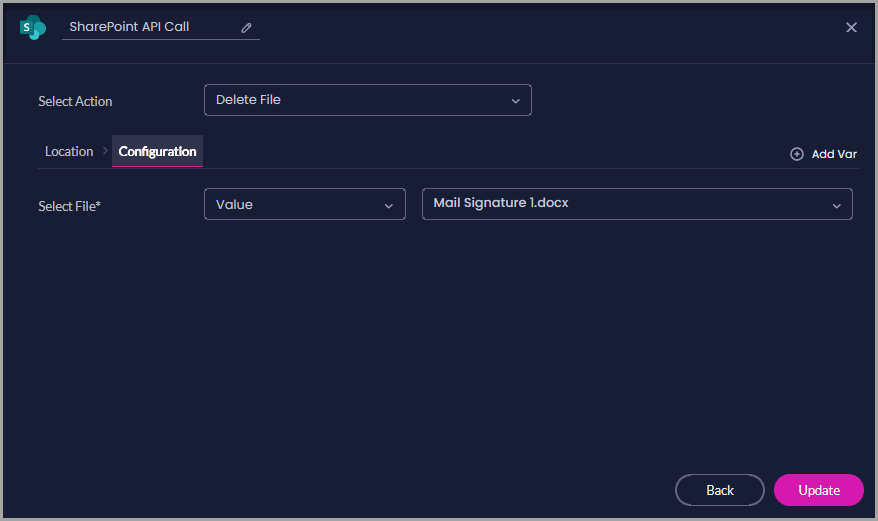
In this example, Value is selected, and a specific file is chosen.
If the file must be determined while the Flow runs, use the available variable-based option and select a variable containing the required file value.
The Delete File action does not display an Output tab.
Use Get File Metadata to retrieve information about an existing SharePoint file.
Titan retrieves information about the selected file without changing or downloading the file.
The metadata selected on the Output tab is stored in Static variables. Later Flow steps can use the information to:
If an output is set to None, Titan does not store that value for later use.
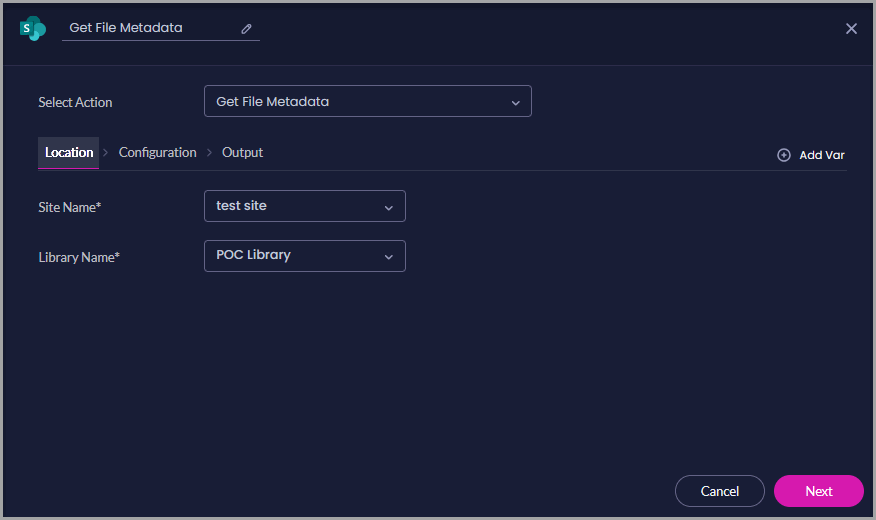
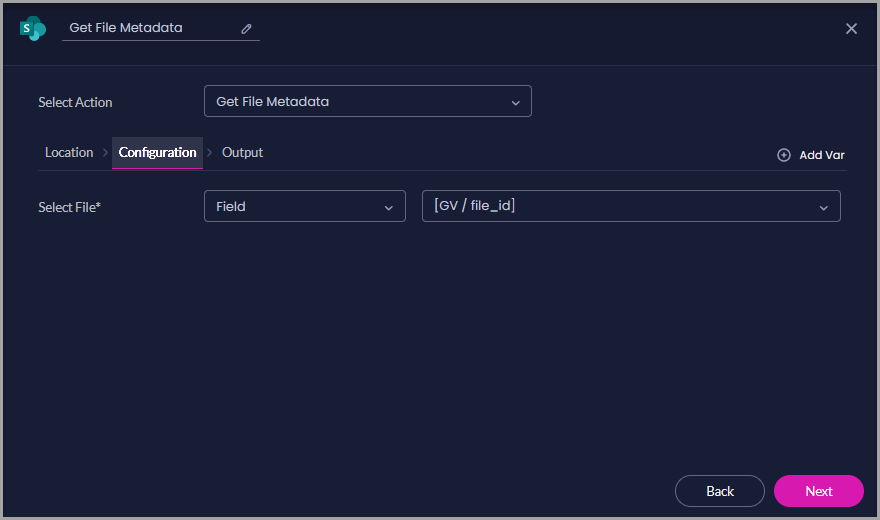
In this example, Field is selected, and a Static variable containing a file ID is used.
The selected variable must contain a valid file path in the configured SharePoint site and library.
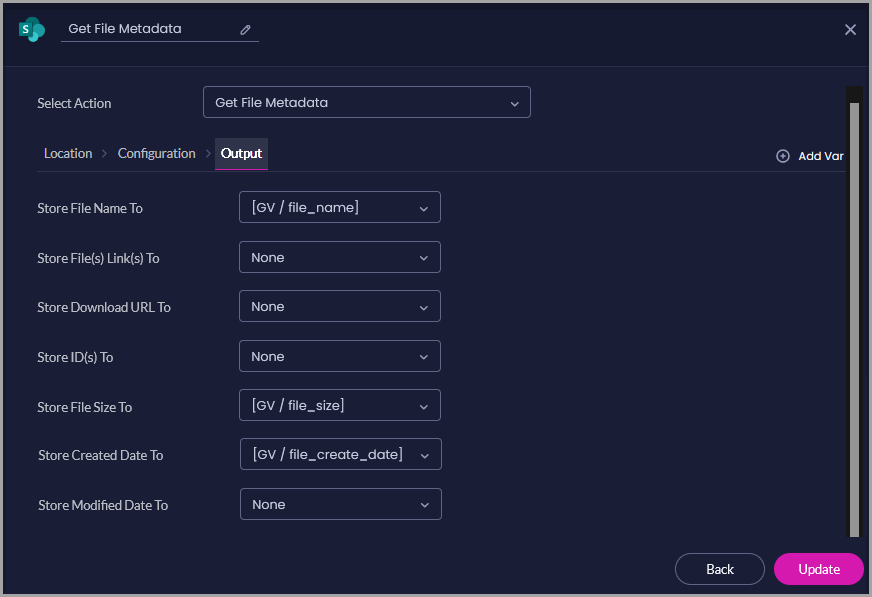
On the Output tab, select Static variables for the information you want to store:
| Output | Information Stored |
|---|---|
| Store File Name To | The name of the selected file. |
| Store File(s) Link(s) To | The SharePoint link associated with the file. |
| Store Download URL To | The URL used to download the file. |
| Store ID(s) To | The SharePoint ID associated with the file. |
| Store File Size To | The size of the file. |
| Store Created Date To | The date on which the file was created. |
| Store Modified Date To | The date on which the file was last modified. |
You do not need to map every output. Leave unused outputs set to None.
Click Update to save the action.
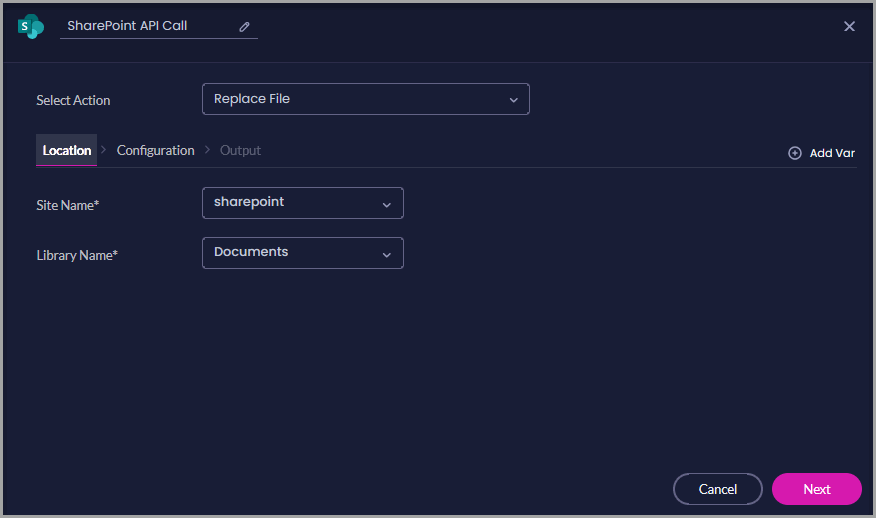
Use Replace File to replace an existing SharePoint file with a different one.
Titan identifies the existing file in the selected SharePoint site and library and replaces its contents with the file supplied to the action.
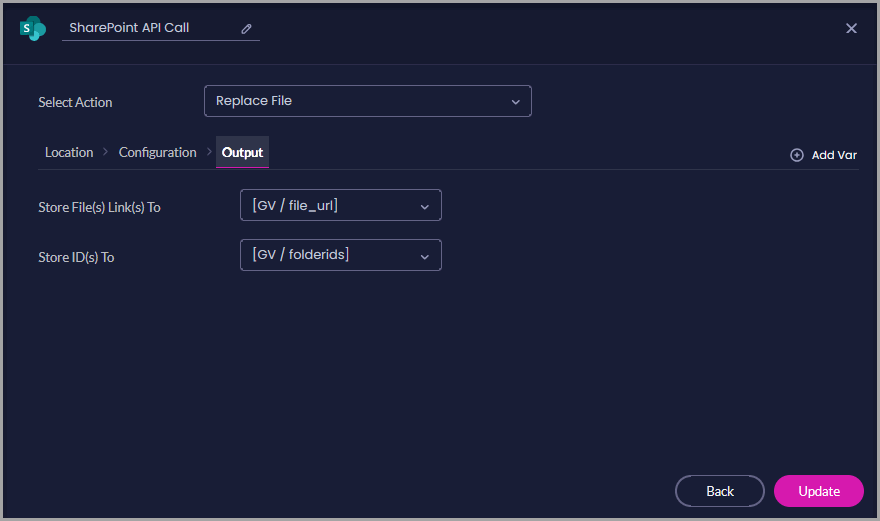
If output variables are mapped, Titan stores the resulting file link and ID. These values can be passed to later Flow steps or saved to Salesforce.
The action fails if:
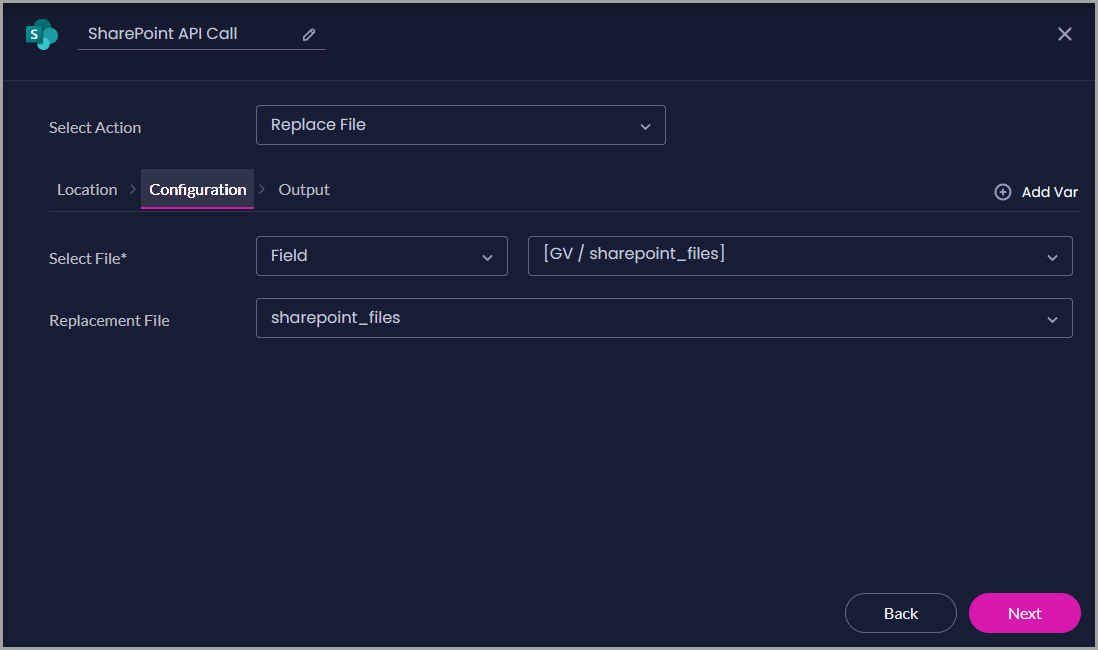
The Configuration tab must identify:
The Files variable must receive file data from an earlier Flow step.
On the Output tab, select Static variables for the returned values:
The variable names shown in the screenshot are examples. Select variables that clearly match the values being stored.
Click Update to save the action.
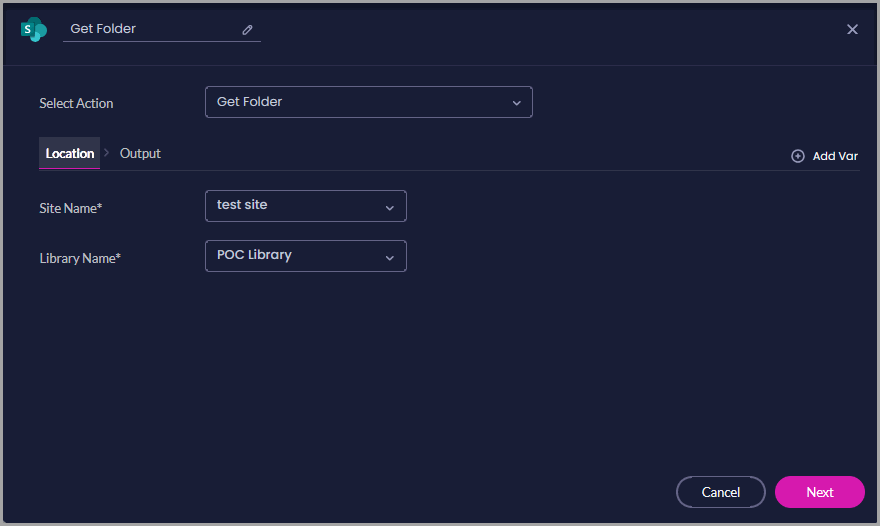
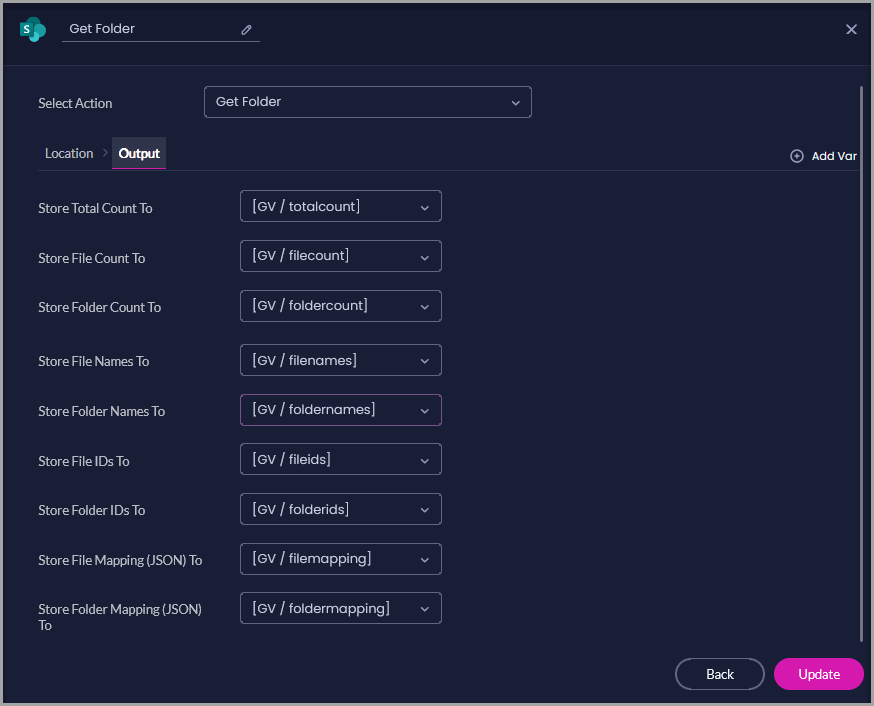
Use Get Folder to retrieve information about files and folders in a selected SharePoint library.
Titan retrieves file and folder information without uploading, replacing, moving, or deleting any SharePoint content.
The action can store:
Later Flow steps can use these values to check whether files or folders exist, pass IDs to another action, record item counts, or process the returned JSON.
The Get Folder action does not display a separate Configuration tab.
On the Output tab, select Static variables for the information you want to store:
| Output | Information Stored |
|---|---|
| Store Total Count To | The combined number of files and folders returned. |
| Store File Count To | The number of files returned. |
| Store Folder Count To | The number of folders returned. |
| Store File Names To | The names of the returned files. |
| Store Folder Names To | The names of the returned folders. |
| Store File IDs To | The SharePoint IDs of the returned files. |
| Store Folder IDs To | The SharePoint IDs of the returned folders. |
| Store File Mapping (JSON) To | File information returned in JSON format. |
| Store Folder Mapping (JSON) To | Folder information returned in JSON format. |
Only map the outputs required by later Flow steps.
Click Update to save the action.
After saving the action, connect the SharePoint node to the next step in the Flow.
Use the available exit paths to control what happens after the SharePoint request:
For example, the On Cancel path can:
A SharePoint action may fail because:
If the action fails, check authentication, permissions, selected SharePoint resources, and Flow variables before rerunning the Flow.
Go to Titan Dashboard > Settings > Logs > Integrations to review integration activity.
Integration logs can help you identify:
Run the Flow with test data before using it in a live process.
Confirm the following for each configured action:
| Action | What to Confirm |
|---|---|
| Upload Files | The correct files are uploaded to the intended site, library, and folder. Confirm that mapped links and IDs are returned. |
| Delete File | The intended file is removed and unrelated files remain unchanged. |
| Get File Metadata | The expected metadata is stored in the mapped variables and can be used by later Flow steps. |
| Replace File | The correct existing file is updated using the intended replacement file. Confirm the returned link and ID. |
| Get Folder | The expected file and folder information is returned and stored in the mapped variables. |
Also, confirm that:
The SharePoint node supports:
The available tabs and settings depend on the selected action.
No. After SharePoint has been authenticated, the connection can be used by Flow projects. You may need to authenticate again if access expires, is revoked, or the Microsoft account permissions change.
Yes. The Upload Files action lets you select multiple Files variables. Each variable must contain file data when the action runs.
Yes. A Files variable can receive file data from Salesforce, a Titan Web project, Titan Docs, a signing process, or another Flow action.
No. Map only the outputs required by later Flow steps. Leave unused output settings as None.
Upload Files adds files to the selected SharePoint location. Replace File updates an existing SharePoint file using another file supplied to the action.
No. The action retrieves information about the file. It does not change the file or automatically download its contents.
No. The action retrieves information about files and folders. It does not upload, replace, move, or delete them.
SharePoint actions using that connection will no longer run successfully. Authenticate SharePoint again before running the affected Flow projects.
The authenticated Microsoft account may not have permission to access it. The resource may also have been renamed or deleted.
Confirm the Microsoft account permissions and check that the SharePoint resource still exists.
Not necessarily. SharePoint permissions still control who can open the file. Confirm that the intended users have access before distributing the link.
The Flow follows the SharePoint node’s On Cancel path. You can use this path to record the failure, send a notification, or run another action.
On this page