

Generate, Sign, and Automate Salesforce documents with real-time sync

Build portals, apps, and forms directly in Salesforce with Dynamic data flow and adaptability

How can we help you?
Dynamically change whether elements are shown or hidden based on user action or information from Salesforce.
Note:
Prerequisite:
1. Add an Affected Element node to an element such as a button.
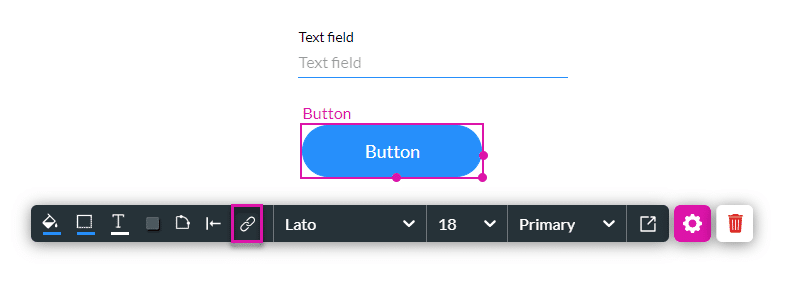
2. Alternatively, configure a condition.


Note:
Protip:
Make sure you add the elements in a form or an auto fit container. This will ensure that the web page contents are properly resized when hiding or showing elements.
In this example, the button element is also added in the form to make sure that it resizes correctly.
Use this option to show a hidden element.
Note:
Prerequisite:
In this example, text field B is set to Hide Onload.
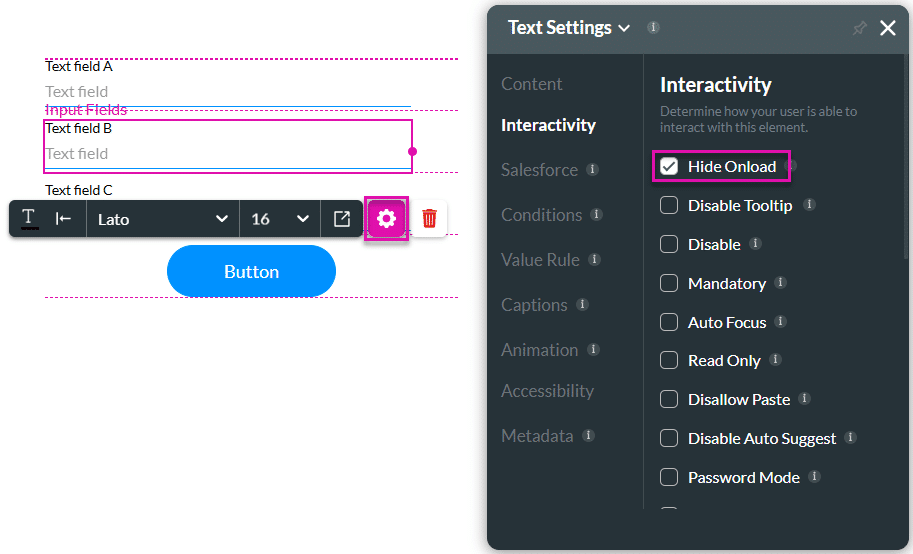
The Show option is the default. In this example, text field B will be shown.
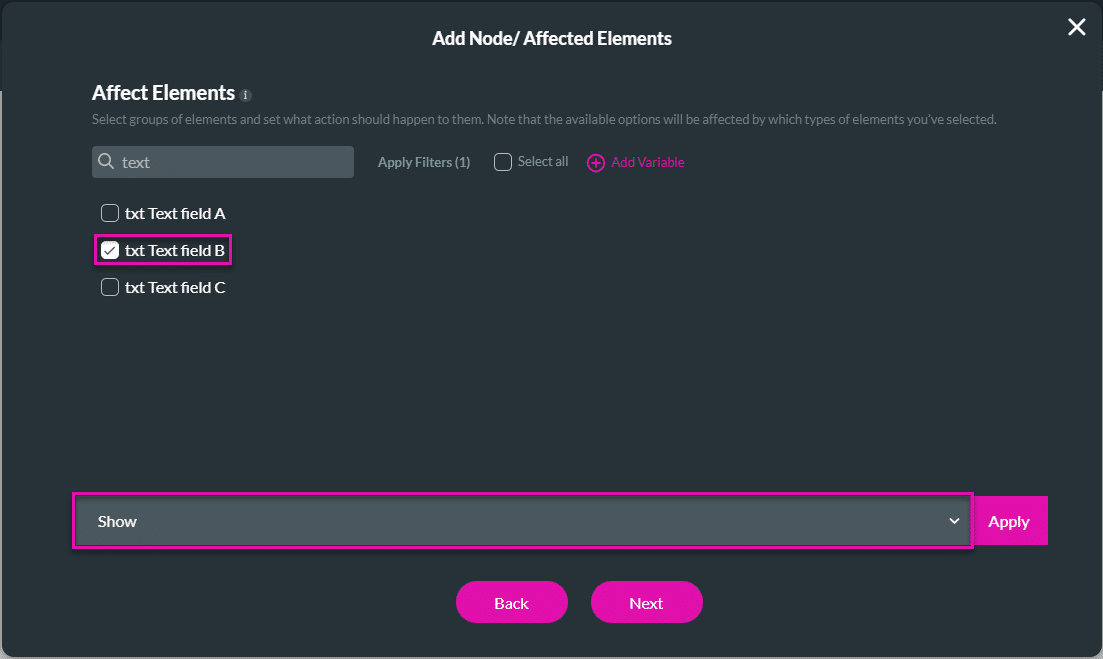
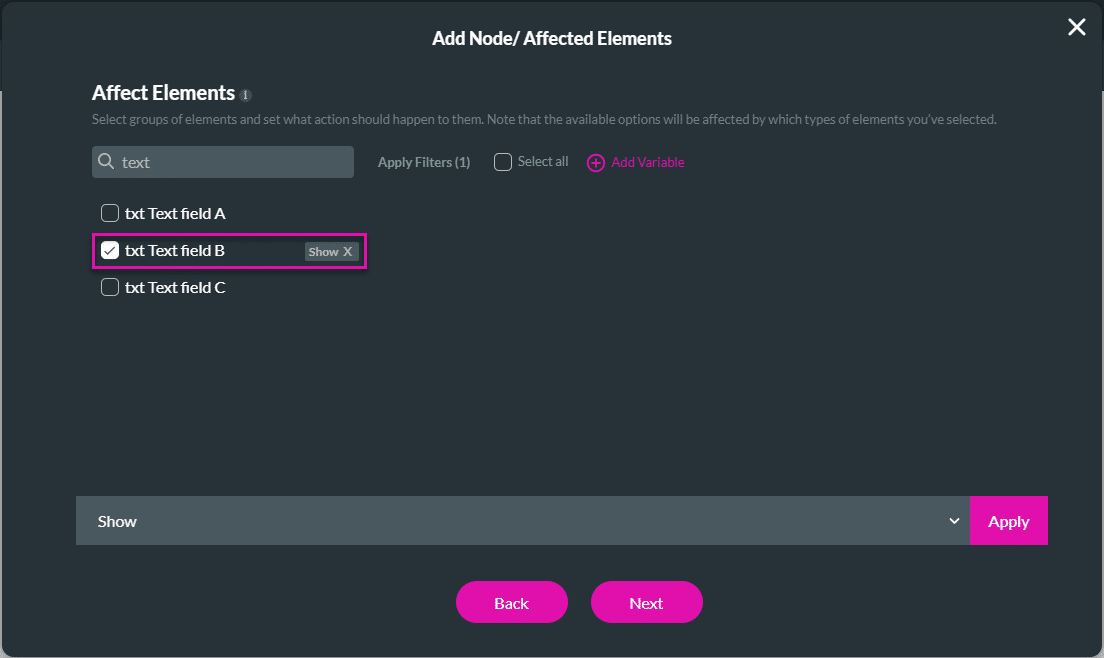


Text field B is hidden when the page loads. It is shown when the user clicks the button.
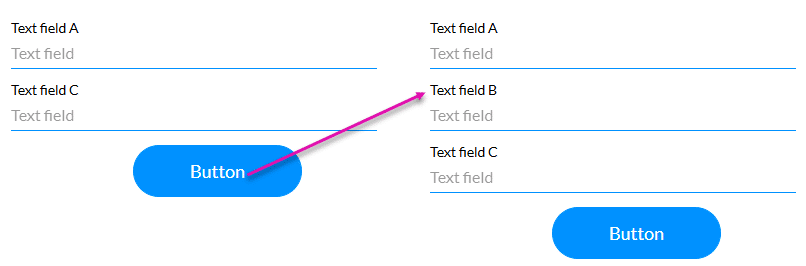
The Show option is the default.
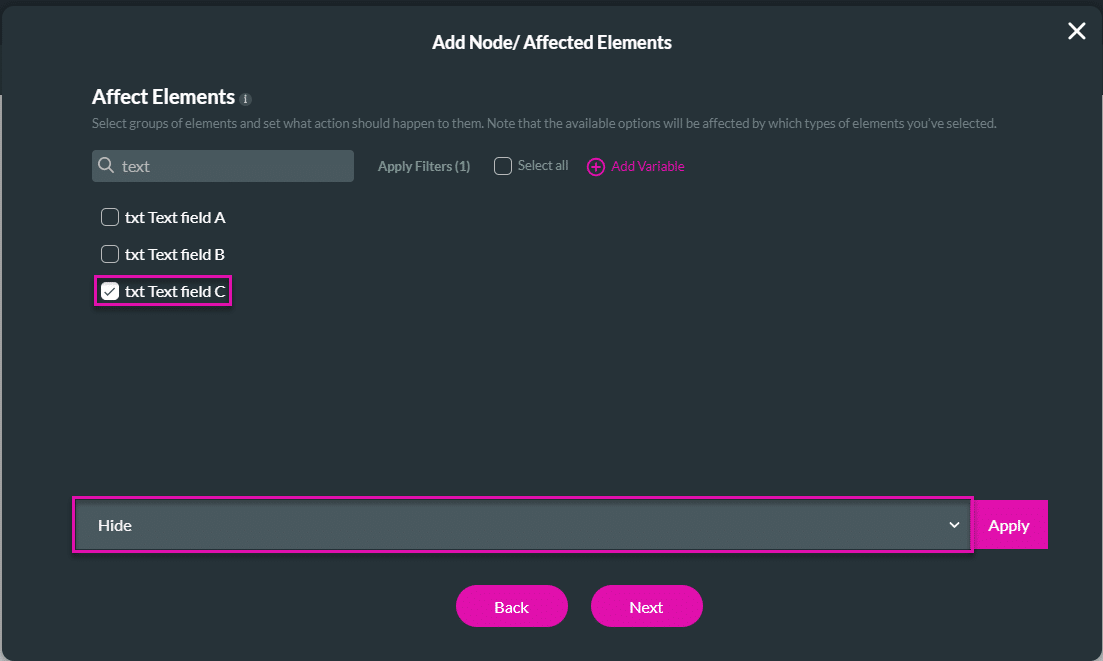
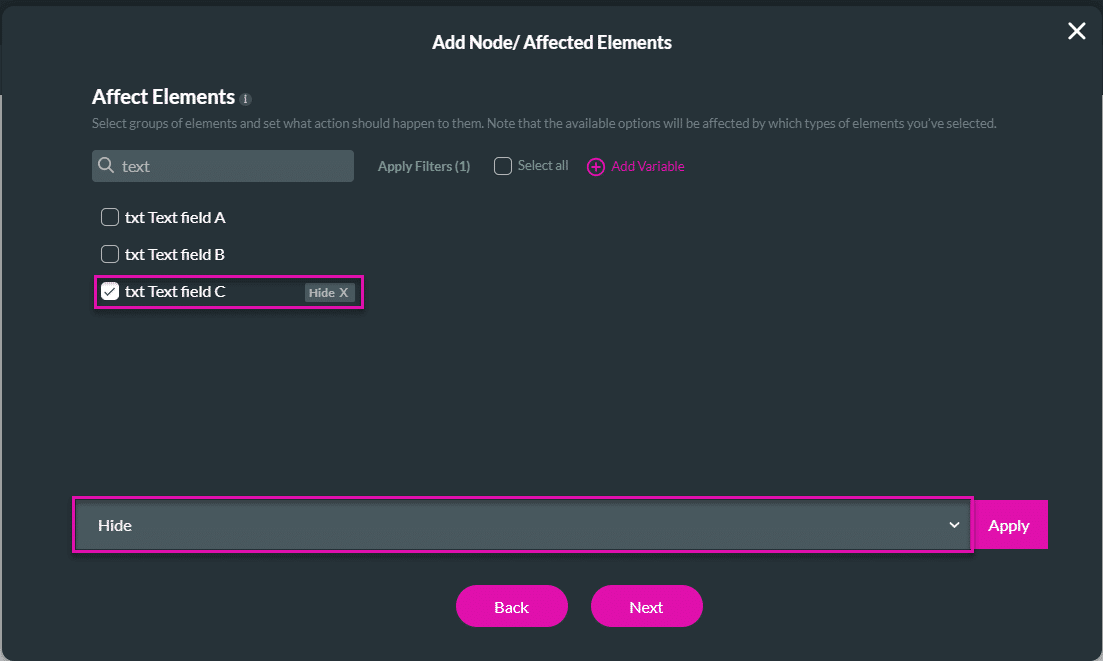
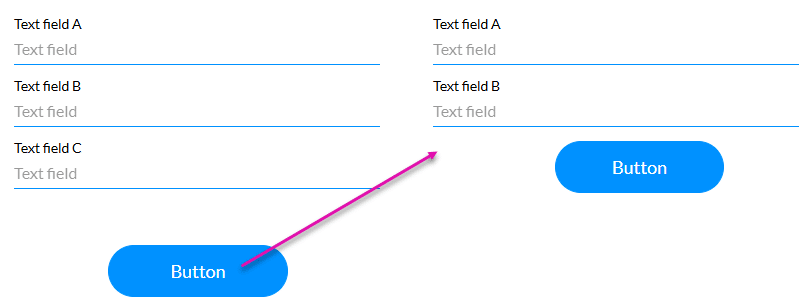
When the user clicks the button, Text field C is hidden.
On this page
The Only Forms Solution Built 100% in Salesforce.


