How can we help you?
Titan Sign lets you customize how the signer interface looks and behaves for each project. You can hide unnecessary controls, improve document display on mobile devices, show recipient information, and change the captions displayed during signing.
Customize the signer interface when you want to:
For the Show recipients setting, configure at least one signer or reviewer for a private document or dynamic document.
Consider whether recipients should be able to see other recipients’ names and email addresses before enabling this option.
The available settings allow you to adjust the appearance and behavior of the signer interface.
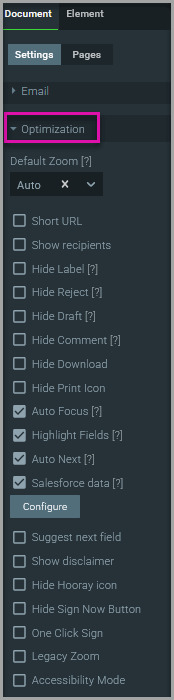
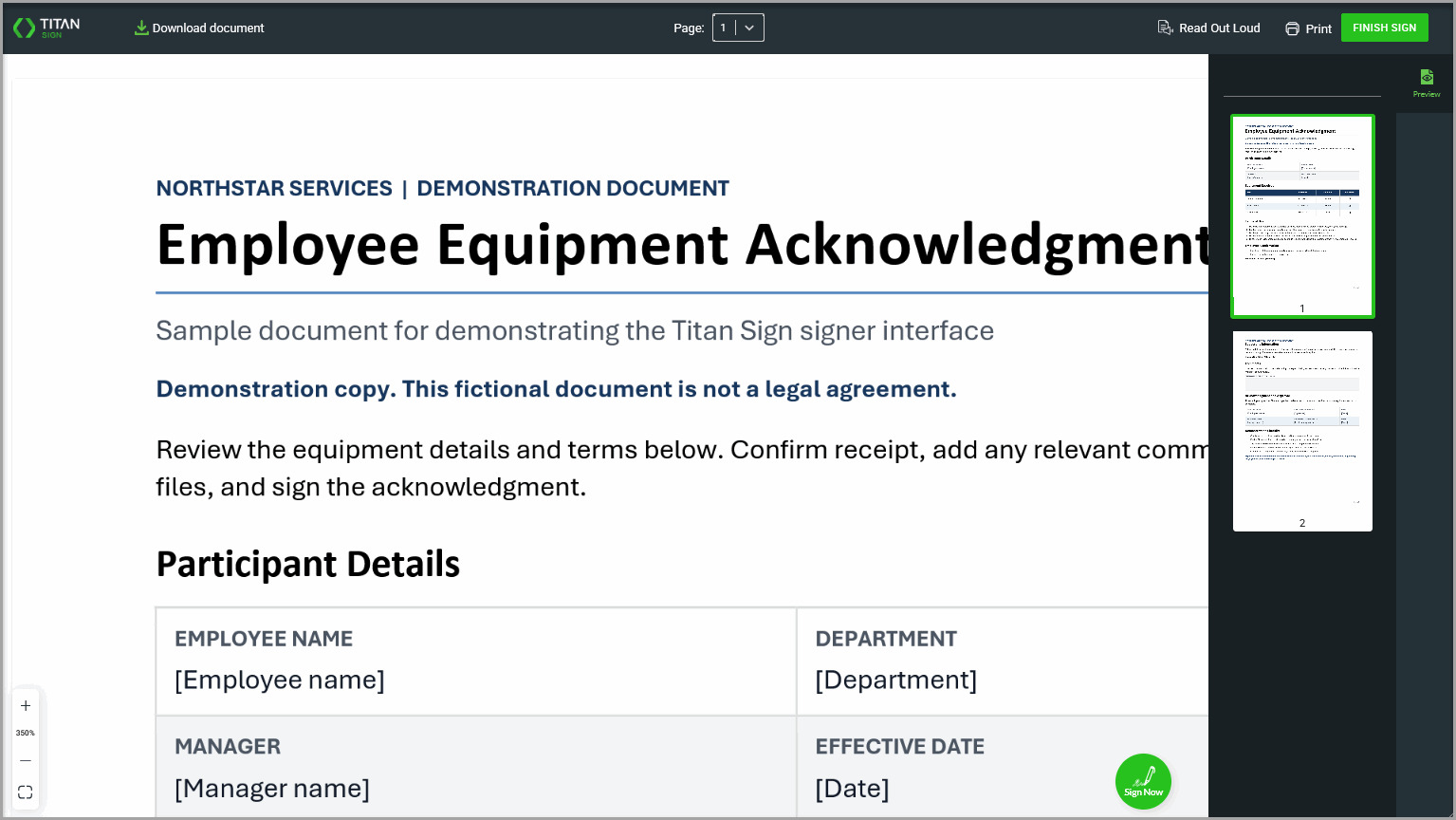
Hide the preview pane to reduce visual clutter and give the document more space on the signer’s screen.

When the signer opens the document, the preview pane is no longer displayed.
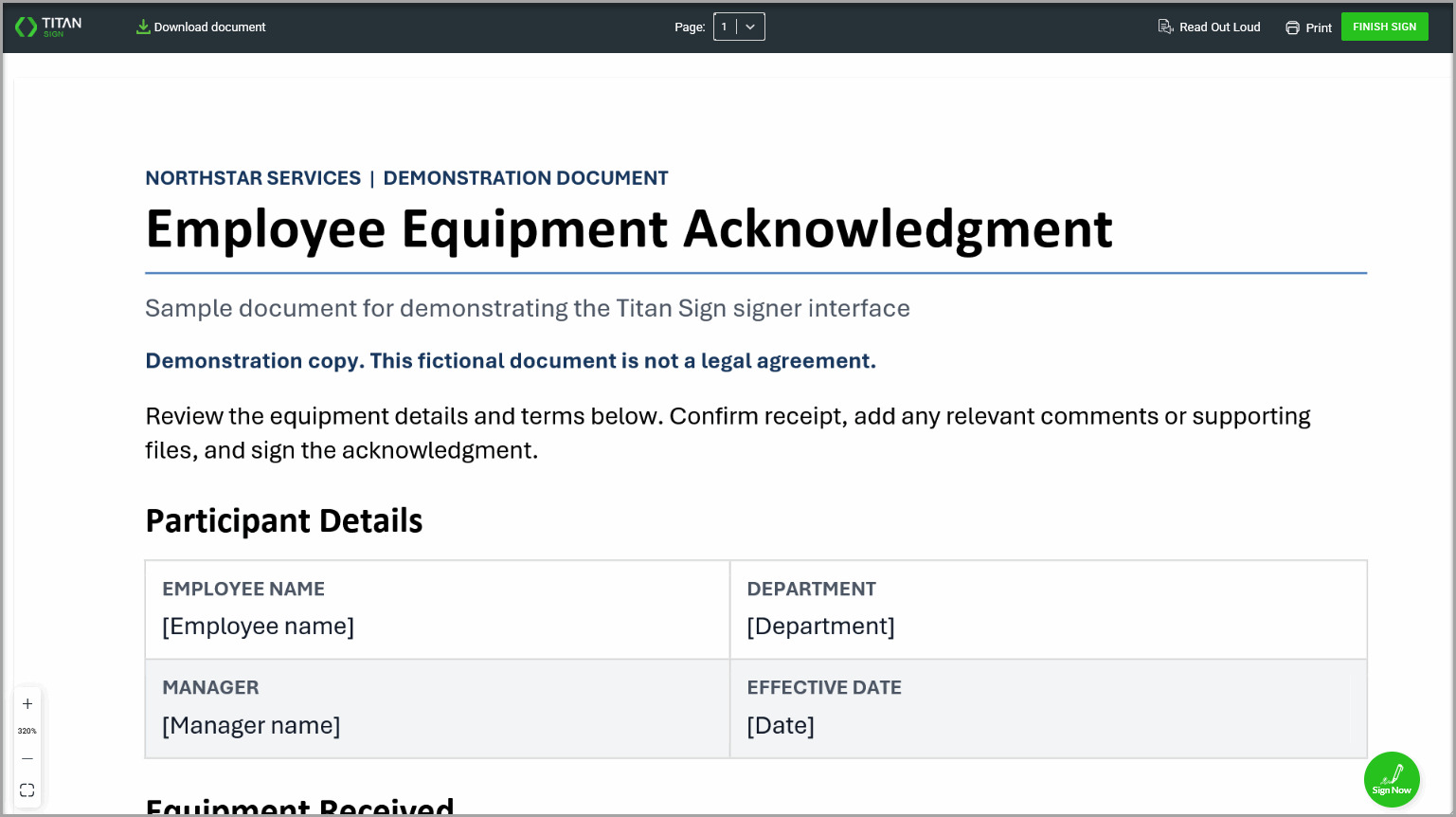
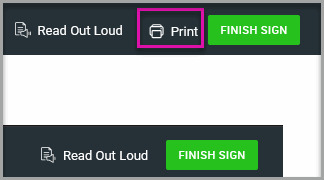
Remove the Print icon when signers should complete the signing process without using the built-in print option. This also creates a cleaner interface when printing is not required.
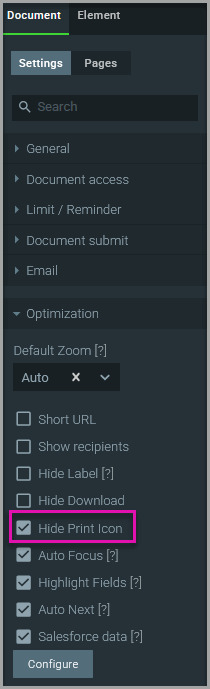
When the signer opens the document, the Print icon is no longer displayed in the signer interface.
Show recipients when signers or reviewers need to know who else is involved in the process. This can make multi-recipient signing and review processes easier to understand.
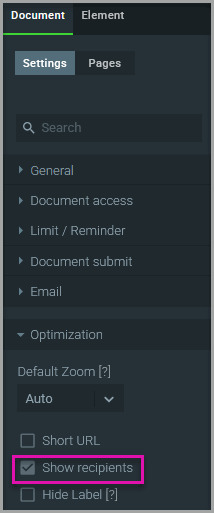
When the document is opened, the signer or reviewer can select Recipients on the right side of the interface. The panel displays the number of recipients and lists their names and email addresses.

Enable the enhanced viewer to improve how the document is displayed on mobile devices, particularly older phones, tablets, or operating systems that may have rendering limitations.
When a signer opens the document on a mobile device, Titan uses the enhanced viewer to display it.

Customize captions when the default interface text does not match your organization’s terminology or when signers need clearer instructions. You can update captions for several parts of the signing experience from one screen.
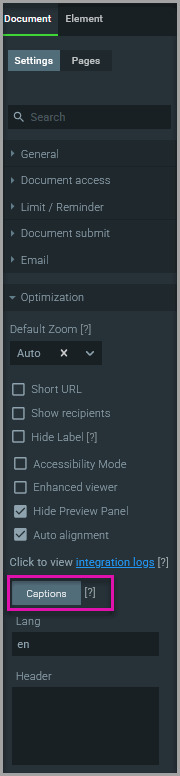
You can customize captions for:
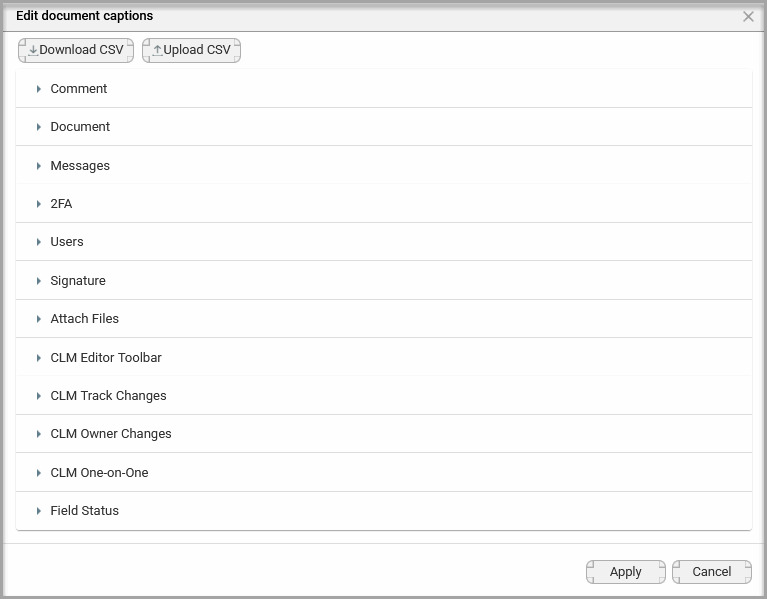
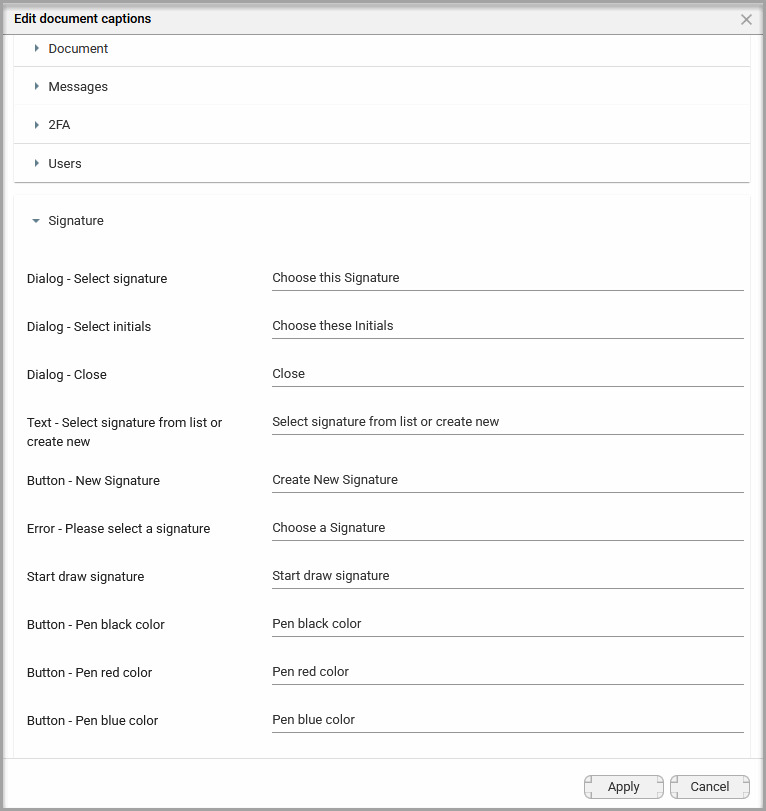
Use the Signature caption settings to change the instructions and labels displayed when a signer selects or creates a signature.
The updated captions appear on the Select Signature screen during signing.
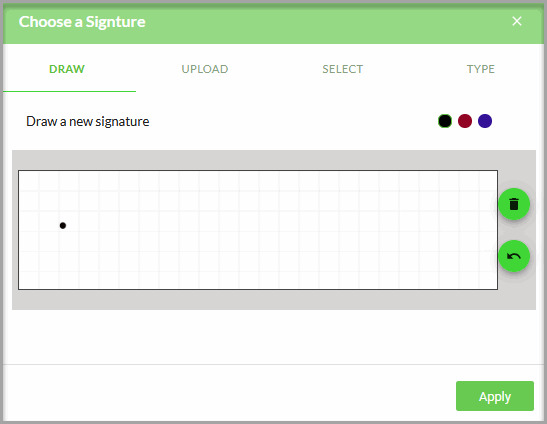
The signer interface displays according to the options configured for the project. Depending on your selections:
Preview and test the project before sending it to confirm that the document and interface appear as intended.
No. The optimization and caption settings described in this article apply to the current Sign project.
Hiding the icon removes Titan’s built-in print option from the signer interface. It does not control printing methods available through the signer’s browser or device.
Signers and reviewers can access the list when Show recipients is enabled. The list includes recipient names and email addresses.
Yes. Open Captions, expand Signature, and update only the required signature text. You do not need to change captions in the other sections.
Enable it when signers may use mobile devices or operating systems that have difficulty rendering the standard document viewer.
On this page