How can we help you?
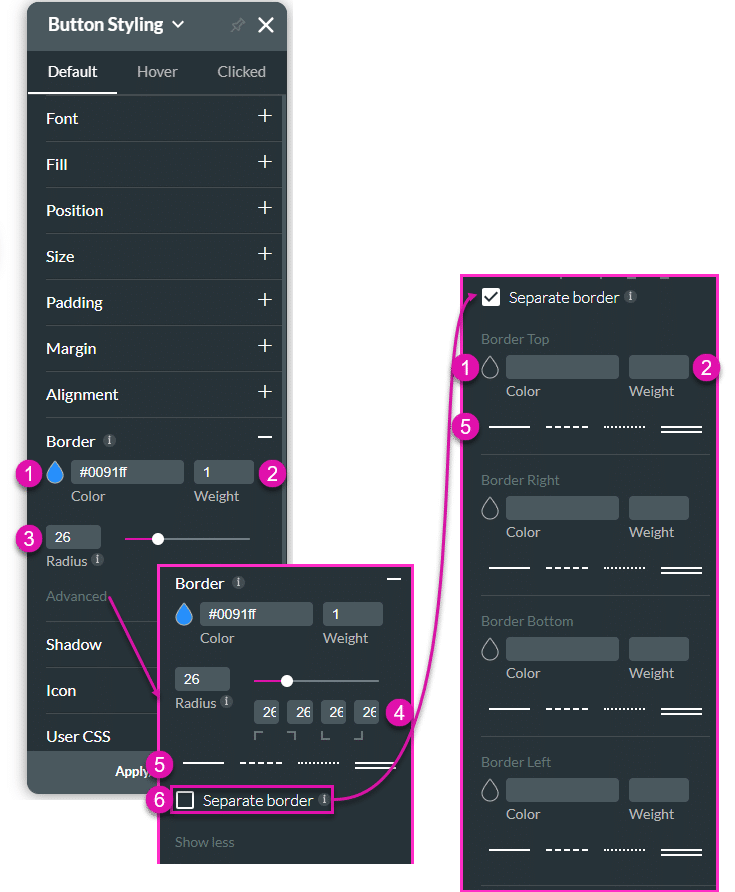
You can style the border of an element to complement your brand and business needs. You can change the entire border or each side separately.
Use the border options to customize elements in web projects.

| # | Option | Function |
|---|---|---|
| 1 | Color selector | Choose the color display of the border by selecting the color palette. |
| 2 | Weight | This option allows you to adjust the weight of the element’s border. |
| 3 | Radius field and slider | Adjust the radius of the border by changing the value in the field or dragging the slider. |
| 4 | Radius differentiation per corner | Change the radius of a corner. |
| 5 | Border style selector | Use this option to select one of the styles: solid line, dashed, dotted or double line. |
| 6 | Separate border checkbox | Click the checkbox to style each side separately. You can change the color (1), weight (2), and style (5) of the sides. |
Join us as we examine one of the many ways you can style an input element using the Border setting. Alternatively, contact us today if you have a specific business use case in mind.
The example below shows how to change the border of the element.


You can do the same for other elements, for instance, a text element:

On this page









