How can we help you?
Titan SmartV secures your Titan Web project by authenticating users against information stored in Salesforce. It confirms that a user’s details match a Salesforce record before granting access, without requiring the user to log in to Salesforce.
You can also add two-factor authentication, profile management, self-registration, and access rules based on Salesforce data.
Use SmartV when your project contains protected pages or private data that should be available only to known Salesforce contacts or to records from another object.
Common uses include customer portals, partner pages, member-only content, and other external-facing projects connected to Salesforce data.
Before configuring SmartV, you need:
Most customers use the Contact object, but you can select another standard or custom object.
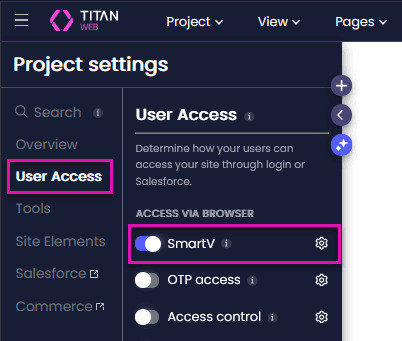
Open User Access in the left panel, locate SmartV, and turn on the toggle.
The SmartV configuration wizard opens. It includes Login, Condition, Authentication, Profile, Registration, and Access Control settings. Only the Login settings are required. The remaining steps help you tailor the sign-in experience and access rules for your project.
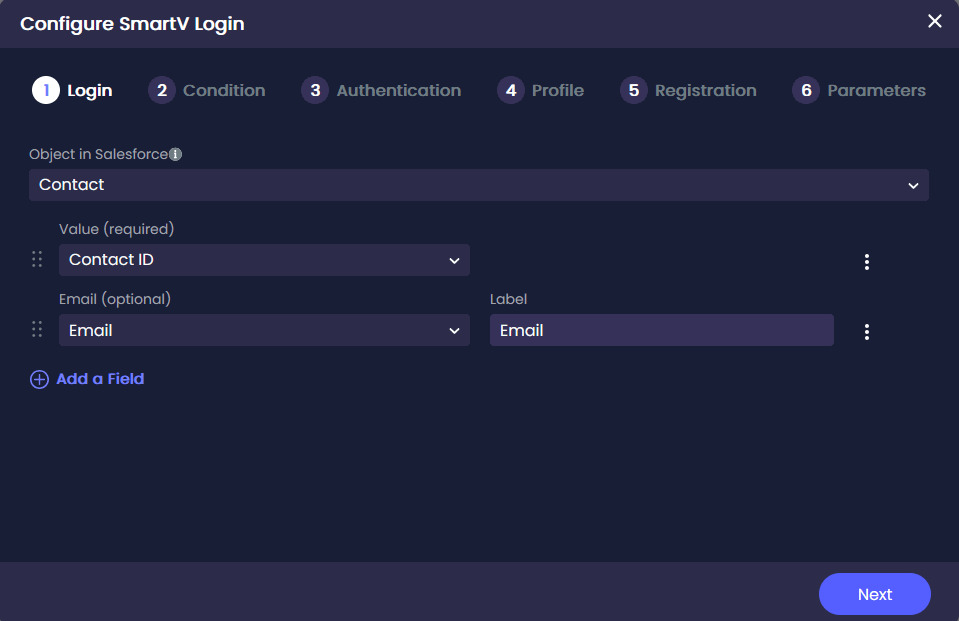
The Login settings determine which Salesforce object and fields SmartV uses to identify users.
Select the Salesforce object containing the records you want to authenticate, such as Contact. Then configure the following fields:
You can also configure additional login fields, mandatory fields, password authentication, invalid-login messages, and account lockout rules.
For more information, see SmartV: Create a Salesforce Login Page.
Conditions let you add access requirements beyond finding a matching Salesforce record.
For example, you can require a contact’s Status to equal Active or limit access to contacts associated with a specific account, department, or role.
Conditions are optional. Without them, SmartV authenticates the user based on the fields configured in the Login step.
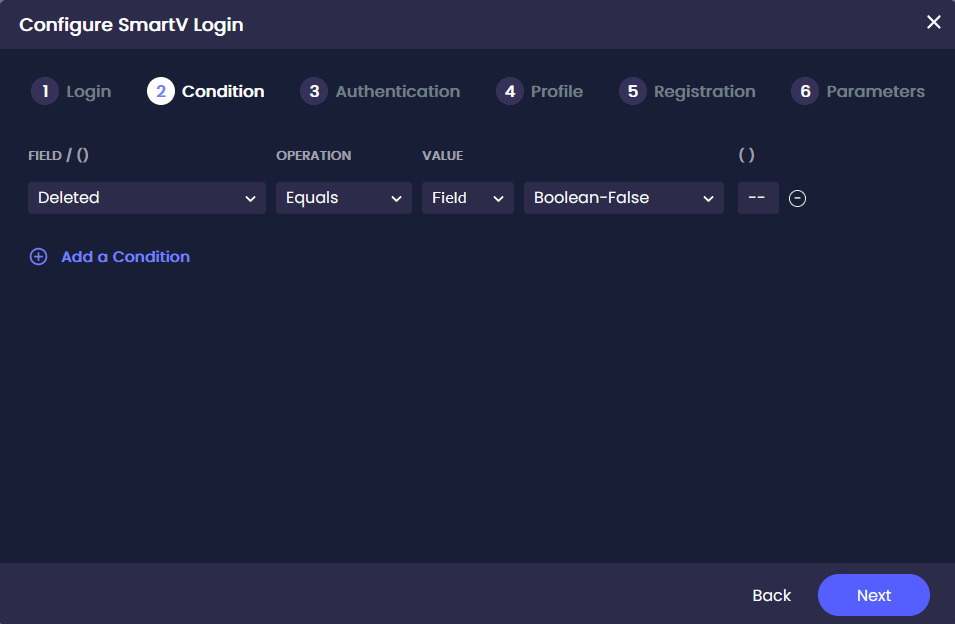
For more information, see SmartV: Condition Settings.
SmartV authenticates users by checking their login information against the selected Salesforce object and evaluating any conditions you added.
You can also enable two-factor authentication:
When 2FA is enabled, Titan generates a code and stores it in the selected Verification Code Field. If you enable Send email with code to user, Titan sends the code through Salesforce or Titan. Salesforce is recommended when you need more control over the sender and email configuration.
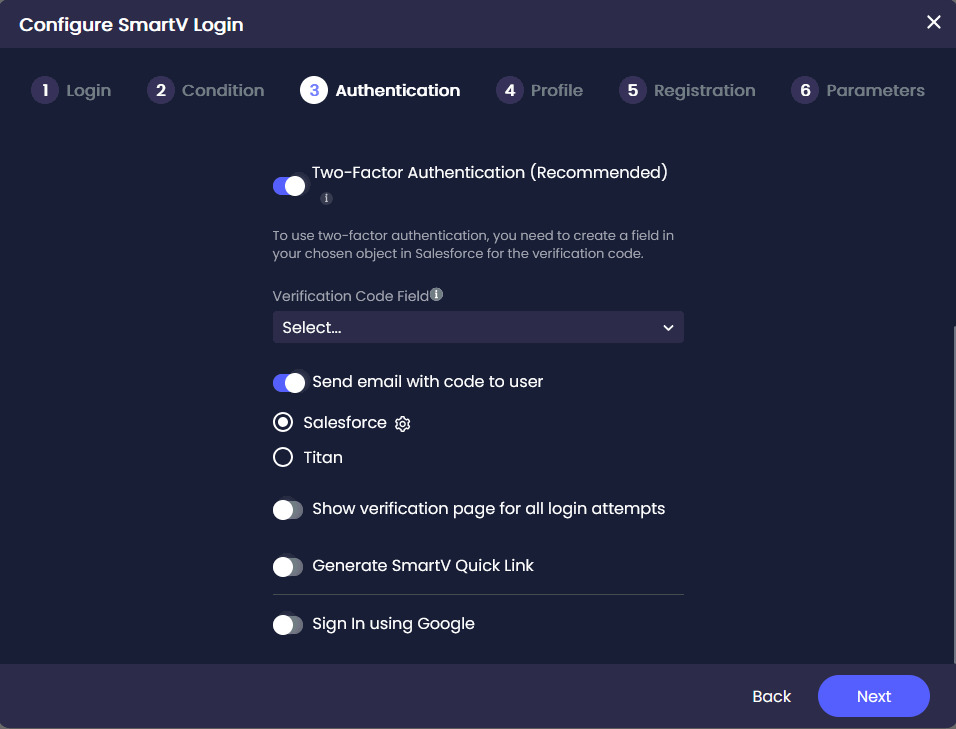
For more information, see SmartV: Set Up 2FA Authentication. To use Google sign-in, see SmartV Sign In Using Google.
Enable the Profile option when you want authenticated users to view or update selected information from their Salesforce record.
Add the fields you want to make available, such as first name, last name, email address, and mobile phone number.
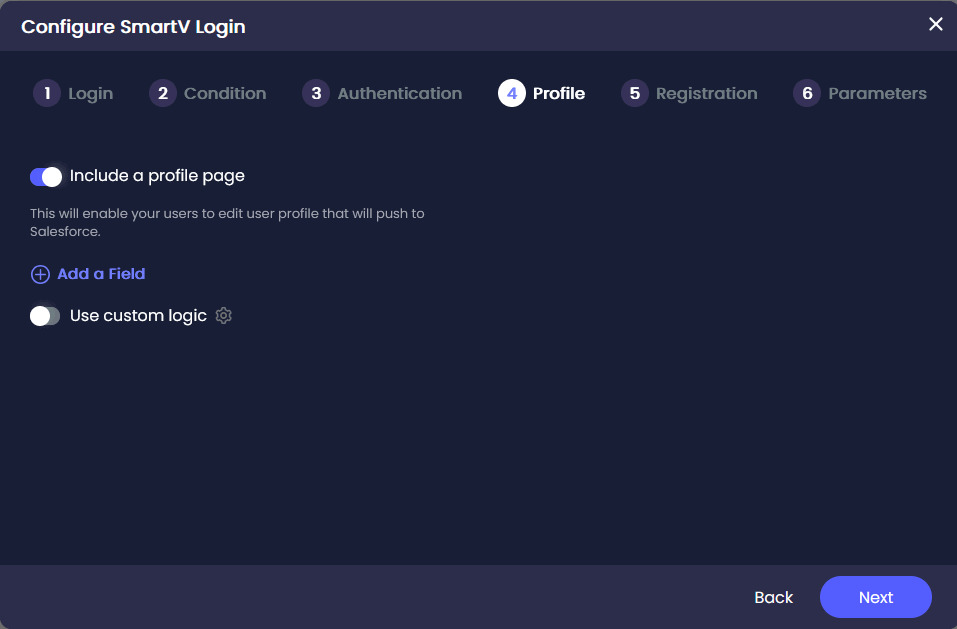
For more information, see SmartV: Profile Settings.
Enable Registration to let people without an existing Salesforce record register through your project.
Add the fields you want to collect, including an email address for authentication. You can also include fields such as first name, last name, and mobile phone number.
Enabling this option adds Sign Up to the SmartV login interface.
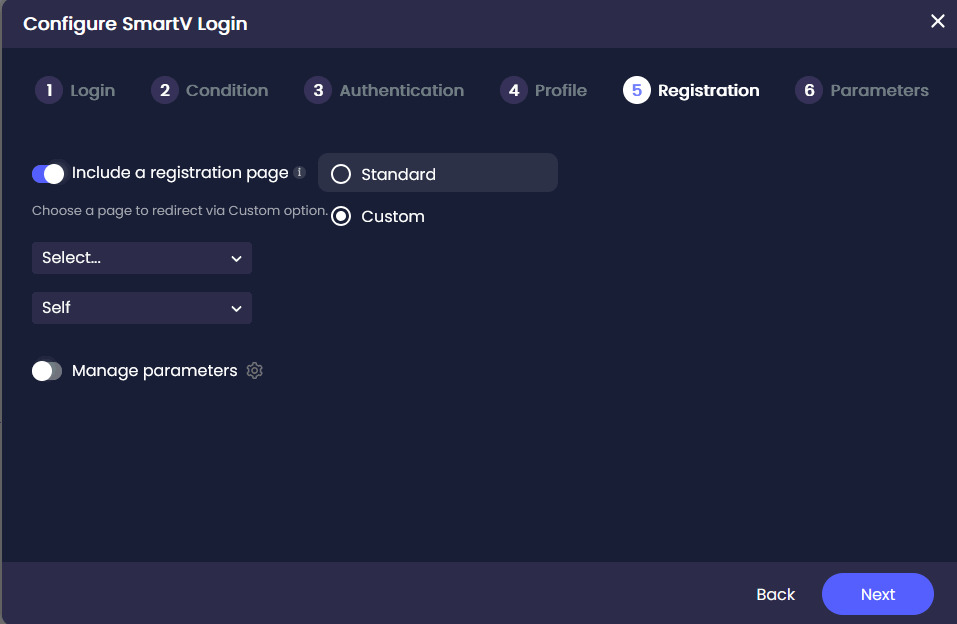
For more information, see SmartV: Registration.
Access control parameters help you control the pages and Salesforce data available to an authenticated user.
For example, you can use the Salesforce record ID returned at login to retrieve information associated with that specific user.
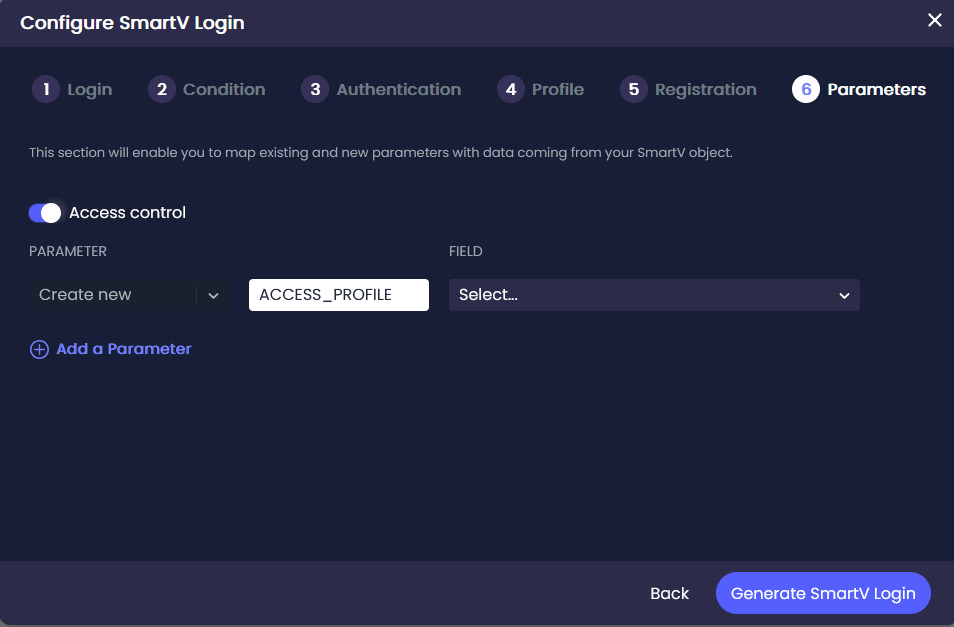
For setup instructions, see SmartV: Access Control Parameter.
Select Generate SmartV Login after completing the required settings.
Titan creates a SmartV section under Pages containing four pages:
You can open each generated page in the Web project to adjust its layout, styling, text, and branding. You can also choose a different layout for the Login page based on the sign-in experience you want to provide.
To display the sign-in option, open Pages, select Manage Menus, and include the header.
Preview the project and test the login process before publishing. If you enabled 2FA, registration, profile settings, or conditions, test each option to confirm that SmartV grants access to the correct users.
Users select Sign In and enter the required login information.
If 2FA is enabled, SmartV sends a PIN by email. The user enters the PIN to complete authentication. If registration is enabled, users can select Sign Up. If the profile is enabled, authenticated users can view or update their details and sign out through the project menu.
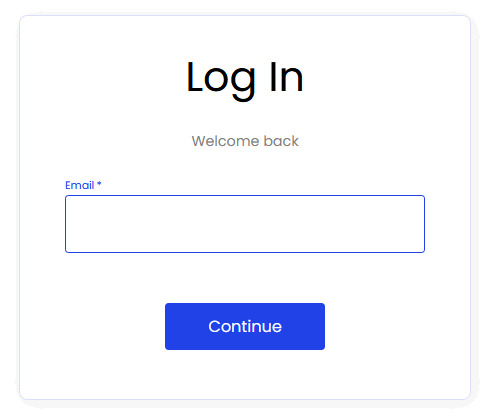
Titan SmartV secures Titan Web projects by authenticating users against Salesforce records before granting access.
No. SmartV checks the information entered through your Titan Web project against Salesforce records.
No. You can authenticate users without a verification code. However, 2FA is recommended because it adds an extra layer of security by requiring users to verify their identity with a code before gaining access.
You can use a standard or custom Salesforce object. Contact is the most commonly used object, with the Contact ID as the unique identifier.
Yes. Enabling Registration adds a Sign Up option to the SmartV login interface.
On this page