How can we help you?
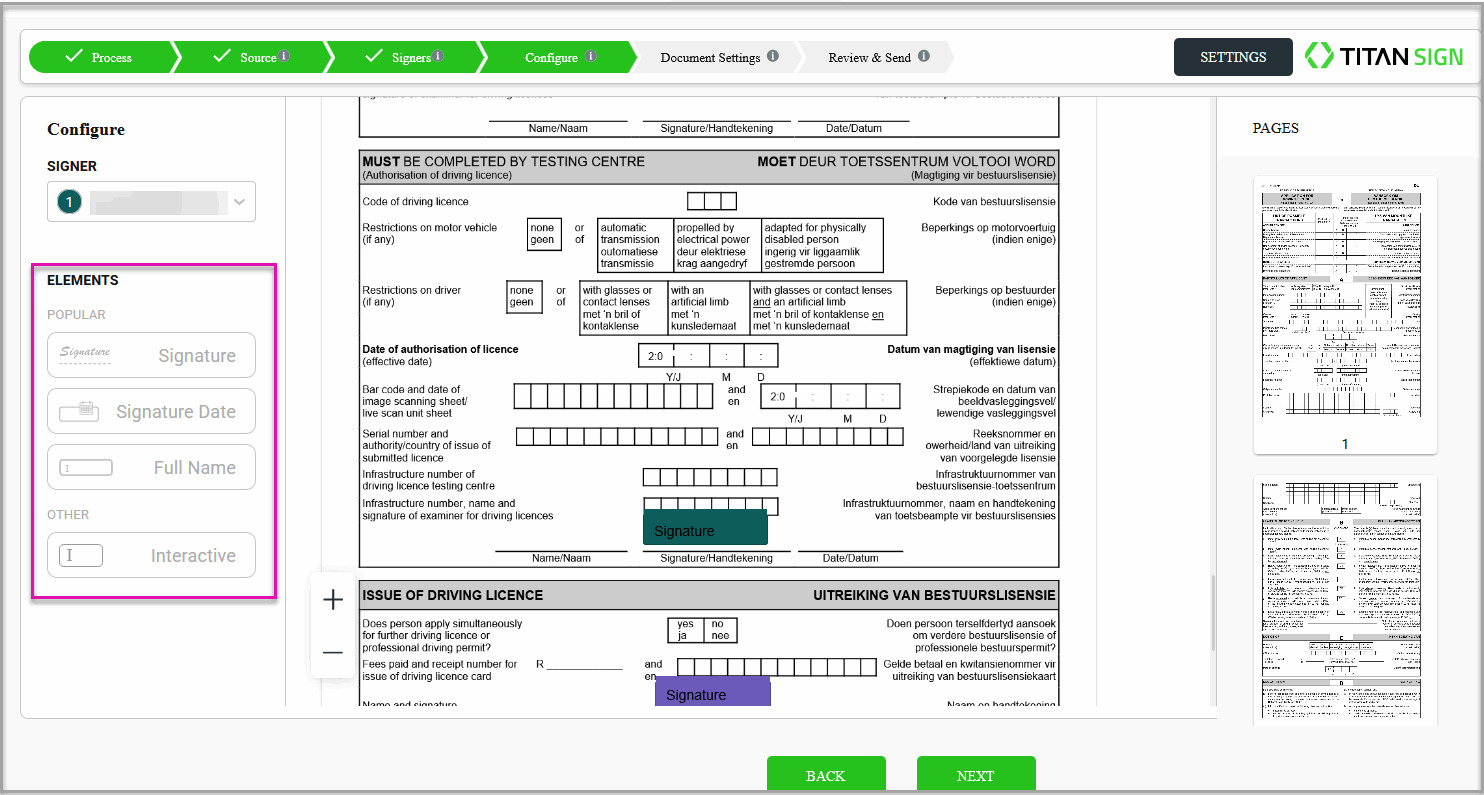
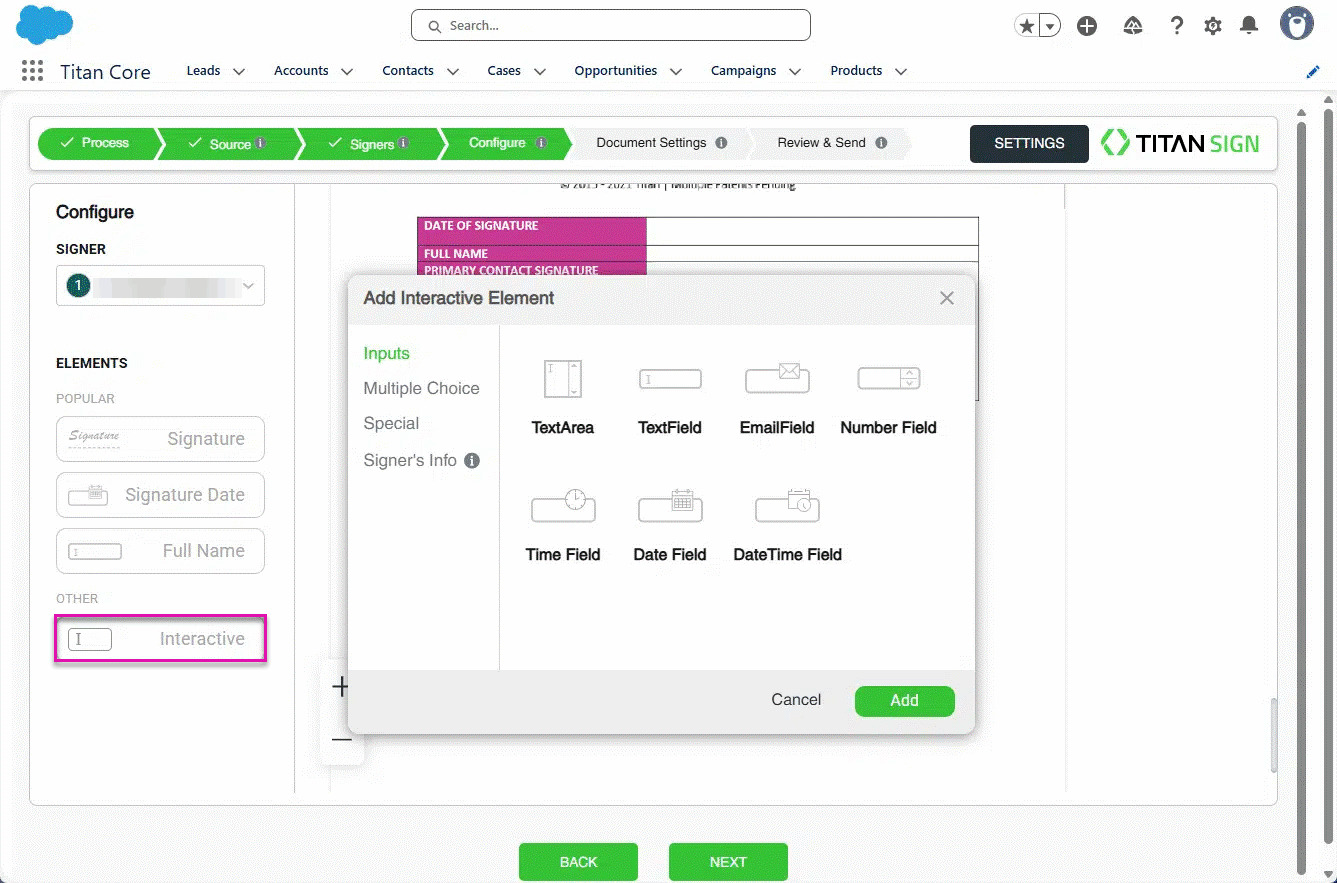
Add interactive elements to a document so each signer can enter information, select options, or provide a signature.
You can assign different elements to each signer and use color-coding to indicate who must complete each field. You can also adjust the position, size, font, colors, and keyboard navigation order of individual elements to create a clear and consistent signing experience.
Interactive elements include:
Data entered during the signing process can sync with Salesforce based on your project configuration.
Make sure you have:
Note: Changes made in the Sign Wizard override the corresponding Titan Sign project settings for the current process. These changes do not update the original Titan Sign project.
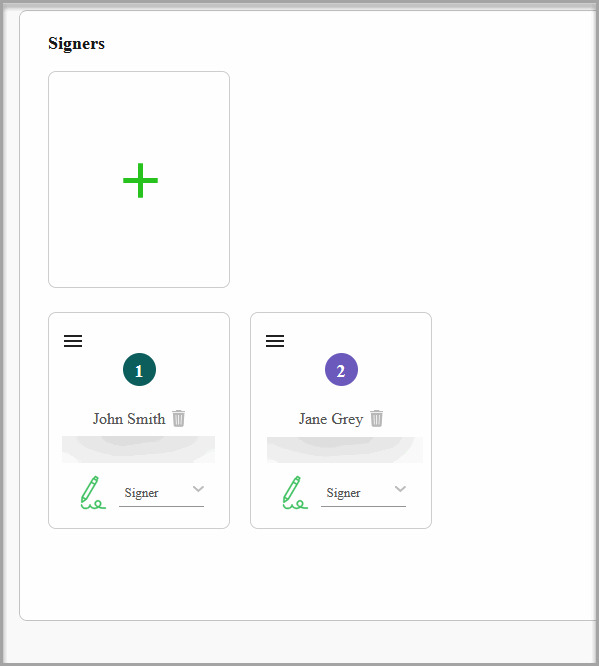
Each signer is assigned a color on the Signers step. Titan uses these colors when displaying interactive elements, helping you confirm that each field belongs to the correct signer.
Use the location settings when you need more precise placement than manual positioning provides.
Precise location values are useful when multiple elements must align or when you need to place fields consistently across similar documents.
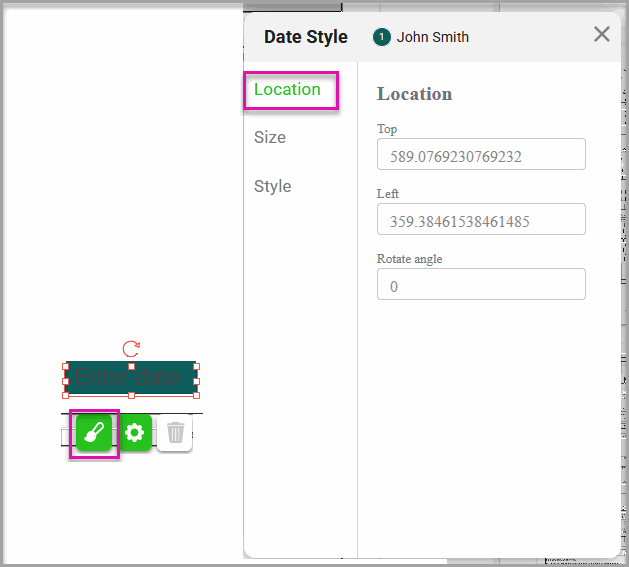
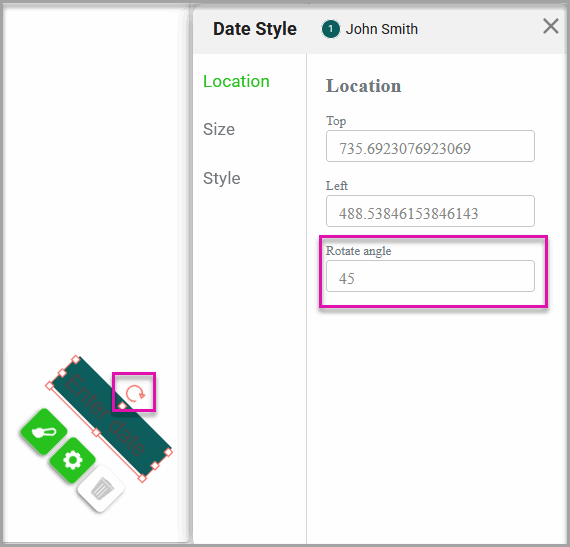
You can also use the rotate control on the element to adjust its angle directly on the document.
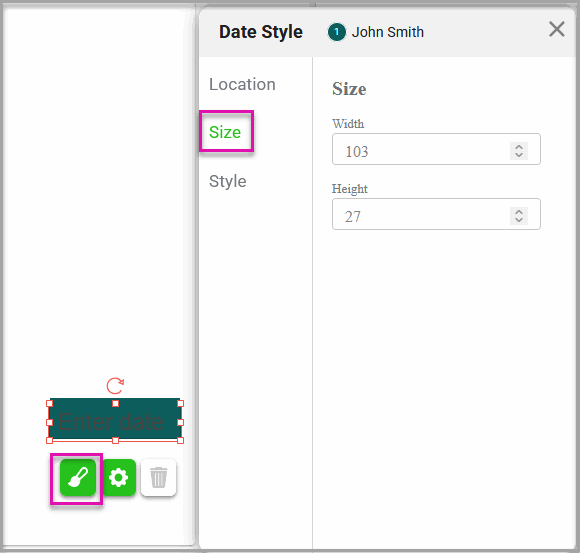
Set the element size so signers have enough room to enter or display the required information.
For example, you may need a wider text field for a full name or a taller text area for longer comments.
Style each element so it is easy to identify and matches the document design.
Use sufficient contrast between the text and background colors so that signers can read the information easily.
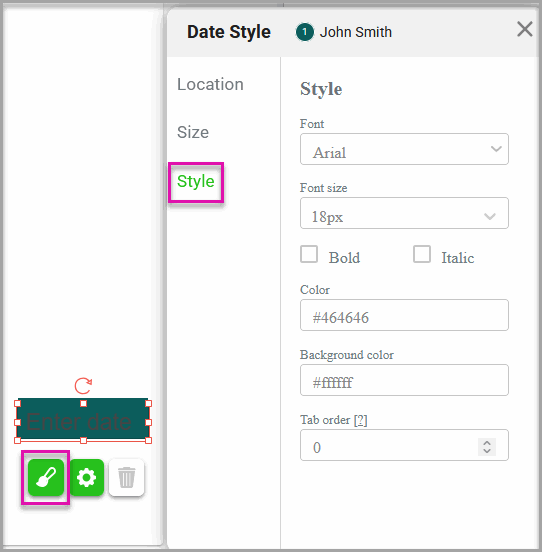
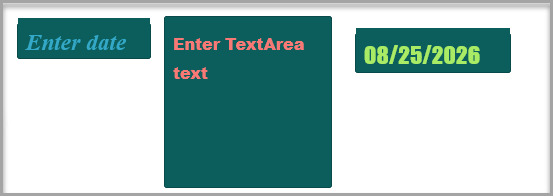
Check the element’s color. Each signer receives a color on the Signers step, and their assigned elements use the same color in the document preview.
Each interactive element is assigned to a specific signer. If multiple signers must provide the same type of information, add a separate element for each signer.
No. Only adjust the styling when the default appearance does not suit the document or when you need to improve readability, alignment, or consistency.
Tab order lets signers move through the document using their keyboards. A logical sequence makes the document easier to complete and supports accessible keyboard navigation.
No. Settings applied in the Sign Wizard can override the project settings for the current process without changing the original Titan Sign project.
On this page