How can we help you?
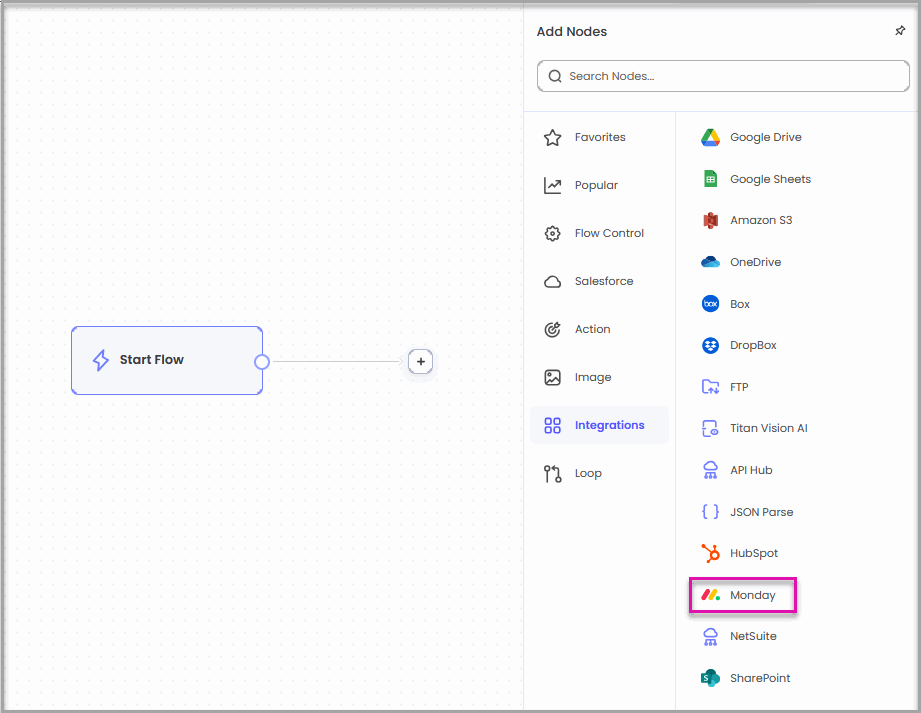
The Monday.com node connects Titan Flow to your Monday.com boards. You can create, retrieve, update, and delete items as part of an automated process. You can also add comments to an item’s Updates section.
For example, you can create a Monday.com task when a Salesforce Case is escalated, update its status when the Case changes, and add a comment when the customer is notified. This helps teams work across Salesforce and Monday.com without manually copying information.
The Monday.com node supports the following actions:
| Action | What It Does | Example |
|---|---|---|
| Create Item | Creates an item on a selected board and group. | Create a task when a customer submits a service request. |
| Update Item | Changes the column values of an existing item. | Change the item status when a Salesforce Case is resolved. |
| Get Item | Retrieves information from an existing item for use later in the Flow. | Check the current item status before continuing. |
| Delete Item | Deletes a specified item. | Remove an item created for a canceled request. |
| Create Update | Adds a comment or activity entry to an item’s Updates section. | Add a note confirming that the customer was contacted. |
Important: Update Item and Create Update perform different actions. Use Update Item to change column values. Use Create Update to add a comment without changing the item’s columns.
Use this integration when you want to:
The node is particularly useful when one team manages customer information in Salesforce while another team manages operational work in Monday.com.
Make sure you have:
You should also know which Monday.com board, group, item, and columns the Flow will use. The available settings depend on the selected action.
If you regenerate the token in Monday.com, the previous token stops working. Update the Monday.com authentication in Titan with the new token before running the Flow again.
The account linked to the token must have access to the boards used by the Flow. If a board or group does not appear during configuration, check the account’s Monday.com permissions and confirm that the authentication uses the current token.
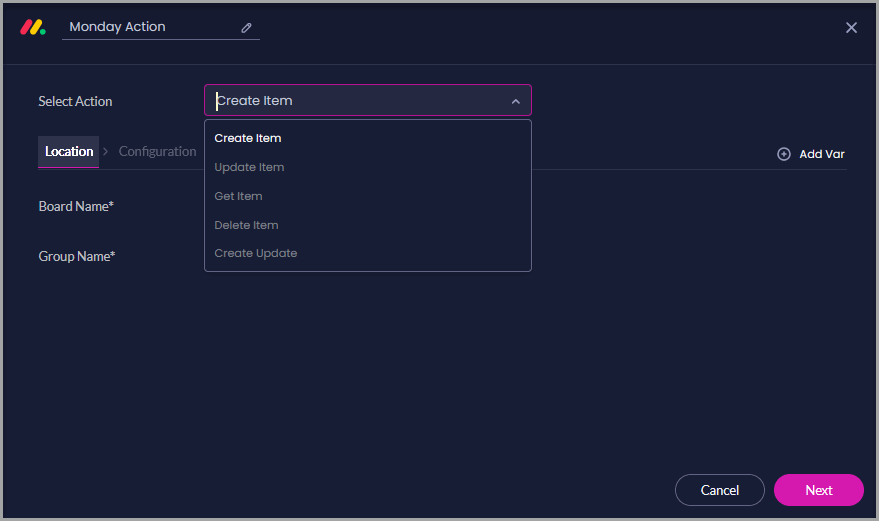
The Monday Action window opens.
The Monday.com node must be authenticated before Titan can access your boards and items.
Once authenticated, Titan can load the boards, groups, items, and columns available to the connected Monday.com account.
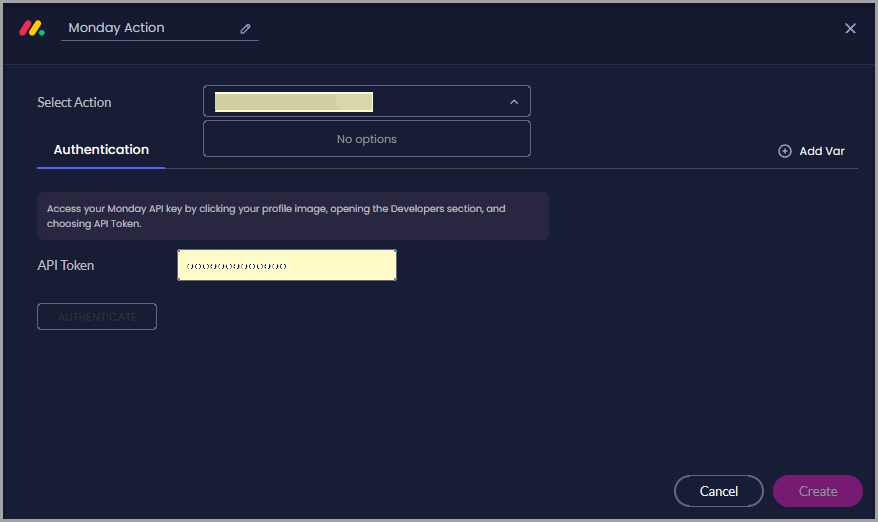
If a board or item does not appear during configuration, confirm that the connected Monday.com account has permission to access it.
Open the Select Action dropdown and choose:
The available tabs and fields change based on the selected action.
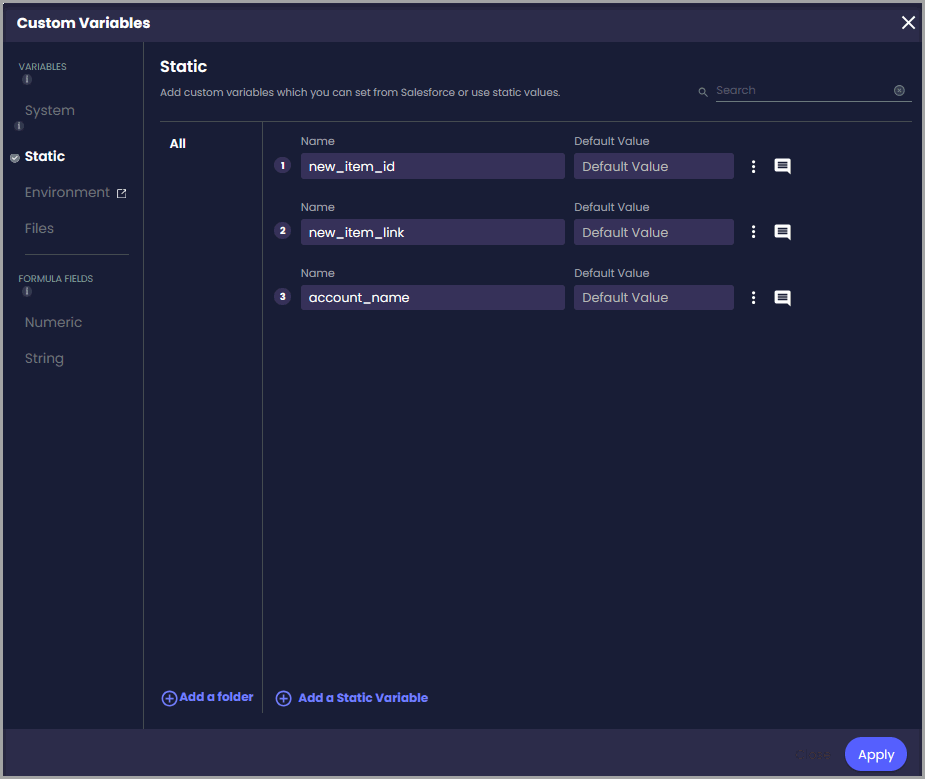
Before configuring an action, create the variables needed to send information to Monday.com or store information returned by the action.
The variables you need will depend on the selected action and how information moves through your Flow. For example, you may need variables to:
You can create variables from the project’s Custom Variables settings. You can also select Add Var in the Monday Action window to create a variable during configuration.
The variable names shown in this tutorial belong to the sample Flow project. You can create and name variables based on the information your Flow needs.
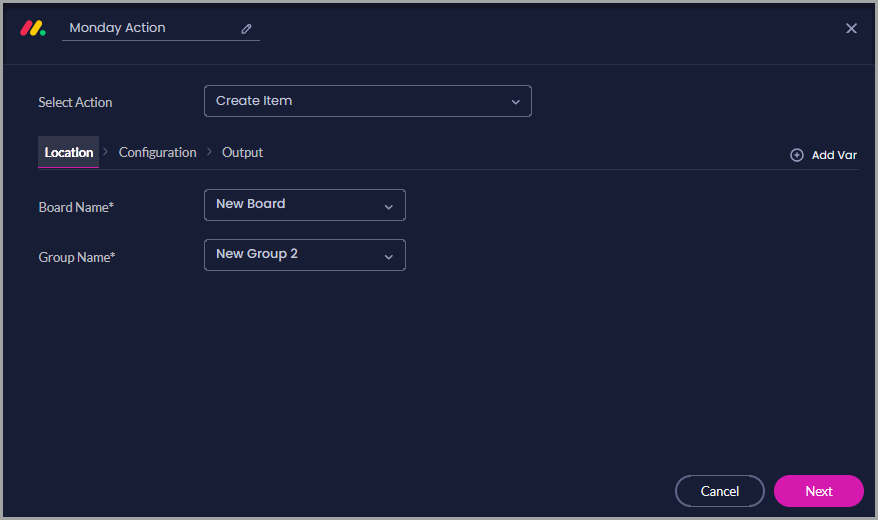
Use Create Item when the Flow must add new work to a Monday.com board.
For example, when a customer submits a service request, Titan Flow can create an item that includes the customer’s name, the request details, the assigned team, and the initial status.
The board determines which team or process receives the item. The group determines where the item appears within that board, such as New Requests, Escalations, or Pending Review.
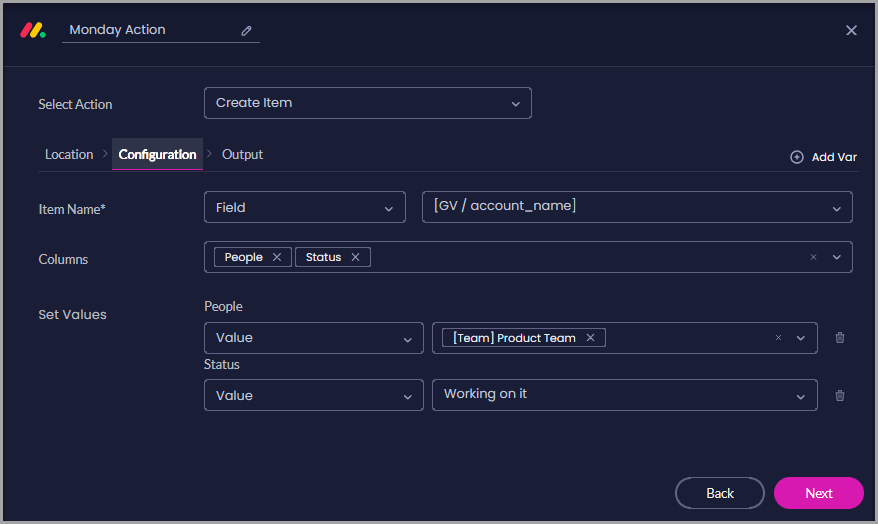
Use Field for information that may change with each execution, such as an account name, Case number, request description, or priority.
Use Value when every new item should receive the same setting, such as a starting status or assigned team.
In this example, the item name comes from the account_name variable. The People column is assigned to the Product Team, and the Status column is set to Working on it.
The Item ID can be used to retrieve, update, delete, or add a comment to the same item later. The Item Link can be saved in Salesforce or included in an email so users can open the item directly.
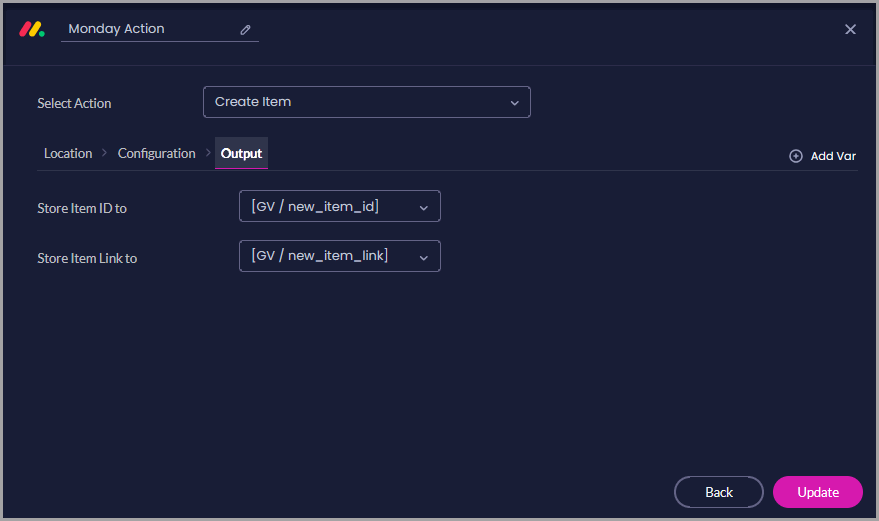
Titan creates an item in the selected board and group. The configured item name and column values are added, and the new Item ID and Item Link are stored in the selected variables.
Use Update Item when an existing item must reflect new information.
For example, when a Salesforce Case moves from New to In Progress, the Flow can update the related Monday.com item’s Status and assign it to the team responsible for the next step.
Selecting the board allows Titan to load its available items and columns.
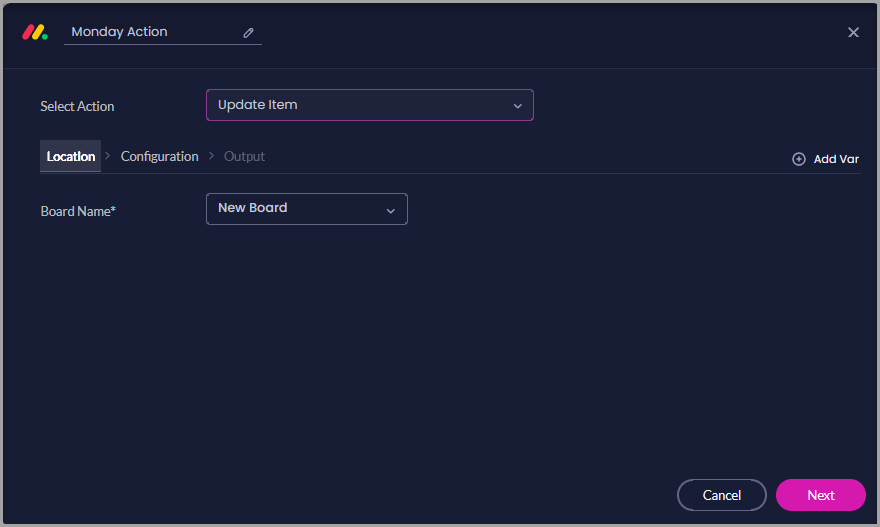
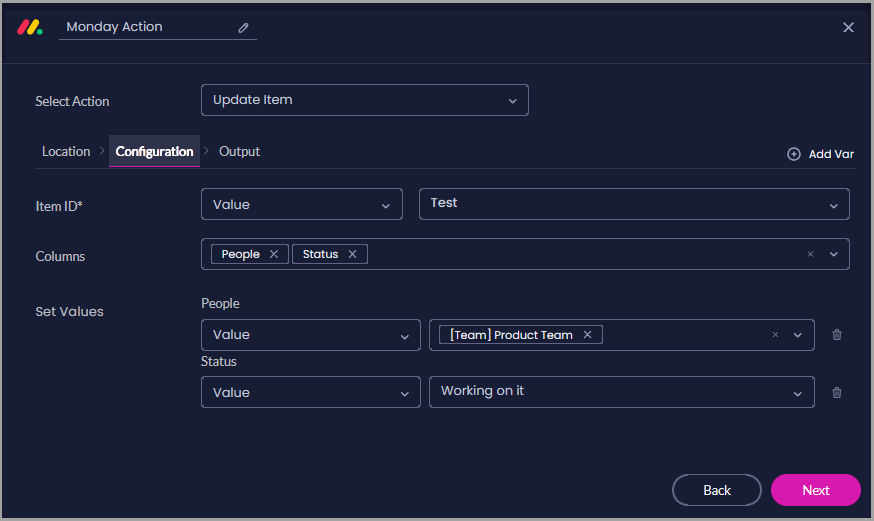
Use Field when the item or column value may change with each Flow execution. Use Value when the Flow should always update a specific item or apply the same value.
Only the selected columns are changed. Other information on the item remains unchanged.
These outputs identify the updated item and provide a link that another Flow node can use.
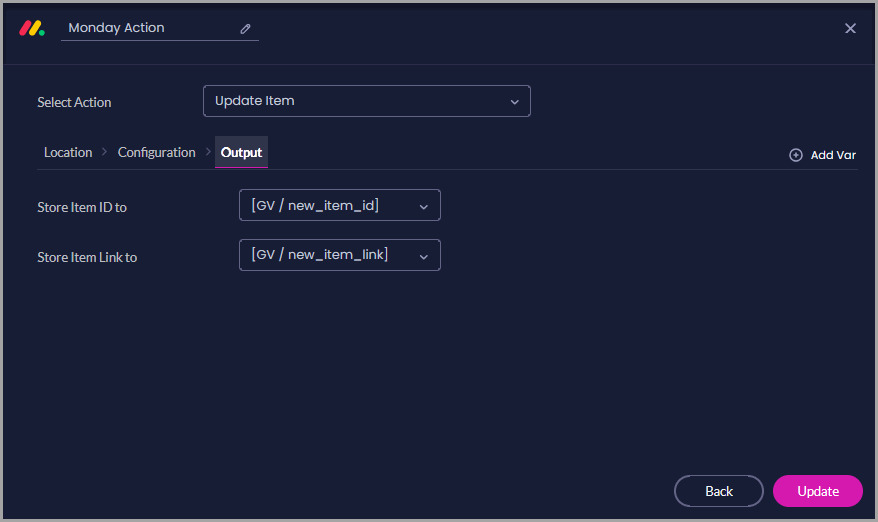
Titan finds the specified item and changes the selected column values. It does not create another item or add a comment to the item’s Updates section.
Use Get Item to retrieve information from an existing item without changing it.
For example, a Flow can retrieve an item’s current Status and assigned People, store the values in variables, and use a Decision node to determine what should happen next.
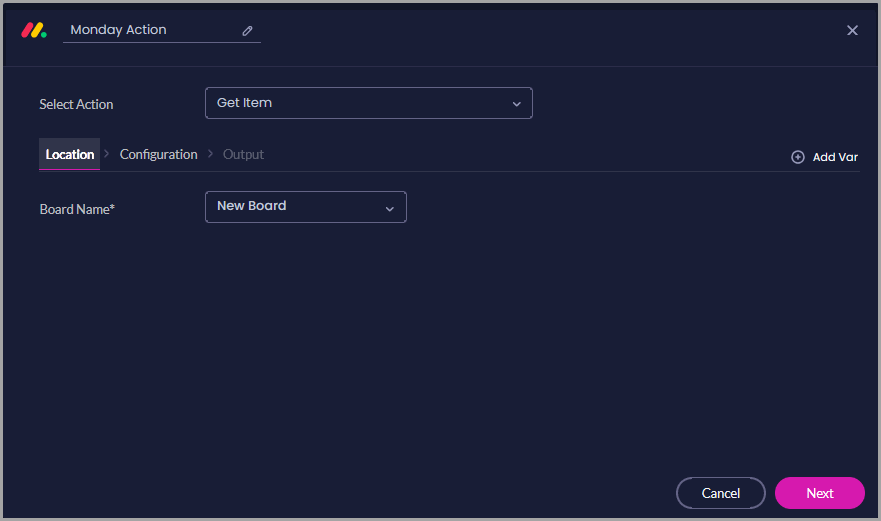
Each retrieved value is stored in its mapped variable. These values can then be used in later actions, emails, Salesforce updates, or Decision nodes.
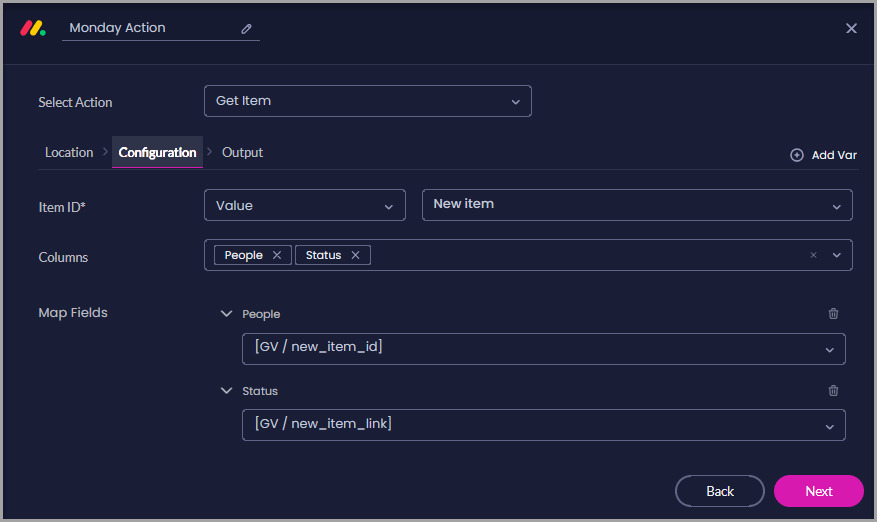
These settings store the item’s main details separately from the selected column values mapped on the Configuration tab.
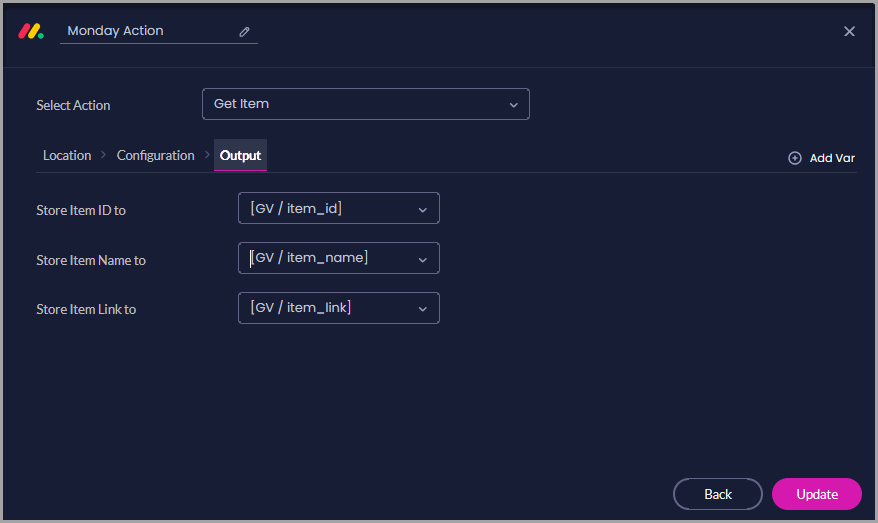
Titan retrieves the selected item and stores its mapped column values and item details in Flow variables. The action does not change the Monday.com item.
Use Delete Item when an item should be removed from a Monday.com board.
For example, if a task was created for a request that was later canceled, the Flow can remove the related item.
Using an Item ID stored in a variable allows the action to remove the item associated with the current Salesforce record, form submission, or Flow execution.
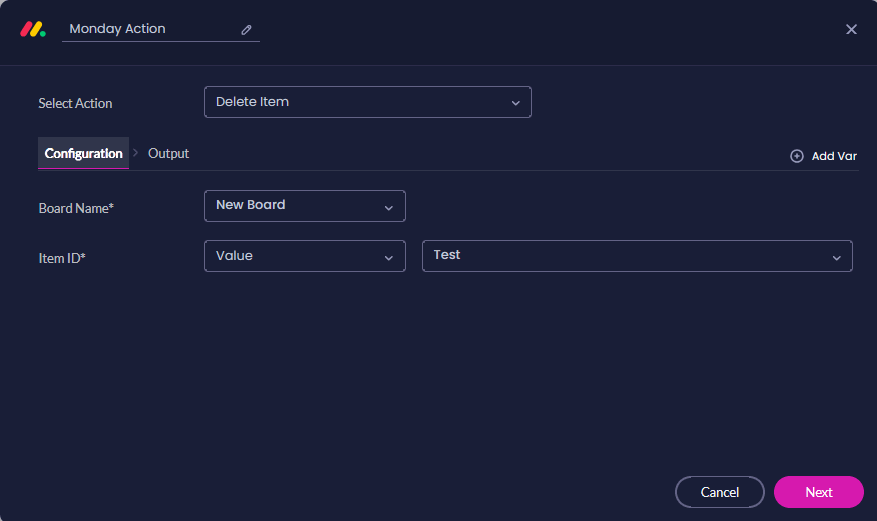
Important: Use this action carefully. If the item must remain available for reporting or recordkeeping, consider using Update Item to change its status to Canceled instead.
This output records which item was removed. You can save the ID in Salesforce, include it in a notification, or use it for process tracking.
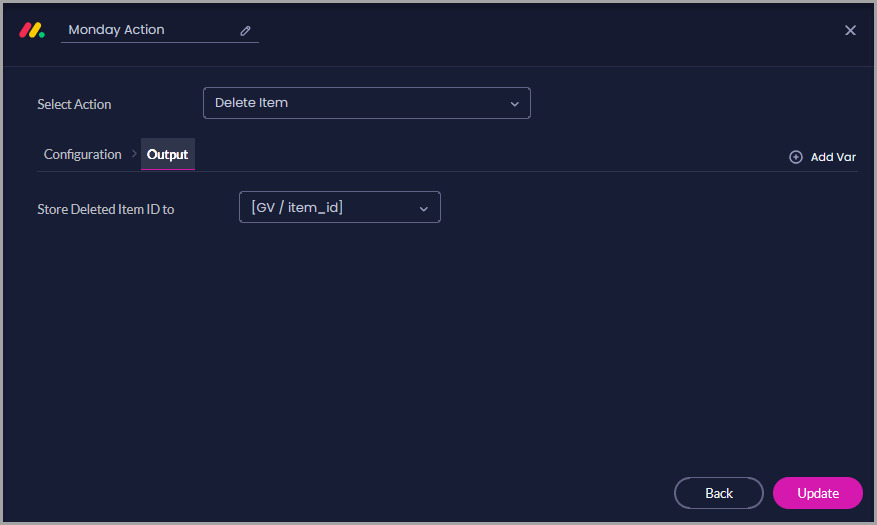
Titan removes the specified item from the selected board and stores its ID in the configured output variable. Later Flow actions should not attempt to retrieve or update the deleted item.
In Monday.com, an update is a comment or activity entry attached to an item. It is separate from the item’s column values.
For example, when a support agent contacts a customer, Titan Flow can add a note to the corresponding Monday.com item confirming the contact.
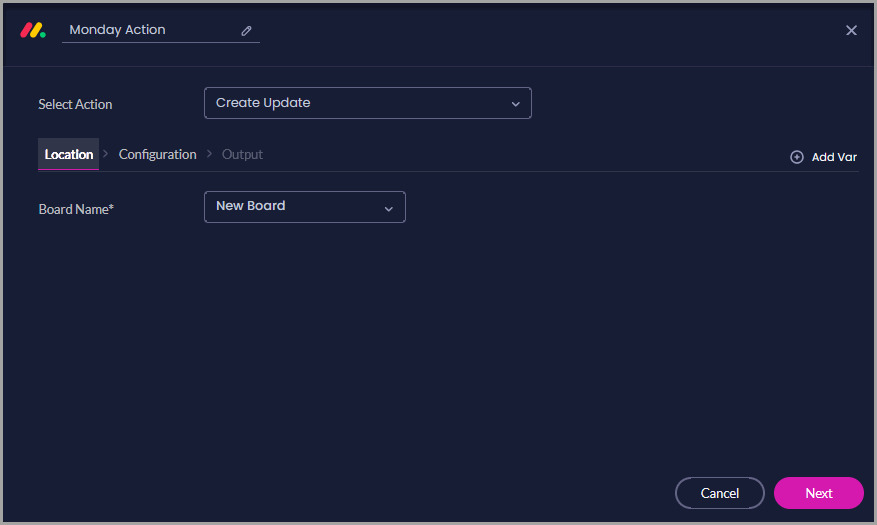
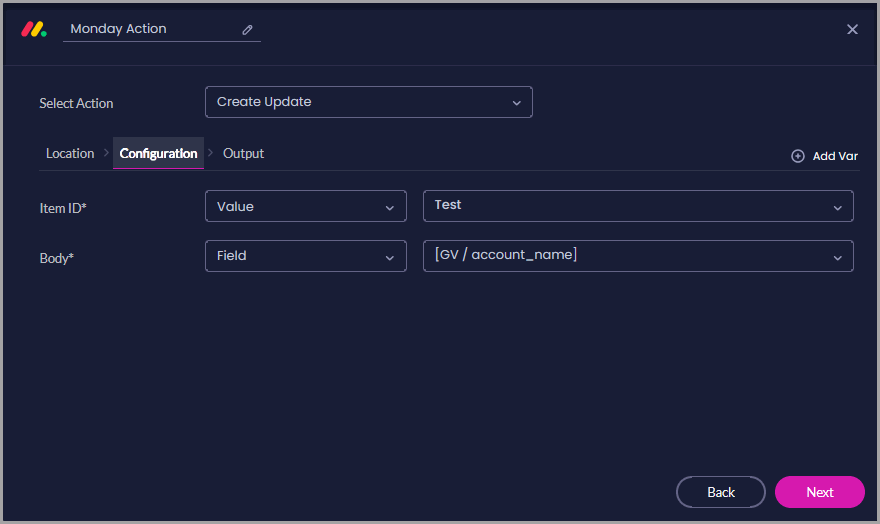
Use a Field when the update message changes with each Flow execution. For example, the message can include an account name, Case number, current status, or customer response.
The Update Link can be included in an email, saved in Salesforce, or passed to another Flow action.
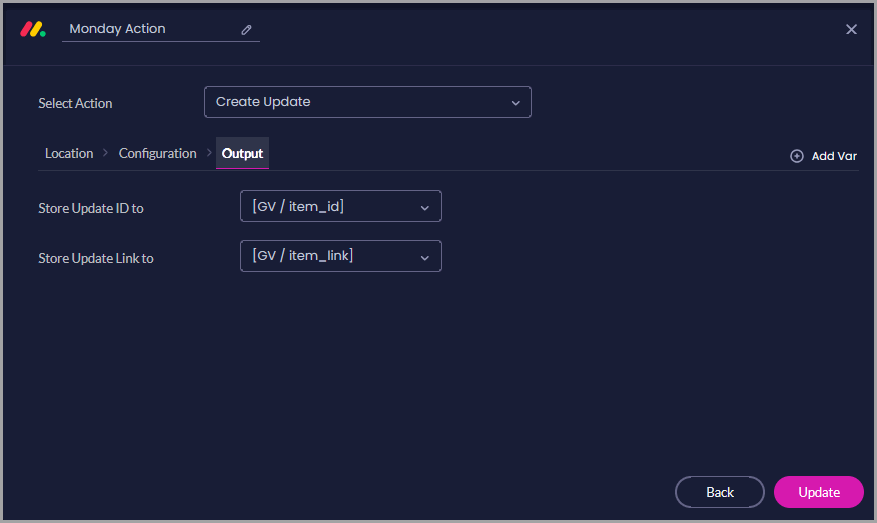
Titan adds the configured message to the item’s Updates section. It does not change the item’s column values.
Once you have configured the selected action:
Confirm that:
You can use the Monday.com node to create and manage work after Titan Flow receives information from a form, Salesforce record, or another system.
For example, when a customer submits a service request, the Flow can:
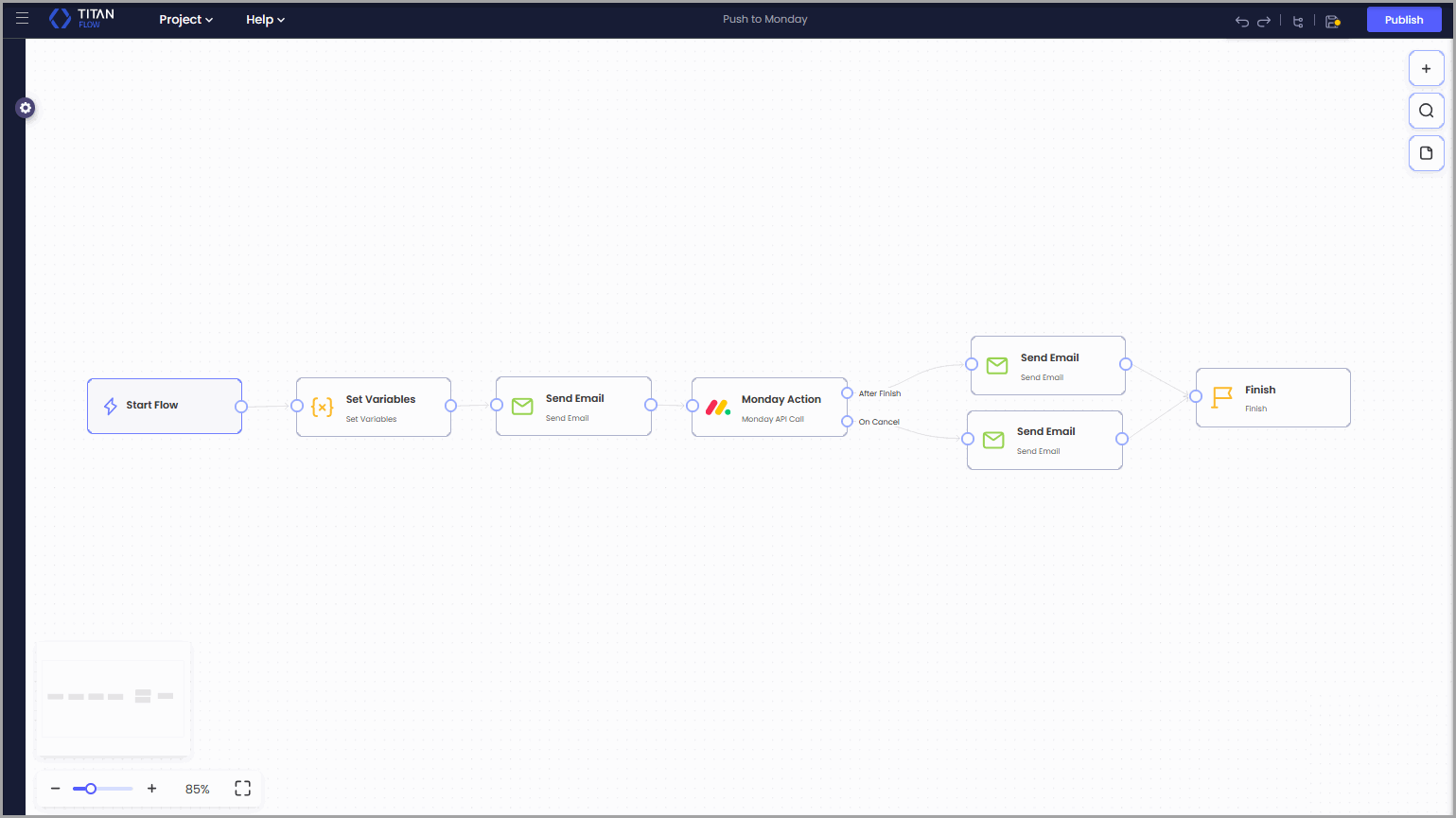
The nodes before and after the Monday.com action will depend on the selected action:
| Monday.com Action | Example Flow Setup |
|---|---|
| Create Item | Retrieve or set the request information, create the item, and save its returned ID in Salesforce. |
| Update Item | Retrieve the stored Item ID, update the required columns, and notify the assigned team. |
| Get Item | Retrieve the Item ID, get the selected column values, and use a Decision node to check the results. |
| Delete Item | Use a Decision node to confirm that removal is required, delete the item, and record the deleted Item ID. |
| Create Update | Retrieve the Item ID, prepare the update message, add it to the item, and save or send the Update Link. |
This example keeps the customer informed while making the Monday.com action part of a larger automated process.
Update Item changes selected column values on an existing item, such as its Status or assigned People.
Create Update adds a comment to the item’s Updates section. It does not change column values.
Variables allow information to pass between the Monday.com node and other Flow steps. You can use them to supply dynamic values, identify an item, store retrieved information, or save IDs and links returned by Monday.com.
No. The variables shown belong to the sample project. Create and select variables that match the information used by your Flow.
Use Field when the information comes from a Flow variable and may change with each execution.
Use Value when you want to select or enter a fixed option, such as a specific item, team, or starting status.
The action uses the selected Item ID. You can choose a specific item or supply the Item ID through a Flow variable.
Storing the Item ID after creating an item makes it easier to use that same item in later actions.
Yes. Store the returned value in a Flow variable and use a Salesforce Push action to save it to the related Salesforce record.
Check that:
The previous token stops working. Authenticate the Monday.com connection in Titan again with the new token.
No. Get Item only retrieves the selected item details and column values.
Delete the item only when it should be removed. If your team needs to keep the item for reporting or recordkeeping, use Update Item to change its status to Canceled.
On this page