How can we help you?
Hidden fields let you bring values into a Microsoft Word document template without displaying those values in the generated document. You can then use the hidden values to control which text, fields, or tables appear.
For example, you can show a payment section only when an Account Status hidden field equals Overdue, or display regional terms based on a value captured in a Titan Web project.
This article explains how to:
A hidden field stores a value that can be used by the document without appearing in its content. The field can provide a fixed value, reference a field from a Titan Web project, or retrieve data from Salesforce.
You can use hidden fields to:
Choose the hidden field type based on where its value comes from.
| Hidden Field Type | Value Source | When to Use It |
|---|---|---|
| Static | A value entered directly in the Word add-in | Use a fixed value that does not change between generated documents. |
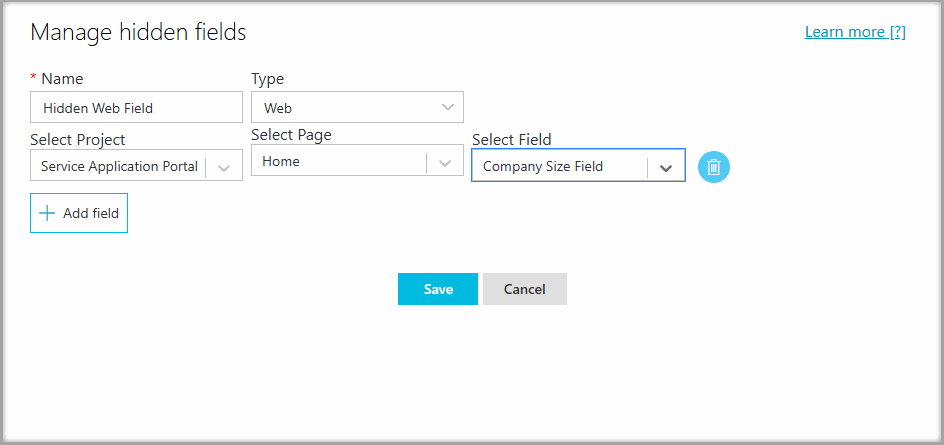
| Web | A field from a Titan Web project | Use information entered or displayed in a connected Web project. |
| Dynamic | A Salesforce object field | Use Salesforce record data to control the document content. |
Make sure that you have:
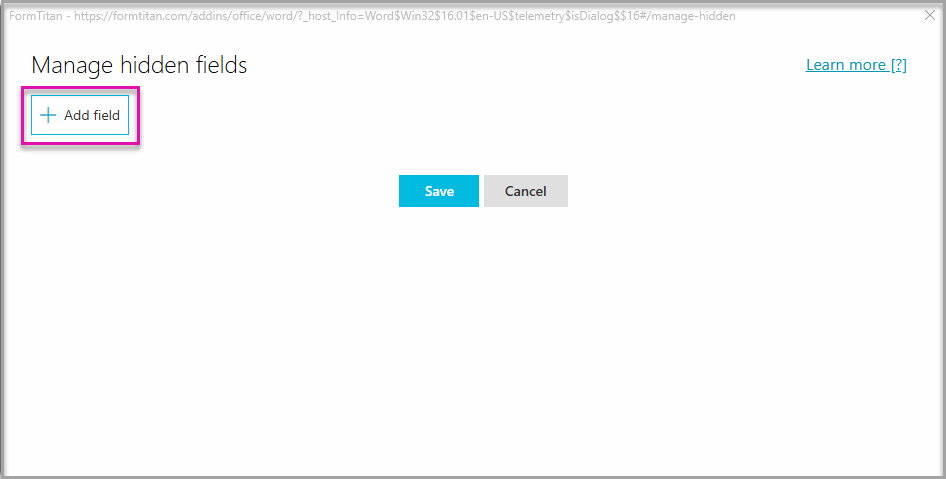
The Manage hidden fields screen opens. This screen lists the hidden fields already configured for the document.

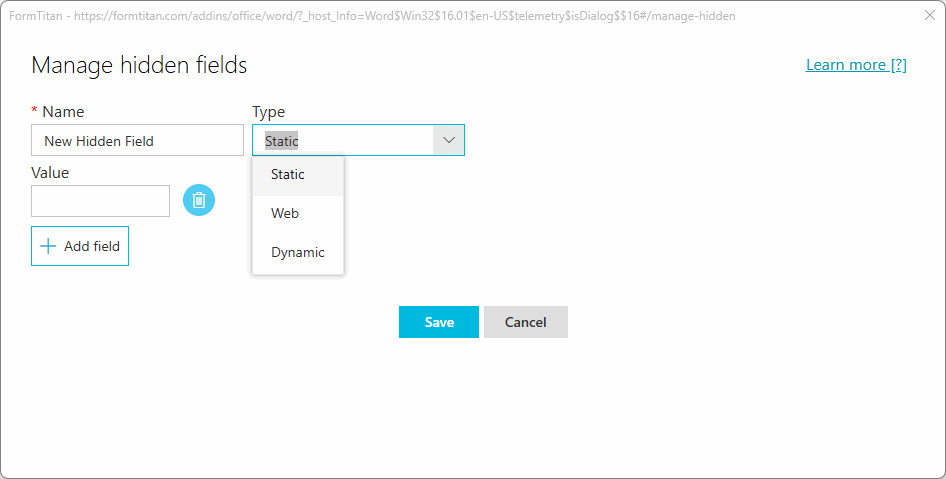
Use a static hidden field when the condition should reference a fixed value that does not come from Salesforce or a Titan Web project.
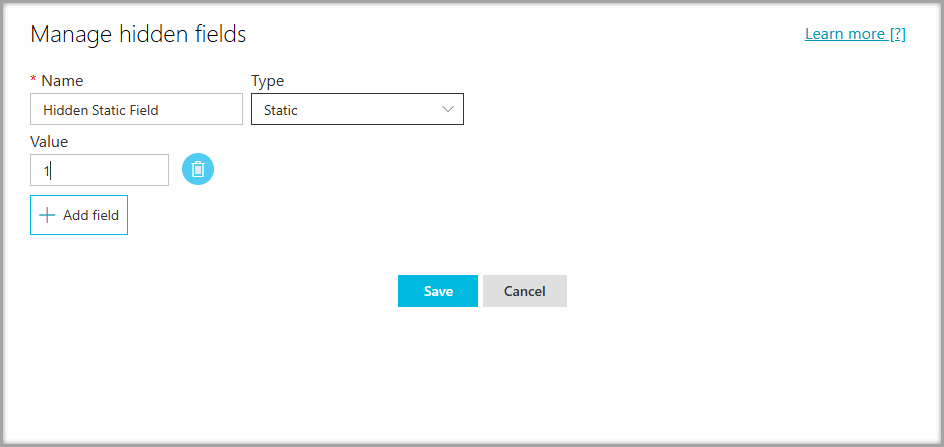
Use a Web hidden field when the document condition depends on information captured or displayed in a Titan Web project.
Use a dynamic hidden field when the condition depends on data from a Salesforce record.
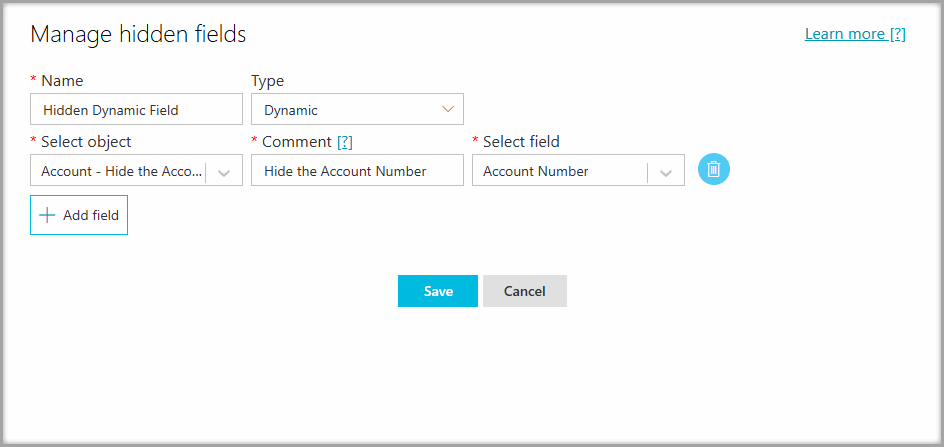
The hidden field is now available for conditional logic, and Salesforce Get filters are in the document.
After creating the hidden field, add a condition to the content you want to show or hide.

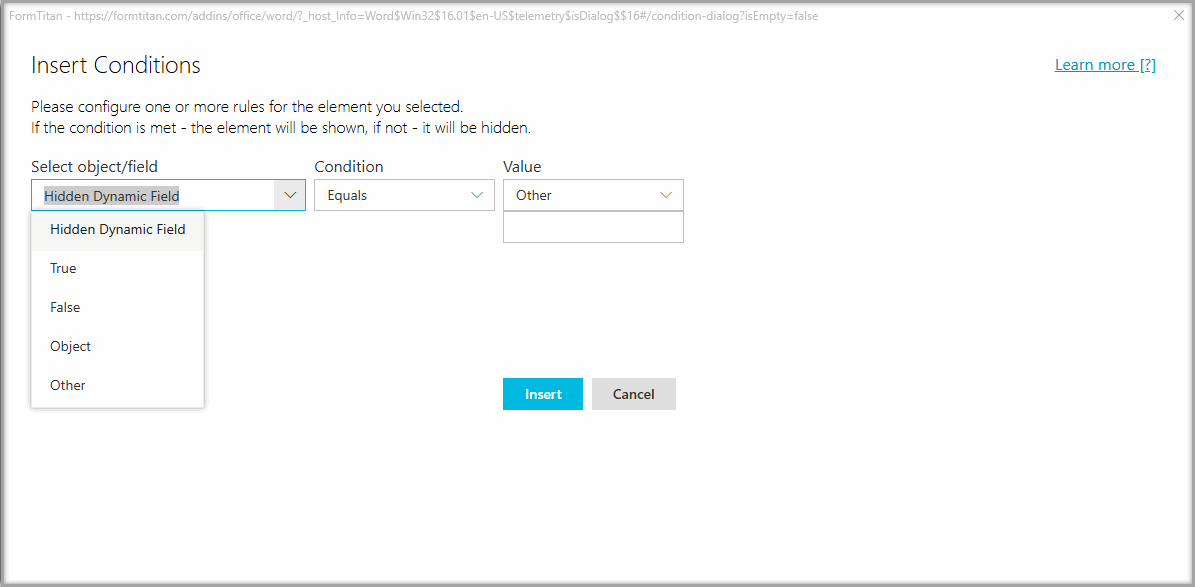
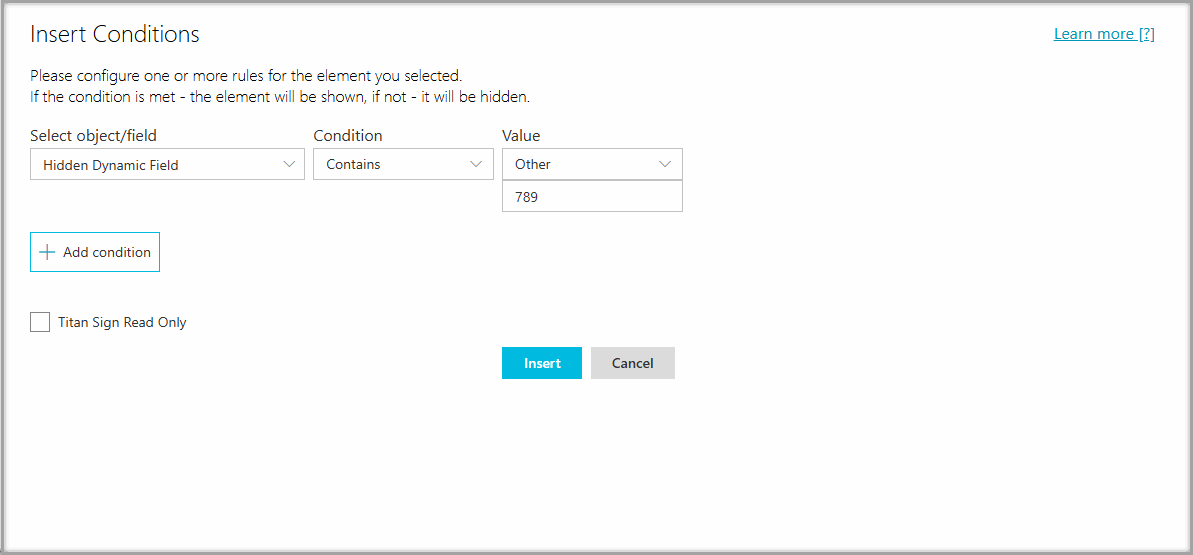
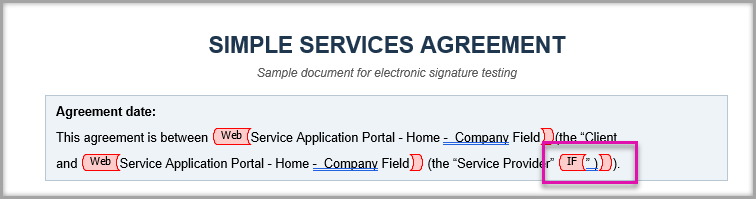
Testing both outcomes confirms that the hidden field receives the expected value and that recipients only see the correct content.
No. Hidden fields provide values for document processing, but are not displayed in the generated document unless you separately insert the same value as visible content.
Yes. You can also use hidden fields to filter Salesforce Get actions configured for the document.
Yes. When configuring the condition, select a hidden field as the first value and another hidden field as the comparison value.
Check that:
Yes. Select the table or the required table content before opening Insert/Edit conditions. Preview the document afterward to confirm that the table layout remains correct when the content is omitted.
On this page