How can we help you?
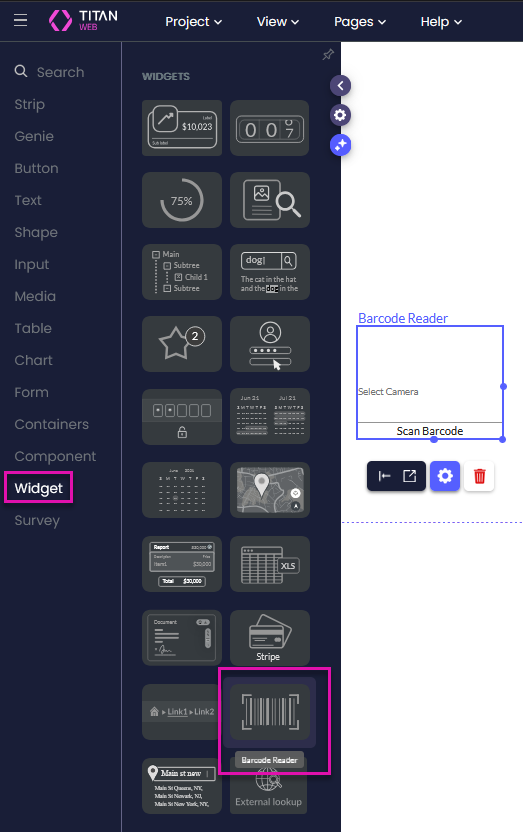
The Titan Barcode Reader widget lets you scan barcodes and QR codes in a Web project using the device’s camera.
After a successful scan, Titan stores the embedded content in the Barcode Reader/Value attribute. You can use this value to retrieve or update Salesforce records, run an Action Flow, display a message, or trigger another action.
Use the Barcode Reader widget to capture an identifier without entering it manually.
Common uses include:
Scanning reduces manual input and helps you retrieve the correct information from Salesforce in real time.
When the widget detects a barcode or QR code, Titan captures the embedded value and stores it as Barcode Reader/Value.
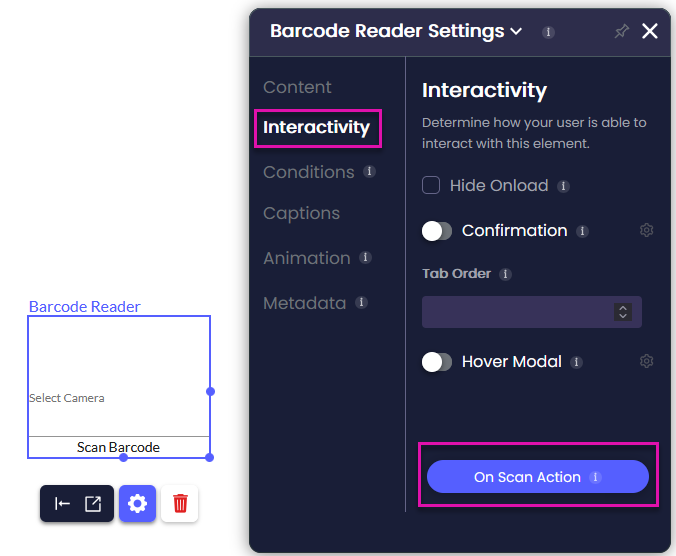
The widget’s On Scan Action controls what happens after the scan. You can use the captured value with:
You can combine the Barcode Reader and Barcode Generator widgets to create an event registration and ticket validation process.
During registration:
At the event, a separate validation project uses the Barcode Reader widget to scan the QR code. Titan then searches Salesforce for the Contact ID stored in the code.
You can adapt this setup to any process where a scanned identifier must match an existing Salesforce record.
The setup is the same for supported desktop and mobile devices.
The widget lets people scan barcodes and QR codes with their device’s camera.
The action runs each time the widget successfully detects a barcode or QR code. You can use it to retrieve a Salesforce record, update data, run an Action Flow, or display a message.
Note:
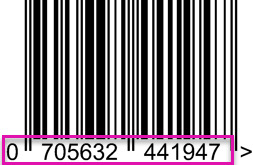
The Titan attribute Barcode Reader/Value stores the numeric value captured after the scan is complete.
For example, if the barcode displays 0705632441947, that number is stored as the Barcode Reader/Value.
Once this value has been populated in Titan, you can use it to do multiple actions:
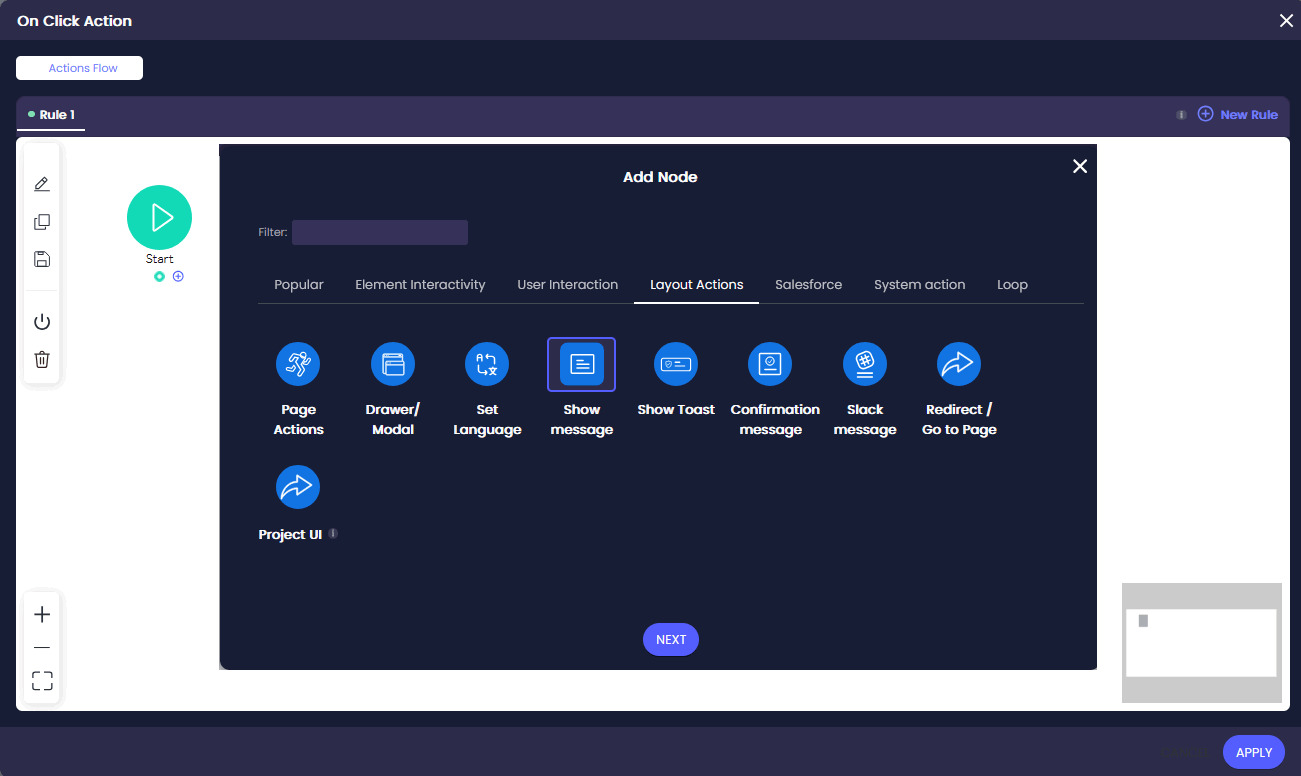
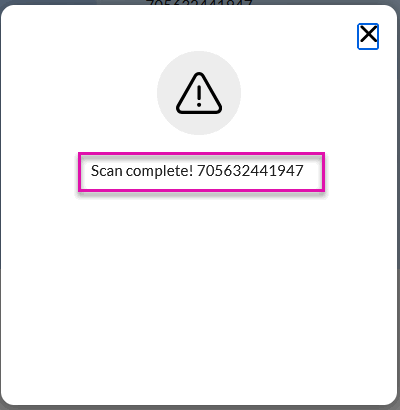
In this example, a message confirms the value captured by the widget.
Adding the attribute to the message lets you confirm that Titan captured the correct value before using it in another action.
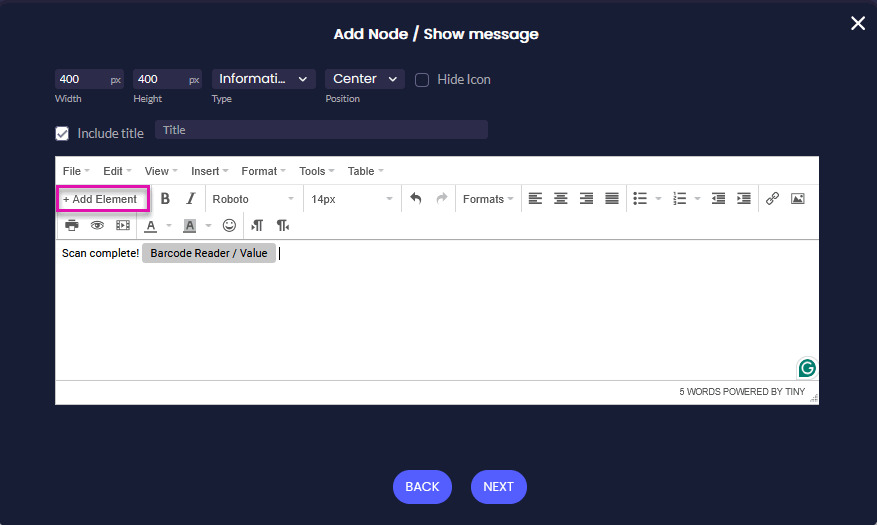
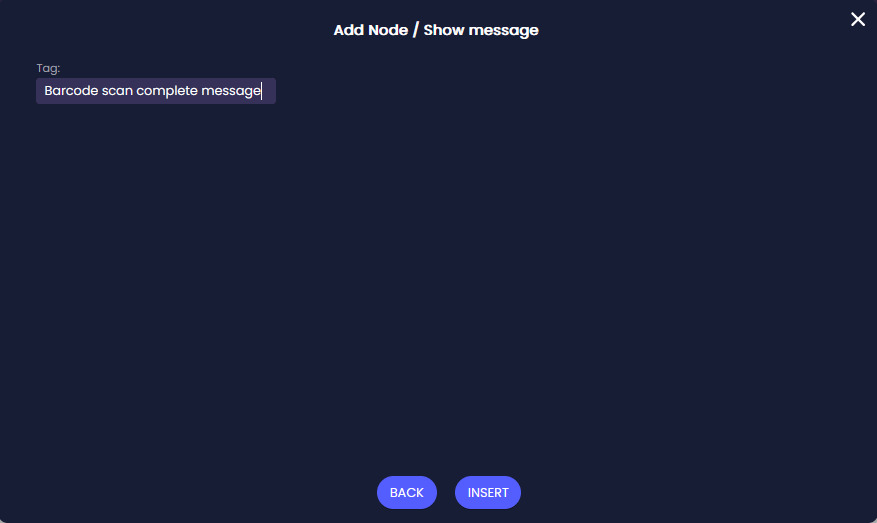
A descriptive tag makes the node easier to find when your action contains several nodes.
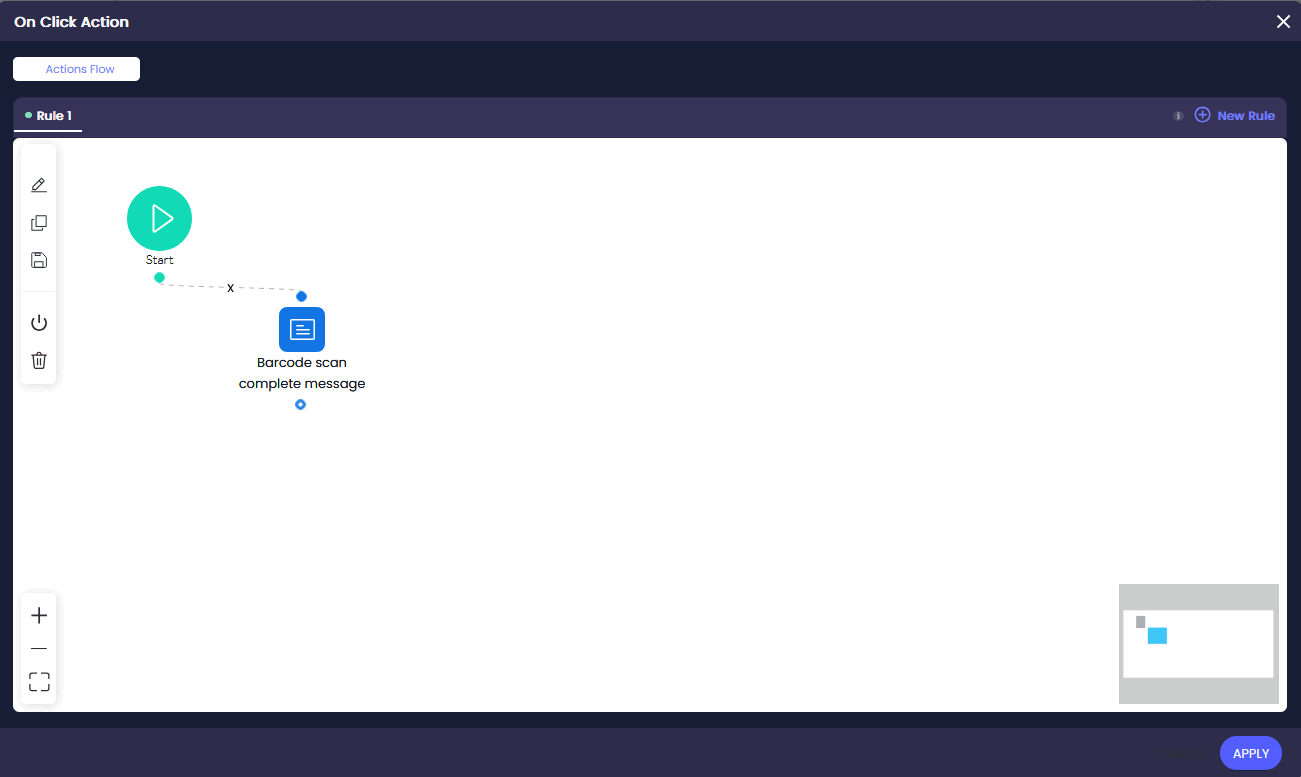
Test the widget using the device type and code your audience will use.
Make sure the code is clearly visible and placed in a well-lit area.
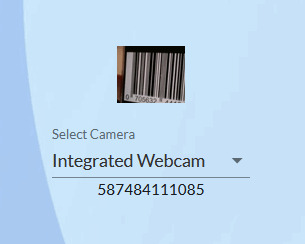
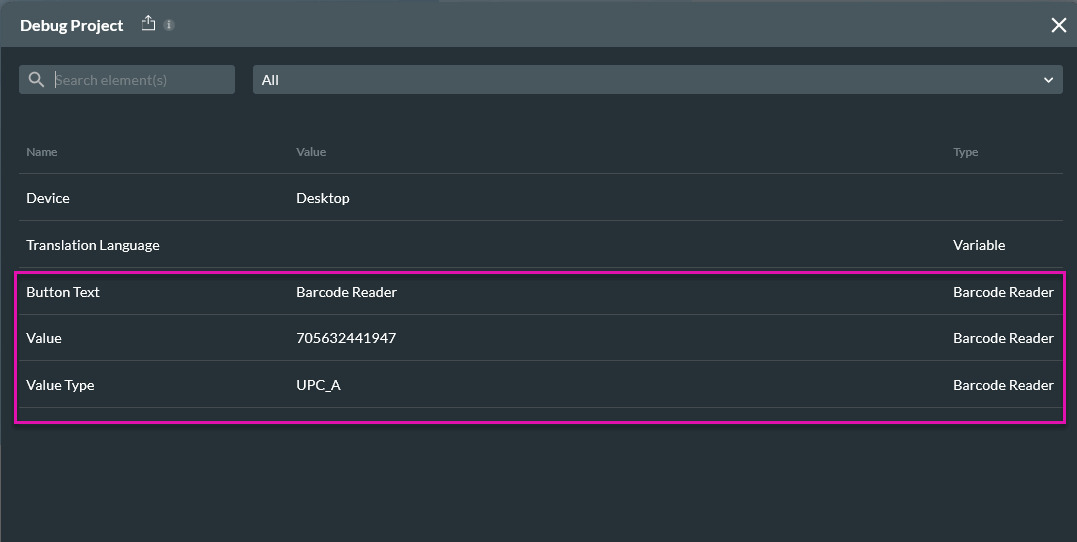
Use Debug mode to confirm the exact value and data type captured by the widget. This can help you troubleshoot Salesforce mappings or records that are not being found.
The Debug window displays the captured value and value type.
Yes. You can use the Barcode Reader on supported desktop and mobile devices with an available camera. The browser must have permission to access the selected camera.
Titan stores the captured content in the Barcode Reader/Value attribute. You can map this attribute to Salesforce actions, Action Flows, messages, and other project logic.
No. The widget captures the barcode value, but you must configure the On Scan Action to search Salesforce and determine what happens when a matching record is or is not found.
No. The Barcode Reader scans codes using the device camera. Uploading an image containing a barcode is not supported.
Confirm that your device has a camera available and that the browser has permission to access it. If more than one camera is available, choose the correct option from the Select Camera drop-down list.
On this page