How can we help you?
To connect NetSuite with Titan, you must authenticate your NetSuite account using OAuth 2.0 Machine-to-Machine authentication.
This authentication method allows Titan to securely connect to NetSuite without a personal password. Instead, the connection is created using a NetSuite integration record, a certificate, and the required NetSuite account details.
Before setting up the connection, make sure you have access to a NetSuite administrator account.
You need administrator access because the setup requires you to create or access NetSuite integration settings, upload a certificate, assign a user and role, and retrieve authentication details such as the Client ID and Certificate ID.
You will also need the following details:
| Detail | Description |
|---|---|
| Account ID | Identifies the NetSuite account Titan connects to. |
| Client ID | Generated from the NetSuite integration record. |
| Certificate ID | Generated after the Titan certificate is uploaded and mapped in NetSuite. |
The source setup notes also confirm that the Client ID is derived from the NetSuite integration record, and the Certificate ID is derived from the uploaded certificate mapping in NetSuite.
A certificate is required to complete the NetSuite authentication setup.
For security reasons, the certificate may not be available for direct download from the product interface.
To receive the required certificate, contact your Customer Success Manager. They will provide the correct certificate or guide you through the approved process for your account.
In NetSuite, create a new integration record.
Go to:
Setup > Integration > Manage Integrations > New
Enable OAuth 2.0 and Client Credentials for the integration record.
After saving the integration record, copy the Client ID. You will need this value when configuring the connection in Titan.
Go to:
Setup > Integration > OAuth 2.0 Client Credentials (M2M) Setup > Create New
Upload the certificate provided by Titan or your Customer Success Manager.
Then select:
After saving, copy the Certificate ID. You will need this value when configuring the connection in Titan.
Titan recommends using a dedicated integration user where possible. This helps avoid connecting the integration to a personal employee account.
The selected role should include only the permissions required for the integration. Web Services access must be enabled for the role.
Avoid using an Administrator role for day-to-day integration access unless specifically instructed by your NetSuite or Titan support team.
The internal setup notes also recommend a dedicated integration user and a custom role with only the permissions needed, with Web Services access enabled.
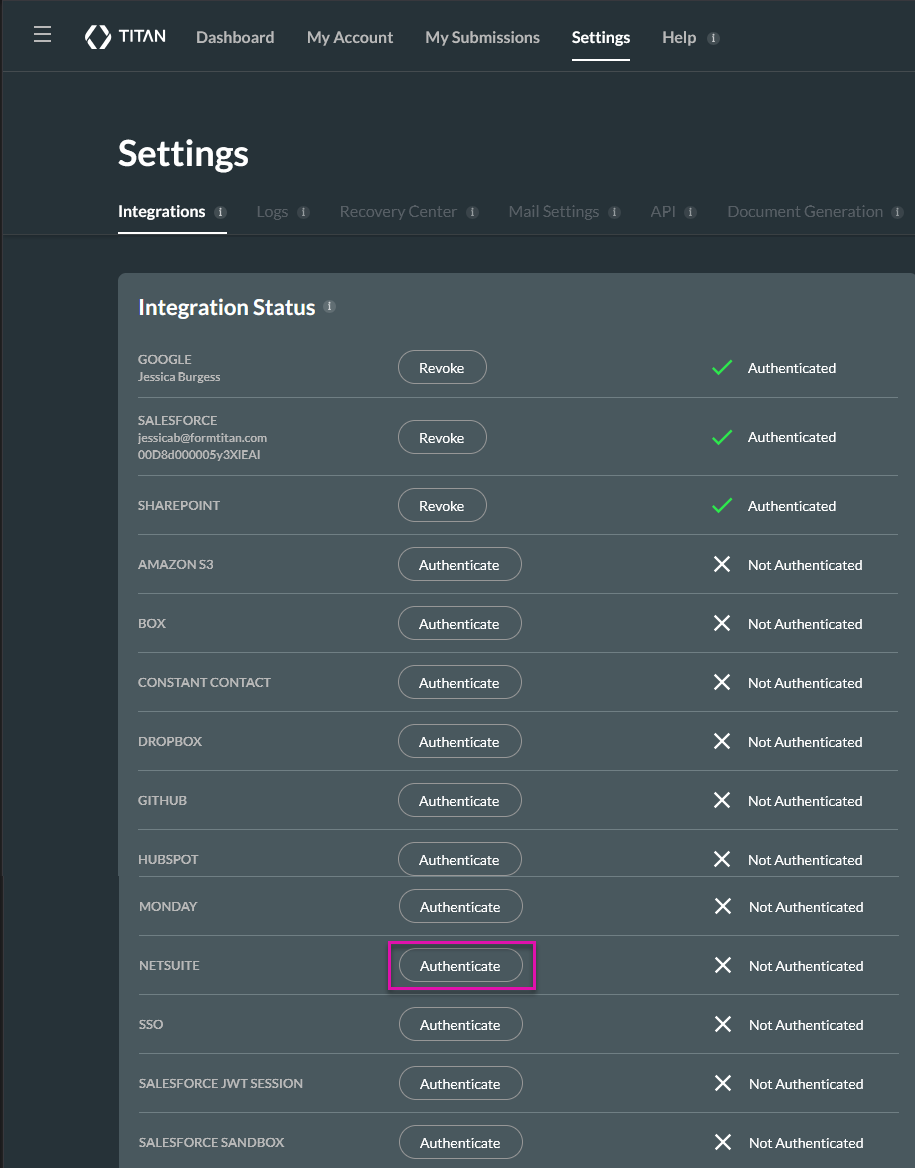
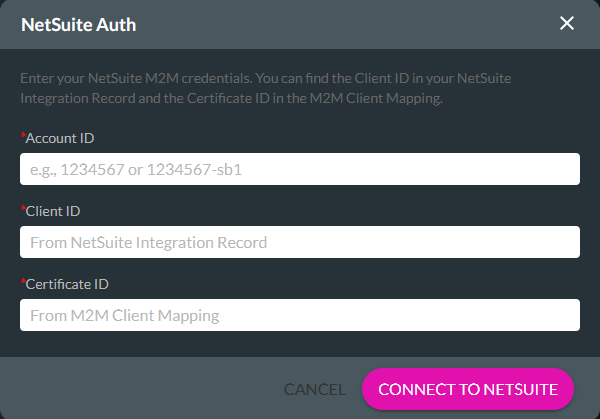
After completing the required NetSuite setup, add your NetSuite credentials in Titan.
| Field | Description |
|---|---|
| Account ID | The NetSuite account ID for the account Titan must connect to. |
| Client ID | The Client ID copied from the NetSuite integration record. |
| Certificate ID | The Certificate ID copied from the M2M Client Mapping in NetSuite. |
Tip: The Account ID is usually listed in your NetSuite account URL or can be confirmed by your NetSuite administrator.

On this page