How to Log, Track, and Manage a Titan Support Case
Need help with Titan? Want to report an issue or follow up on an existing request? You can easily log and manage support tickets directly from your Titan dashboard.
Titan Support covers all major categories and products, including Billing & Licensing, Account & Security, Titan Web, Titan Forms, Titan Docs, Titan Survey, Titan Sign, Titan CLM, Titan Flow, Titan Commerce, and Titan Files.
How to Open a Support Case
Follow these steps to submit a new support ticket to the Titan team:
Navigate to My Cases
Location: Titan Dashboard Help Menu
Log in to your Titan account and click the Help menu.
Click the My Account tab and select the My Cases subtab.
Click the Open a Case button.
Navigating to My Cases under the Help menu.
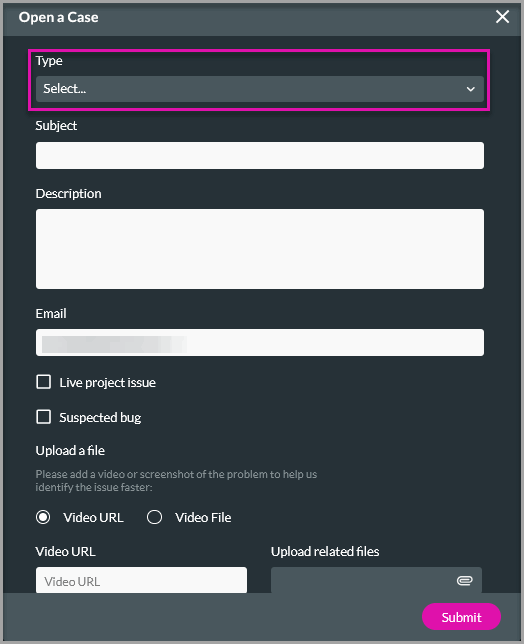
Select Case Type and Product
Mandatory Field
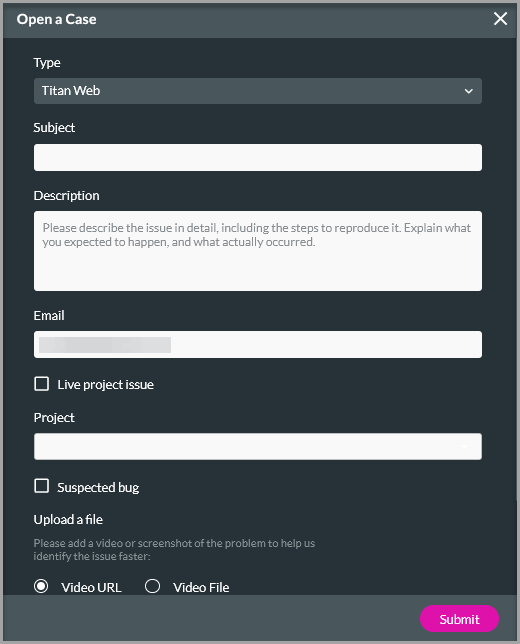
Use the drop-down menu to select the issue Type.
General / Account Options:New to Titan, Billing/Licensing, Account Settings (Dashboard), or Login/Security.
Titan Product Options:Titan Web, Titan Forms 2.0, Titan Docs, Titan Survey, Titan Sign, Titan CLM, Titan Flow, Titan Commerce, Titan Files, or Titan Form 1.0 (Deprecated).
Note: Selecting a Titan Product dynamically reveals the Project drop-down field further down the form below Live project issue. Selecting a project is mandatory when logging a product-specific ticket.
Selecting ticket type impacts options
Enter Ticket Details
Subject, Description, and Email
Subject: Type a concise summary of the issue.
Description: Provide a detailed explanation of what happened. Including specific error messages or steps to reproduce helps the team resolve your case faster.
Email: Verify your email address (this field auto-fills with your current user account email).
All three fields are mandatory.
Tag Issue Attributes and Timeline
Optional Classification
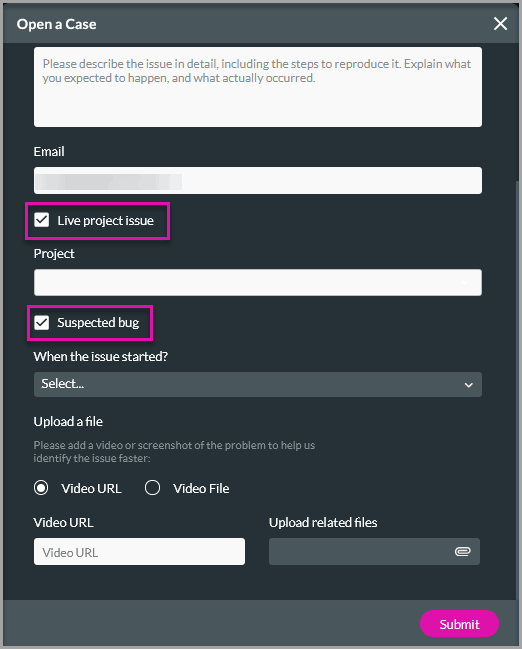
Check the relevant checkboxes if your case involves:
Live project issue
Suspected bug
If you select Suspected bug, select when the issue started from the drop-down menu (Today, Yesterday, Within the last week, or Earlier/Not Sure).
Flagging project impact and bug timeline
Attach Video or Diagnostic File
Recommended for Faster Resolution
To give support engineers direct visibility into the problem:
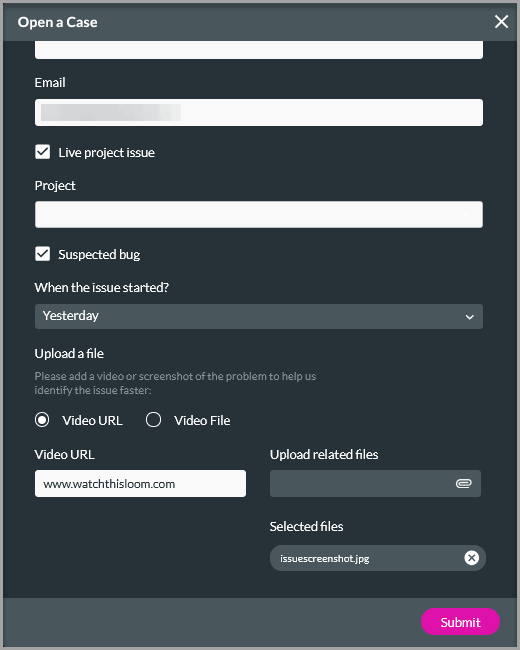
Video URL: Paste a link to a publicly accessible screen recording in the video URL field.
Upload Attachments: Click the Upload icon to upload an explanatory video or related log/screenshot files directly.
Adding video links and diagnostic files
Submit Your Case
Click Submit. A success confirmation message will appear, and your new ticket will be added to your case list.
Ticket creation confirmation message screen
How to Reply to an Open Support Case
To send updates, add additional context, or respond to questions from the support team
Locate your active ticket in the My Cases list.
Click Reply on the case card or detail view.
Type your response in the message field (Mandatory).
(Optional) Check Allow Titan support access for 5 days to grant support staff temporary diagnostic access to your workspace.
(Optional) Attach any supporting files using the Choose files option.
Click Send Message.
Replying to an open support ticket
How to Close a Support Case
If your issue has been resolved, close the case to update your records
Select the ticket from your active cases list and click Close.
A confirmation pop-up will open asking you to confirm. Click Close again to confirm.
Support ticket closure request
Once closed, the ticket moves to the Closed tab. You can click on any closed Case Number hyperlink at any time to review historical troubleshooting notes and messages.