How can we help you?
The NetSuite node connects Titan Flow to your NetSuite account. It allows a Flow to create, update, create or update, retrieve, or delete NetSuite records automatically.
You can send information collected from a Titan project, Salesforce, a document, or an earlier Flow step to NetSuite. You can also retrieve NetSuite data and store it in Flow variables for later use in the process.
When you select a NetSuite record type, Titan loads the available fields for that record. You can then map static values or Flow variables to the required NetSuite fields.
Use the NetSuite node when your process needs to exchange record data with NetSuite without requiring manual data transfer.
For example, you can use it to:
Each time the Flow reaches the node, Titan performs the selected NetSuite action using the values available at that time.
| Action | What It Does | When to Use It |
|---|---|---|
| Create a Record | Creates a new record in NetSuite. | Use it when the record does not already exist. |
| Update a Record | Changes fields on an existing NetSuite record. | Use it when you know which record must be changed. |
| Create or Update a record | Creates a record or updates a matching record. | Use it when the process must support both new and existing records. |
| Get a Record | Retrieves selected fields from an existing record. | Use it when later Flow steps need information stored in NetSuite. |
| Delete a Record | Deletes an existing record and stores the result as JSON. | Use it when a record must be removed, and your NetSuite configuration permits deletion. |
A customer submits an order request through a Titan Web project. The submission starts a Flow that creates a sales order in NetSuite.
The Flow maps the customer, order items, and other submitted information to the corresponding NetSuite fields. After NetSuite creates the sales order, Titan stores the sales order’s internal ID and record URL in Flow variables.
Later, Flow nodes can use these values to update Salesforce, generate a confirmation document, or send the NetSuite record URL to the relevant team.
Make sure that:
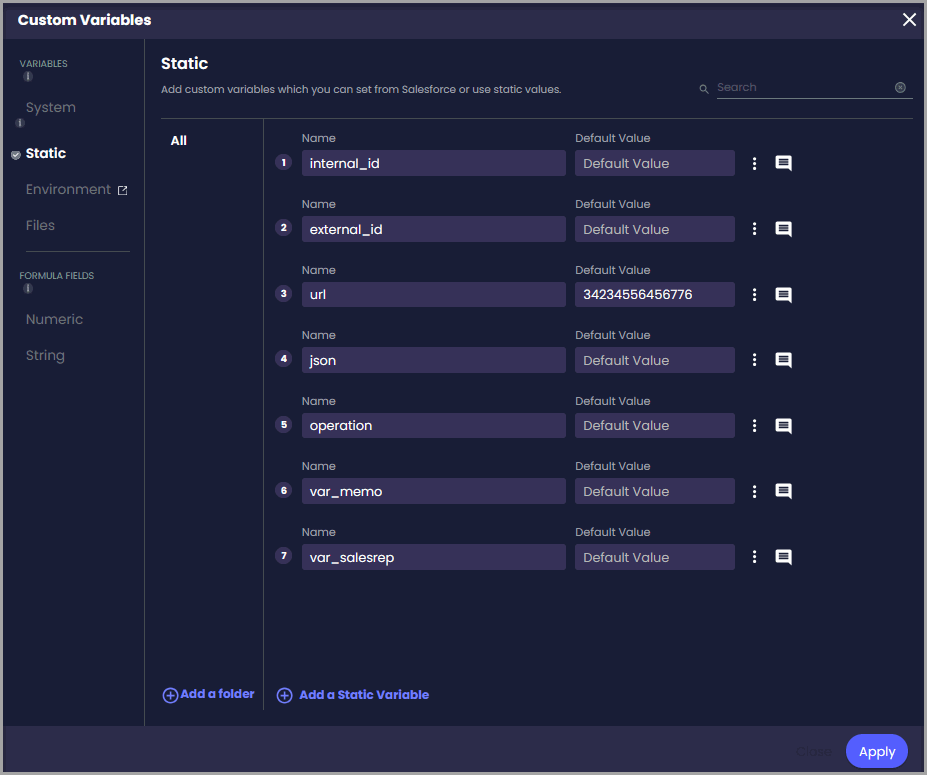
Create variables for any values that the NetSuite node must receive or return.
For example, you may need variables to:
The screenshot uses variables named internal_id, external_id, url, json, operation, var_memo, and var_salesrep. These names are examples. You can create and name variables to suit your Flow requirements.
For more information, see Create a Custom Variable in Titan Flow.
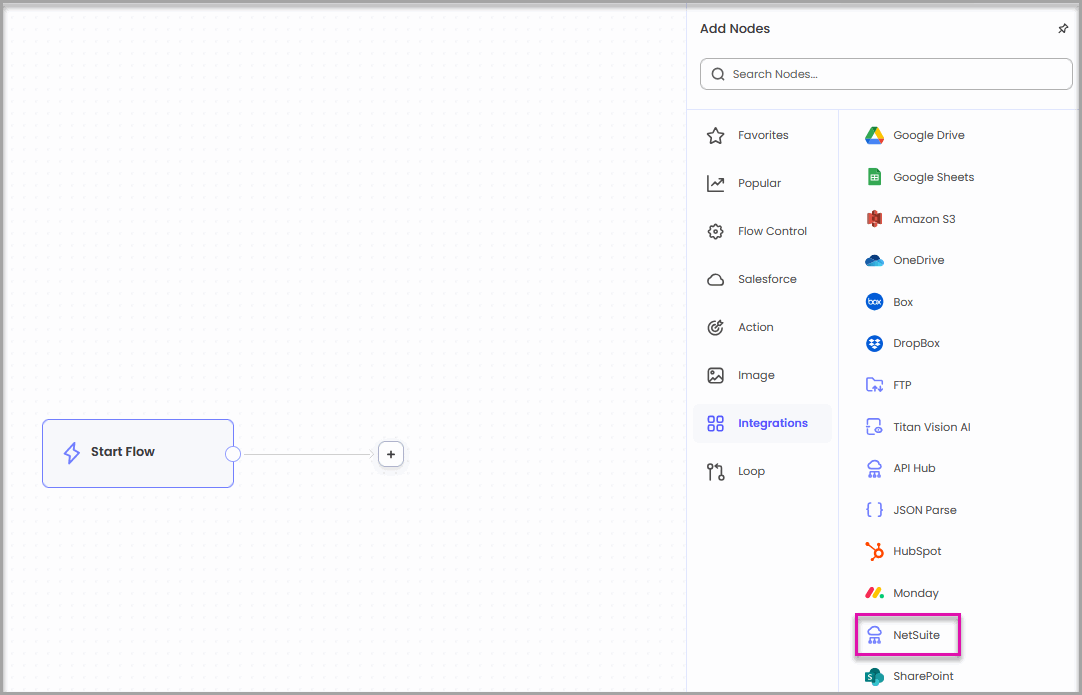
On the Flow canvas, select the + icon where you want the NetSuite action to run.
In the Add Nodes panel, select Integrations, and then select NetSuite.
The node’s position determines when the NetSuite action runs. For example, place it after a form submission or Salesforce Get node if it needs information returned by that step.
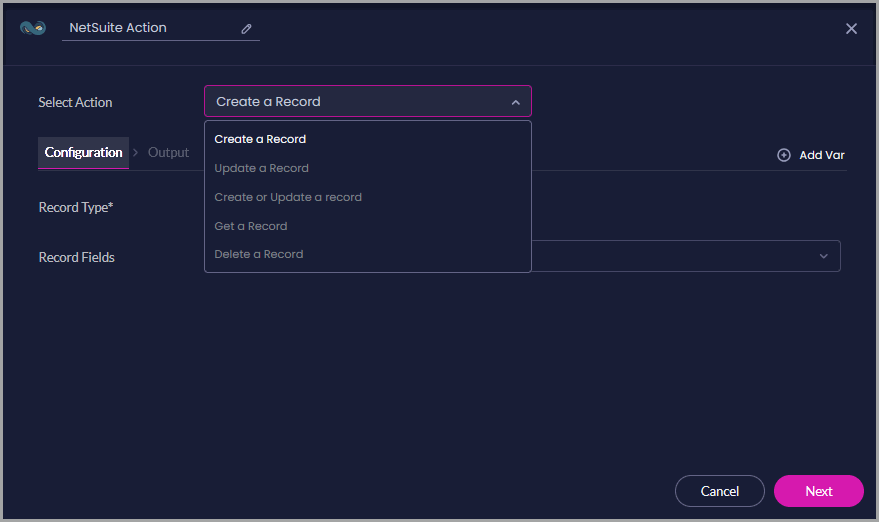
Use the Select Action dropdown to choose what the node must do.
The available actions are:
The fields displayed on the Configuration and Output tabs change according to your selection.
Use Create a Record when the Flow must add a new record to NetSuite.
For example, you can create a sales order after receiving order information from Salesforce or a Titan Web project.
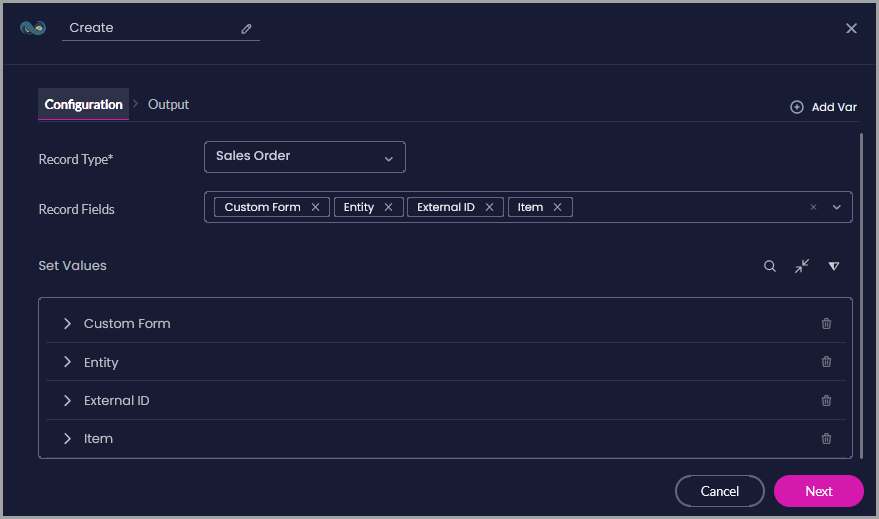
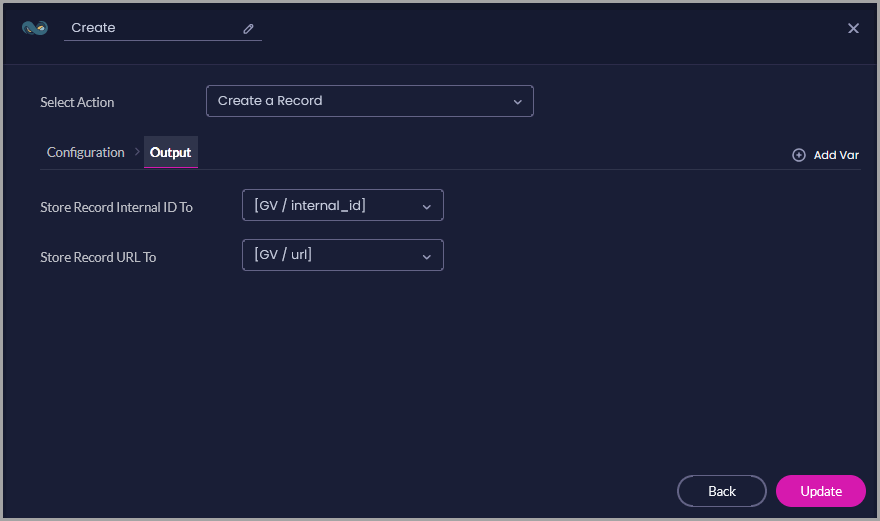
On the Output tab, you can store:
Map each required output to a Flow variable. Storing these values allows later nodes to identify the new record or provide users with a direct link to it.
Select Update to save the node.
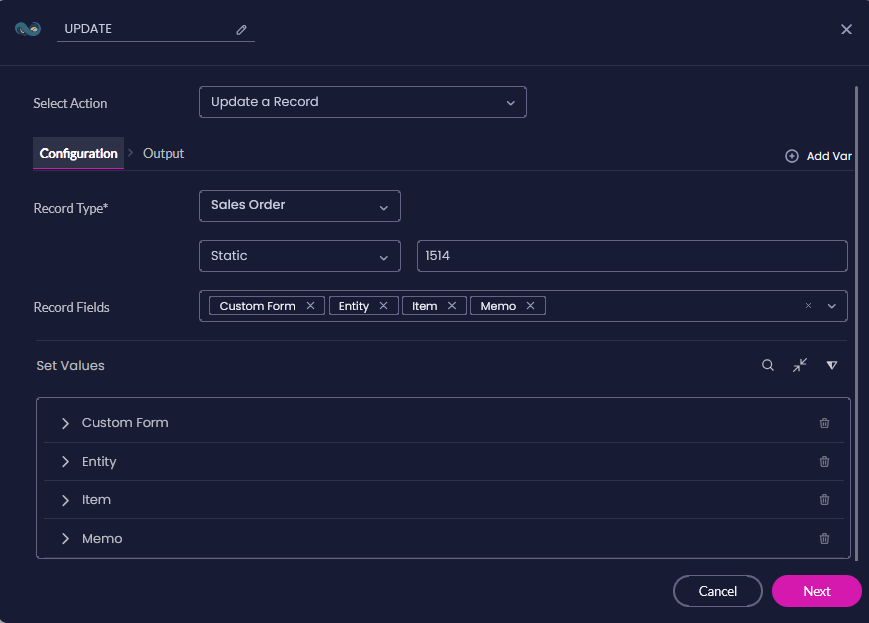
Use Update a Record when the Flow must change an existing NetSuite record.
For example, you can update a sales order with a new memo, entity, item, or other field value after a Salesforce record changes.
Make sure the supplied identifier belongs to the selected record type. NetSuite cannot update the record if the identifier is missing or incorrect.
On the Output tab, you can store:
These outputs can confirm which record was updated and allow later Flow steps to refer to it.
Select Update to save the node.
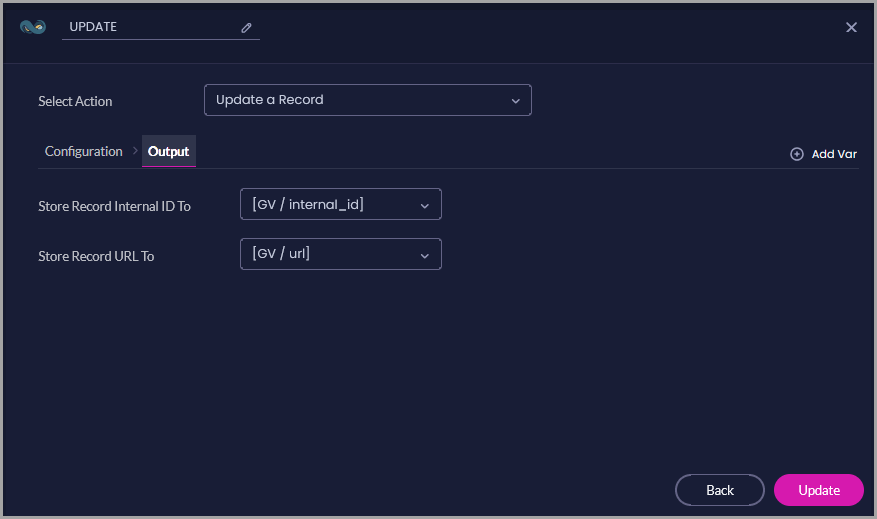
Caption: Store the updated record’s internal ID and NetSuite URL.
Alt Text: Update a Record Output tab showing Flow variables selected for the record internal ID and record URL.
Use Create or Update a record when the Flow may receive information for either a new or existing NetSuite record.
This action prevents you from needing separate Flow paths for record creation and updates. NetSuite uses the supplied record information to determine whether to create a record or update a match.
The identifier and selected fields must follow the rules configured for the chosen NetSuite record type.
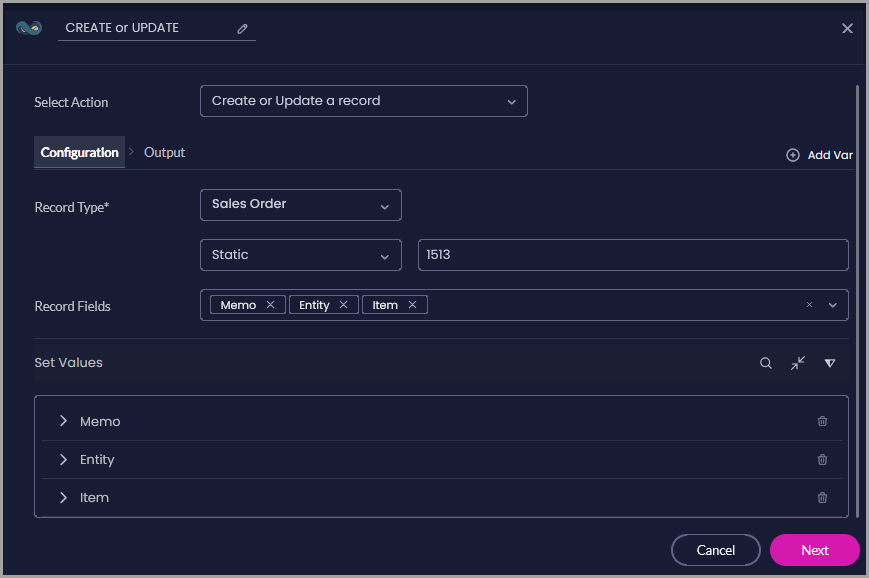
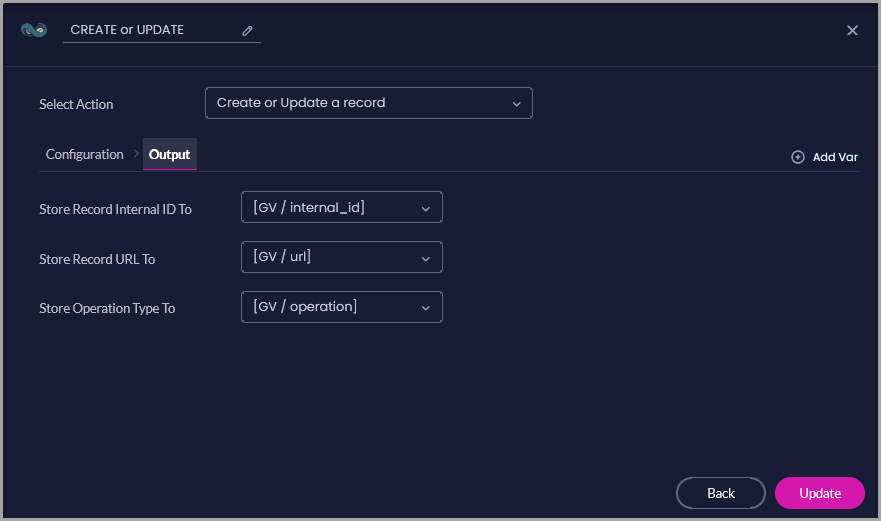
On the Output tab, you can store:
The operation type is useful when later Flow steps must behave differently according to what happened in NetSuite. For example, you can send a new-record notification only when NetSuite creates the record.
Select Update to save the node.
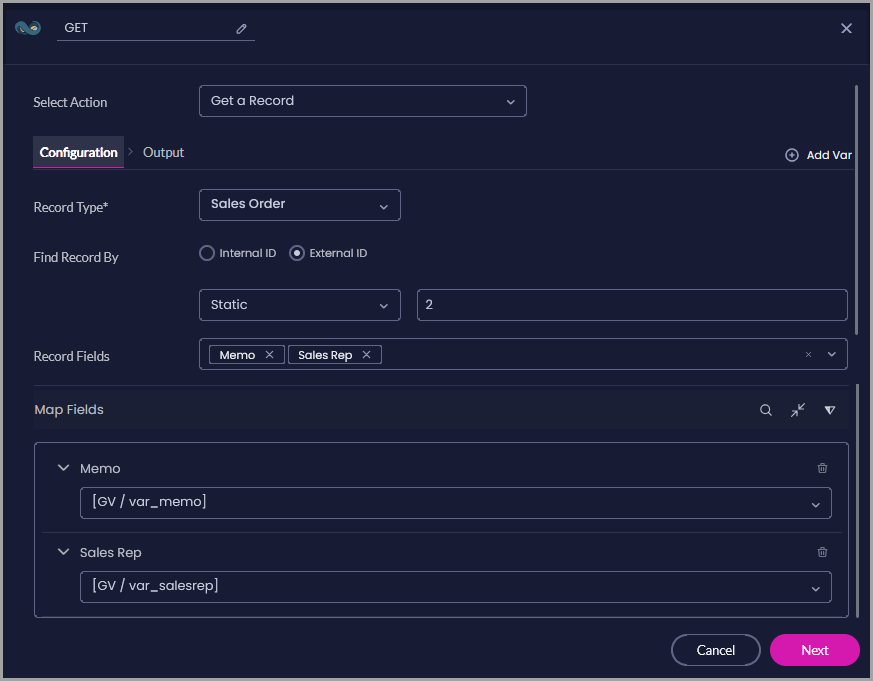
Use Get a Record when the Flow needs information from an existing NetSuite record.
For example, you can retrieve the memo and the assigned sales representative from a sales order and use those values in a document, a Salesforce update, a condition, or a notification.
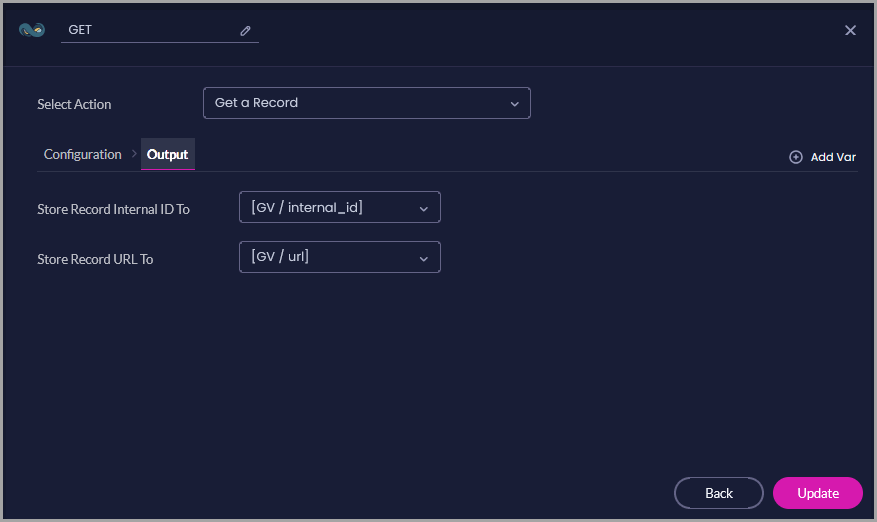
On the Output tab, you can also store:
The individual NetSuite field values are stored using the mappings configured under Map Fields.
Select Update to save the node.
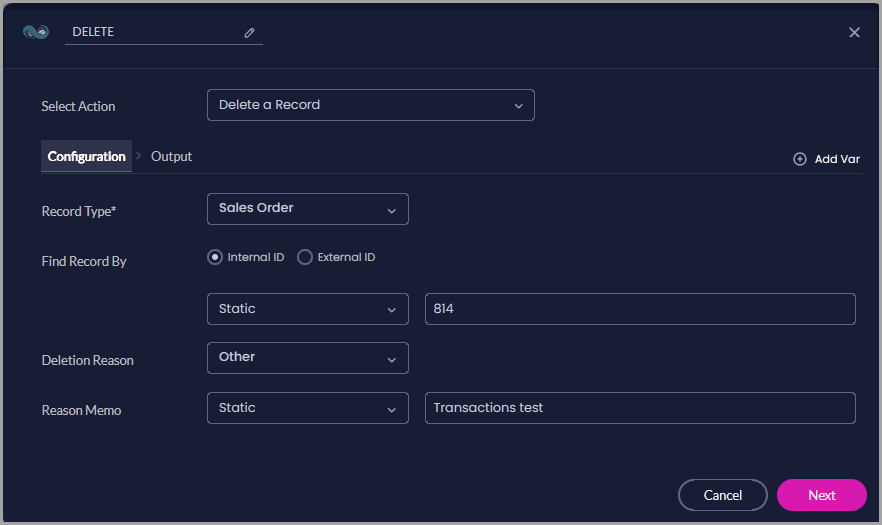
Use Delete a Record when the Flow must remove an existing NetSuite record.
Deleting a record can affect related NetSuite transactions and processes. Confirm that the selected record is no longer required and that the connected NetSuite account is permitted to delete it.
The example deletes a sales order by its internal ID and records “Other” as the deletion reason.
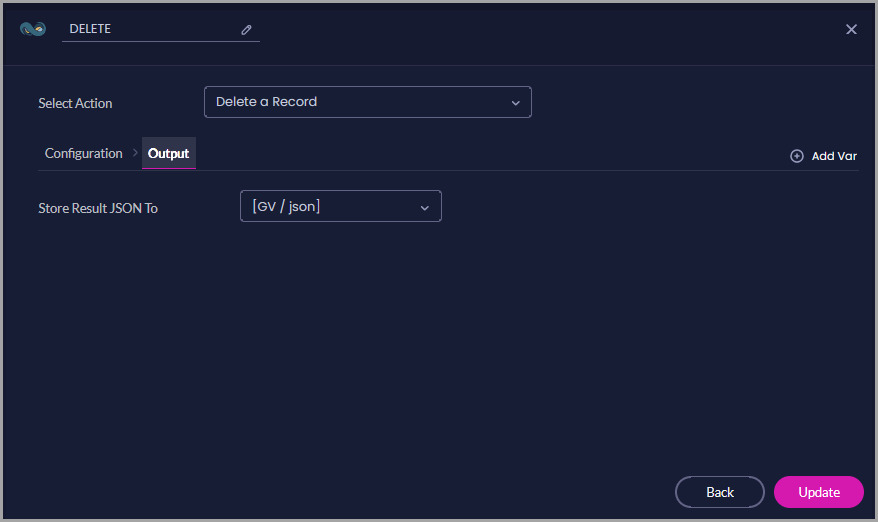
On the Output tab, use Store Result JSON To to select the Flow variable that will receive the action result.
The JSON result can be used to confirm the outcome or passed to a later node for processing.
Select Update to save the node.
Run the Flow with suitable test data before using it in a live process.
Confirm that:
If the action fails, check the record type, record identifier, mandatory fields, field values, related records, and NetSuite permissions.
Yes. Titan needs an authenticated NetSuite integration before it can load record types and fields or run record actions. See Authenticating NetSuite.
No. The variable names in the screenshots are examples. Create variables that match the requirements and naming conventions of your Flow.
Use a static value when it must remain the same for every Flow execution. Use a Flow variable when the value comes from a submission, Salesforce, NetSuite, or another Flow node.
An internal ID is assigned by NetSuite and identifies the record inside NetSuite. An external ID is generally assigned by another system and can help match records across NetSuite, Salesforce, Titan, or another service.
Use Update a Record when the record already exists and the Flow only needs to change it. Use Create or Update a record when the Flow must support both new records and existing matches.
Yes. With Get a Record, select the required fields under Record Fields and map each one to a Flow variable under Map Fields.
The authenticated NetSuite account may not have permission to access it, or the field may not belong to the selected record type. Check the NetSuite role permissions and record configuration.
Check that:
Yes. Store the available outputs in Flow variables. Later nodes can use them in conditions, Salesforce actions, documents, notifications, or other integrations.
The Delete a Record action stores its result as JSON. Map Store Result JSON To to a variable if the Flow must retain or process that response.
On this page