How can we help you?
This guide demonstrates how to integrate OpenWeatherMap’s Current Weather API with Titan Web, allowing users to enter their city name and instantly retrieve local weather information (e.g., temperature, description).
You’ll first create a Flow that connects to the Weather API, sends the city name entered by the user, and receives the weather data in return. This Flow acts as the bridge between your Web Project and the external API. The goal is to display live weather data for the city entered by the user in a Web project.
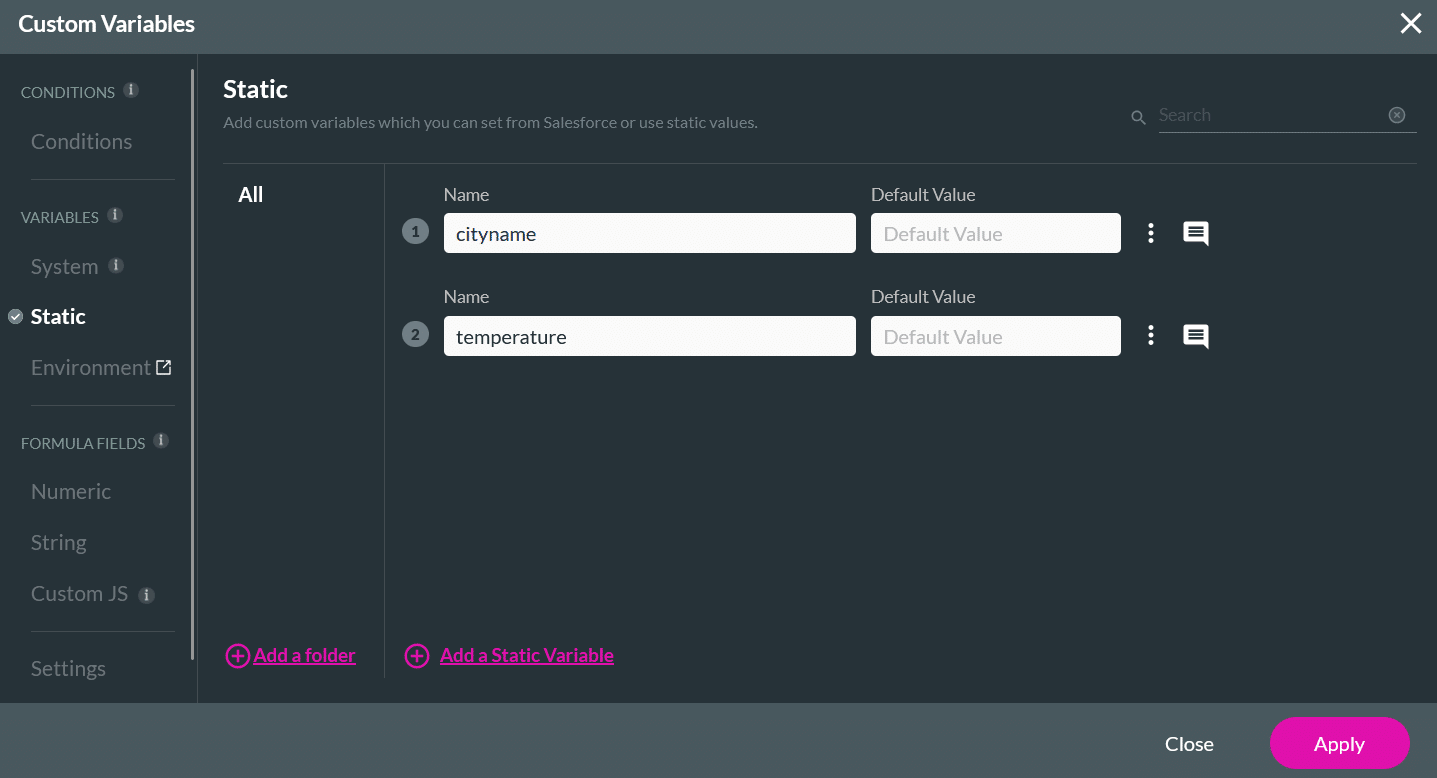
Create Flow Variables
Configure the API Hub Node
Titan will automatically build a URL like this:
https://api.openweathermap.org/data/2.5/weather?q=London&units=metric&appid=YOUR_API_KEY
For this example, no Authorization, Headers, or Body is required.

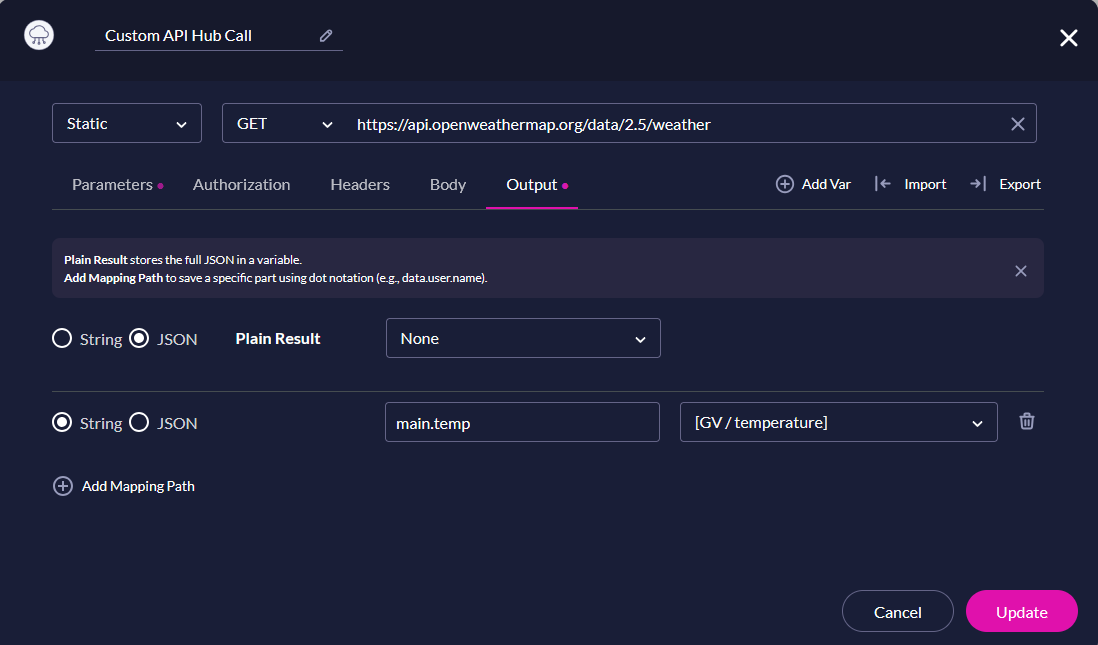

Once the Flow is published, you’ll create a Web Project to capture the user’s input and display the city temperature.
Create your Titan Web Variables

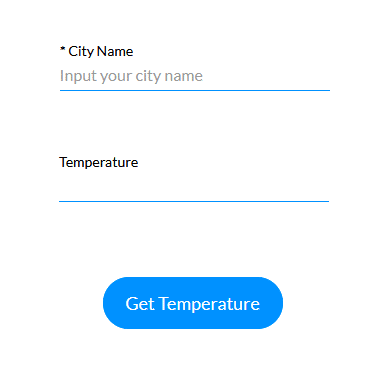
Add Elements to your Titan Project
In your Web project:
Configure On-Click Action Button
This button will: capture what city the user types, pass it to the flow, and display the temperature results.

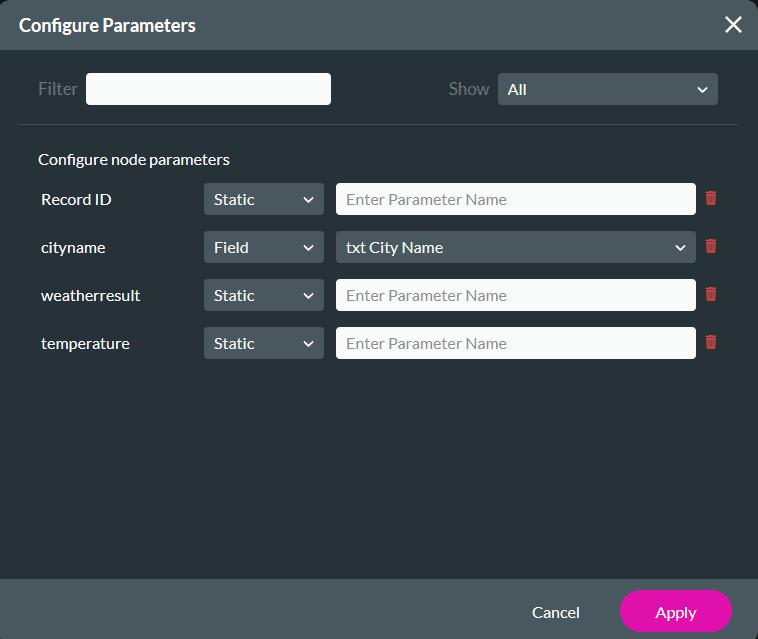
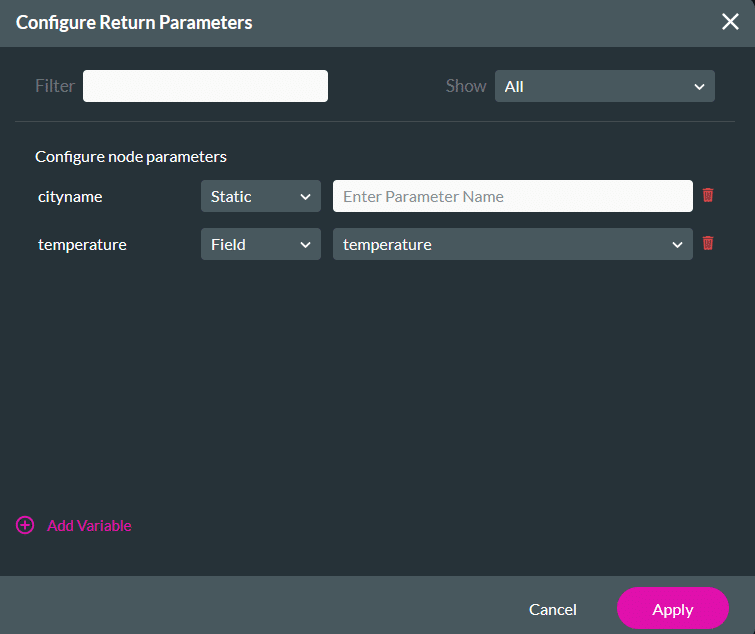
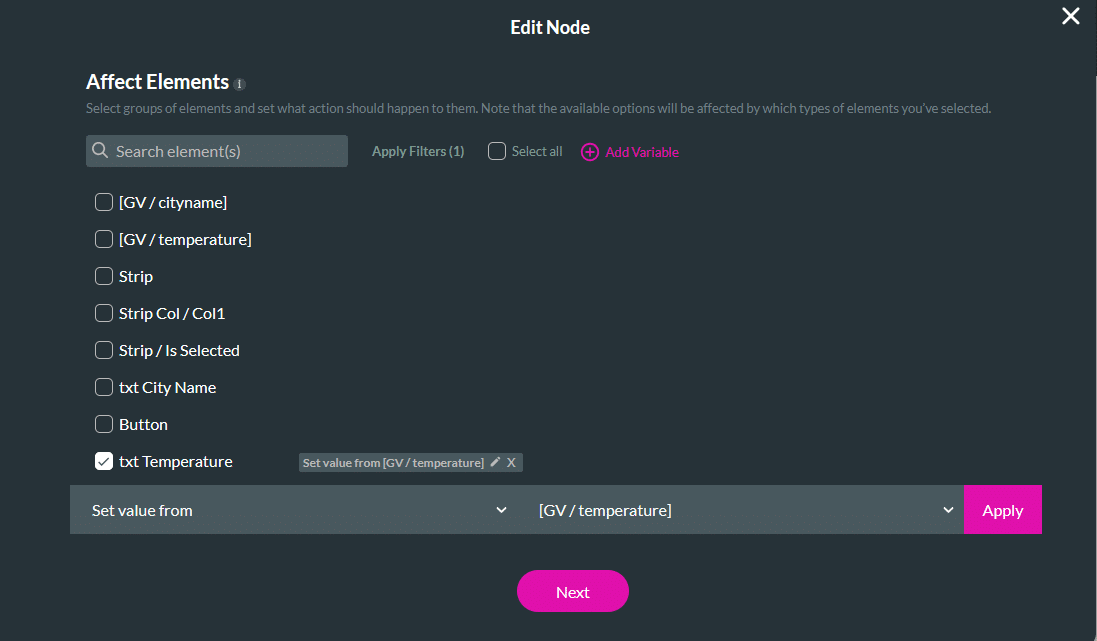
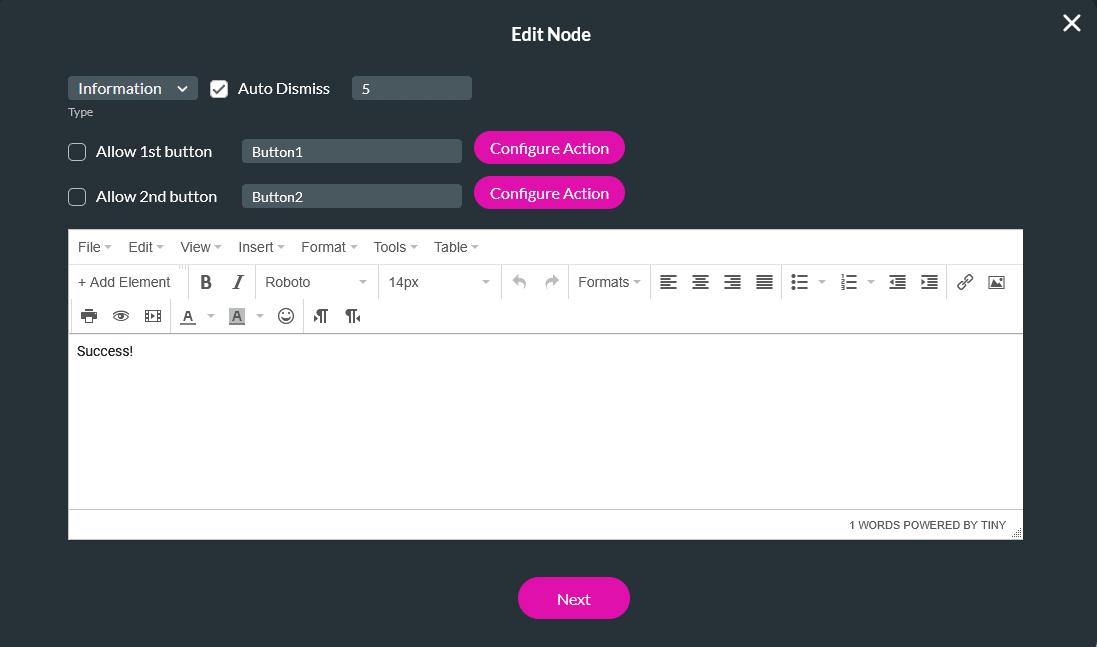
Review your completed action flow. It should follow this sequence:
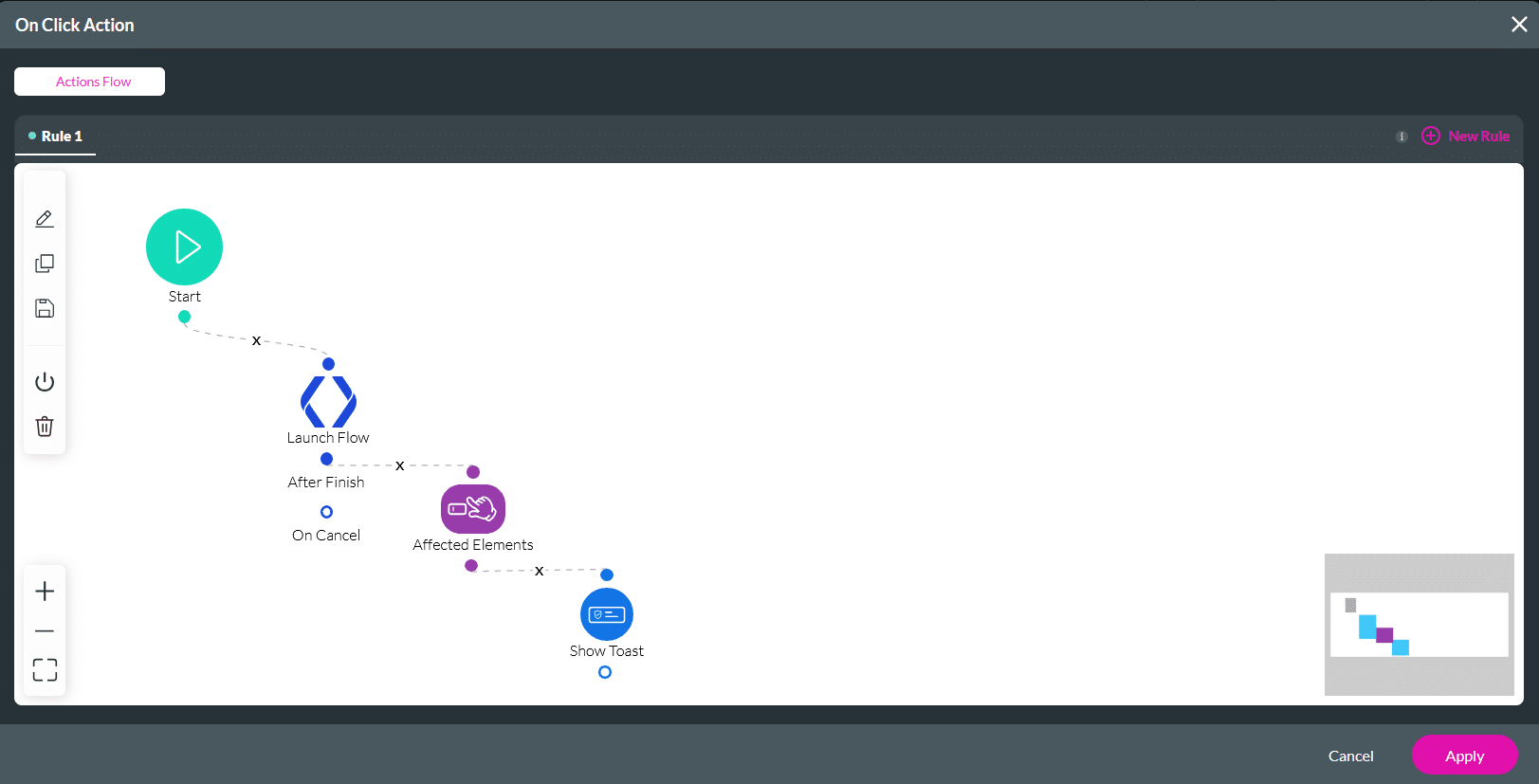
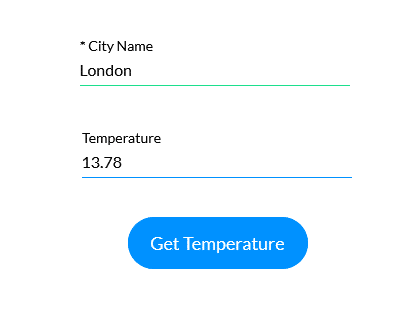
When a user types a city name and clicks “Get Temperature,” the input is sent to the Flow. The Flow then runs and retrieves live weather data from OpenWeatherMap. Once the API call completes, the returned temperature is populated in the designated textbox, and a success toast message appears to confirm that the process has finished. All of this happens seamlessly within the same On Click Action window, forming one continuous workflow from user input to final output, exactly as shown in the example screenshot.
Part of this workflow:









