How can we help you?
The SharePoint integration in Titan Flow enables you to upload files directly from Salesforce, a web portal, or after signing a contract to your SharePoint document libraries. This integration helps organizations reduce Salesforce file storage costs and share documents with users who do not have access to Salesforce.
You can easily connect your Microsoft account and automate file uploads to SharePoint, ensuring a secure and reliable document management process across both platforms.
The SharePoint integration in Titan Flow provides a direct, no-code connection between Salesforce and SharePoint. It allows users to automatically upload and store files as part of any Flow process, whether triggered by Salesforce records, web portals, or e-signature actions. By removing the need for third-party middleware or manual uploads, Titan delivers a secure and efficient document management experience across both systems.
Use the SharePoint integration if you want to:
Ensure you have:
Learn how to connect Titan Flow to SharePoint and upload your files automatically.
You can authenticate your SharePoint account from either the Titan Dashboard or directly within your Flow project.

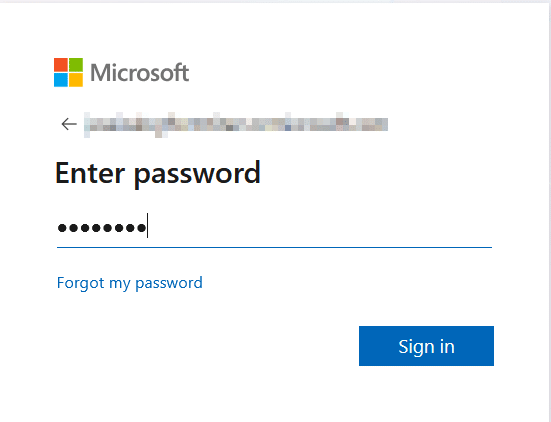
After successful authentication, the integration status will display Authenticated.

You can revoke access at any time using the Revoke button.

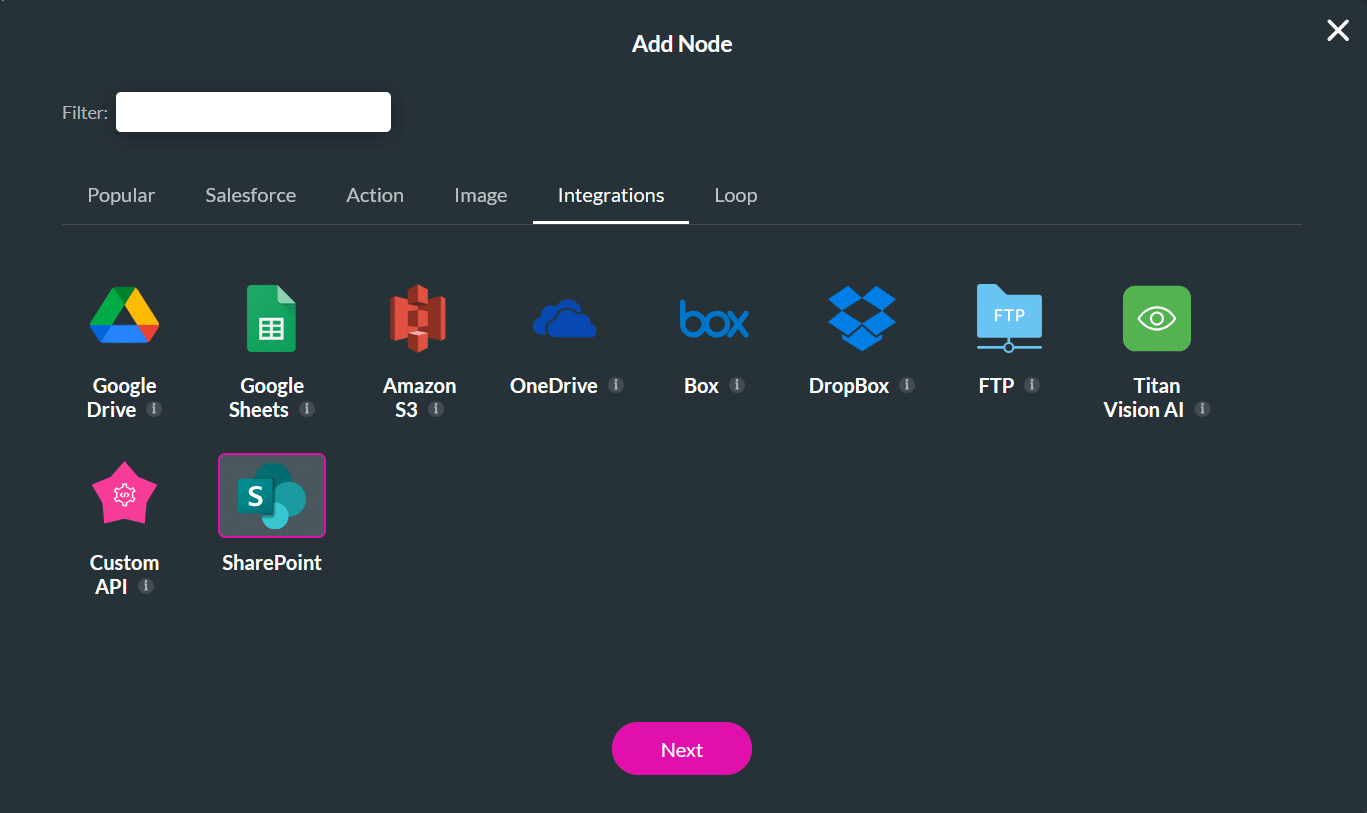

Note: You can authenticate from either location, but revoking access is only available from the Titan Dashboard under Settings > Integrations.
This diagram shows how Titan securely connects to Microsoft when you authenticate with SharePoint. Titan receives a short-lived authorization code from Microsoft, exchanges it for a refresh token, and securely stores that refresh token. Titan then uses the refresh token to generate access tokens as needed, allowing your flows to make SharePoint requests without requiring re-authentication.


The SharePoint node automatically triggers the On Cancel exit if an upload fails. Common reasons for failure include:
View your integration logs under Titan Dashboard > Settings > Integrations Logs.
The SharePoint integration logs capture:
SharePoint File Upload – Success
File: invoice_2025.pdf
Site: Marketing
Library: Documents
Link: https://sharepoint.com/sites/Marketing/Shared%20Documents/invoice_2025.pdf
| Issue | Possible Cause | Solution |
|---|---|---|
| “Authentication Failed” message | Integration logs are not updating | Re-authenticate under Dashboard > Settings > Integrations |
| File not uploaded | Missing permission or deleted folder | Confirm SharePoint access and folder path |
| Integration logs not updating | Connection timeout | Refresh integration logs or check API call usage |
Part of this workflow:









