How can we help you?
Now you can ensure consistency on your email headers and footers across all Titan Sign projects. Add images and/or text to suit your business branding.
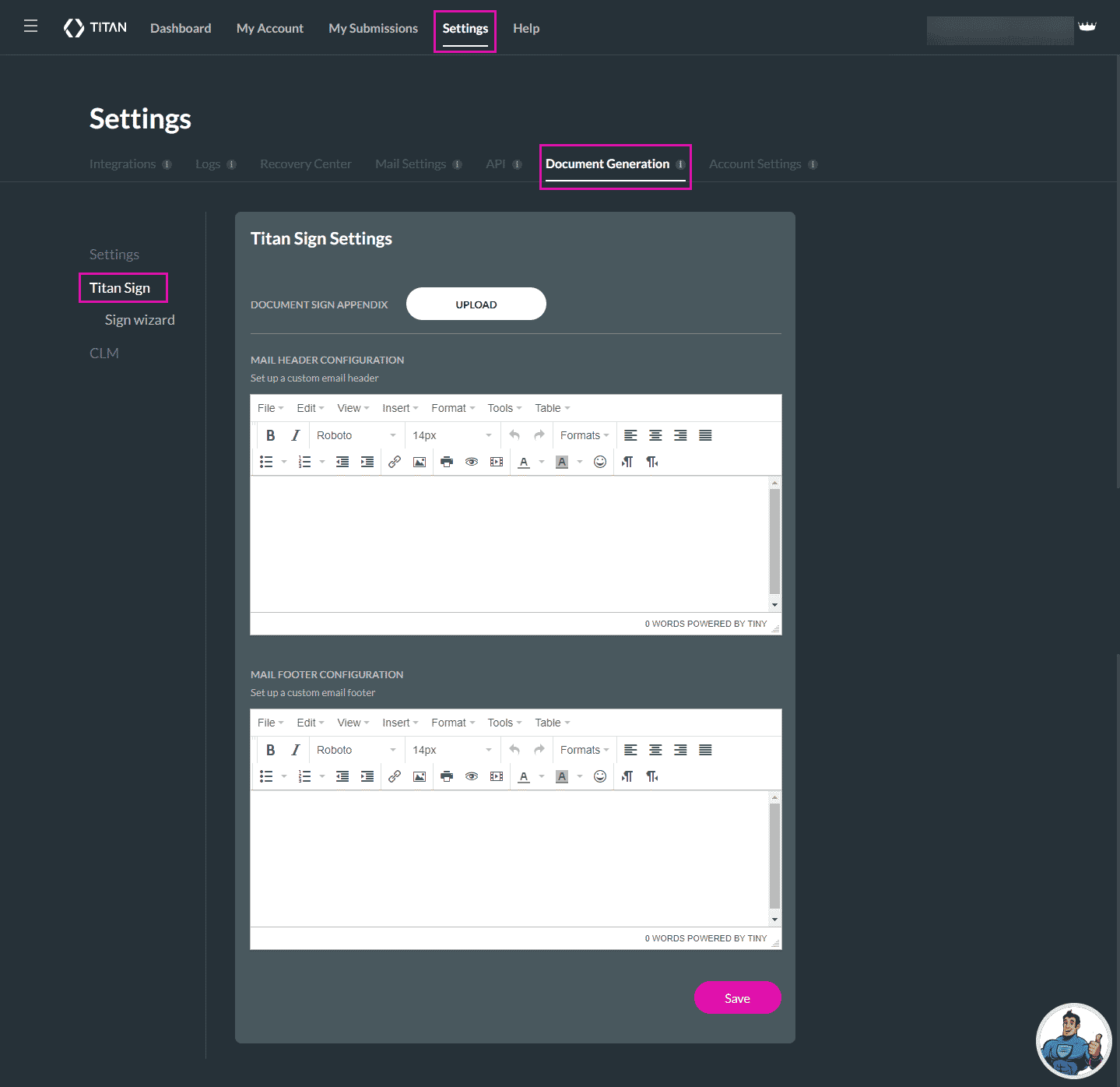
Configure the header and footer for your emails in Titan Sgn in one place. Please note that unless you change the header and footer, the default Titan images are used.
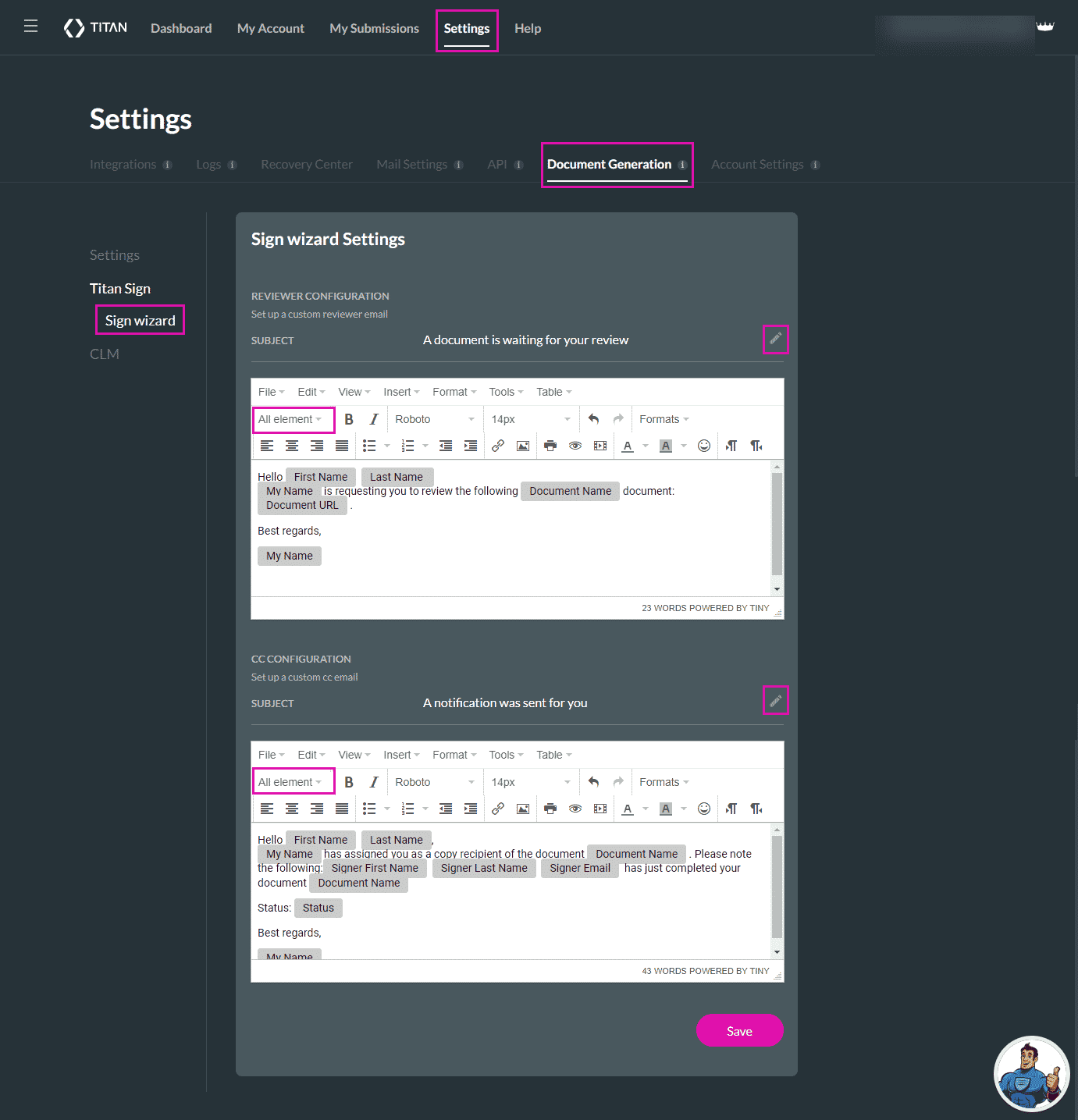
You can also configure standard email content using the Titan Wizard. You can also change the content in each individual Sign project.
Do the following one-time setup:
Configure the header and/or footer that will be used in all the emails for all your Titan Sign projects.
Titan Dashboard > Settings > Document Generation > Titan Sign
If you want an empty header and footer with no information, just place a blank character (push the spacebar once) and click the Save button. The email will look as follows:
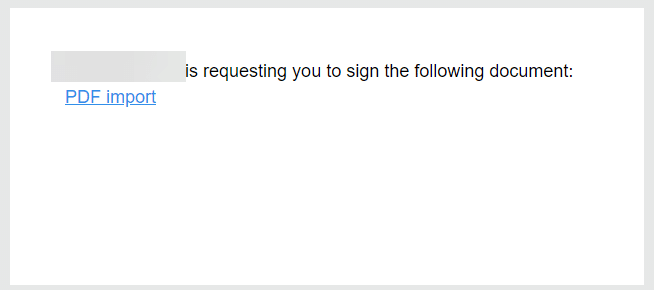
This header and footer will be displayed on all your Sign projects.

If you don’t configure a header and footer, the default Titan header and footer are used:

Configure the content (body) that will be used in all the emails for all your Titan Sign projects when you use the Titan Sign Wizard.
Titan Dashboard > Settings > Document Generation > Titan Wizard
For dynamic Word documents, create a Titan Sign Word project.
For static PDF documents, create a Titan Sign PDF project.









