How can we help you?
Customize your web page with animated media using multiple images according to your business logic in just a few clicks and no code.
Add the animated media to your web page with Titan Web. You can trigger a multi-image or use SVG. Alternatively, you can add a Lottie item.
In this article, we will look at the following:
To learn more about animation interactivity, click here.


Make sure that you add unique labels to each image. (You will use these when you configure the animation interactivity.)

The image item is added to the project and will be animated according to the settings.
In this SVG example, the following SVG is used.
<svg xmlns=”http://www.w3.org/2000/svg” viewBox=”0 0 600 600″ width=”600″ height=”600″ preserveAspectRatio=”xMidYMid meet” style=”width: 100%; height: 100%; transform: translate3d(0px, 0px, 0px);”>
<defs>
<style>
g {
display: none;
}
g:target {
display: inline;
}
</style>
</defs>
<g id=”icon-clock”>
<path d=”M20.6,23.3L14,16.7V7.9h4v7.2l5.4,5.4L20.6,23.3z M16-0.1c-8.8,0-16,7.2-16,16s7.2,16,16,16s16-7.2,16-16S24.8-0.1,16-0.1z
M16,27.9c-6.6,0-12-5.4-12-12s5.4-12,12-12s12,5.4,12,12S22.6,27.9,16,27.9z”/>
</g>
<g id=”icon-heart”>
<path d=”M32,11.2c0,2.7-1.2,5.1-3,6.8l0,0L19,28c-1,1-2,2-3,2s-2-1-3-2L3,18c-1.9-1.7-3-4.1-3-6.8C0,6.1,4.1,2,9.2,2
c2.7,0,5.1,1.2,6.8,3c1.7-1.9,4.1-3,6.8-3C27.9,1.9,32,6.1,32,11.2z”/>
</g>
<g id=”icon-arrow-right”>
<path d=”M32,15.9l-16-16v10H0v12h16v10L32,15.9z”/>
</g></svg>

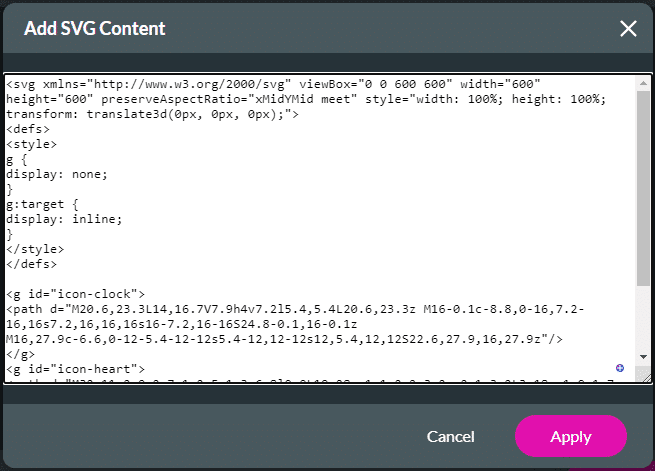
The SVG data is automatically added to the Configure Animated Options screen.


The SVG item is added to the project and will be shown according to the settings.
In this example, the following code was used:
Free UFO Animated Icon by East Supply.
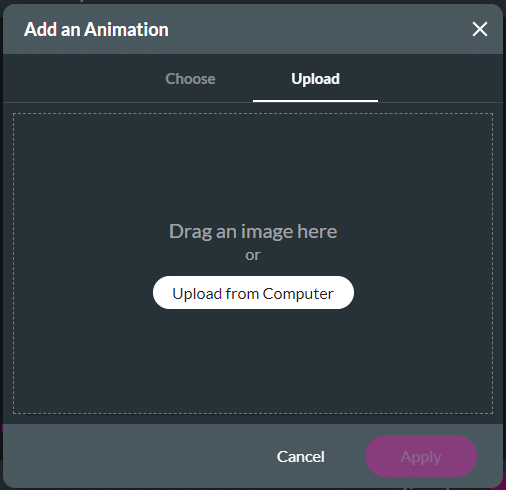


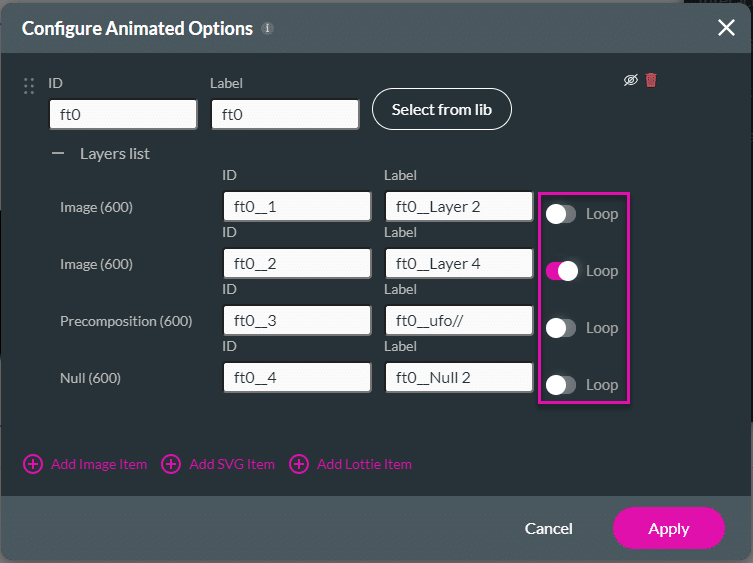
The Lottie animation is added to the project with the relevant animation settings.

When you add a Lottie animation element, it is added with the Lottie Auto Play option switched off.

You can switch Lottie Auto Play on and off under Animation Settings > Interactivity > Lottie AutoPlay:

You can also set the Lottie Play Once action. The animation action will only play once and then stop.

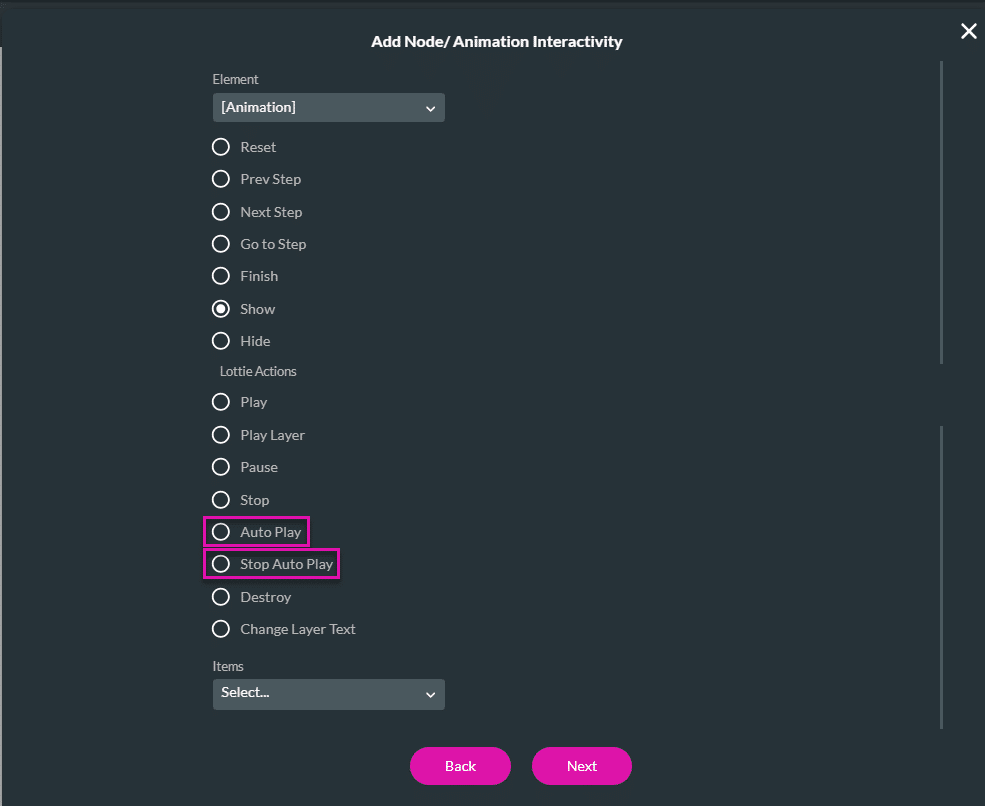
Any action that will trigger the Animation interactivity will contain the Lottie actions Auto Play and Stop Auto Play:
You can read more about Animation Container Interactivity.
You can disable the animation preview for the project to improve page optimization.

The animations added to the project will not be shown in the builder.