How can we help you?
Barcode and QR codes are widely used to identify products, people, assets, and event attendees. Most organizations scan these codes to retrieve data quickly without manual entry. Common examples include checking inventory, validating registrations, confirming warranties, or loading a customer record. When a barcode is scanned, the device decodes the embedded value. Systems then use this value to look up related data, trigger backend processes, or confirm access permissions. For Salesforce users, this creates an opportunity to reduce manual input, improve accuracy, and streamline operations in real time.
Titan Web includes a barcode reader widget that captures barcode or QR code values and uses them inside Salesforce processes.
The widget supports two input methods:
• Desktop users can upload an image of a barcode.
• Mobile users can take a photo and submit it instantly.
Once the scan value is captured, it can trigger any Titan action. This includes validating data in Salesforce, retrieving a record, updating fields, running flows, or displaying conditional messages to the user.
Because the widget can participate in any Titan action chain, customers can build validation flows, check access at events, verify serial numbers, register assets, or surface Salesforce data based on the scanned value.
A barcode scanner can be used to validate a Contact record stored in Salesforce.
For example, a user submits a registration form in one Titan Web project. The form creates a new Contact in Salesforce, and the next page generates a QR code that represents the Contact’s ID.
A second project includes the Barcode Reader widget. When the QR code is scanned, the project uses the scanned value to check Salesforce for a matching Contact and returns a status such as Valid or Invalid based on the result. This pattern applies to any process where a scanned identifier must be matched to an existing Salesforce record.
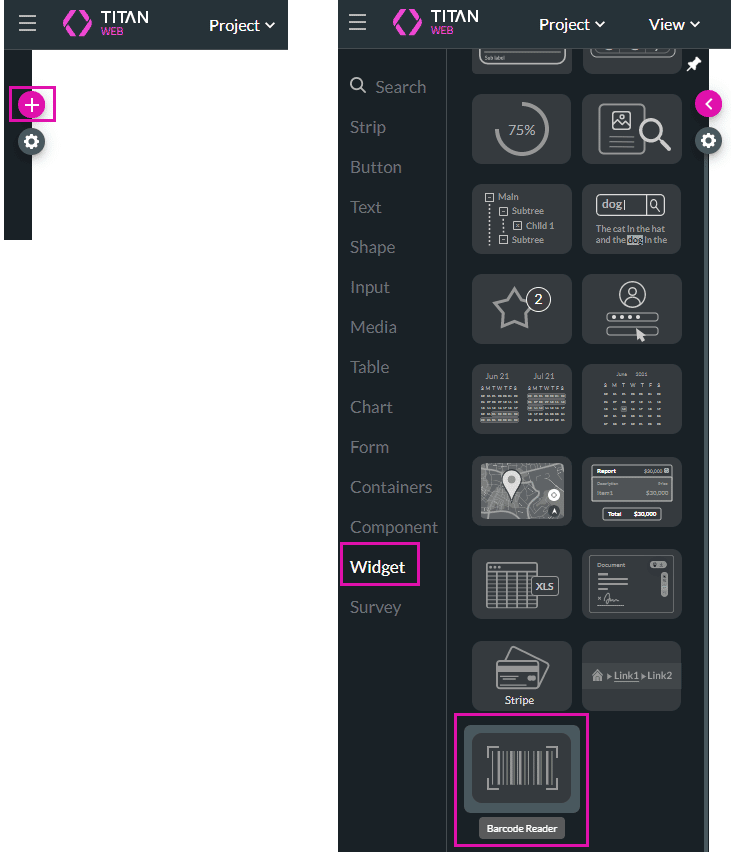
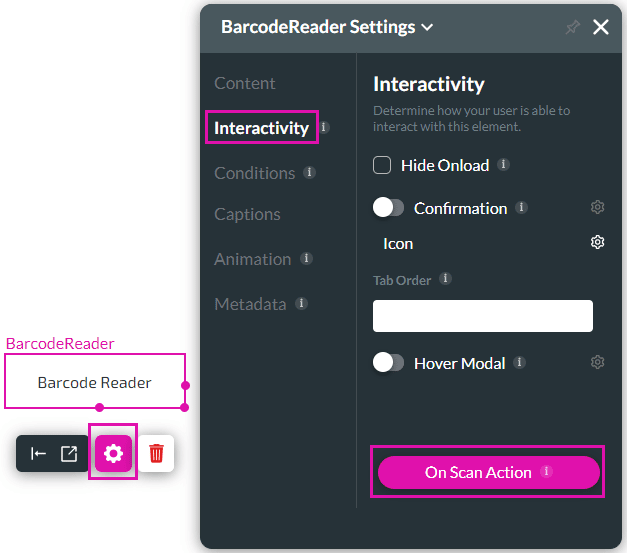
You can configure the barcode reader for desktop devices or mobile devices. The configuration process is the same.
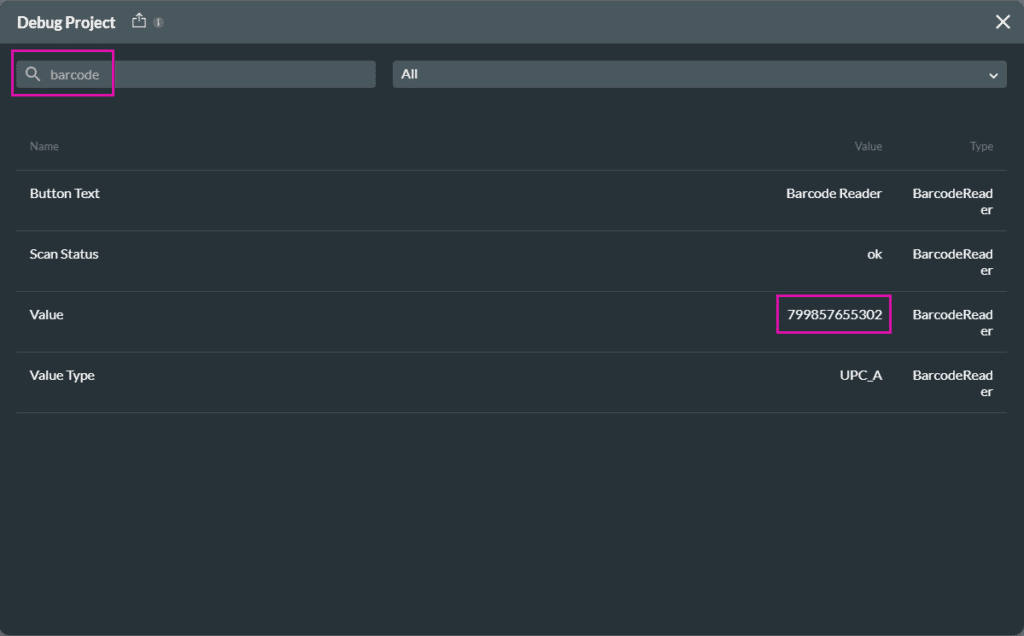
The Titan attribute Barcode Reader/Value is the barcode’s numeric value retained after the scan is completed, for example:

Once this value has been populated in Titan, you can use it to do multiple actions:
In our example, a message is added to the “on scan complete” of the barcode reader.
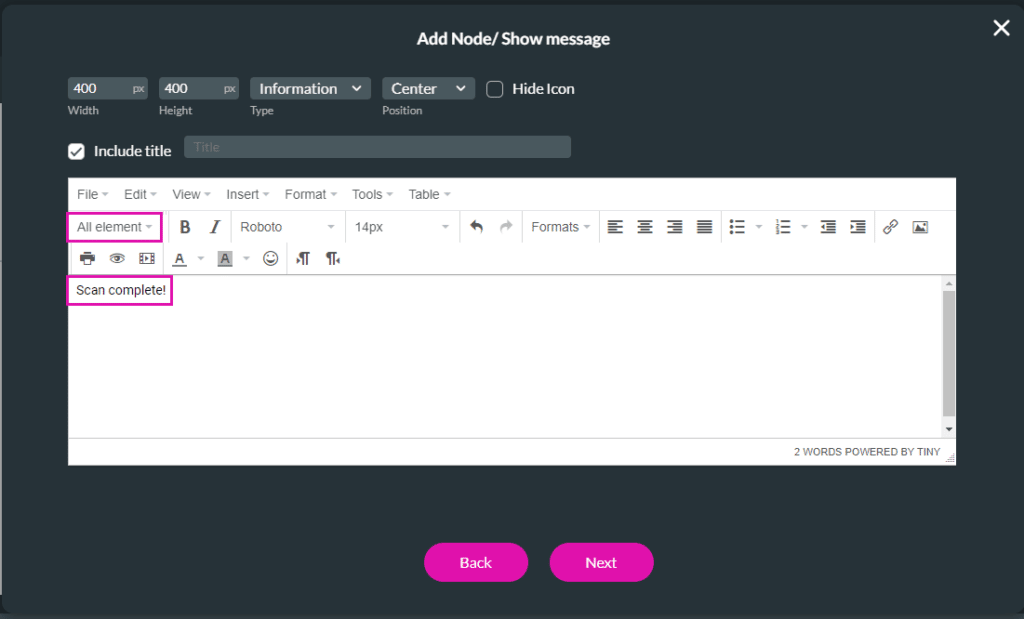


For this example, the following message will be shown:
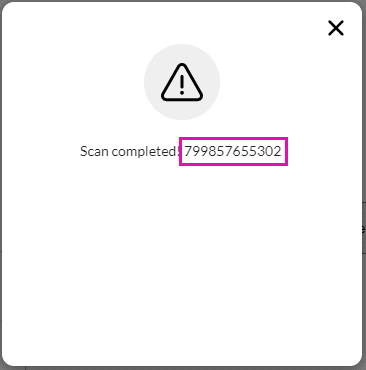
The value on the barcode has been scanned and can be pushed to Salesforce.
You can also see the numeric value on the Debug window: