How can we help you?
The Circle Slider attributes are configured using the Circle Slider Settings screen.
The following options are available:
Customize the content options and determine how other elements appear in the circle slider input element.

Content settings screen
| # | Option | Function |
|---|---|---|
| 1 | Max Track Value | Add a max track value to the circle slider. This is the maximum value that a user can select. |
| 2 | Value | Add a value to the circle slider. This is the value that will be shown to the user by default. The user can drag the slider to select another value. |
| 3 | Min and Max Value | Set minimum and maximum values for the circle slider |
| 4 | Min and Max Label | Create and define minimum and maximum labels. These add more information to the minimum and maximum values. |
Customize the interactivity options and determine how your user can interact with the circle slider input element.
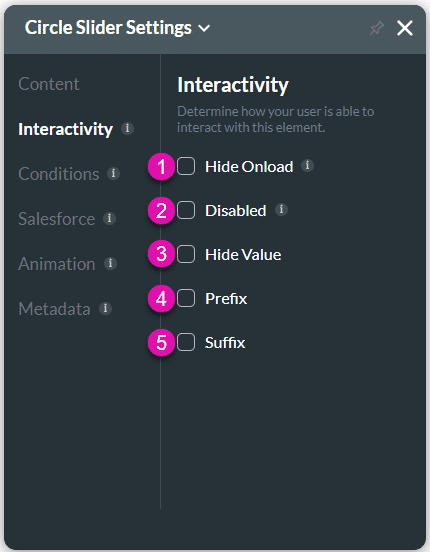
| # | Option | Function |
|---|---|---|
| 1 | Hide onload | Use the Hide Onload option to hide specific elements on load to control what the user sees. It allows you to hide an element when the page is loaded. |
| 2 | Disable | When this option is enabled, the user cannot interact with the element. |
| 3 | Hide value | Take full control of the visual display of the circle slider element with the ability to show or hide the numeric value of your element. |
| 4 | Prefix | Use the Prefix option to add non-editable text or an icon to elements. You can add an on-click action to an icon. |
| 5 | Suffix | Use the Suffix option to add a non-editable text or an icon to elements. You can add an on-click action to an icon. |
Configure Conditions – Determine what will happen when your user interacts with this element.
Configure Integrations – Integrate data from Salesforce.
Animation – This option allows you to add visual interest to your screen. Create the illusion of movement when the element shows on the screen. You can set the duration and delay to control the movement and preview by default.
Metadata – See how this element is identified in the backend, such as its purpose, content, or function. Your users won’t see this.









