How can we help you?
Dynamically adjust the characteristics of elements based on user actions or information from Salesforce.
Prerequisite:
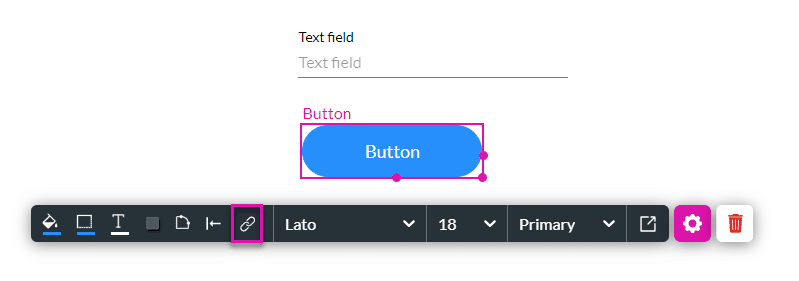
1. Add an Affected Element node to an element such as a button.
2. Alternatively, configure a condition.


A read-only field cannot be edited.
For this example, the Text field B is set to “Read Only” using the Text Settings screen.

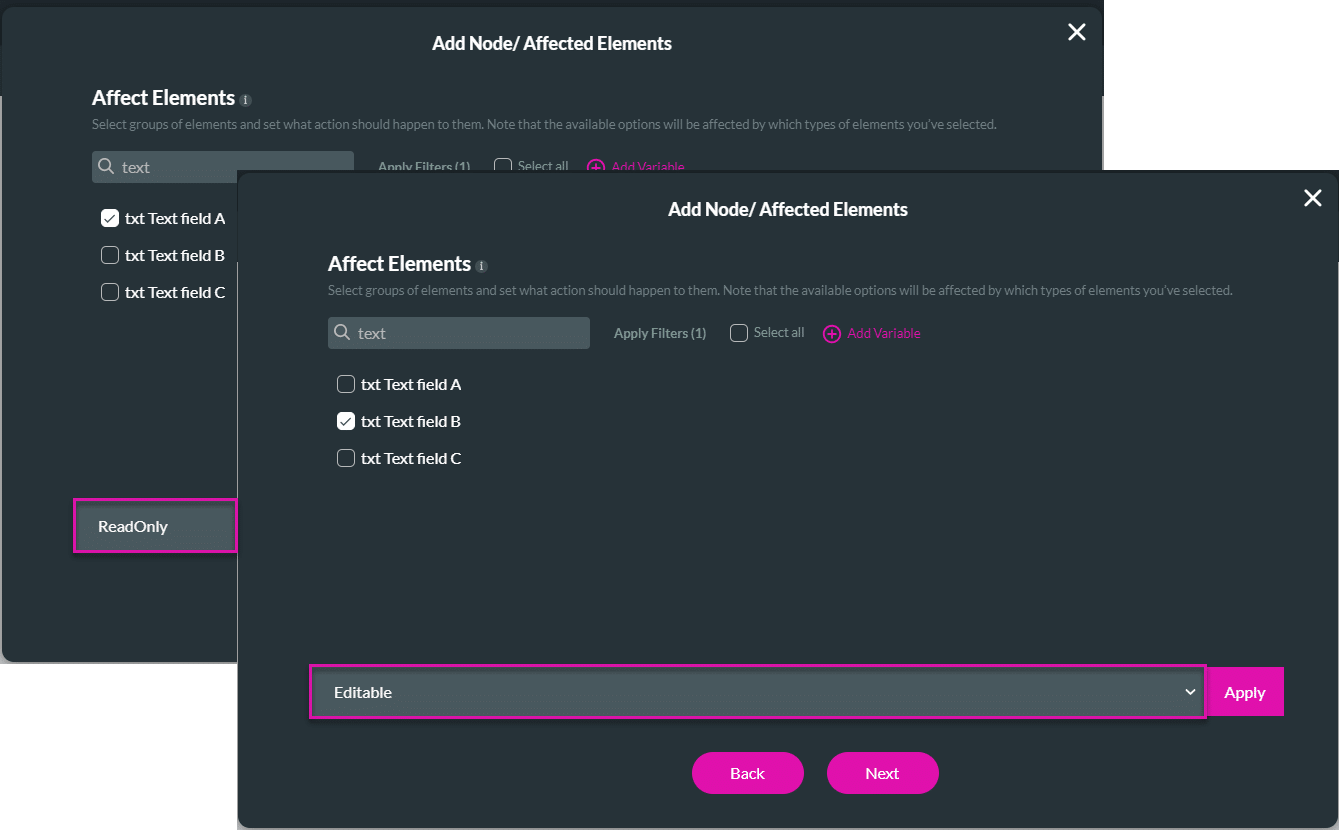
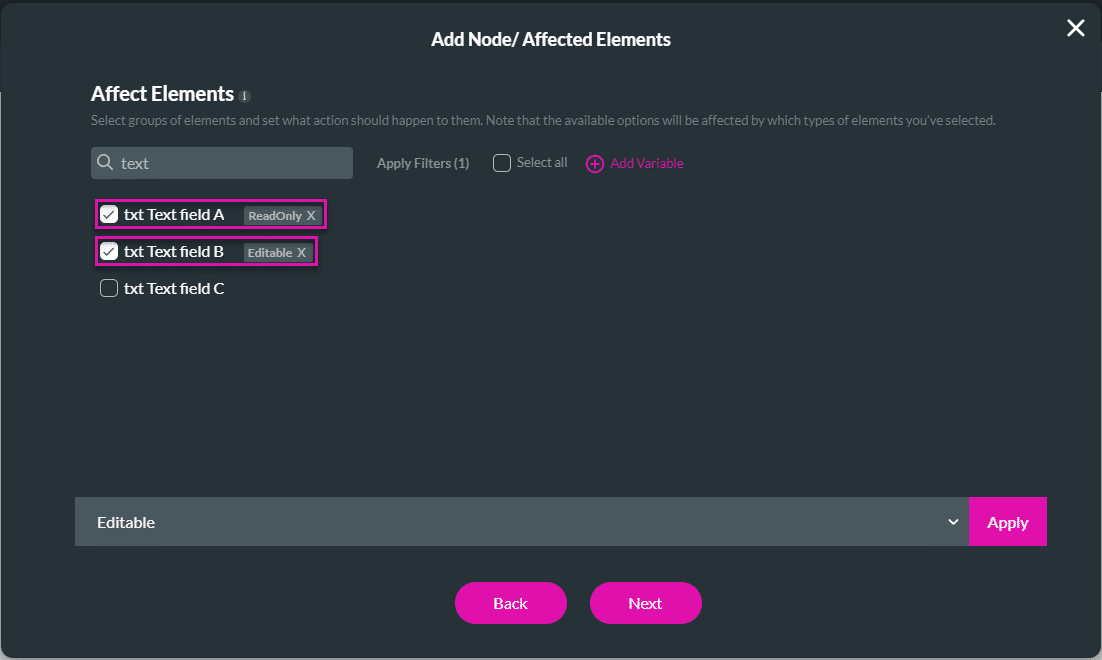
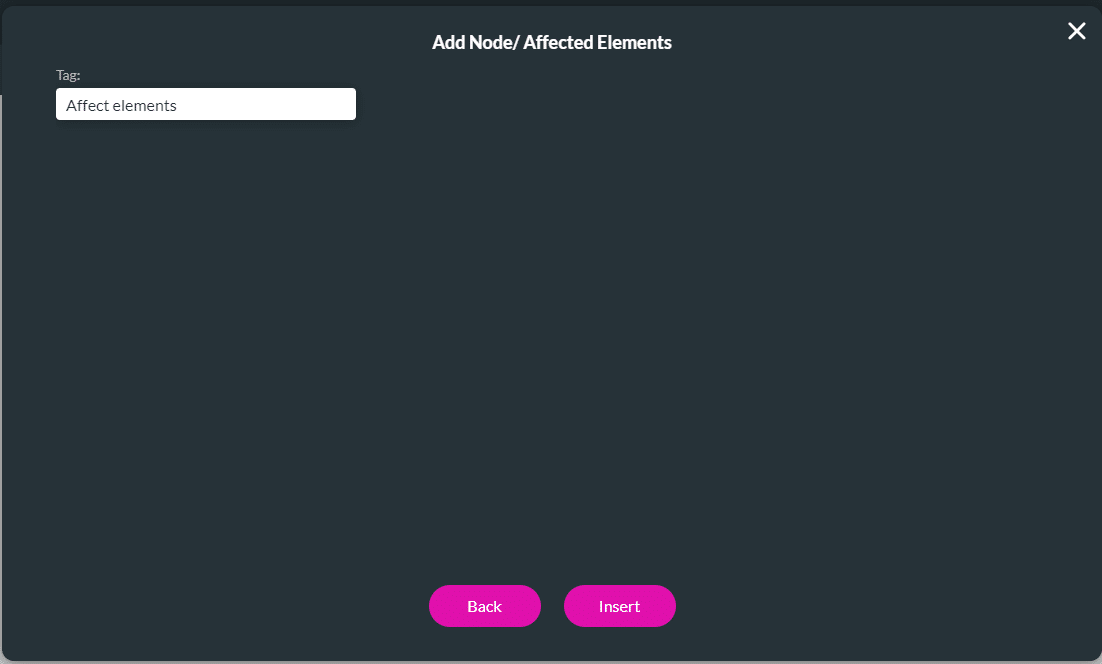

Text field B was set to read-only. When the user clicks the button, text field A is now read-only and text field B can be edited.

The disabled field will be greyed out, and a user cannot interact with it.
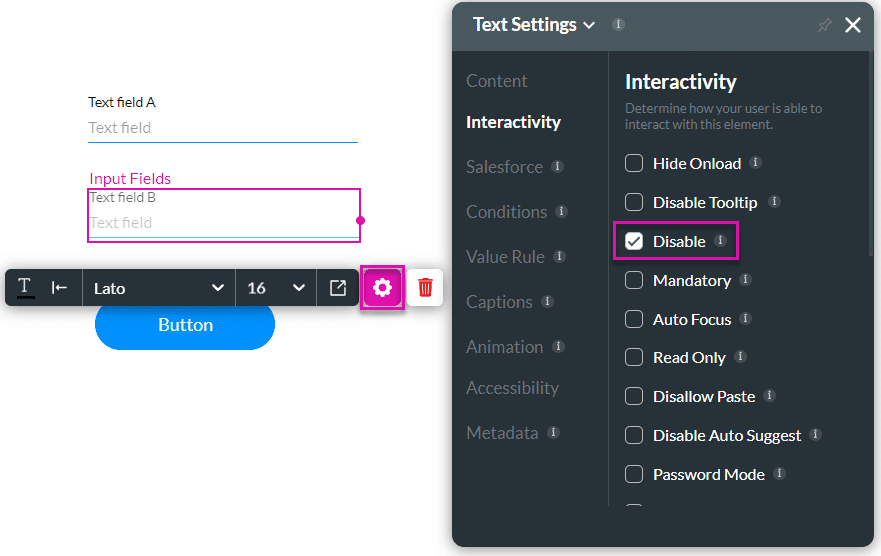
For this example, the text field B is set to “Disable” using the Text Settings screen.
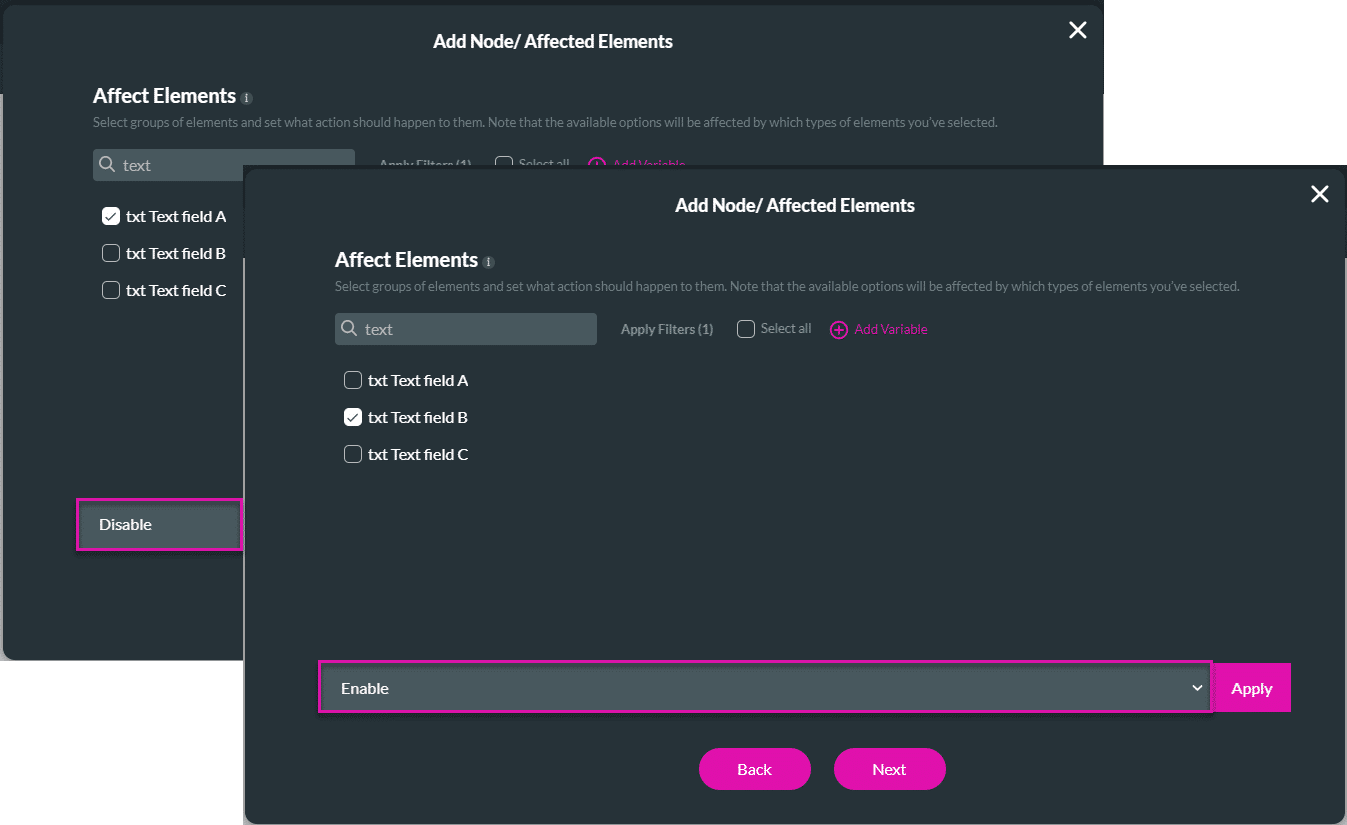
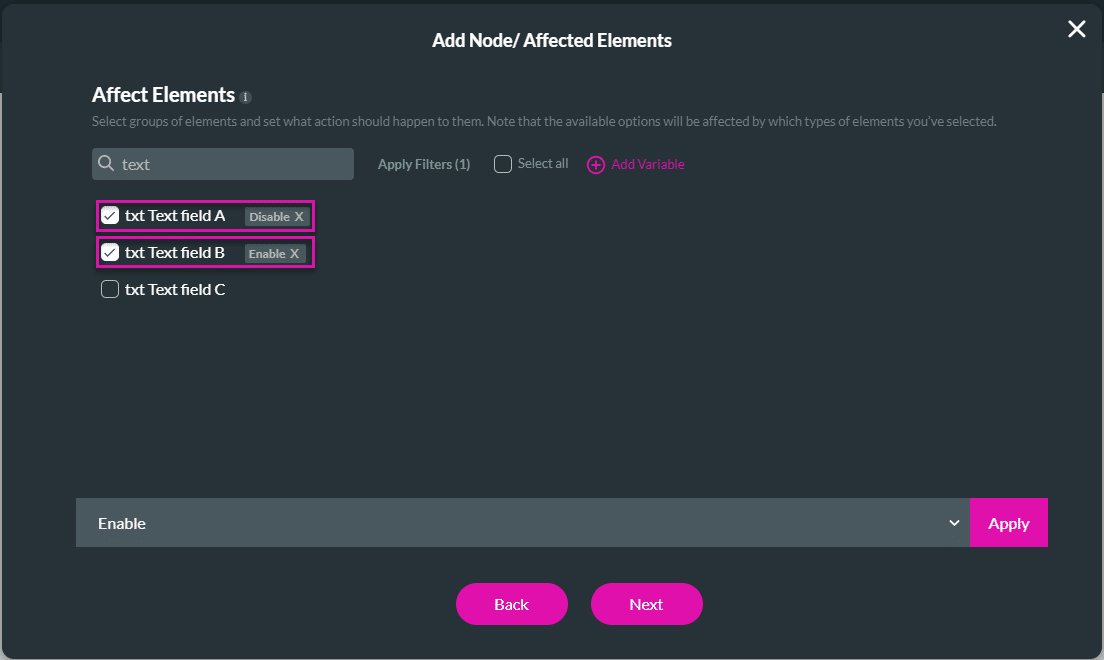
Text field B was set to disable. When the user clicks the button, text field A is now disabled and text field B is enabled.
Mandatory fields have to be completed.
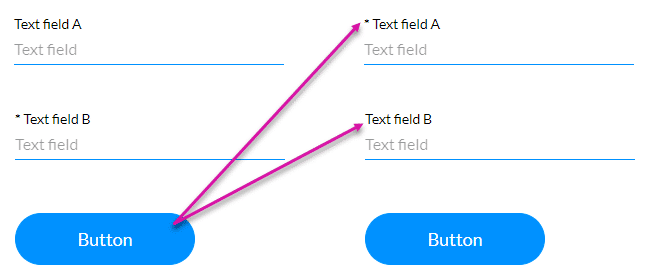
For this example, the text field B is marked Mandatory. An asterisk is added to the element to indicate that it is mandatory.

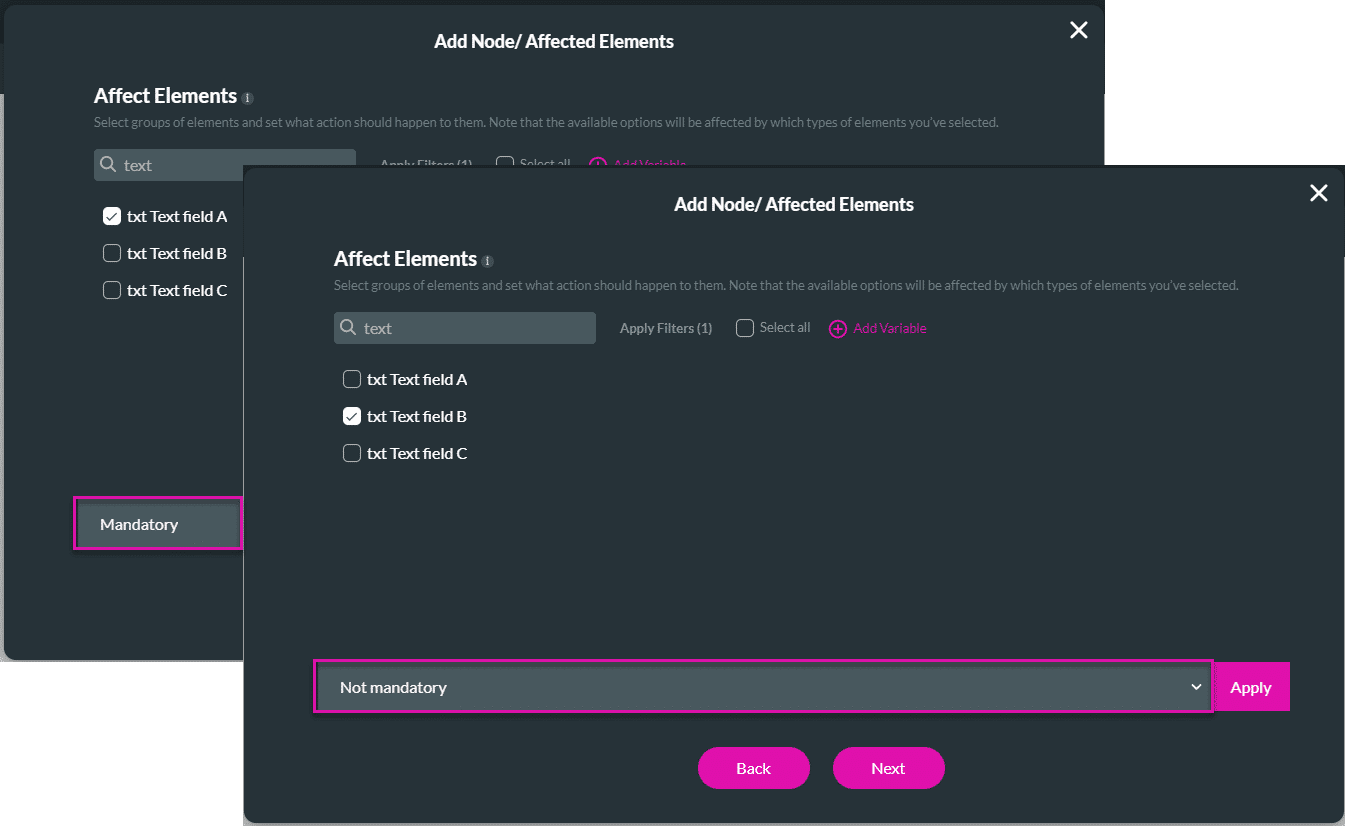
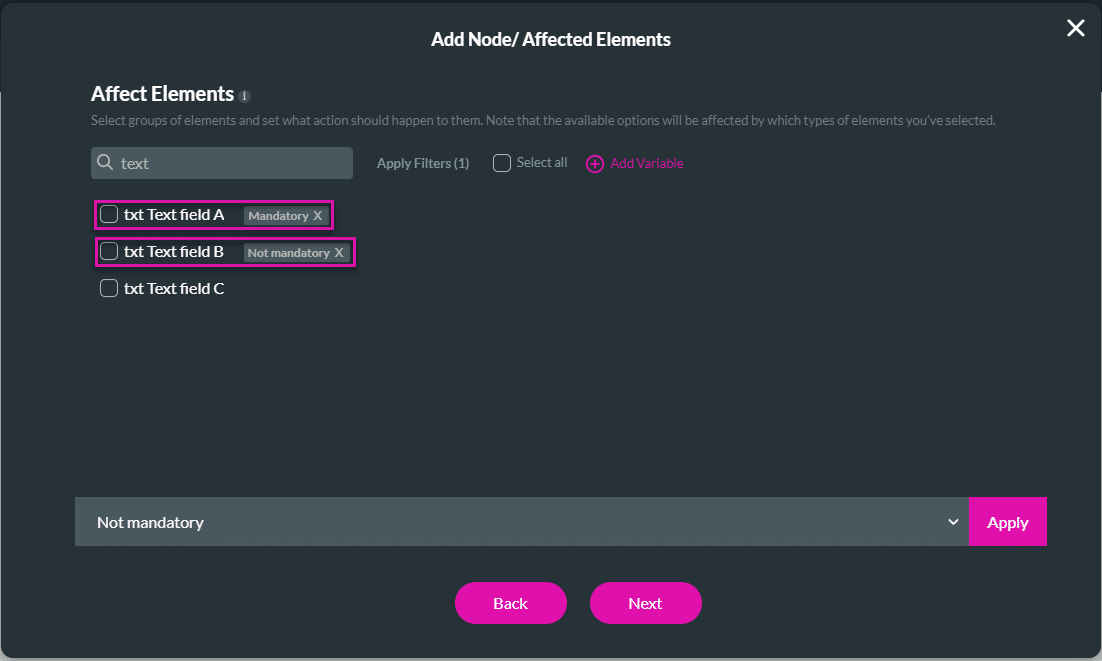
Text field B was set to mandatory. When the user clicks the button, text field A is now mandatory and text field B is not.