How can we help you?
The YouTube attributes are configured using the YouTube Settings screen.
The following options are available:
Customize the content options and determine how other elements appear in the YouTube media element.

| # | Option | Function |
|---|---|---|
| 1, 2 | Link and Configure button | Use the Link option to change the video’s URL statically or dynamically from Salesforce. |
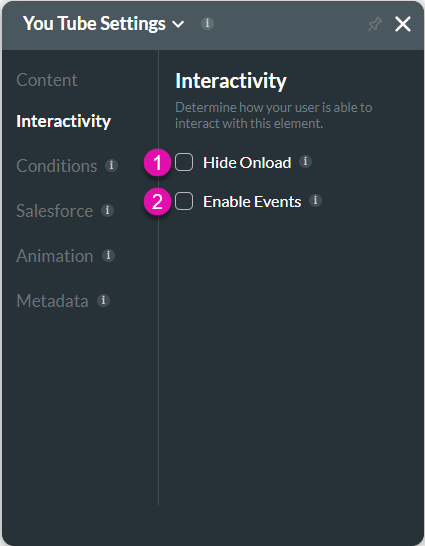
Customize the interactivity options and determine how your user can interact with the YouTube media element.
| # | Option | Function |
|---|---|---|
| 1 | Hide onload | Use the Hide Onload option to hide specific elements on load to control what the user sees. It allows you to hide an element when the page is loaded. |
| 2 | Enable Events | Use the Enable events on a YouTube video. For instance, if you add a YouTube video via URL or from Salesforce to a web project, you can set a message or custom action if someone plays the video, pauses it, or watches it to the end. |
Configure Conditions – Determine what will happen when your user interacts with this element.
Configure Integrations – Integrate data from Salesforce.
Animation – This option allows you to add visual interest to your screen. Create the illusion of movement when the element shows on the screen. You can set the duration and delay to control the movement and preview by default.
Metadata – See how this element is identified in the backend, such as its purpose, content, or function. Your users won’t see this.









