How can we help you?
APIs connect Titan with the external systems your business relies on. This guide explains how to configure an API call in the API Hub using Titan Flow.
Titan Flow allows you to build, test, and automate API requests directly in your project. URL setup, authentication, parameters, and data mapping all occur within the Flow Builder, allowing you to integrate any REST API in minutes.

The Custom API Hub screen opens.

| Method | Description |
|---|---|
| GET | Retrieve data from a server. |
| POST | Create new resources on the server. |
| PUT | Fully update an existing resource. |
| PATCH | Partially update a resource. |
| DELETE | Remove a resource. |
| HEAD | Return headers only. |
| OPTIONS | Check available methods. |
The API Hub enables you to import or export configurations, saving time, reducing duplicate work, and allowing you to reuse setups across projects.
Import from Postman
You can import an existing API request from Postman to set up complex configurations that have already been tested quickly.
When to use Postman Import
Import from another Titan Project
You can also reuse existing API Hub configurations you created in another Titan project.
Export a Request
Export a configured API Hub node to reuse or share it with your team.
Important Notes
This is useful for standardizing integrations or replicating setups in staging and production environments.
Warning:
If your Authorization type is Basic or Bearer Token, credentials will be exported. Remove sensitive data before exporting.
Parameters define dynamic values in your API request URL.
Key
Enter a key manually. This defines the parameter name used in the request.
Value
Choose how to set the value for that key:

Use this tab to set up authentication for your request.
Available Authorization Types

OAuth 2.0 Notes
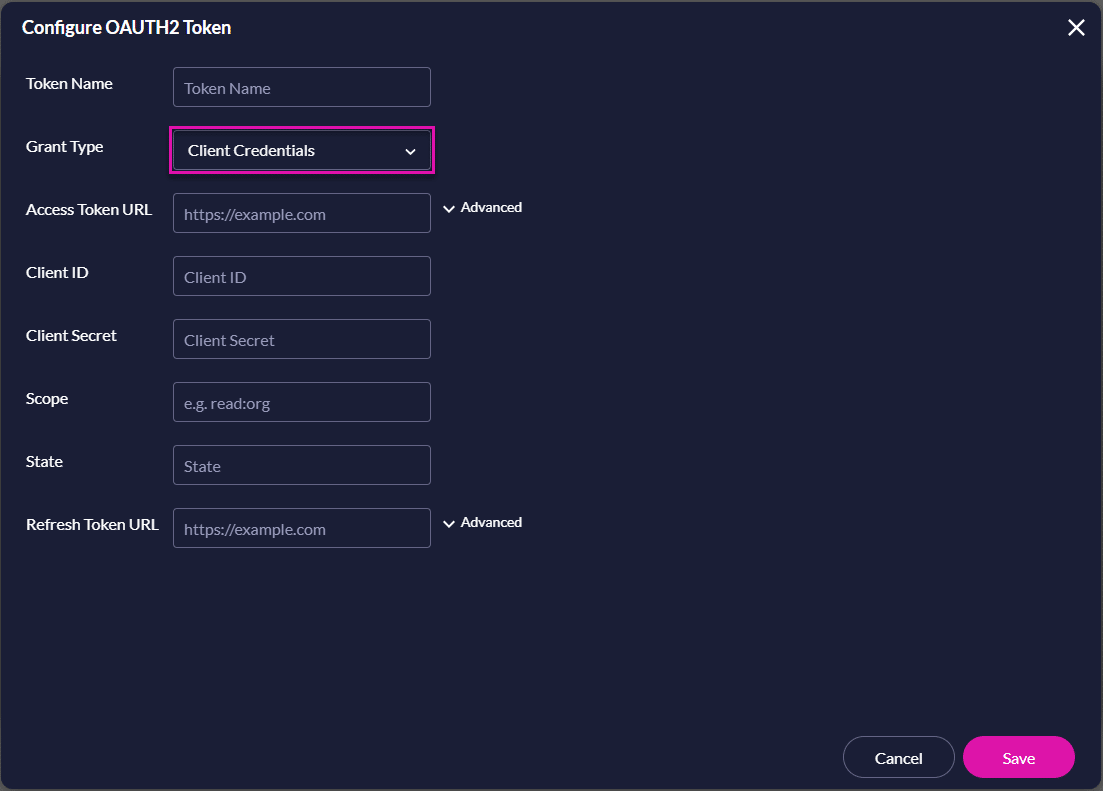
Note: The Client Credentials grant type does not support token generation.
This behavior is intentional and prevents token generation errors before setup is complete.
| Grant Type | Requires User Login | Uses Client Secret | Best For |
|---|---|---|---|
| Authorization Code | Yes | Yes | Web apps with backend |
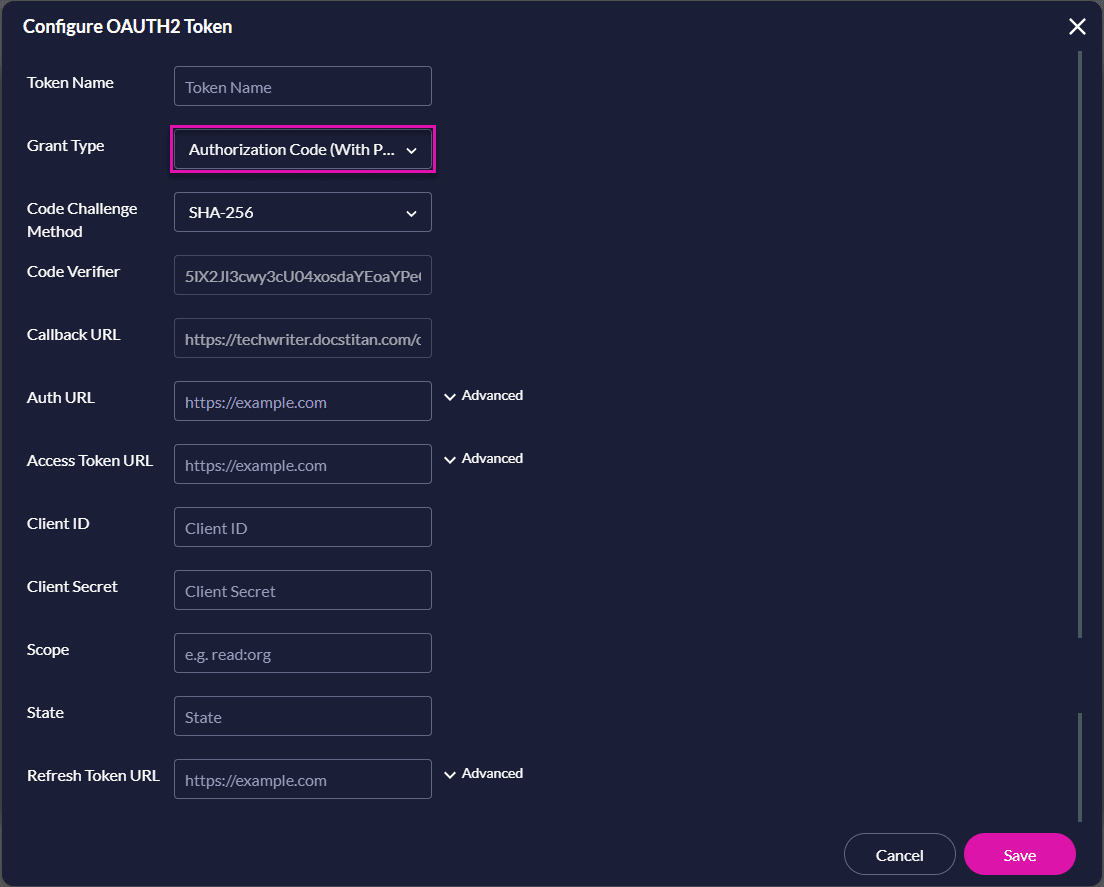
| Authorization Code (PKCE) | Yes | No | Mobile or browser apps |
| Client Credentials | No | Yes | Server-to-server apps |
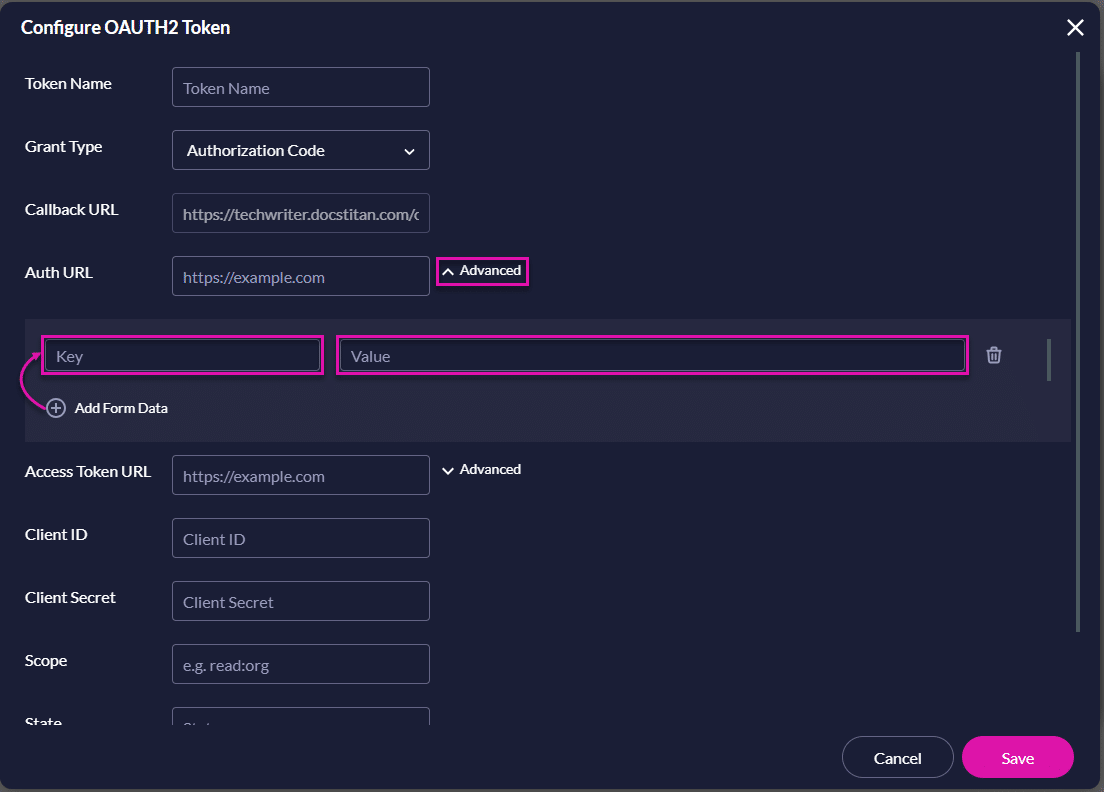
Each grant type has its own configuration flow in Titan.
Refer to the sections below for details.
Authorization Code Flow
Authorization Code (PKCE) Flow
Client Credentials Flow
Enter a Key
Enter a key manually. This defines the parameter name used in the request.
Value
Choose how to set the value for that key:
Common headers:
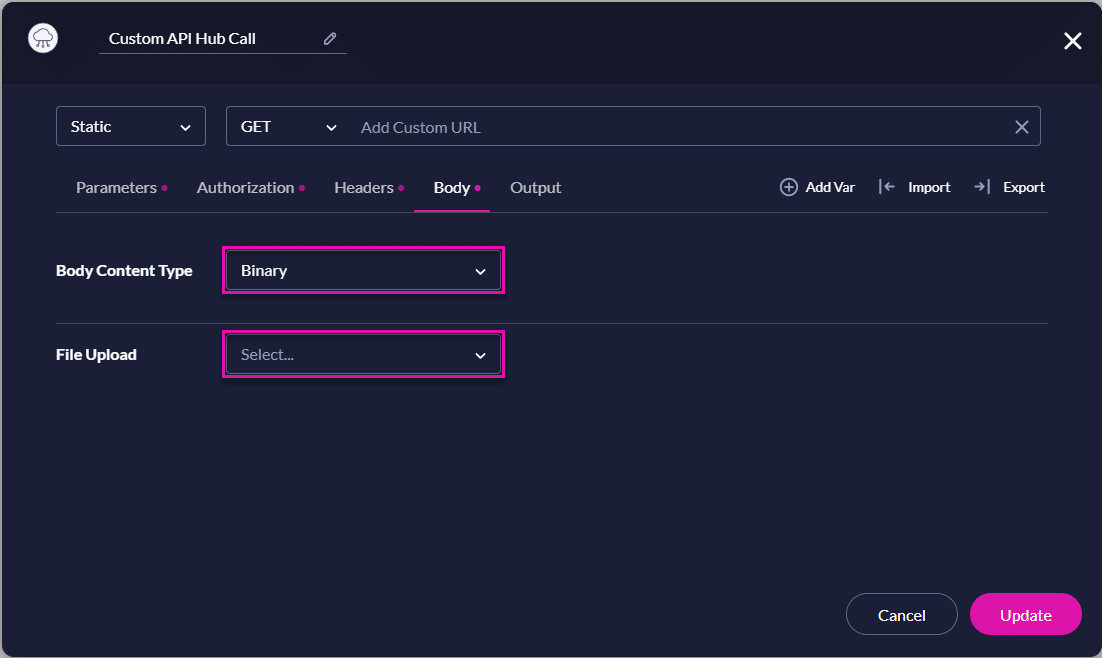
If your request method is POST, PUT, or PATCH, add data under the Body tab.
Select the content type:

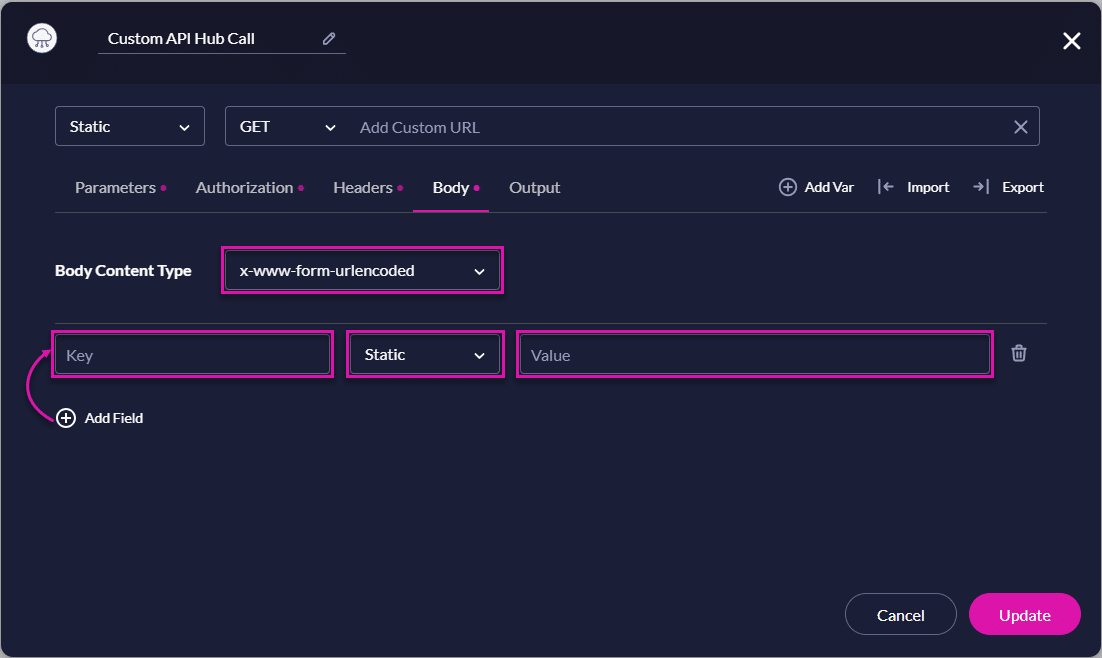
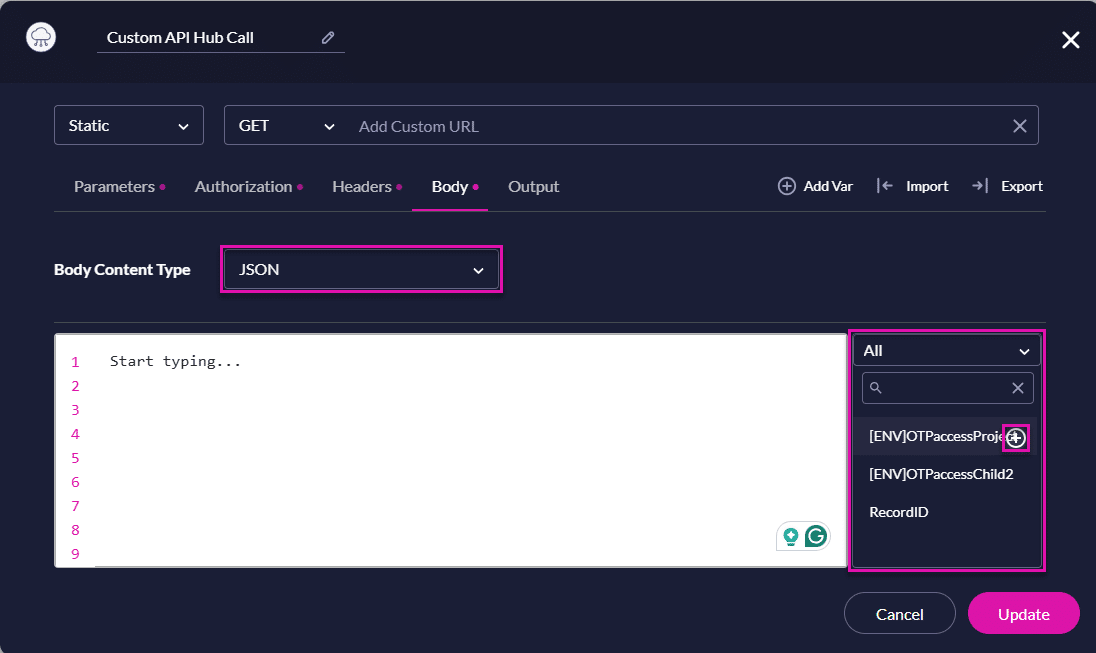
You can insert Titan variables into JSON or form data using the + icon.
Use this tab to decide how Titan handles the data returned from your API request. Unlike Postman, which only displays the response, Titan allows you to map and store the output for reuse in other parts of your project.

Plain Result
Declare a Plain Result variable. This variable stores the entire API response, regardless of format.
Use Mapping Path to extract specific values from the response and assign them to variables.
API response:
{
“data”: {
“account”: {
“id”: “0015g00000XyzAbC”,
“name”: “Alex”,
“email”: “[email protected]”
}
}
}
You can then use these variables anywhere in your Titan project, such as sending them in an email, updating a record, or displaying them on a screen.
After configuring your API output, you can define how Titan should respond when the API request succeeds or fails.
In the Builder, the Custom API Hub Call element includes two paths:
You can use these nodes to create different paths in your flow. For example, to display data in a web project field, send an email, or update another process.

Part of this workflow:









