How can we help you?
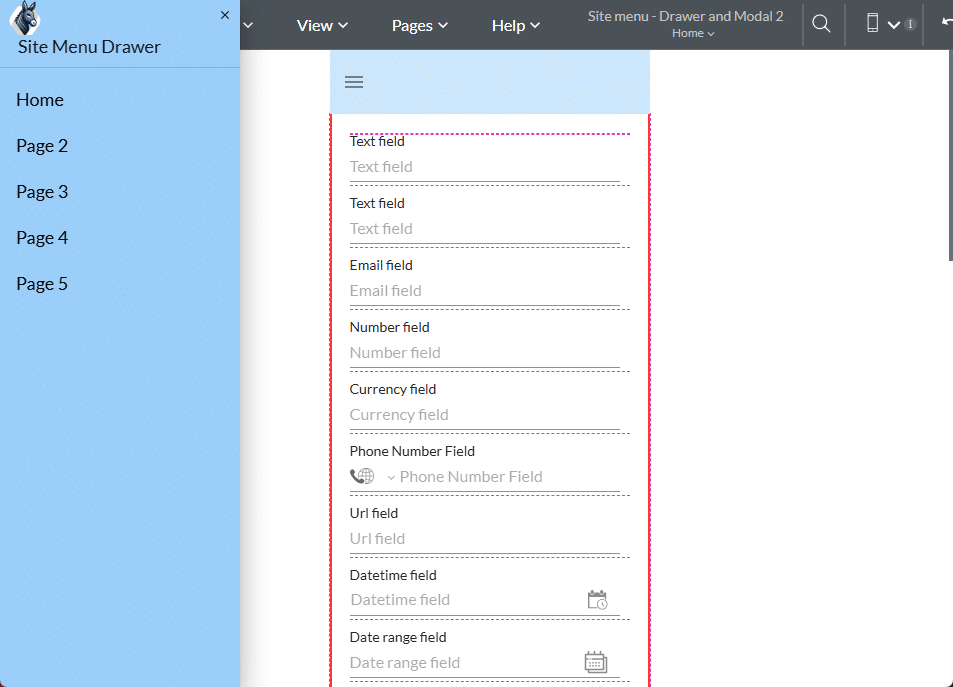
Personalize your web projects with a drawer that is shown when a header is added to the project.
A drawer on a web page serves several purposes. Its key purpose is to provide secondary navigation. Drawers are commonly used for side menus, allowing users to access navigation links without disrupting the main content or clattering the header.
You can change the title, add a logo, or edit the buttons on the drawer.
Titan lets you personalize your web projects with a custom drawer in a few clicks, with no coding required. Add a custom title or logo to differentiate the drawer from others.
This drawer is different from the drawer container that can be added to the canvas. These drawers are flexible containers where you can add many different Titan Web elements.
Prerequisite:
You must include a header in the project. The drawer will be managed from the header.
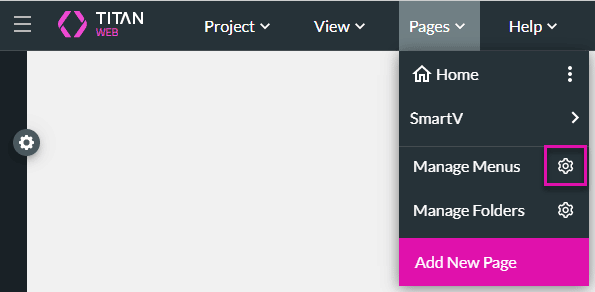




You can add a drawer container by selecting the Custom option, then clicking the Add Drawer button.

You can give the drawer a unique name.
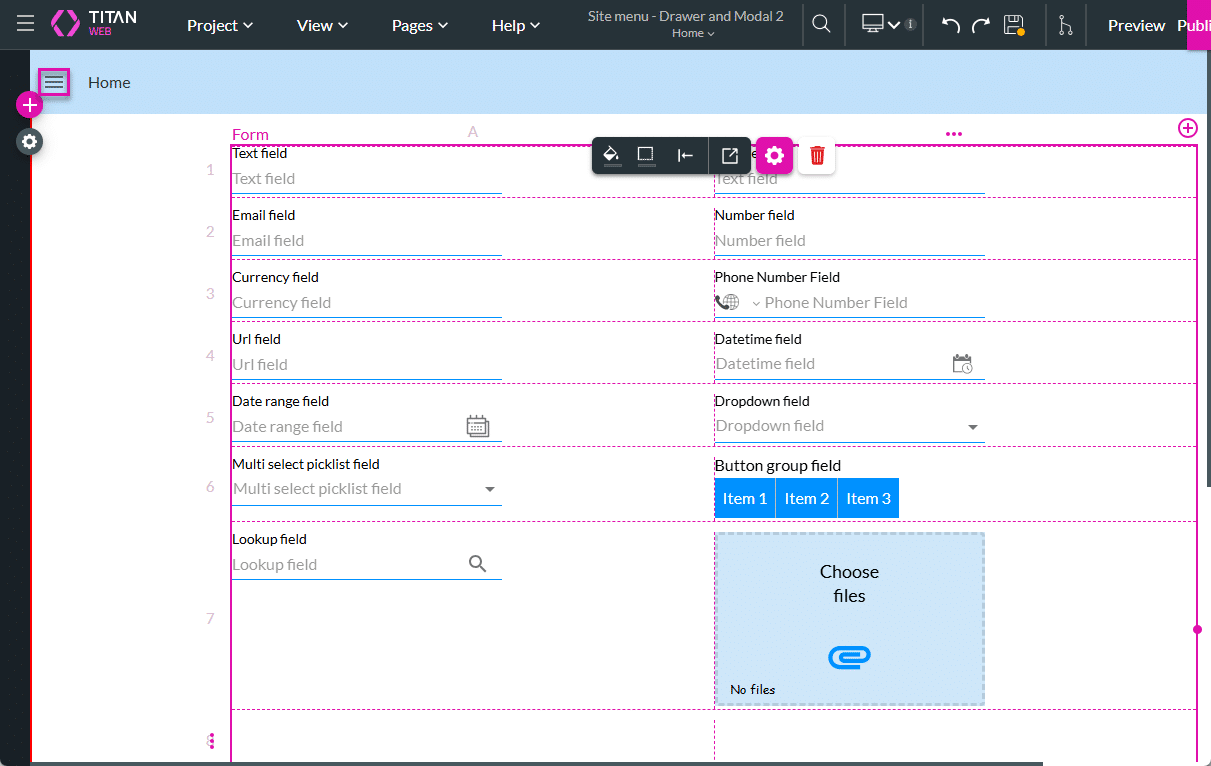
When the user clicks the Open icon, the drawer is shown with the logo, title, and Close icon as configured. If a link is added, the page or URL will open when the option is clicked.

On a project with multiple pages, you can add the navigation links to these pages in the drawer:

For small mobile device layouts, a drawer is added by default when a header is added to the project, whether the drawer was enabled or not.