How can we help you?
This example shows how Titan Flow can extract key invoice details from an uploaded file end-to-end. A Web project uploads the invoice, OCR extracts text, an external service returns structured data, and the JSON Parse node converts the returned stringified JSON into usable fields. The parsed values can then be displayed in a Web project, stored in Salesforce, or used for downstream automation.
Many extraction services return data as stringified JSON rather than a standard JSON object. These responses can contain escaped characters, nested objects, and multi-level structures. Because this data arrives as text, it cannot be mapped or evaluated in Titan Flow until it is parsed.
The JSON Parse node automatically converts the entire response into a structured JSON object, including nested layers. This allows your flow to access fields such as invoice_number, vendor_name, and amount_due without manual cleanup or custom code.
In this section, you’ll configure the Flow that processes the uploaded invoice, calls the external service, and prepares the data for parsing. This Flow handles OCR, API communication, and variable preparation before the JSON Parse step runs.
Create the following variables in the Static Variables window:
These variables provide a consistent mapping surface for the JSON Parse node and any downstream steps.

In this section, you’ll add and configure each Flow node in sequence, from text extraction to API calls and JSON parsing. Each step builds on the previous one to ensure the invoice data is extracted, structured, and ready for downstream use.

Configure the node:


This is the key step that enables advanced extraction.

Why the Generate button may be disabled:
The Generate button becomes available only after a JSON variable is selected. If no variable is selected, Titan cannot generate the JSON tree.

Note: You can also create these global static variables in your project settings ahead of time. Any variables created or selected here are stored in Global Static Variables and are available throughout the Flow.


Use the filter if needed to quickly find specific variables.

The Finish node returns the parsed and mapped variables from the Flow, allowing them to be used by downstream processes, such as a Web project or another automation step.
Review the completed Flow and confirm that all nodes are connected correctly.

In this section, you’ll create a Web project that triggers the Flow, uploads an invoice, and receives the parsed results returned by the JSON Parse node. The Web project serves as the user-facing entry point for the process, displaying the extracted invoice data once the Flow is complete.
Before configuring the Web project layout and actions, create the static variables that will store the data returned from the Flow.
These variables act as the receiving surface for values returned by the Flow, including the structured fields produced by the JSON Parse node.

In this step, you’ll add the elements that allow a user to upload an invoice, trigger the Flow, and view the extracted invoice details.
Required Elements
Add the following elements to your Web project:
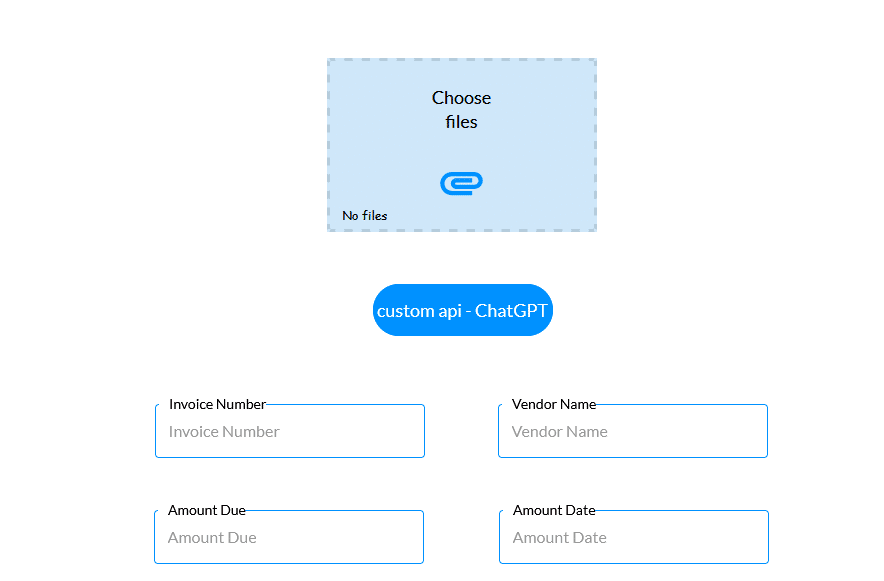
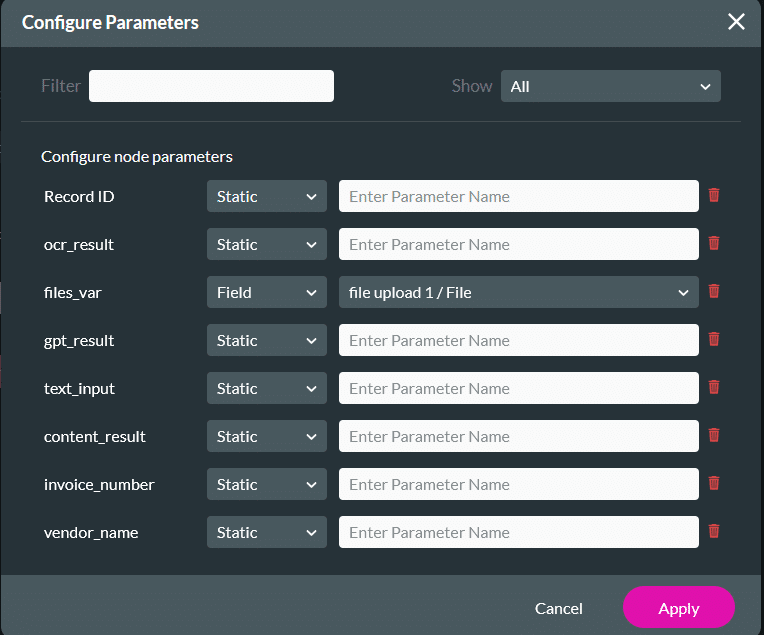
In this step, you’ll configure the button to trigger the Flow and return the parsed invoice values to the Web project.


This step ensures the uploaded invoice file is passed correctly into the Flow for processing.
These return parameters allow the parsed invoice data produced by the JSON Parse node to populate the Web project fields after the Flow completes.
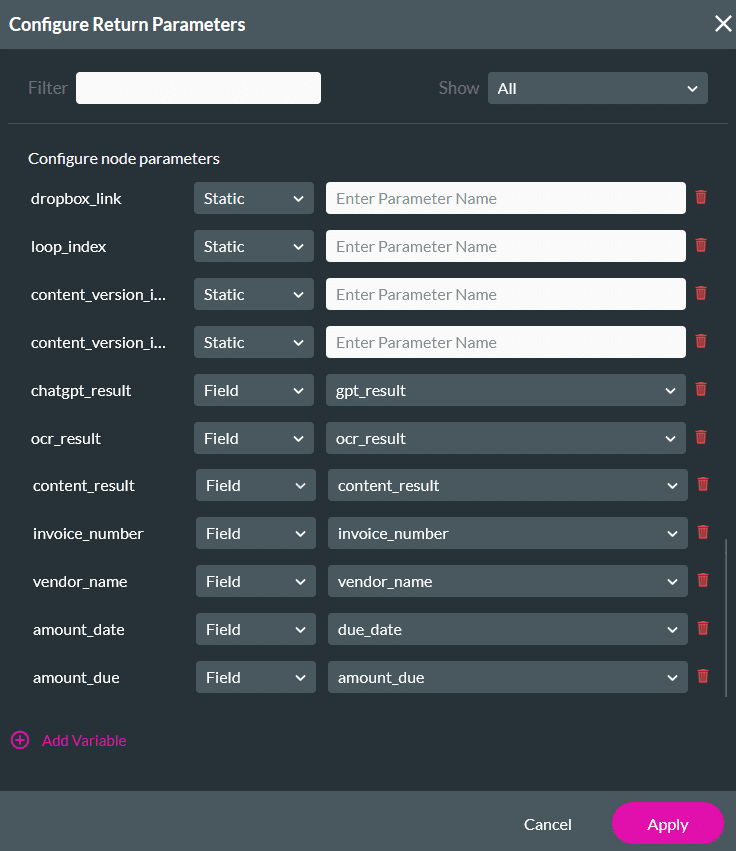
After configuring the Flow return parameters, use an Affected Elements action to populate the input fields with the returned values.


Add a toast message to confirm that the Flow has completed successfully.


At this point, the On Click Action flow is fully configured and ready to be tested end-to-end.

When the user uploads an invoice and clicks the button, the process runs end-to-end without any additional input.
From the user’s perspective, the experience is simple: upload an invoice, click once, and review the populated fields.
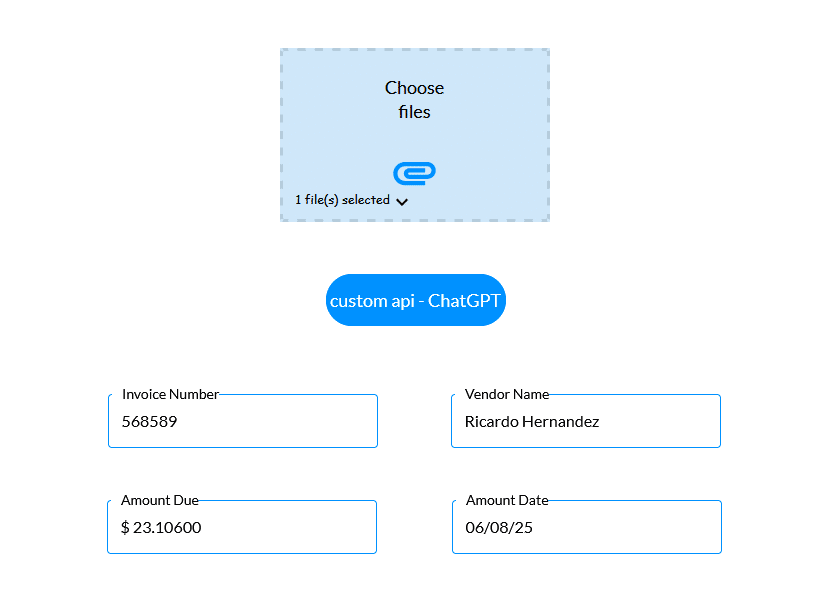
To understand how the JSON Parse node processed the API response, you can review the project in Debug mode.
The debug view shows:
This confirms that the JSON string returned by the API was successfully converted into structured data and made available for use throughout the project.










