How can we help you?
Versioning allows you to create and store multiple snapshots or iterations of your website. This allows you to revert to previous versions if needed and keep a record of changes for reference or collaboration purposes.
Track and manage changes made to the website over time.
The Enable Versions option lets you save and manage your project versions in Titan. You can compare the versions to follow the project’s progress or revisit older versions. If necessary, you can revert to previous versions and export data about the version to a CSV file.
With Titan, you can also integrate and save versions directly in GitHub.
You can save versions before the project is published (when it is still a draft) and after it is published.
The following is discussed:
If you turn on the Enable Versions feature and click the Save icon on the project banner, a version will automatically be saved.
You also have the option to create committed versions where you can provide more details about the specific version. For committed versions, you must provide a detailed name and description. This allows for better version management.
Note:
Regularly saved versions are saved when the user clicks the Save icon, while committed versions require you to click the Commit Versions icon and supply the version with a name and description.

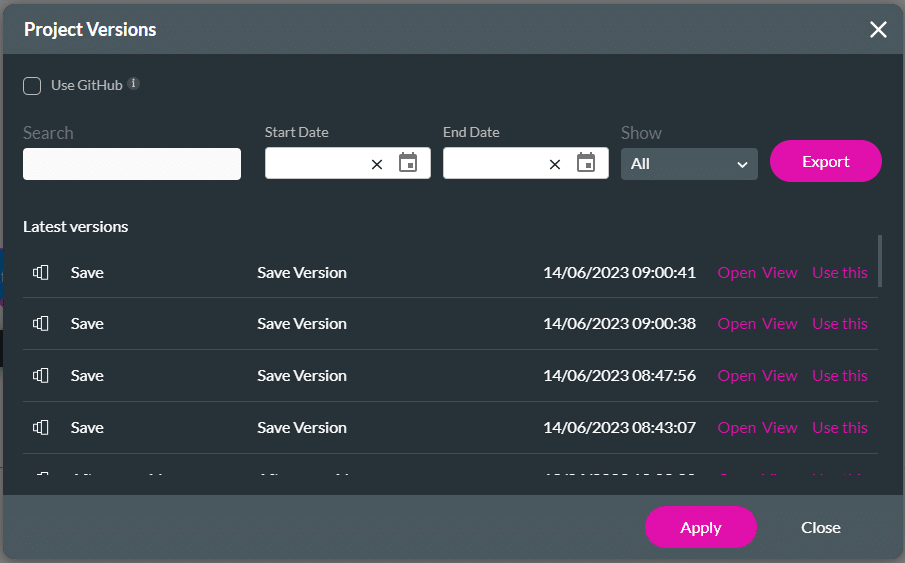
This option lets you provide a name and description for better version management.


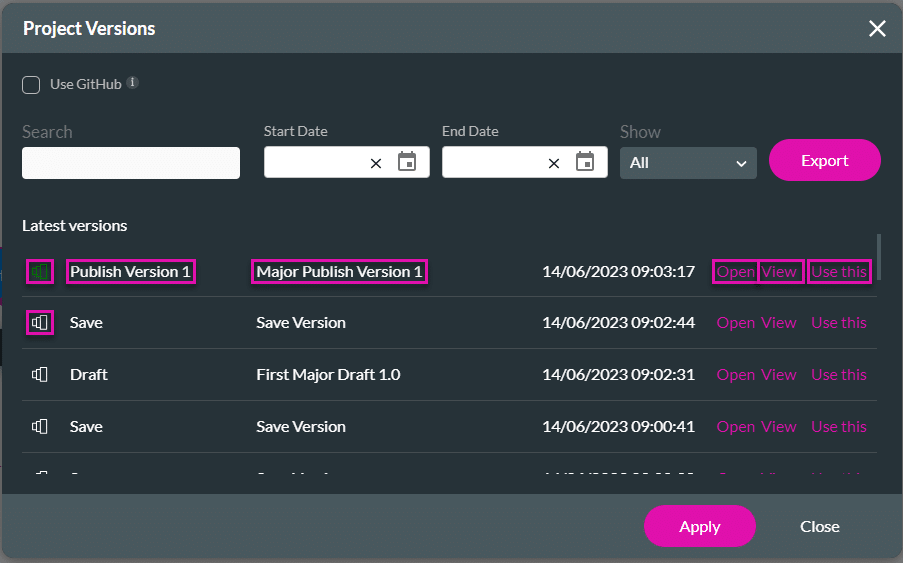
| Option | Description |
|---|---|
| Open | Click the Open option next to a version. That version opens in a new tab. – This project can only be viewed and compared to the currently open project. – This version of the project cannot be Saved, Previewed or Published.
|
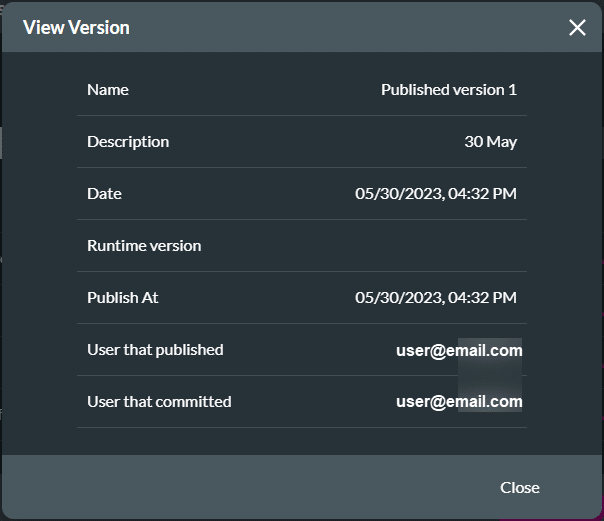
| View | Click the View option to open the View Version screen. The following information is shown: – Name – Description – Date in the formatDD/MM/YYYY, hh:mm AM or PM – Runtime version (the Titan software version) – Published at (only when the project has been published) – Email address of the user who published (only when the project has been published) – Email address of the user who committed the version
|
| Use this | Click the Use this option to revert to the selected version. |
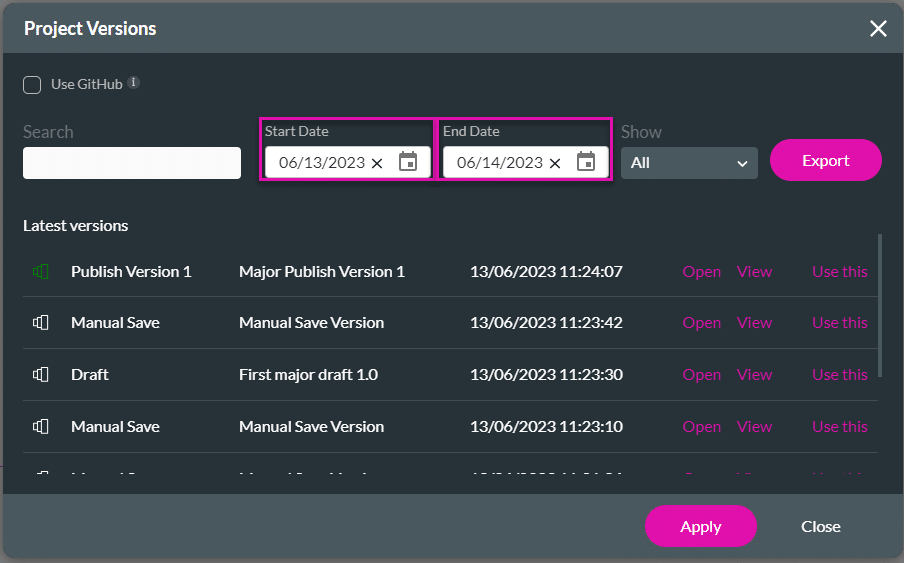
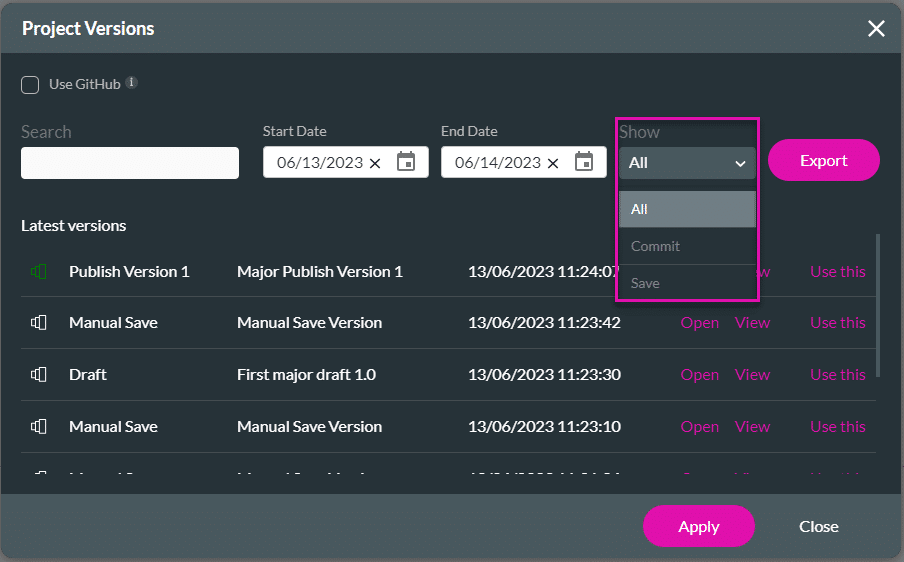
Note:
Prerequisite:
Browse to the Titan Dashboard > Settings > GitHub > Authenticate button.

Ensure that you have enabled and authenticated GitHub to track your versions using GitHub.
Note:
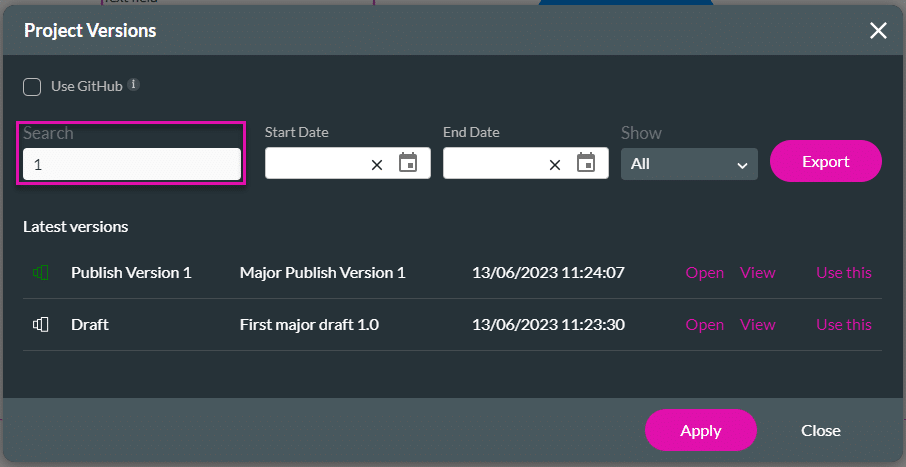
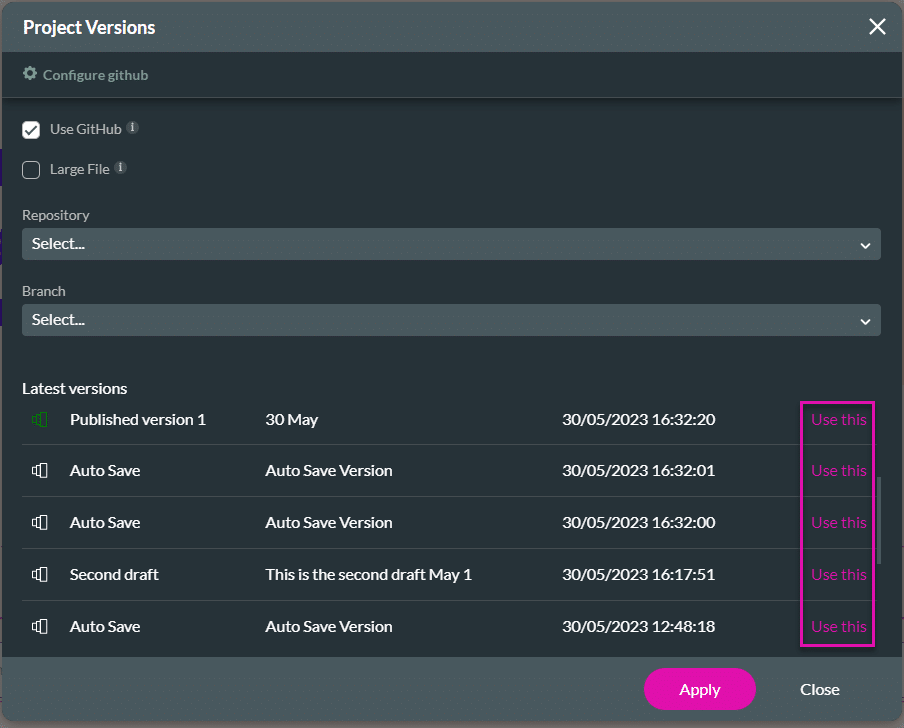
When you use GitHub, the screen changes and you can only use a version.
The Open and View options are only available when you use the Titan option for version control.


Learn more about Titan’s native integration with the Salesforce Experience Cloud.
Easily design, deploy, and measure custom web applications directly from Salesforce using Titan’s drag-and-drop web page builder.