How can we help you?
You can dynamically change the last step’s outcome based on user interaction. If the number of steps in your stepper (for example) depends on user input, you can add conditional logic to the last step.
For instance, if a user completes an application form with five steps, but based on their answers, they don’t need to see the fifth step as it does not apply to their situation, you want the Submit button on the last step that this specific user sees, that is the fourth step in this example.
You can add conditions to suit your business needs in a few clicks with no code.
We added differentiation to the stepper, accordion, and tab elements so that you can configure conditions for the first and/or last step of the container. The last step may depend on the information a user completes and may differ for different users depending on their situation.
You can configure conditions applicable to the last step for a scenario, regardless of the number of steps in the element.
Note:
We added the following attributes:
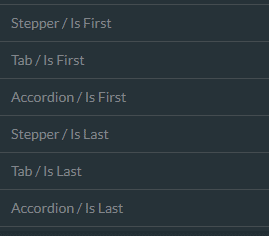
When the user clicks on the first step, the Container/Is First is True by default.
When the user clicks on the final step (that applies to them, or the final step of the container), the Container/Is Last is True by default.
When the user clicks on any other step, the Container/Is First is False and the Container/Is Last is False.
Note:
Prerequisites:

We will explain this with the following example for a stepper element:
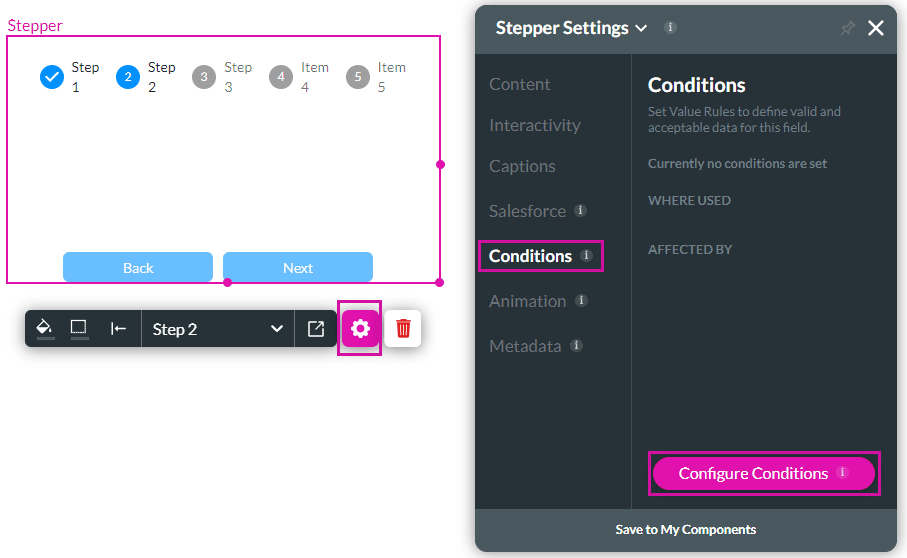


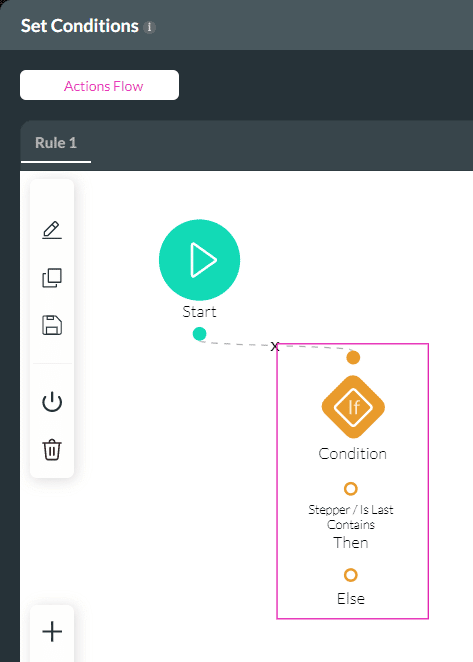
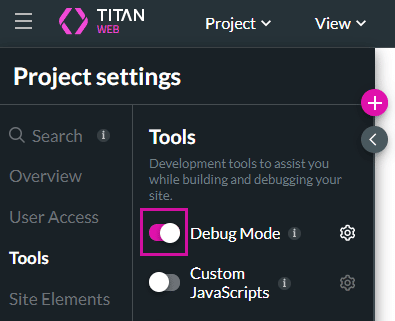
Path:
Project Settings > Tools > Debug Mode
In this example, the following options have been clicked:

The Debug Project screen opens.
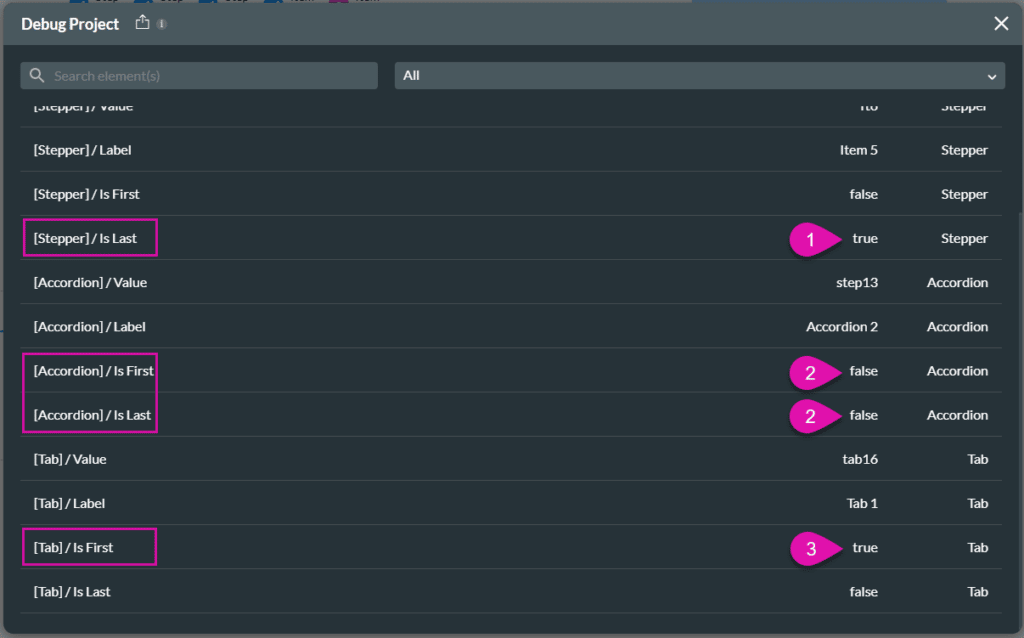
You will see the following, based on the current example:









