How can we help you?
To control the access permissions on your project for different users, you need to set up and manage different roles for these authenticated users.
Titan lets you set up and manage permissions with a few clicks and no code. You can control any data, action, or element on the project that the user interacts with.
Read more on our best practice advice: How to maximize access control in Titan Web.
Note:
Prerequisites:
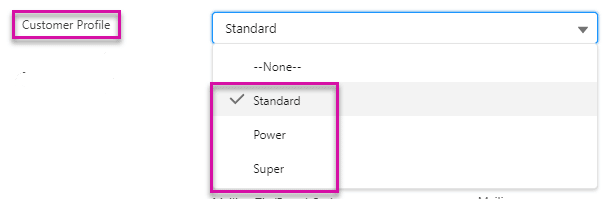
1. Make sure you have role fields defined on the object that you use to authenticate users with in Salesforce. For instance:
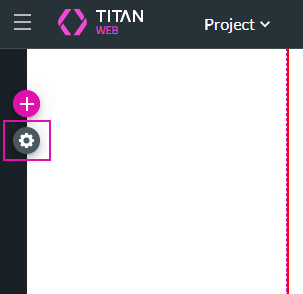
2. Make sure that Access Control has been enabled and configured. Click here for more information.
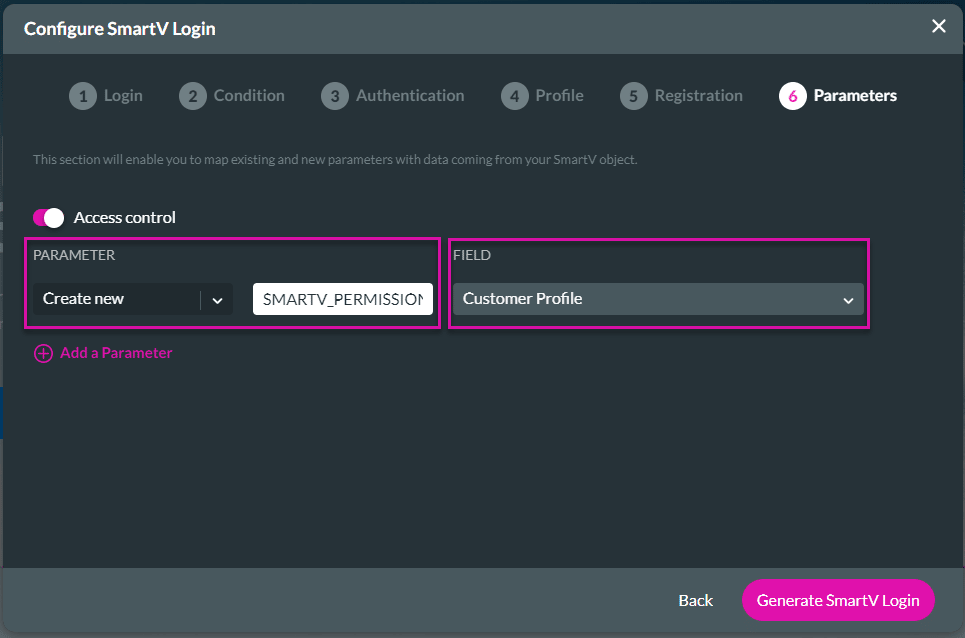
3. Select the field in Salesforce where you defined the different roles. Click here for more information.
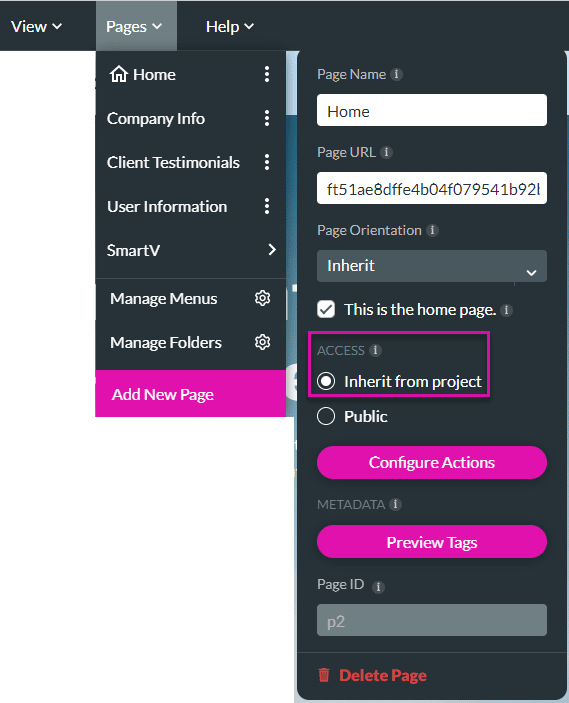
4. Make sure the page access setting is Inherit from project. Click here for more information.

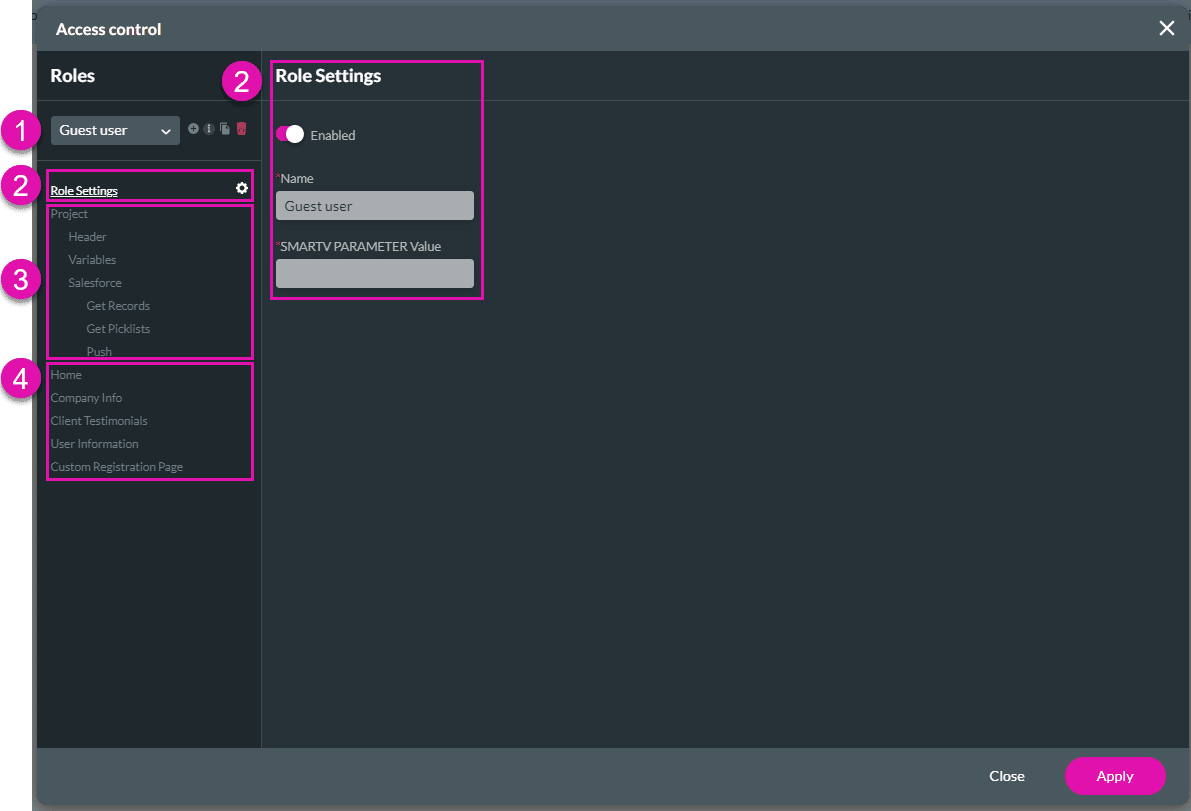
Just a quick overview of this screen:
| Number | Access Control screen | Description |
|---|---|---|
| 1 | Roles | Use the drop-down list to select a user, for instance: – Guest user: This user hasn’t logged in yet. – Fallback Role: this is the standard role, unless they are one of the roles that you have configured in Salesforce, for instance:
|
|
|
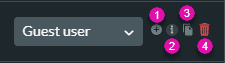
1. Add a user. 2. Link to the support video. 3. Copy a user. 4. Delete a user. |
|
| 2 | Roles Settings | The right side of the screen is populated based on what you select on the left side of the screen. In this example, the Role Settings have been selected. |
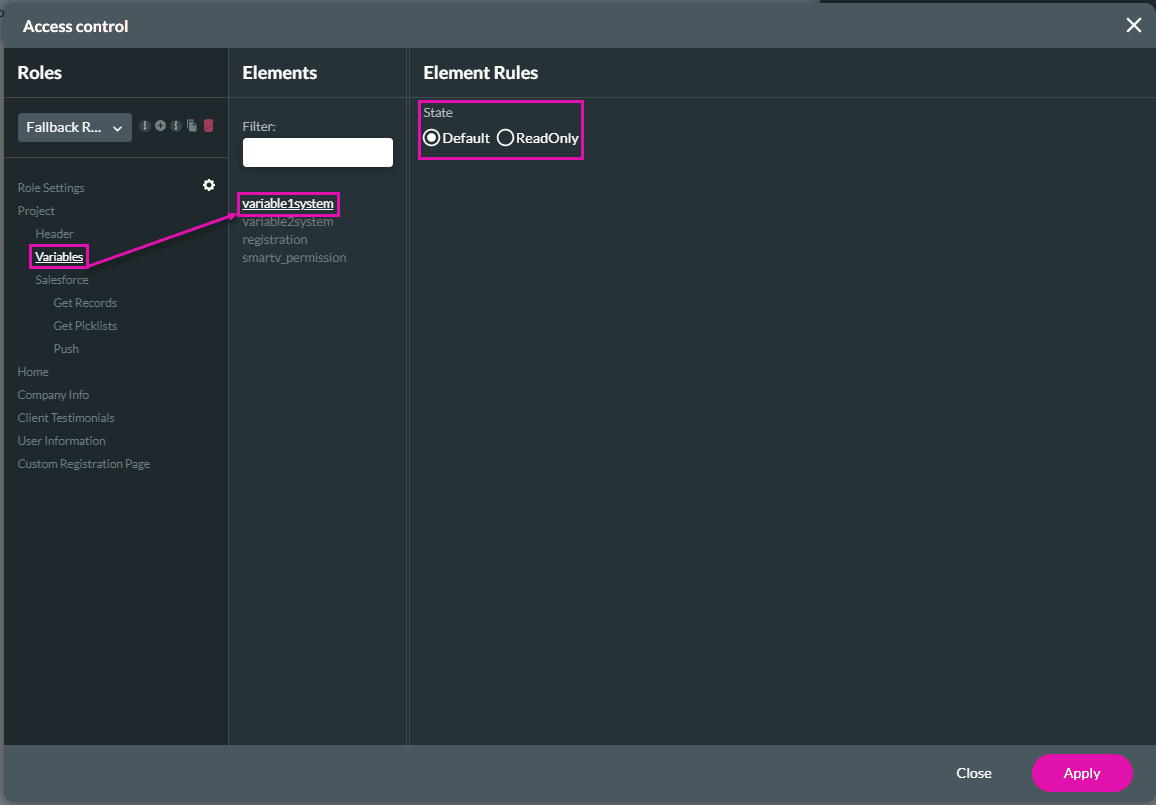
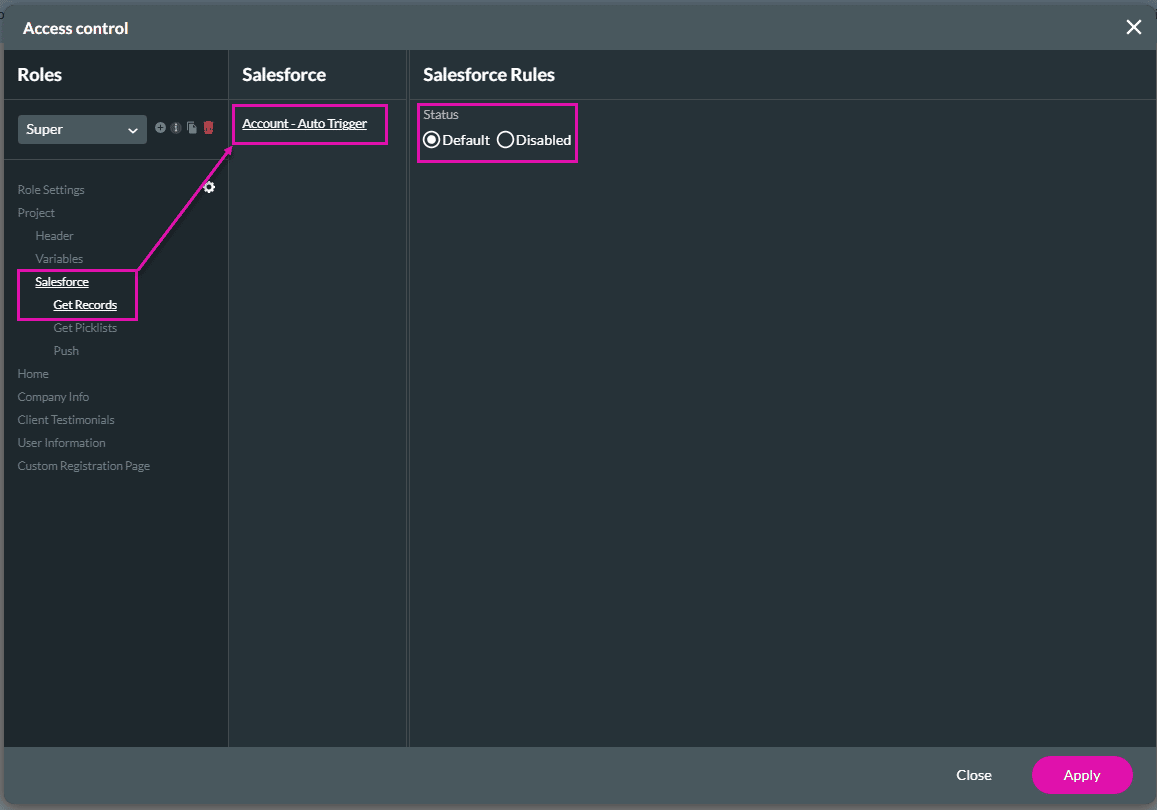
| 3 | Project | Select options under Project to configure the access control for the elements and page rules. The right side of the screen changes when you select an option under Project. Configure the Salesforce access control under the Salesforce option. |
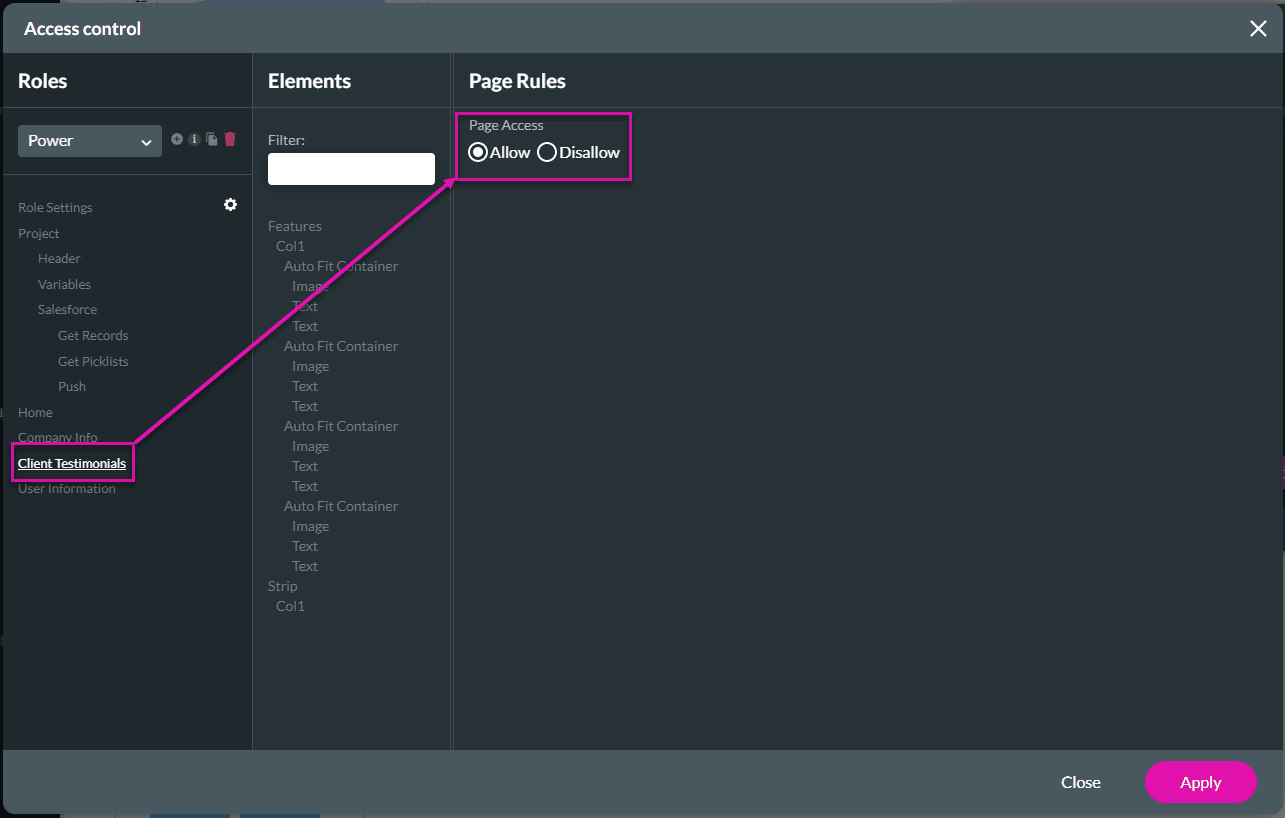
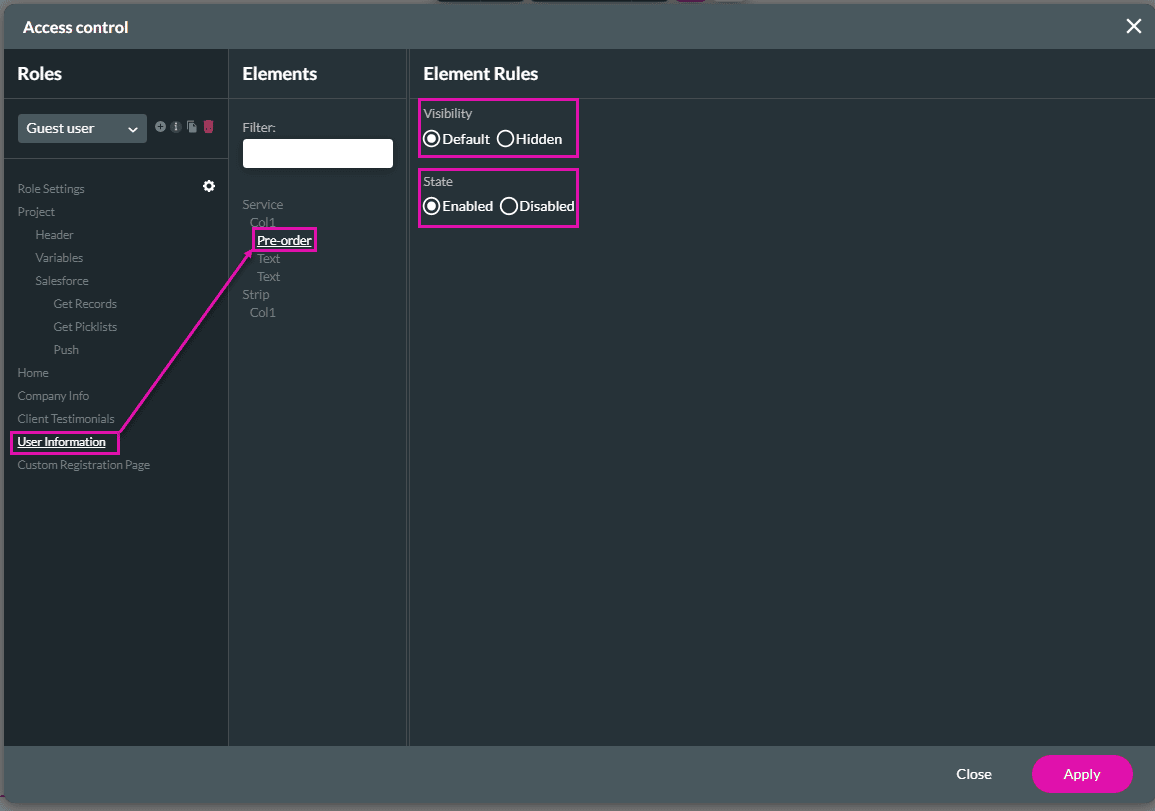
| 4 | Pages | Select Page options to configure the access control for the elements and page rules. The right side of the screen changes when you select a Page option. |

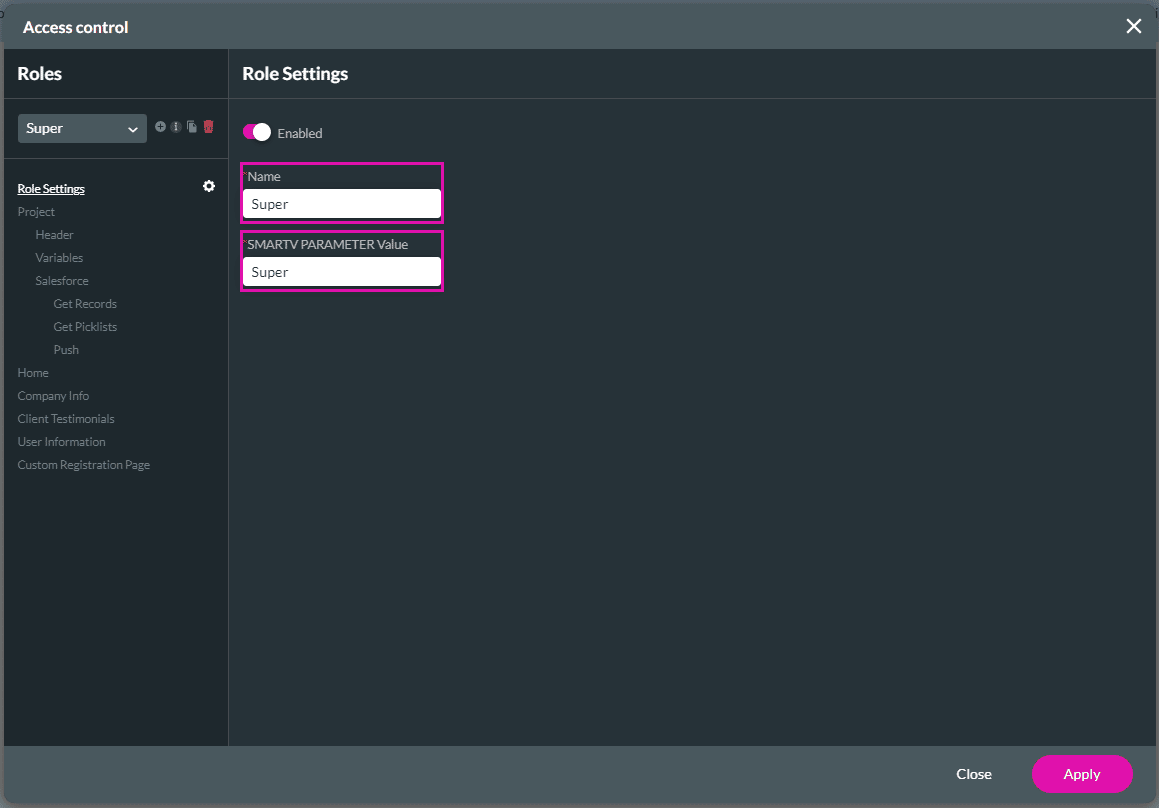

Note:
If users try to open a page that has been disallowed, they will see the message below: