How can we help you?
When your project needs to store and reuse information, you can use custom variables to manage values throughout the user journey. Variables help you hold data such as user input, calculated values, Salesforce data, or temporary values used in actions and conditions.
This makes it easier to pass information between pages, control logic, personalize content, and support more complex project behavior.
Titan lets you create and manage various types of variables based on your project needs, including global, local, system, and static variables.
You can organize variables into folders, define values where needed, and reference them across supported project settings, actions, and logic. This helps keep your project data structured and easier to manage.

You can set the following variable:
| Variables | Function |
|---|---|
| System | Add system variables to use in your custom conditional logic. You can also populate an input field or a Salesforce field with a system value. |
| Static | Use static variables to affect elements, either from Salesforce, project elements, or other variables. |
| Environment | Configure environment variables. An environment variable is a value that users can define to affect how processes behave on a computer. |
| Numeric | Create a numeric variable that will let you perform dynamic calculations and store them, send them via email, or push them to Salesforce. |
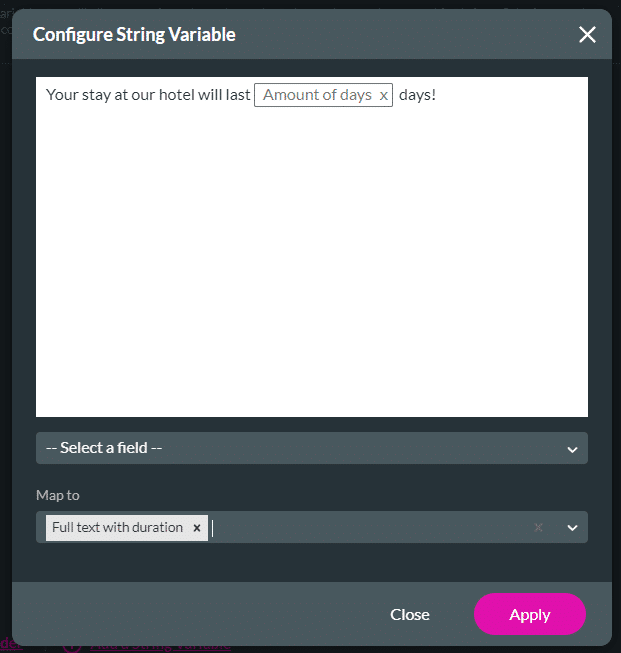
| String | Create a text variable that will allow you to perform dynamic manipulations using text inputs and fields from Salesforce and store them, send them via email, or push them to Salesforce. |
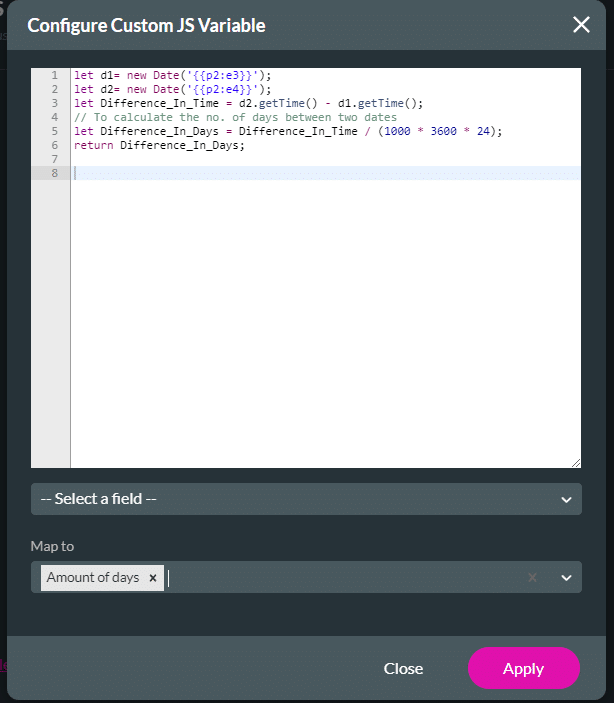
| Custom JS | Create a fully customized variable that will hold a JS code. |

Learn more about System Variables.




The new folder will display under the All option.

Learn more about how to use variables.









