How can we help you?
Update the stored information without creating a new submission.
Titan lets you temporarily save information as a draft. The user can update the stored information without creating a new submission.
The submission will be saved in your Salesforce under the Titan-managed package submission object and will not require any customization from the organization’s side. All these are pre-built in the product and the application.
Refer to this article for more information on how to create and store a submission.
Use the Store Submission JSON option to save the file to a custom object in Salesforce, or an external location, for instance, Google Drive.
Storing a submission allows the administrator to choose what will be saved and when. The submission will be saved in your Salesforce under the Titan-managed package submission object. It will not affect other Salesforce data.
Note:
Prerequisite:
Gear icon > Project Settings > Tools > Custom Variables

The Submission ID and Project ID parameters will be used when loading a submission.
In this example, we have a form that a customer can complete, and a Update button that will update the existing submission.

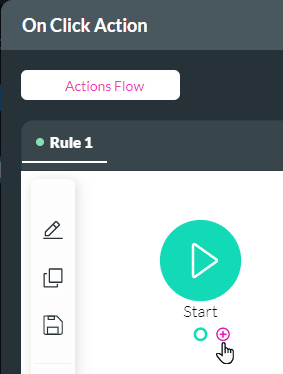
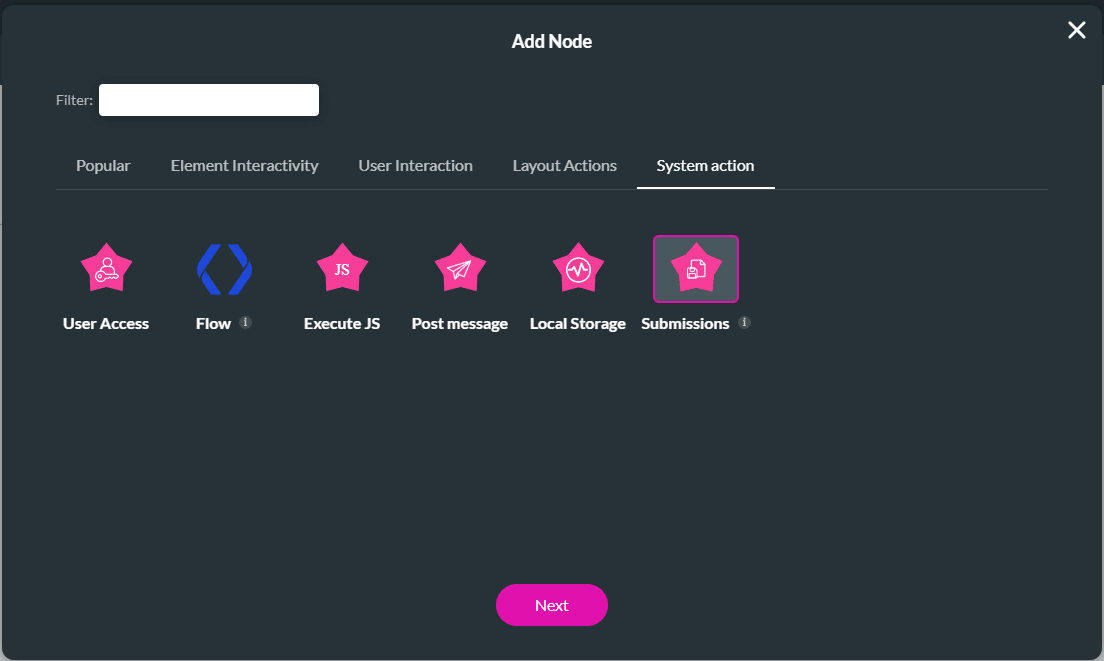
Warning:
Make sure that the labels used when you configured the Store Submission action are the same as the labels that are used when you configure the update.
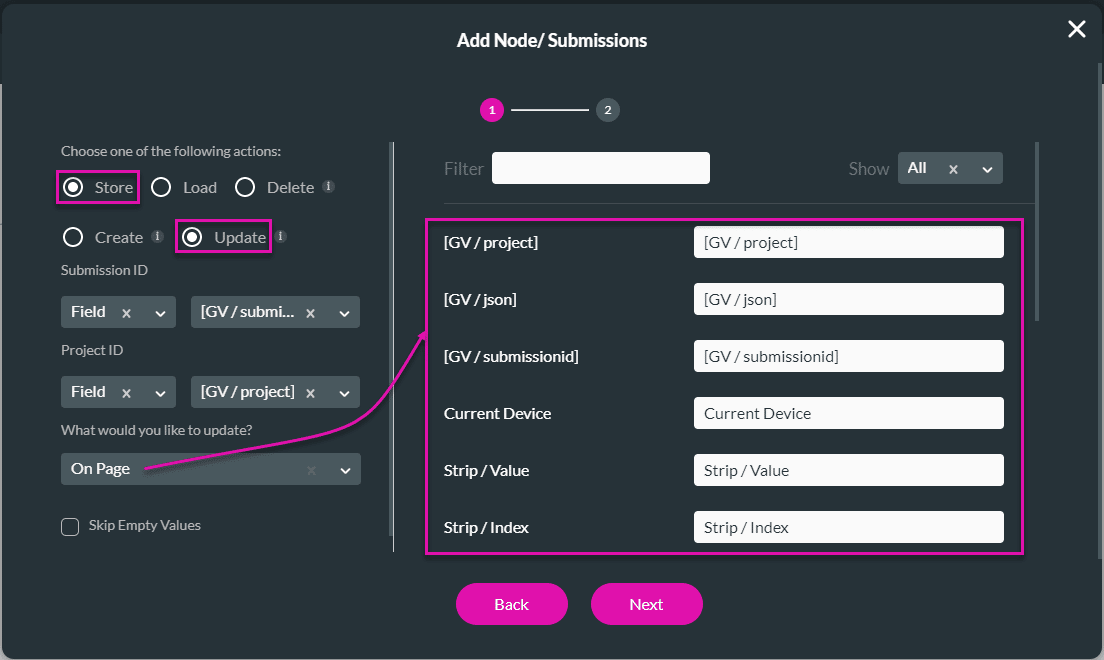
| Option | Screen |
|---|---|
| On Page | 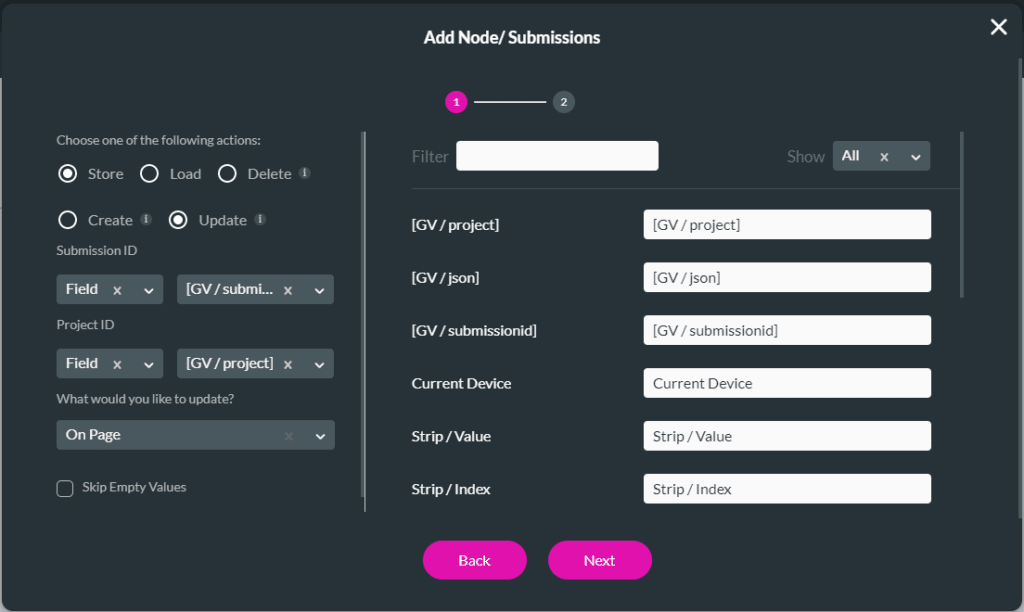 |
| From Strip | Use the Strip Element drop-down to select a stip.
|
| Field | Use the Fields to Store drop-down to select a field. You can only select one field.
|
| Field Group | Use the Fields to Store drop-down to select fields. You can select multiple fields.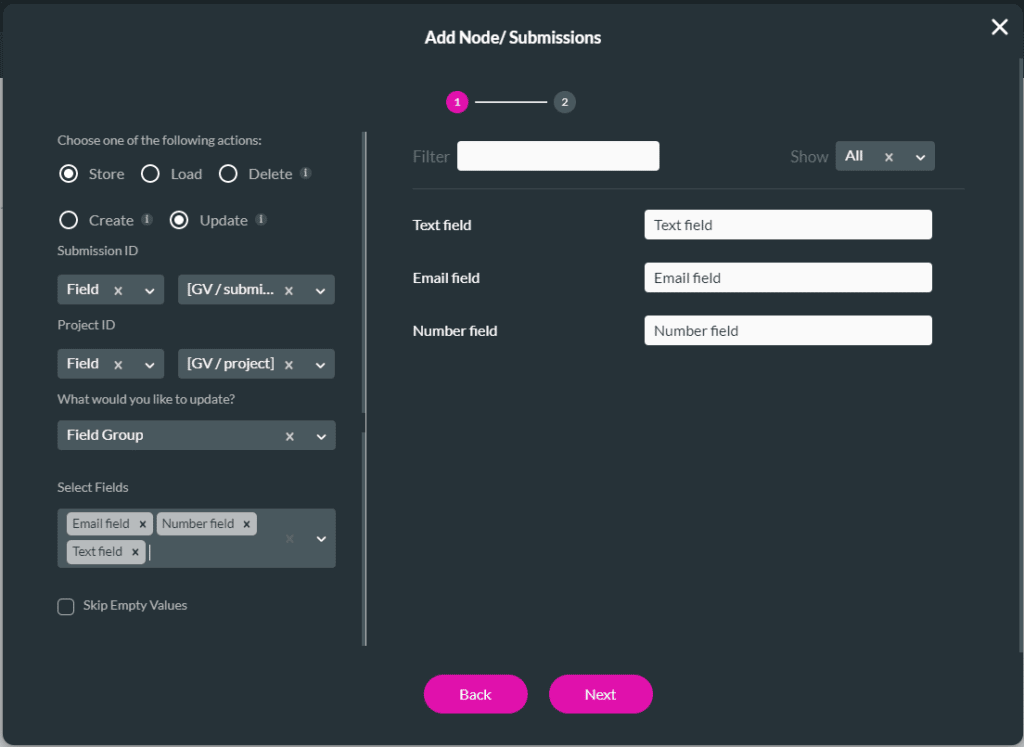 |
In this example, On Page will be used:
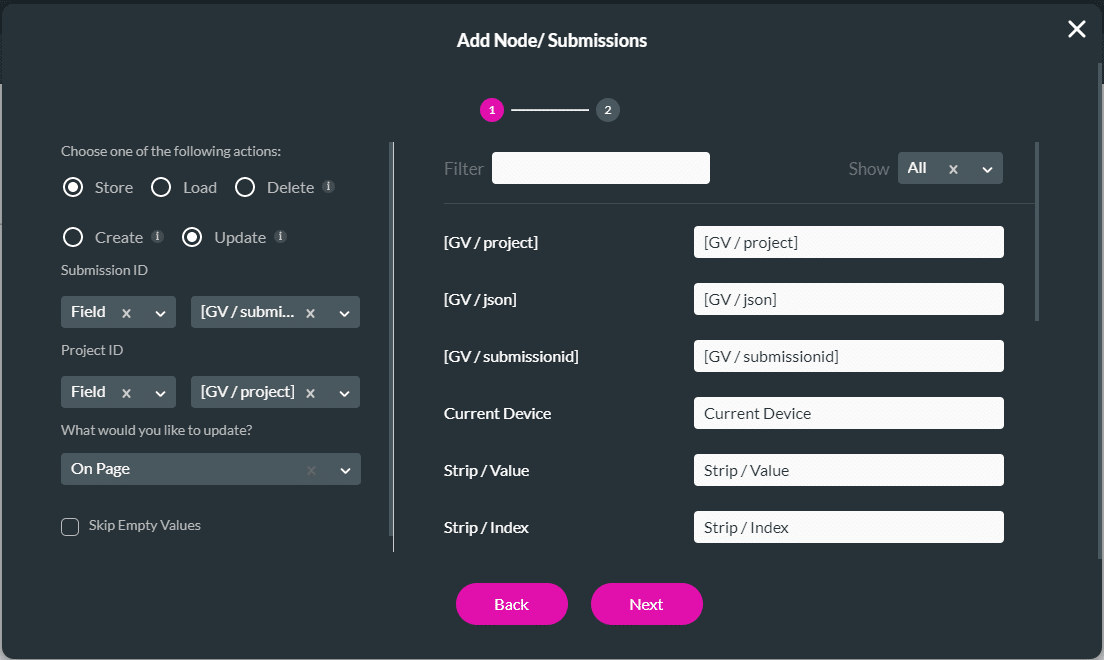
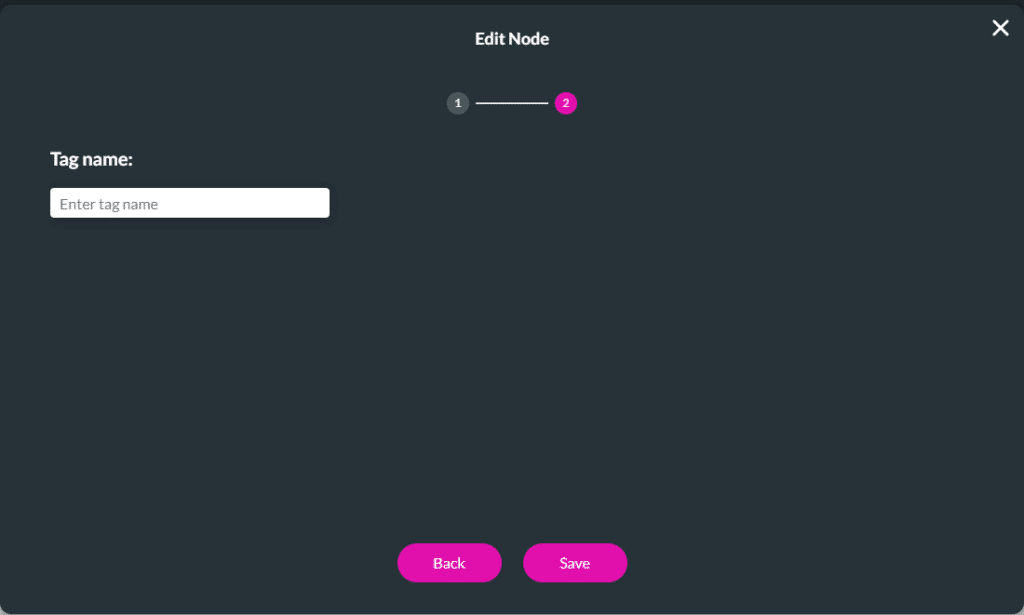
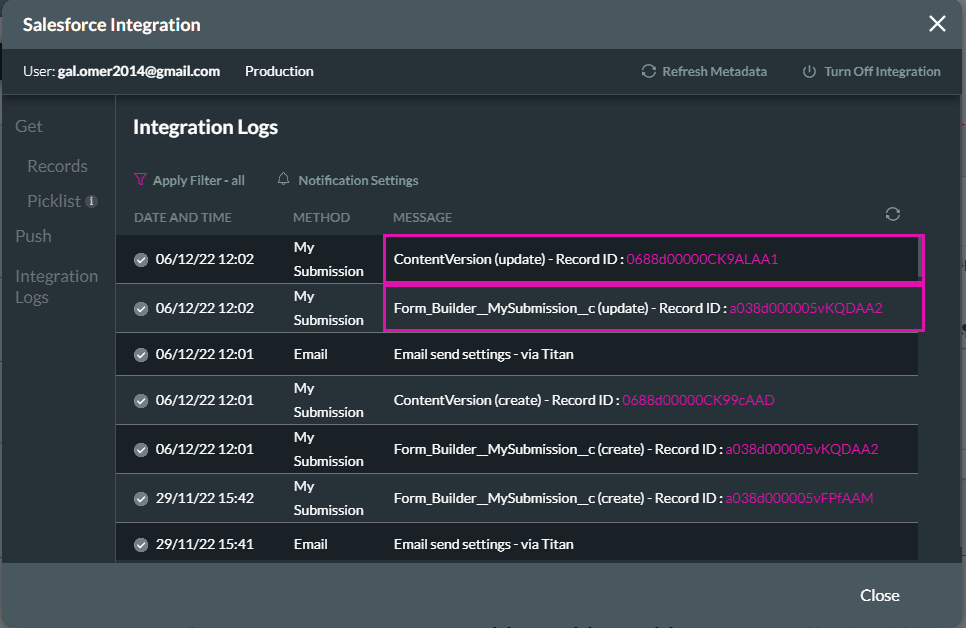
You can test whether the submission was successful:
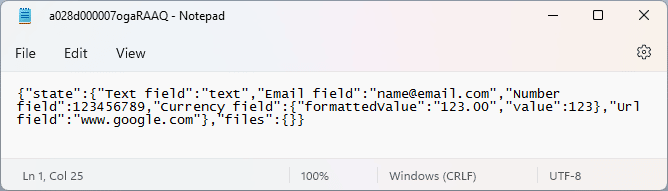
The JSON file opens via Salesforce, for instance: