How can we help you?
Titan assigns tracking information to related integration logs, helping you follow a process from its initial action through document generation, Salesforce updates, emails, and other integrations.
You can use the Journey ID to display the logs associated with one document generation or signing process. For Titan Sign, you can also use the Signer ID to isolate the activity associated with a specific signer.
This makes it easier to identify where a process failed without having to search through unrelated integration logs.
Use these fields when you need to:
The Journey ID groups related actions that form part of a single process. Titan creates a Journey ID when a process begins and continues using the same ID as the process moves through connected actions.
Depending on how the process starts, the associated logs may include:
Once created, the same Journey ID continues through related actions, including:
For example, when a process starts from a Salesforce button, the Journey ID assigned at the beginning remains associated with the subsequent document generation, signing, Salesforce operations, emails, webhooks, and configured Flow continuation. You can therefore use a single Journey ID to trace the associated actions in the Integration Logs.
For Titan Sign, the same Journey ID remains associated with the process while Titan waits for each signer. Later signing activity and post-sign actions remain connected to the original process.
The Signer ID identifies the signer associated with an action in a Titan Sign process.
All signers in the same signing process share the same Journey ID. However, each signer has a separate Signer ID, allowing you to review their activity individually.
For example:
| Tracking Field | Purpose |
| Journey ID | Displays activity across the full signing process |
| Signer ID | Displays activity associated with one signer |
For example, if a document has two signers, you can filter by the Journey ID to review the full signing process. You can then add a Signer ID filter to display the activity associated with one signer.
Opening the account settings gives you access to account-level activity and integration records.
The Integration Logs screen displays the operations performed by your Titan projects and their connected services.

The Integration Logs table can include the following tracking columns:
These fields are added to the existing log information. Details such as the project, integration type, date, status, and error information remain available.
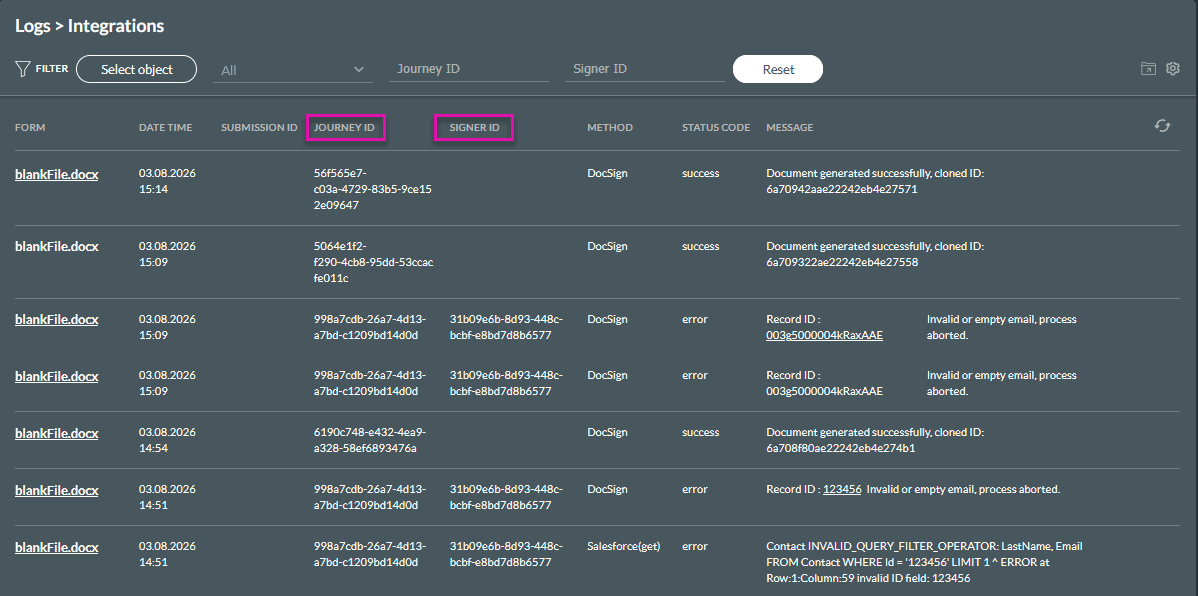
Use the Journey ID filter to review the complete activity chain for a single process.
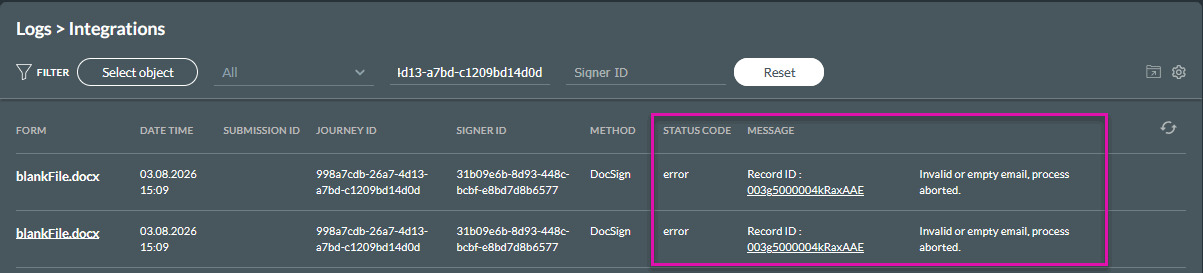
Titan displays the available logs associated with that Journey ID. You can then check each operation to determine where the process succeeded or failed.
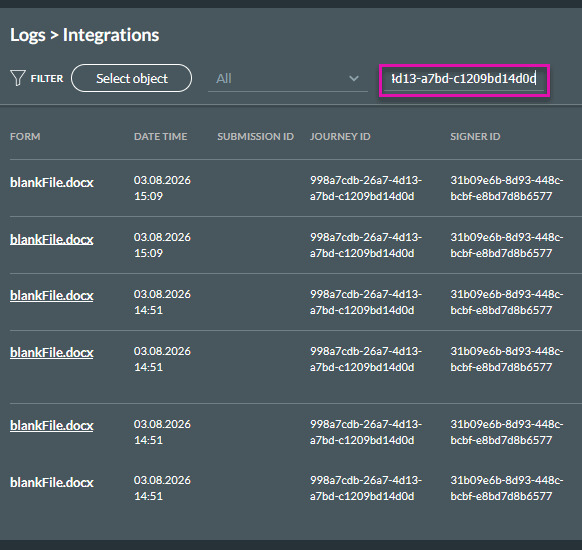
Use the Signer ID filter when a document has multiple signers, and you need to investigate one signer’s activity.
Titan displays the logs associated with that signer within the selected process.
This is particularly useful when one signer completes the document successfully, but another experiences an error.
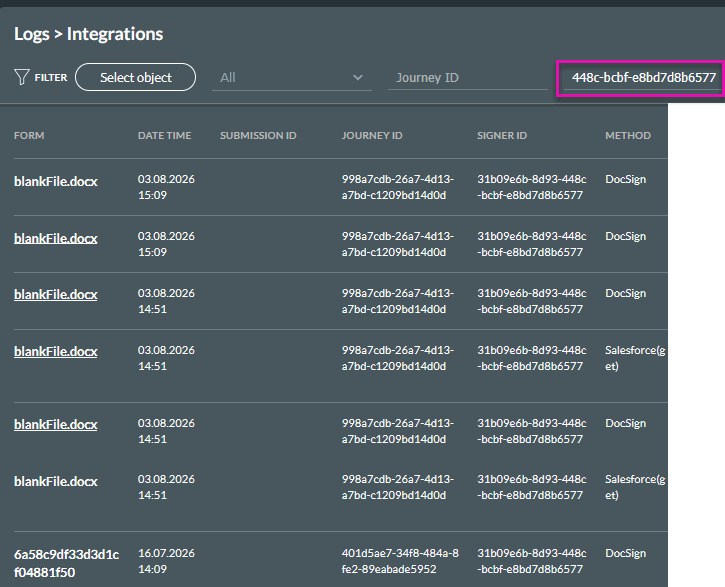
Select Reset to clear the Journey ID and Signer ID filters and return to the unfiltered log list.
Resetting these fields does not remove or change any integration logs.
A Titan Sign process can create logs for several actions, including:
Use the Journey ID to display activity across the full signing process. If there are multiple signers, add a Signer ID filter to isolate a single signer’s activity.
Signers using the same device still receive separate Signer IDs. This prevents one signer’s activity from being grouped with another signer’s logs.
For document generation, Titan assigns Journey IDs according to the action being performed.
When a user generates a document for a Salesforce record, related logs for document generation, Salesforce operations, integrations, and email delivery share the same Journey ID.
When multiple documents are generated separately, each document run can receive a different Journey ID. This lets you investigate a single document without including logs from other document runs.
A merge process can include tracking for the overall merge and the individual document runs that contribute to the merged output.
Documents generated from a Salesforce list view or automation are also tracked. Separate records or document runs can have their own Journey IDs, preventing simultaneous actions from being grouped incorrectly.
Logs created when previewing or emailing generated documents can also include a Journey ID, allowing these actions to be traced in Integration Logs.
If a document generation or signing process fails:
The last successful entry can help you identify which action was completed before the error occurred.
No. Background operations or older logs may not contain a Journey ID. These logs are still recorded and remain available in Integration Logs.
Signers participating in the same signing process share the same Journey ID. Each signer receives a separate Signer ID.
Yes. Titan maintains a separate Signer ID for each signer, even when multiple signers complete their actions on the same device.
No. Titan retains the Journey ID for the signing process so that later signer activity and post-sign integrations remain connected to the original process.
When documents are generated as separate runs, Titan uses different Journey IDs so that you can inspect each run independently.
No. Reset only clears the filters applied to the Integration Logs screen. It does not delete or modify log records.
Include the Journey ID for the affected process. For a Titan Sign issue involving one signer, include the Signer ID as well. These values help the support team locate the relevant activity more quickly.
On this page