How can we help you?
Configure who signs, reviews, or receives a copy of your document. Use Salesforce records to retrieve participant details and set conditions to select the right people for each signing process.
For example, you can select a customer from Salesforce to sign an agreement, add an internal reviewer to approve it, and include a colleague who needs a copy of the completed document.
Dynamic signers and dynamic documents are separate settings. Dynamic signer configuration retrieves participant details from Salesforce and can be used with static or dynamic documents. A dynamic Word document uses the Titan Word add-in to populate content from a data source.
If the number of signers varies between records, use Signer Sections. For private access to PDF documents, see Private Document Access.
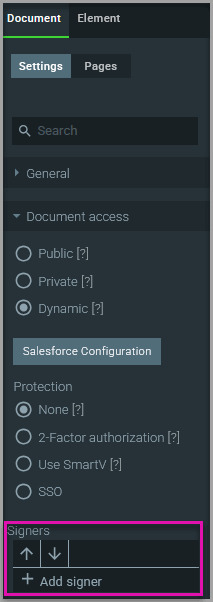
Add a participant and connect their details to Salesforce so Titan can select the appropriate person when the signing process runs.
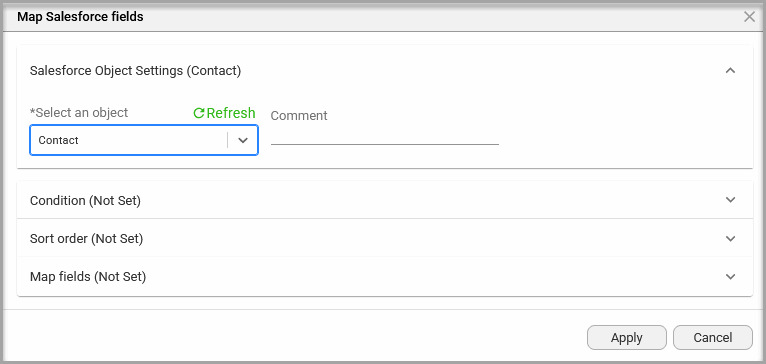
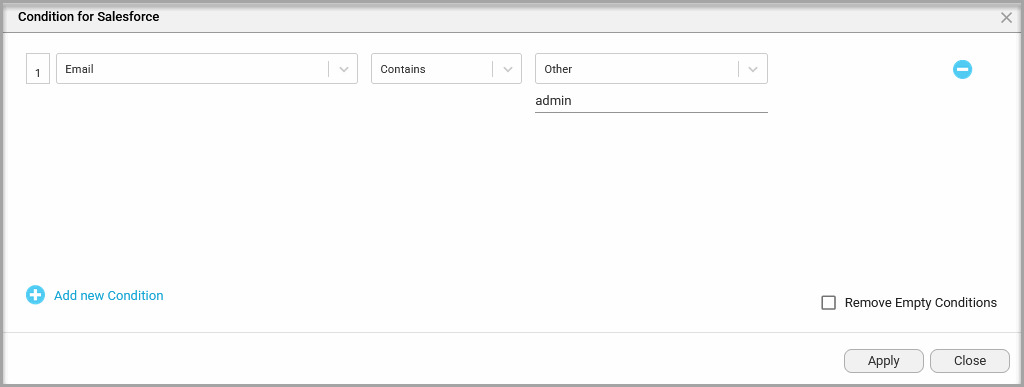
Conditions determine which Salesforce records Titan retrieves. Use them to select the intended participant instead of retrieving unrelated records from the same object.
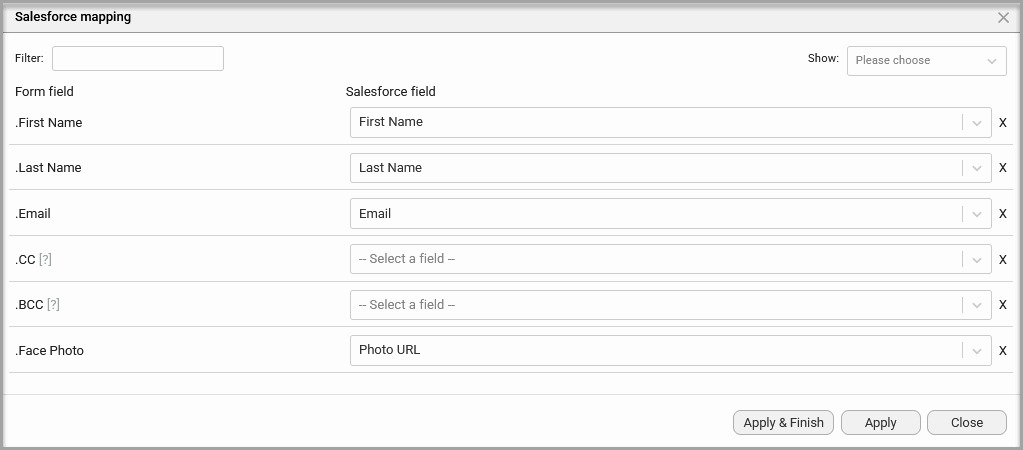
Map the Salesforce fields so Titan can retrieve the participant’s name and email address.
To add more participants, repeat the process for each one. Configure their Salesforce object, conditions, and field mappings to meet your requirements.
Choose a role based on what the participant needs to do in the signing process.
| Signer Type | What the Participant Does | When to Use It |
|---|---|---|
| Signer | Signs the document and receives a copy of the signed document at the end of the process. | The participant must provide a signature. |
| Reviewer | Reviews and approves the document and receives a copy of the signed document. | The participant must approve the document. |
| CC | Receives a copy of the signed document. | The participant needs the completed document for their records. |
| SF Signer | Signs using a link stored in a Titan Sign Tracking record in Salesforce. Their identity is unknown during setup, and they can be external to Salesforce. | You need to identify the signer and send their signing link later. |
For SF Signer, follow the Salesforce Signers guide to configure tracking and distribute the signing link.
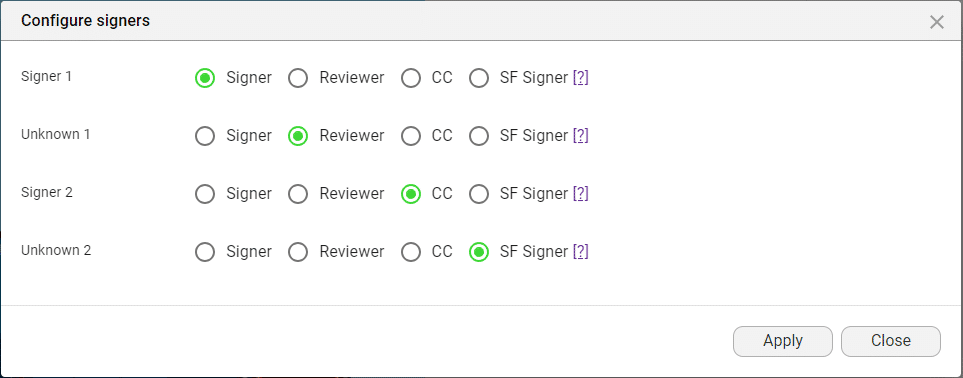
Use the arrow buttons beside the participants to move them up or down in the list.
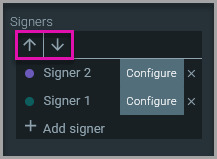
Each participant has a unique color. Elements assigned to that participant use the same color, helping you identify which fields belong to each person in the builder.
After configuring participants, assign the interactive fields to the appropriate signers.
Watch Configure Signer Types in Titan Sign for a demonstration.
Yes. Dynamic signer configuration can be used with static or dynamic documents. The setting controls how participants are selected.
A reviewer reviews and approves the document. A CC recipient receives a copy of the signed document. Both receive the completed document.
Set conditions on the Salesforce object used for the participant. Titan uses these criteria to filter the records it retrieves.
Use Signer Sections for a dynamic number of signers in a dynamic document.
On this page